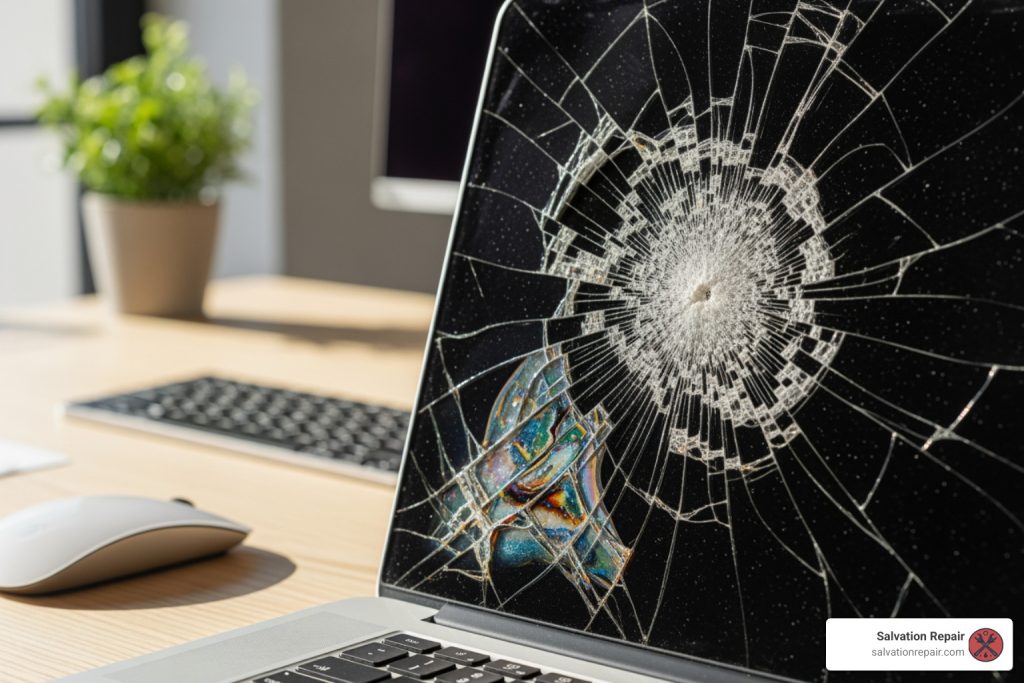
Broken laptop screen: Ultimate Fix 2025!
Why Your Broken Laptop Screen Doesn’t Mean Game Over
A broken laptop screen can feel like a disaster—especially when you’re in the middle of work, gaming, or streaming. But here’s the good news: most screen issues are fixable, and you have options that won’t break the bank.
Quick Answer: What to Do About a Broken Laptop Screen
- Diagnose the damage – Connect to an external monitor to see if your laptop still works
- Back up your data immediately if you can still access your files
- Decide on repair – DIY costs $50-$200, professional repair runs $200+
- Consider your warranty – Some plans cover accidental damage
- Prevent future damage – Use a padded case and avoid closing your laptop on objects
Whether you’re dealing with a spiderweb crack, dead pixels, or a completely black display, the right fix depends on your laptop’s age, the damage severity, and your comfort level with electronics. Professional screen repair can cost $200 or more, while a DIY approach might run under $100—but it comes with risks like voiding your warranty or causing additional damage.
Some screen problems aren’t even hardware issues. According to troubleshooting forums, display driver problems can sometimes mimic a broken screen, making your laptop appear dead when it’s actually a software fix. That’s why diagnosis is your first critical step.
As Ralph Harris, with over 20 years in electronics repair and more than 500 Apple repair certifications, I’ve seen thousands of cases involving broken laptop screens—from simple cracks to complex touchscreen failures. Through Salvation Repair, we’ve helped extend the life of countless devices that would have otherwise ended up in landfills, and I’m here to guide you through your options.
Relevant articles related to Broken laptop screen:
First Steps: Diagnosing the Damage and Protecting Your Data
When your laptop screen goes kaput, it’s easy to panic. But before you do anything drastic, let’s take a deep breath and figure out exactly what’s going on. The first step is always to diagnose the problem, and then, crucially, to protect your valuable data.
Assessing the Damage to Your Broken Laptop Screen
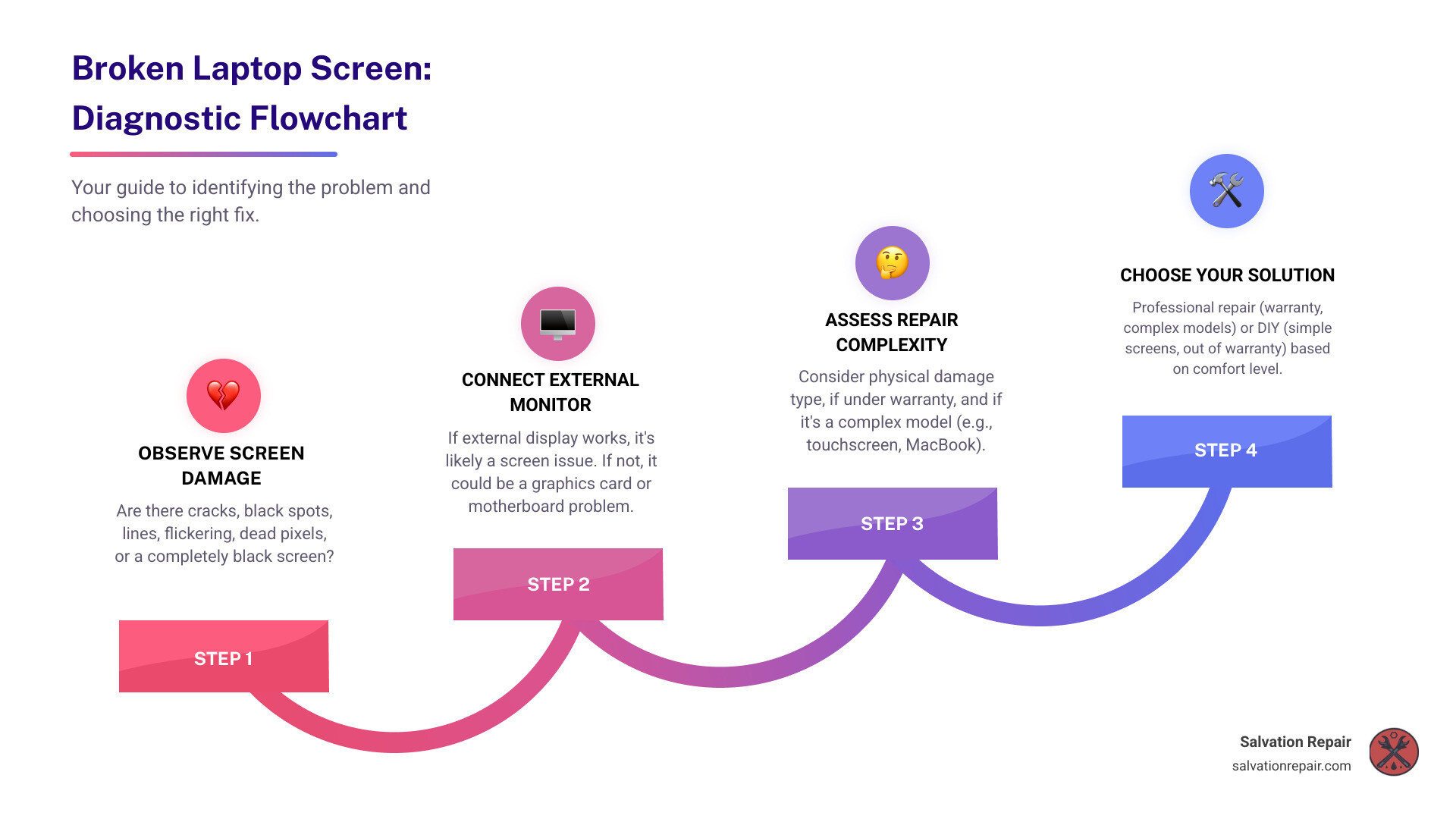
A broken laptop screen isn’t always just a crack. It can manifest in many ways, and understanding the type of damage you’re facing will help us determine the best course of action. Here are the common signs we look for:
- Physical cracks or spiderweb patterns: This is the most obvious sign of a physically broken laptop screen, usually caused by impact or pressure. If you see large black or colored bars, black holes, or colors that run, the liquid crystal inside the LCD screen has likely spread, making the display unusable.
- Black spots or inkblots: These often indicate localized damage where the liquid crystal has been compromised, even if there isn’t a visible crack on the surface.
- Vertical or horizontal lines: These can be single lines, multiple lines, or entire sections of the screen displaying distorted patterns. This could be a sign of physical damage to the panel itself, or sometimes, a loose internal video cable.
- Flickering display: If your screen intermittently turns on and off, or constantly flickers, it could be a sign of a loose connection, a failing backlight, or even a bad lid sensor that thinks you’re constantly opening and closing the laptop.
- Dead pixels: These are tiny black, white, or colored dots that remain static, no matter what’s displayed on the screen. While annoying, a few dead pixels don’t always mean the entire screen is trashed, but they are a sign of screen damage.
- Black screen with power on: Your laptop seems to be running (fans spinning, indicator lights on), but the screen remains completely black. This could be a physically damaged screen, a problem with the backlight, a faulty video card, or even a software issue like a deleted graphics driver.
The functionality of your laptop is severely affected by a broken laptop screen. Even if the laptop still powers on and runs, you can’t interact with it properly. This makes simple tasks like saving documents or browsing the web nearly impossible, and accessing your files becomes a major headache.
How to Connect to an External Monitor for Diagnosis
One of the most crucial diagnostic steps for a broken laptop screen is connecting your laptop to an external monitor. This helps us determine if the problem is confined to the screen itself, or if there’s a deeper issue with your laptop’s graphics card or motherboard. If the external monitor works perfectly, then we know the heart of your laptop is still beating, and the issue is indeed with the internal display or its connection.
Here’s how to do it:

- Identify your ports: Most laptops come with an HDMI port, which is the most common for connecting to TVs and monitors. Older laptops might have a VGA port, while newer, thinner models often use USB-C or Thunderbolt ports, which may require an adapter to connect to a standard monitor.
- Connect the cable: Plug one end of the appropriate cable (HDMI, VGA, or USB-C with adapter) into your laptop and the other end into your external monitor or TV.
- Power on and select input: Make sure your external monitor is also powered on and set to the correct input source (e.g., HDMI 1, VGA).
- Toggle display output: If your laptop doesn’t automatically display on the external monitor, try these methods:
- Windows + P: On Windows laptops, press the
Windows key + Psimultaneously. This brings up a projection menu where you can choose “Duplicate,” “Extend,” “Second screen only,” or “PC screen only.” Select “Second screen only” or “Duplicate” to force output to the external display. - Function keys (F1-F12): Many laptops have a dedicated function key (often indicated by an icon resembling two screens) that toggles display output. This key usually needs to be pressed in combination with the
Fnkey. Check your laptop’s keyboard for icons near the F-keys.
- Windows + P: On Windows laptops, press the
If your laptop’s display driver was accidentally deleted, as some users have experienced, this step is vital. Even if your internal screen is dark, successfully connecting to an external monitor can give you a visual interface to reinstall drivers or perform other necessary software fixes. For more troubleshooting steps, you can consult resources like HP’s guide to screen issues, which covers both hardware and software problems.
How to Back Up Your Data from a Laptop with a Broken Screen
Protecting your precious photos, documents, and work files is paramount when dealing with a broken laptop screen. Even if you plan to repair or replace the screen, data backup should be your immediate priority. If you can successfully connect to an external monitor, this process becomes much simpler.
Here’s how we recommend backing up your data:
- Using an external monitor: Once your laptop is successfully displaying on an external monitor (as described above), you can steer your operating system as usual. Connect an external hard drive or a large USB flash drive to your laptop and simply drag and drop your important files. This is often the quickest and most straightforward method.
- Cloud storage sync: If you already use cloud services like Google Drive, Dropbox, or OneDrive, ensure they are synced. If your laptop can connect to the internet via the external monitor, your files might already be safely stored in the cloud. You can also manually upload any critical files you haven’t yet synced.
- Professional data recovery: If you can’t get your laptop to display on an external monitor, or if you’re uncomfortable attempting to retrieve data yourself, professional data recovery services are your safest bet. We can often extract data directly from your laptop’s hard drive or SSD, even if the entire system is non-functional.
For situations where data access is challenging or critical, we offer expert assistance. More info about our data recovery services.
To Fix or Not to Fix: DIY vs. Professional Repair
Once you’ve diagnosed the extent of your broken laptop screen and secured your data, the big question arises: should you attempt to fix it yourself, or is it better to call in the cavalry (i.e., us)? This decision often boils down to balancing cost, risk, and your personal comfort level with electronics.
Comparing the Costs of Repair
The cost of fixing a broken laptop screen varies significantly based on several factors, including the type of screen, the laptop model, and whether you opt for a DIY repair or professional service.
Here’s a general comparison:
| Feature | DIY Repair | Professional Repair |
|---|---|---|
| Typical cost for standard non-touch screen | $50–$200 for the replacement panel and basic tools | $200+ depending on model, labor, and parts |
| Typical cost for touchscreen / 2-in-1 | $100–$350 for parts (often full digitizer assemblies) | $250–$500+ depending on brand and complexity |
| Time required | 1–3 hours for most users (including research and setup) | 1–2 hours of technician time, often same-day at Salvation Repair |
| Skill level needed | Moderate to high: careful disassembly, handling fragile connectors | None required from you; handled by trained technicians |
| Risk of damaging other components | High if you are inexperienced | Low; covered by service guarantees and warranties |
| Warranty impact | Can void manufacturer or store warranty if you open the device | Work is covered by Salvation Repair’s lifetime warranty; we also help you avoid unnecessary warranty loss where possible |
| Convenience | You supply tools, parts, and workspace | Drop-off, mail-in, or on-site options; we handle sourcing parts and testing |
Touchscreens, high-resolution panels (like 4K), and premium ultrabooks or gaming laptops almost always cost more to fix than standard 1366×768 or 1080p displays, no matter which route you choose.
If you have a high-performance or gaming system and are weighing repair versus replacement, it can be especially helpful to talk to a pro first. You can learn more about what goes into these repairs here: More info about Gaming Laptop Repair.
The Risks of a DIY Repair
Swapping a laptop screen might look straightforward in online videos, but there are real risks involved:
- Voiding your warranty: Opening the case or removing the display assembly can void manufacturer or extended warranties, especially on newer or premium laptops.
- Causing further damage: It is easy to crack a new screen during installation, tear a delicate ribbon cable, or damage the plastic clips that hold the bezel in place.
- Incorrect part compatibility: Small differences in connector type, mounting points, or resolution can make a replacement screen unusable, even if it looks correct in photos.
- Personal injury from broken glass: Shattered glass and sharp metal edges can cause cuts if you are not using eye protection and handling the damaged panel carefully.
- Static discharge damage: Without proper ESD precautions, a static shock can silently kill your motherboard, RAM, or display controller.
If any of these possibilities make you nervous, that is a sign DIY may not be the best fit for this particular repair.
When to Seek Professional Repair
DIY is not the right choice for everyone. In many cases, professional repair is safer, faster, and more cost-effective in the long run—especially when you factor in warranties and the value of your time.
You should strongly consider professional help if:
- You have a complex model: Devices like MacBooks, Microsoft Surface laptops/tablets, or ultra-thin premium Windows machines often require special tools, adhesive removal, or heat to open safely.
- Your laptop has a touchscreen or 2-in-1 display: These assemblies combine glass, digitizer, and LCD in a single layered unit that is harder and riskier to replace at home.
- Your laptop is still under warranty or protection plan: A certified technician can help you understand what is covered so you do not accidentally void coverage trying to fix it yourself.
- You lack the right tools or experience: If you do not own precision screwdrivers, plastic prying tools, or an anti-static strap—and have never opened a laptop before—professional repair is usually the smarter call.
- There is visible damage beyond the screen: Bent hinges, a warped lid, dented corners, or damage along the frame can mean additional issues that should be addressed during repair.
- You rely on the laptop for work or school: Downtime can cost more than the repair itself; professional service minimizes that risk.
At Salvation Repair, our technicians work on laptops every day across Laurel, Jackson, Oxford, and the wider Mississippi area. Whether you walk in with a cracked display or need on-site service, we aim to get you back up and running as quickly as possible, with a lifetime warranty on our work. You can explore more about what we offer here: More info about our Computer Repair services.

3 thoughts on “The Ultimate Guide to Fixing Your Broken Laptop Screen”