iPhone screen not working: 6 Quick Fixes
Introduction: Why Your iPhone Screen Stopped Responding
When your iPhone screen not working brings your day to a halt, you need answers fast. Here’s what you need to know right now:
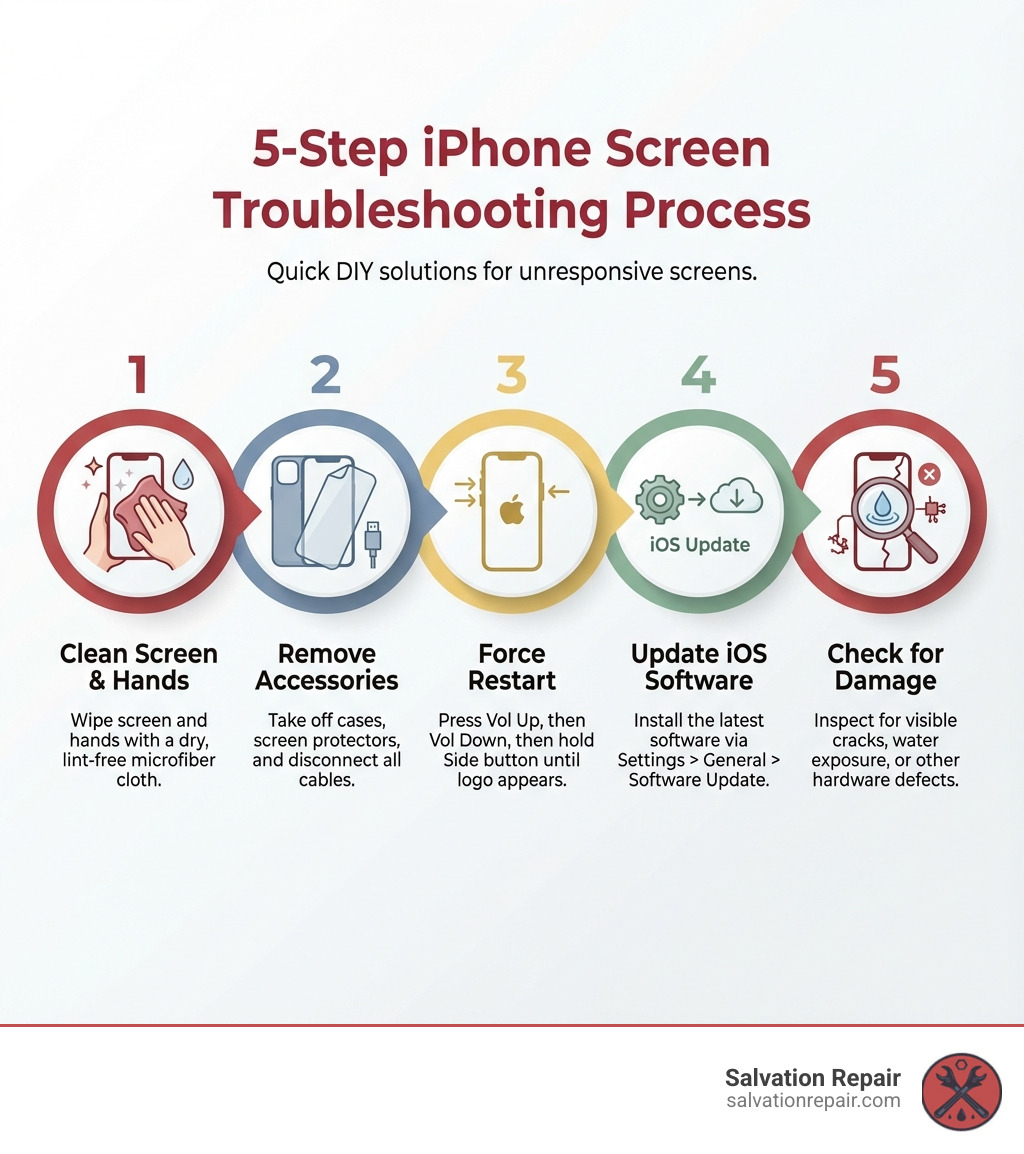
Quick Fix Checklist:
- Clean the screen – Remove debris, moisture, or oils with a lint-free cloth
- Remove accessories – Take off cases, screen protectors, and disconnect charging cables
- Force restart – Press Volume Up, Volume Down, then hold Side button until Apple logo appears
- Update iOS – Install the latest software via Settings > General > Software Update
- Check for damage – Look for cracks, water damage, or visible screen defects
The most common causes are software glitches, physical damage, or interference from accessories. Most issues can be fixed at home in under 10 minutes, but hardware damage requires professional repair.
Your iPhone’s touchscreen might stop responding for several reasons. Software freezes happen when apps crash or iOS gets stuck. Physical damage from drops creates cracks that interfere with touch sensors. Even moisture, dirt, or a poorly fitted screen protector can block the digitizer from registering your taps.
According to research, the average cell phone user only gets 34 months out of their device – but many screens fail much sooner due to preventable issues. The good news? Most unresponsive screen problems stem from temporary software glitches that you can fix yourself without tools or technical expertise.
I’m Ralph Harris, and over my 20 years in electronics repair, I’ve diagnosed and fixed thousands of cases of iPhone screen not working issues, from simple software freezes to complex digitizer failures. Through this guide, I’ll walk you through the exact troubleshooting steps I use to quickly identify whether your problem is an easy DIY fix or requires professional attention.
Handy iPhone screen not working terms:
Common Causes of an Unresponsive iPhone Screen
When your iPhone screen decides to play hard to get, it can feel like a major crisis. But before you panic, let’s explore some of the common culprits behind an unresponsive screen. Understanding the “why” can often point us toward the “how to fix.”
Why is my iPhone screen not working?
There are several reasons why your iPhone screen might suddenly become unresponsive or stop working altogether. These can broadly be categorized into software and hardware issues:
- Software Glitches: This is often the least serious and most common cause. A simple app crash, an iOS bug, or a temporary software freeze can make your screen unresponsive. It’s like your phone’s brain just decided to take a little nap.
- Physical Damage: This is unfortunately a very frequent reason, especially for active users. A drop can cause internal damage to the digitizer (the component responsible for touch sensitivity) even if the screen glass isn’t visibly shattered. Of course, a cracked display is a dead giveaway here.
- Debris or Moisture: Believe it or not, a dirty screen, greasy fingerprints, or even a tiny bit of moisture can interfere with touch recognition. Your iPhone’s screen is a sophisticated sensor, and anything blocking its path can cause issues.
- Accessory Interference: Sometimes, a poorly designed or ill-fitting case, a thick screen protector, or even a faulty charging cable can inadvertently cause touch problems. We’ve seen it all, from cases pressing buttons to screen protectors blocking sensors.
- Outdated iOS: Running an old version of iOS can lead to compatibility issues with apps and even cause system instability, which might manifest as an unresponsive screen. Updates often include bug fixes that address such problems.
- Hardware Failure: Beyond physical damage, internal components can simply fail over time. This could be the digitizer itself, a loose internal cable connecting the display, or other intricate parts. This is where your phone might feel like it’s in a “silent abyss,” as one user described their experience.
Is it a Software or Hardware Problem?
Distinguishing between a software glitch and hardware damage is crucial for effective troubleshooting. A software issue is generally easier to fix at home, while hardware problems often require professional attention.
Signs of a Software Problem:
- Intermittent Response: The screen works sometimes, but not others.
- Specific App Issues: The screen becomes unresponsive only when using a particular app.
- Frozen Screen: The display is on, but nothing happens when you touch it, and you can’t swipe to power off.
- “Ghost Touch”: The screen registers touches that you didn’t make. This can sometimes be a software glitch, but can also indicate hardware issues.
Signs of a Hardware Problem:
- Total Failure: The screen is completely black, or entirely unresponsive regardless of restarts.
- Visible Cracks or Damage: If you see physical damage to the screen, like cracks, chips, or impact marks, it’s highly likely to be a hardware issue. Our broken phone screen guide provides more insights here.
- Display Anomalies: You see strange lines (green, colored), black spots, flickering, or dead pixels on the screen.
- Water Damage Indicators: If your phone has been exposed to liquid, even if the screen looks fine, internal corrosion can cause display and touch issues.

If your screen is completely black and won’t turn on, it could be a severe hardware problem or simply a deeply discharged battery. If your screen is too sensitive or responds intermittently to touch, it might be a minor software bug or external interference. Knowing these distinctions will help us apply the right fix.
Step-by-Step Fixes for an iPhone Screen Not Working
Now that we understand why your iPhone screen not working might be happening, let’s dive into the actionable steps you can take to try and fix it yourself. We’ll start with the simplest, most common solutions and work our way up.
Step 1: Clean the Screen and Your Hands
This might sound almost too simple, but you’d be surprised how often a little grime is the culprit. Our iPhone screens are magnets for fingerprints, dust, and all sorts of debris.
- Debris Removal: Tiny particles of dirt, lint, or even sugar from spilled drinks can create a barrier between your finger and the screen’s touch sensors.
- Water or Moisture: Even a small amount of moisture, like condensation or sweat, can interfere with the screen’s electrical conductivity, leading to erratic or unresponsive touch.
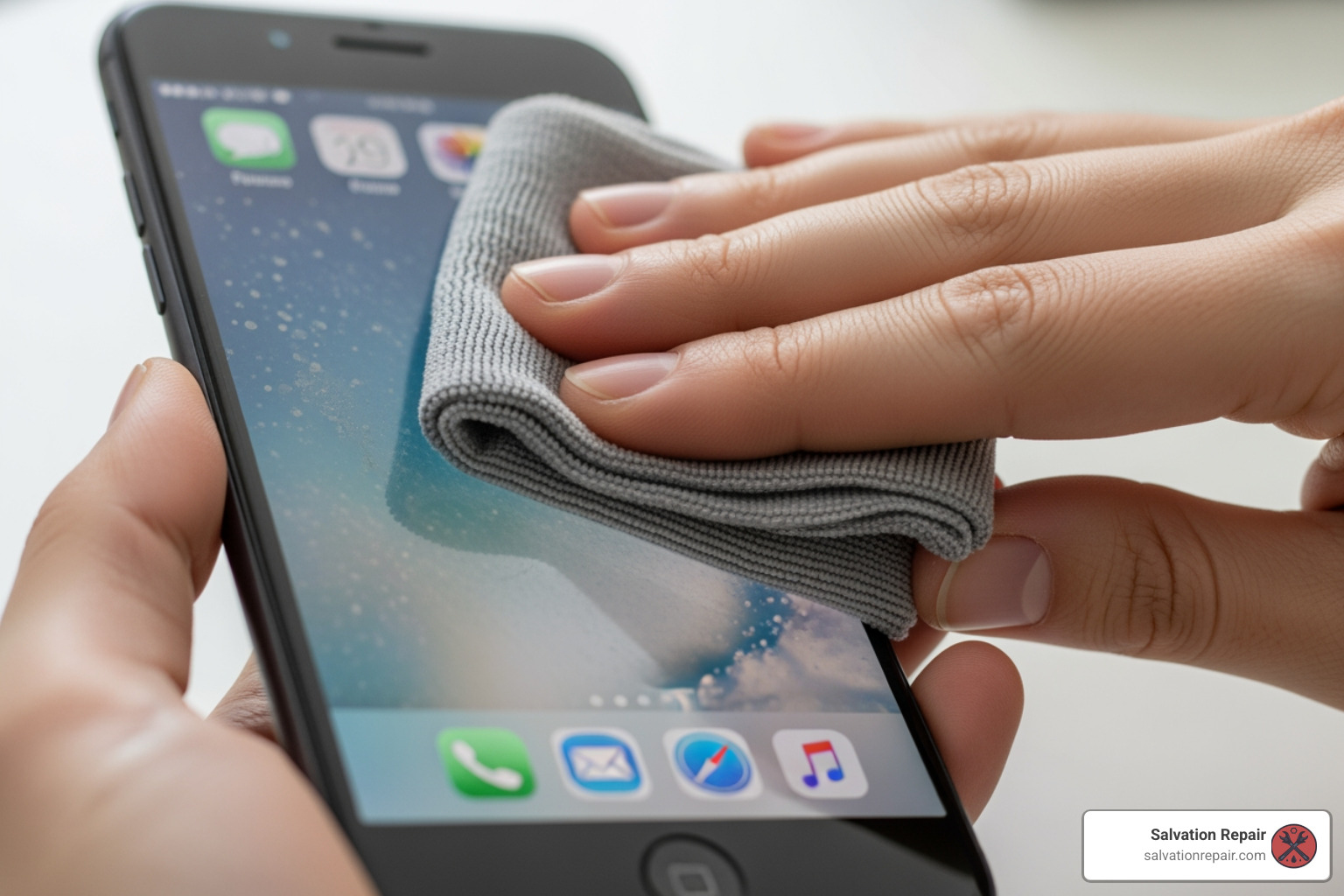
- Lint-Free Cloth: Gently wipe your screen with a soft, lint-free cloth. Microfiber cloths are ideal for this. Avoid abrasive materials that could scratch the screen.
- Proper Cleaning Technique: Don’t spray cleaners directly onto your iPhone. Instead, lightly dampen a corner of your cloth with water (or an Apple-recommended screen cleaner) and then wipe the screen.
- Oily Residue: Our fingers produce natural oils, and these can build up on the screen, reducing touch sensitivity. Make sure your hands are clean and dry before using your phone.
Cleanliness is next to godliness, especially for your iPhone’s touchscreen!
Step 2: Remove Cases, Screen Protectors, and Accessories
Another common cause of touch issues can be external factors that you’ve added to your phone.
- Interference Check: Sometimes, a case or screen protector, especially if it’s new or poorly fitted, can press on the screen or block sensors, causing phantom touches or unresponsiveness.
- Poorly Fitting Case: A bulky or ill-fitting case might put pressure on the edges of the screen, leading to dead zones or inconsistent touch response.
- Thick Screen Protector: While screen protectors are great for protection, an overly thick or low-quality one can sometimes reduce touch sensitivity. If it has air bubbles or is peeling, it can also cause issues.
- Faulty Lightning or USB-C Accessories: If your screen only acts up when your phone is plugged in, the issue could be with the charging cable, adapter, or even the charging port itself. Disconnect any Lightning or USB-C accessories and test your screen. If it works, try a different outlet, cable, or charger. For more on charging port issues, check out our guide on iPhone Charging Port Repair Complete Guide.
- Test After Removal: After removing all accessories, test your screen. If it starts working normally, you’ve found your culprit! You might need to replace the accessory or simply go without it.
Step 3: Force Restart Your iPhone
If cleaning and removing accessories didn’t work, a force restart is often the next best step for a frozen iPhone screen. This is like hitting the reset button on your phone’s operating system without erasing any data. It can clear temporary software glitches that are making your screen unresponsive.
The method for force restarting varies depending on your iPhone model:
-
For iPhone 8, iPhone X, and newer models (including SE 2nd and 3rd generation):
- Press and quickly release the Volume Up button.
- Press and quickly release the Volume Down button.
- Press and hold the Side button (on the right) until you see the Apple logo. This might take longer than 10 seconds.
- Release the Side button once the Apple logo appears.
-
For iPhone 7 or iPhone 7 Plus:
- Press and hold both the Volume Down button and the Sleep/Wake (Side) button at the same time.
- Keep holding them until you see the Apple logo.
- Release both buttons once the Apple logo appears.
-
For iPhone 6s, iPhone 6s Plus, iPhone 6, iPhone 6 Plus, iPhone SE (1st generation), and earlier models:
- Press and hold both the Sleep/Wake (Side or Top) button and the Home button at the same time.
- Keep holding them until you see the Apple logo.
- Release both buttons once the Apple logo appears.
A force restart often resolves many software-related screen issues. If your iPhone doesn’t restart after trying these steps, or if it restarts but the screen is still unresponsive, we’ll need to move on to more advanced solutions. You can also consult the official Apple guide to force restarting for more details.
Advanced Software Solutions and Data Backup
If the basic troubleshooting steps haven’t brought your iPhone screen not working back to life, it’s time to consider software-related issues that might be deeper than a simple glitch. These steps involve connecting your iPhone to a computer, which can be tricky if your screen is unresponsive, but not impossible.
Step 4: Update Your iPhone’s Software
Outdated software can be a significant cause of performance issues, including an unresponsive screen. Software updates often contain crucial bug fixes and performance improvements that can resolve underlying issues affecting your touchscreen.
- Bug Fixes: Apple regularly releases iOS updates that fix known bugs. Your unresponsive screen might be due to a bug that has already been addressed in a newer version.
- Performance Improvements: Updates can optimize how your iPhone’s hardware and software interact, potentially resolving sluggishness or unresponsiveness.
-
Update via Settings (if possible): If your screen is intermittently responsive, or if a force restart temporarily restores functionality, try updating directly from your iPhone:
- Go to Settings > General > Software Update.
- If an update is available, tap “Download and Install.”
-
Update Using a Computer (if screen is unresponsive): If your screen is completely unresponsive, you’ll need a computer with iTunes (for Windows or older macOS) or Finder (for macOS Catalina or newer) to update.
- Connect your iPhone to your computer using a USB cable.
- Open iTunes or Finder.
- Select your iPhone when it appears in the sidebar or top left corner.
- Look for the “Update” option. If prompted to “Restore” or “Update,” choose “Update.” This will reinstall iOS without erasing your data.
This process can often fix deeper software issues that a simple restart couldn’t touch.
Step 5: How to Back Up an iPhone with an Unresponsive Screen
Dealing with an unresponsive screen is stressful enough, but the thought of losing your precious photos, contacts, and messages can be even worse. Fortunately, you might still be able to back up your iPhone even if the screen isn’t cooperating. This is a critical step before attempting more drastic fixes like a full restore.
- iCloud Backup (if already enabled): If you had iCloud Backup enabled and connected to Wi-Fi, your iPhone might have automatically backed up recently. This is the easiest option as it requires no screen interaction from you. You can check your iCloud storage settings on another device or computer to see the last backup date.
-
iTunes/Finder Backup (requires trusting the computer): This method is your best bet for a manual backup when the screen is unresponsive.
- Connect to a Trusted Computer: This is key. If you’ve previously connected your iPhone to your computer and tapped “Trust This Computer” on your iPhone, then you’re in luck!
- Connect your iPhone to that computer using a USB cable.
- Open iTunes (Windows/older macOS) or Finder (macOS Catalina or newer).
- Your iPhone should appear. If it does, click on it.
- Select “Back Up Now.”
If you haven’t trusted the computer before, your iPhone will prompt you to “Trust This Computer,” which requires screen interaction. In this scenario, if your screen is completely dead, this method won’t work. However, if your screen is intermittently responsive, you might get a window of opportunity to tap “Trust.”
-
What if I can’t trust the computer? If your screen is completely unresponsive and you’ve never trusted your computer, backing up via iTunes/Finder is unfortunately not possible without a working screen to tap “Trust.” In such cases, your only hope for data is a recent iCloud backup or a professional data recovery service if the phone is otherwise functional.
Step 6: Restore Your iPhone Using Recovery Mode
If updating iOS didn’t resolve the issue, and you’ve successfully backed up your data, restoring your iPhone using Recovery Mode is a powerful, last-resort software fix. This process reinstalls iOS and completely erases all data on your device, returning it to factory settings. That’s why a backup (Step 5) is so important!
- When to Use Recovery Mode: Use this if your iPhone screen not working persists after all other software troubleshooting, or if your iPhone is stuck in a boot loop, displays the Apple logo indefinitely, or iTunes/Finder can’t recognize it normally.
- DFU Mode vs. Recovery Mode: Recovery Mode is generally sufficient for most software issues. DFU (Device Firmware Update) mode is an even deeper restore, bypassing the bootloader, and is usually reserved for more complex firmware problems. For an unresponsive screen, Recovery Mode is the appropriate starting point.
-
Steps to Enter Recovery Mode (varies by model, similar to force restart):
- Connect your iPhone to a computer with iTunes or Finder open.
- Put your iPhone into Recovery Mode:
- iPhone 8, X, and newer: Quickly press and release Volume Up, then quickly press and release Volume Down. Then, press and hold the Side button until you see the Recovery Mode screen (a computer icon with a cable). Do not release when you see the Apple logo.
- iPhone 7/7 Plus: Press and hold the Volume Down and Side buttons simultaneously. Keep holding until you see the Recovery Mode screen.
- iPhone 6s and older: Press and hold the Home button and the Side (or Top) button simultaneously. Keep holding until you see the Recovery Mode screen.
- On your computer, iTunes or Finder will detect an iPhone in Recovery Mode and prompt you to “Update” or “Restore.” Choose “Restore.” This will download the latest iOS software and erase your device.
-
Data Erased: Restoring your iPhone will wipe all data. Once complete, you can set it up as new or restore from your backup. If your phone is completely dead and won’t power on, this step might not be possible. For issues where your iPhone has no power, further diagnosis is needed.
When DIY Isn’t Enough: Recognizing Hardware Damage
We’ve explored several ways to tackle an iPhone screen not working through software fixes and basic troubleshooting. But sometimes, the problem goes beyond a simple glitch and points to hardware damage. When this happens, it’s usually time to call in the professionals.
Signs of Physical Screen Damage
While some hardware issues are invisible, many manifest as clear physical signs. These are indicators that your screen needs more than a software update or a good cleaning.
- Visible Cracks or Chips: This is the most obvious sign. Even a small crack can disrupt the digitizer’s function, leading to unresponsive areas or complete failure. Our cracked screen page has more information.
- Black Spots: Dark, inky spots on the display are often a sign of liquid crystal damage, usually from impact.
- Green or Colored Lines: Vertical or horizontal lines across the screen, especially if they are colorful, indicate damage to the display panel or its connection.
- Flickering Display: If your screen constantly flickers, changes brightness erratically, or goes black intermittently, it could be a loose display cable or a damaged screen component.
- Dead Pixels: Small, unlit dots on the screen that don’t change color are individual pixels that have failed. While not always affecting touch, they indicate display damage.
- Unresponsive Areas with No Visible Damage: Sometimes, the digitizer can be damaged internally without any visible cracks on the glass. If a specific area of your screen consistently doesn’t respond to touch, it points to a localized hardware failure.
If you’re wondering about the costs associated with these repairs, our iPhone screen repair cost guide can give you a clear picture.
What to Do If You Suspect Hardware Failure
If you’ve gone through all the software troubleshooting steps (cleaning, removing accessories, force restarting, updating, and even restoring) and your iPhone screen not working issue persists, it’s highly likely a hardware problem.
- Digitizer Failure: The digitizer is the component underneath the glass that detects your touch. It can fail due to impact, water damage, or manufacturing defects, even if the glass looks perfect.
- Loose Internal Cable: A fall or impact can sometimes dislodge the delicate internal cables that connect the screen to the iPhone’s logic board. This can cause flickering, unresponsiveness, or a completely blank screen.
- Water Damage Indicators: If your iPhone was exposed to water, even if it dried out, corrosion can silently damage internal components, including the screen’s connections. Look for the Liquid Contact Indicators (LCIs) in your SIM tray slot, which turn red when wet.
- Seeking Professional Diagnosis: At this point, attempting DIY hardware repairs without proper tools and expertise can cause more harm than good. It’s time to seek professional help. A qualified technician can diagnose the exact hardware issue, whether it’s a damaged screen, a faulty digitizer, or a connection problem, and provide a reliable repair.
How to Prevent Future Touchscreen Problems
An ounce of prevention is worth a pound of cure, especially when it comes to your iPhone’s delicate touchscreen. Taking a few proactive steps can significantly reduce the chances of encountering a non-working iPhone screen in the future.
Use a Quality Case and Screen Protector
This is perhaps the simplest yet most effective way to protect your iPhone.
- Impact Absorption: A good quality case acts as a shock absorber, distributing the force of an impact away from the screen and internal components. Look for cases with raised bezels around the screen and camera for extra protection.
- Scratch Prevention: A screen protector, whether tempered glass or a high-quality film, provides a sacrificial layer that takes the brunt of scratches and minor impacts, keeping your actual screen pristine.
- Choosing the Right Accessories: Avoid cheap, ill-fitting cases or screen protectors that might interfere with touch sensitivity or button functionality. Invest in reputable brands that are known for quality and compatibility. We often recommend clear cases so you can still admire your iPhone’s design!
Keep Your iPhone Clean and Dry
Maintaining a clean and dry environment for your iPhone is crucial for its longevity and performance.
- Avoiding Moisture: Water is the archenemy of electronics. Even “water-resistant” iPhones are not waterproof, and liquid damage can lead to irreversible problems. Avoid using your phone in the rain, near pools, or in steamy bathrooms. If it does get wet, follow Apple’s recommendations for drying it out.
- Regular Cleaning: Make it a habit to gently wipe your screen with a soft, lint-free cloth daily. This prevents the buildup of oils, dust, and debris that can hinder touch response and even scratch the screen over time.
- Preventing Debris Buildup: Don’t keep your iPhone in pockets or bags filled with lint, sand, or other small particles that can get into ports or under screen protectors.
Maintain Updated Software
Software health is just as important as physical health for your iPhone.
- iOS Updates: Regularly update your iPhone to the latest iOS version. These updates often include critical bug fixes, security patches, and performance improvements that can prevent software glitches from causing screen unresponsiveness.
- App Updates: Keep your apps updated as well. Outdated apps can cause conflicts with the operating system, leading to crashes and freezing, which can make your screen appear unresponsive.
- Security Patches: Beyond functionality, updates are vital for your device’s security, protecting your data from vulnerabilities.
By following these simple preventative measures, you can significantly extend the life of your iPhone’s screen and ensure a smooth, responsive user experience for years to come.
Conclusion: Your Next Steps for a Working Screen
We’ve covered a lot of ground today, from the common reasons behind an iPhone screen not working to a comprehensive list of DIY fixes. We started with the basics: ensuring a clean screen and removing any interfering accessories. We then moved to the power of a force restart, which can often clear up stubborn software glitches. For more persistent software woes, we explored updating iOS and, as a last resort, restoring your iPhone via Recovery Mode – always remembering to back up your precious data first!
However, we also learned to recognize the tell-tale signs of hardware damage, such as visible cracks, black spots, or flickering displays. While we empower you with knowledge for self-troubleshooting, it’s important to know when DIY efforts have reached their limit. Attempting to fix complex hardware issues yourself can often lead to further damage and higher repair costs.
If you’ve tried everything in this guide and are still dealing with an iPhone screen not working, it’s time for professional help. For fast, reliable, on-site service with a lifetime warranty in the Laurel, MS area, consider Salvation Repair. We specialize in bringing your devices back to life, often on the same day, right where you are. Our expert technicians are equipped to diagnose and repair even the most challenging screen issues, ensuring you get back to tapping, swiping, and enjoying your iPhone without delay.
Don’t let an unresponsive screen disrupt your day any longer. Let us help you get your iPhone back in perfect working order.
Schedule your screen repair today and experience the Salvation Repair difference in Laurel, MS, Jackson, MS, and Oxford, MS.

2 thoughts on “iPhone unresponsive screen complete guide”