How to backup Samsung phone before repair: 3 Foolproof Steps
Why Backing Up Your Samsung Phone Before Repair Could Save Your Digital Life
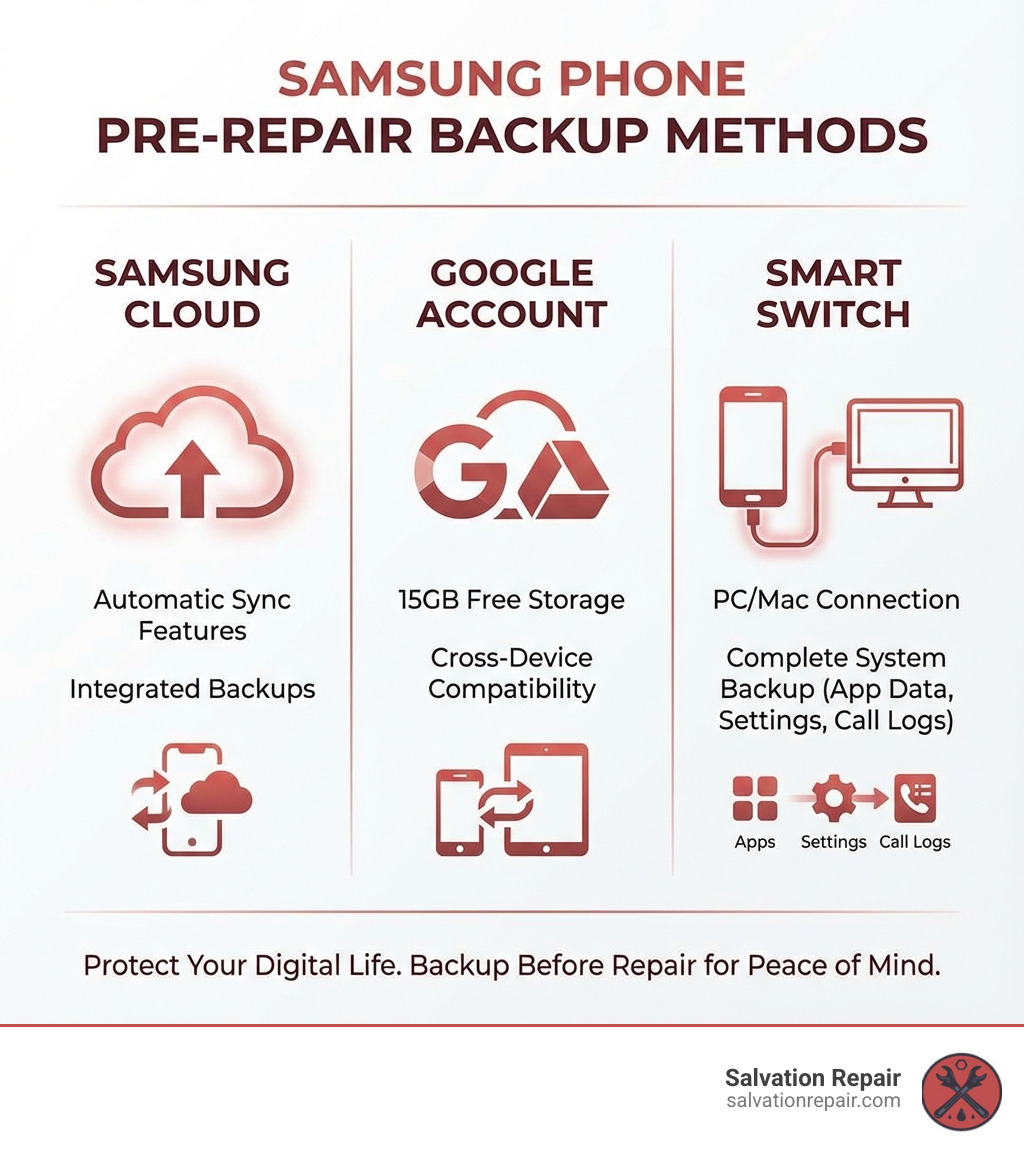
How to backup Samsung phone before repair is simpler than you think—you have three main options: Samsung Cloud for integrated backups, your Google Account for cross-device syncing, or Smart Switch for complete system backups. Each method takes just minutes to set up, but the peace of mind is priceless.
Quick Answer: Three Ways to Backup Your Samsung Phone
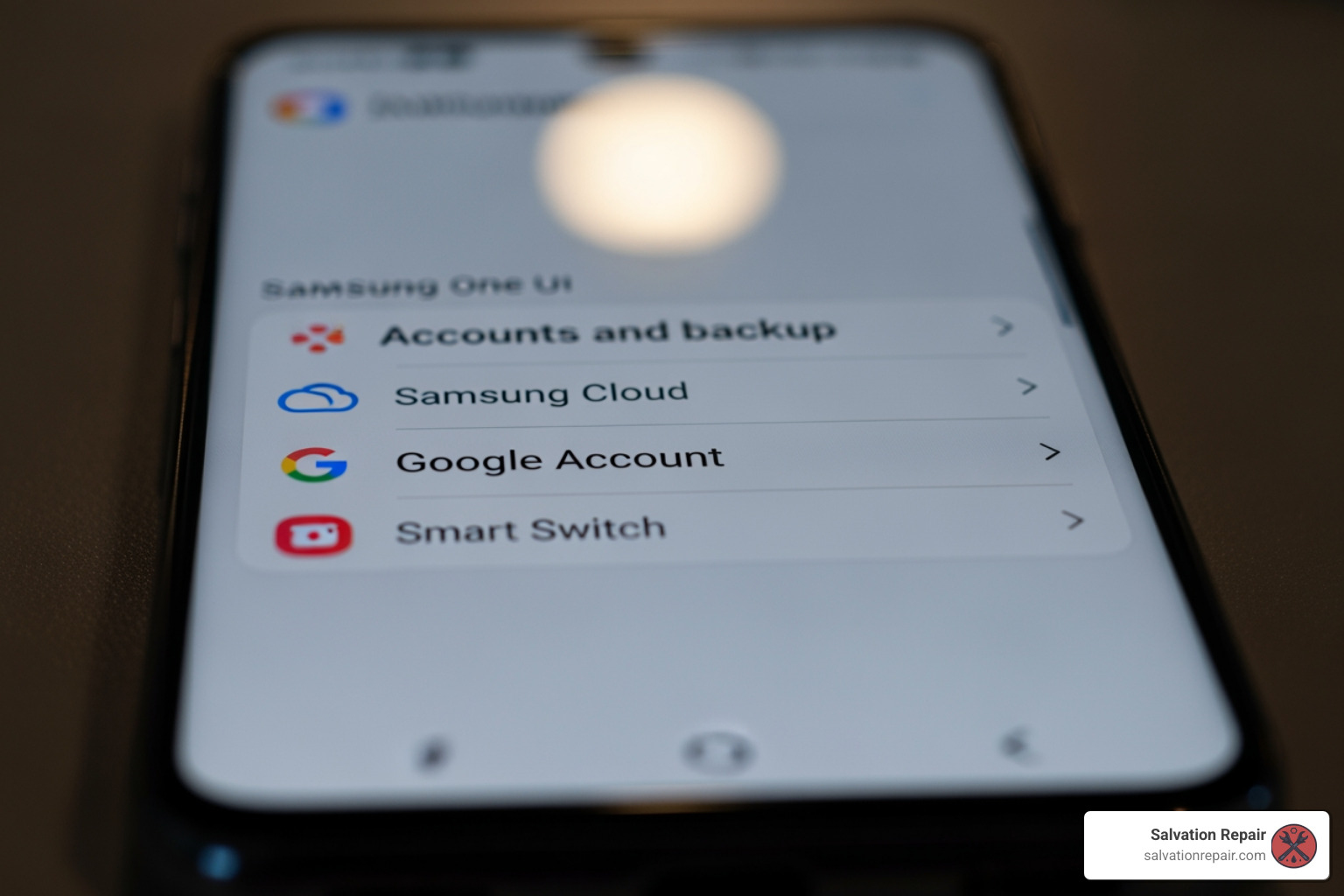
- Samsung Cloud – Go to Settings > Accounts and backup > Samsung Cloud > Back up data
- Google Account – Steer to Settings > Accounts and backup > Back up data (under Google Drive) > Back up now
- Smart Switch – Install the app on your phone and PC/Mac, connect via USB, and click Backup
Here’s the reality: sending your phone for repair without backing up your data is like driving without a seatbelt. While repair technicians take precautions, battery replacements and screen repairs involve opening your device, which always carries some risk of data loss. Your photos, contacts, messages, and app data could vanish in an instant if something goes wrong during the repair process.
The good news? Backing up your Samsung phone is simple and can be completed in just a matter of moments. Whether you prefer cloud storage, local backups, or a combination of both, you have multiple reliable options that protect everything from your family photos to your work documents.
I’m Ralph Harris, and with over 20 years in electronics repair and more than 500 Apple repair certifications, I’ve seen countless customers lose irreplaceable data because they skipped the backup step before repair. My mission is to ensure you never have to experience that heartbreak, which is why I’ve written this comprehensive guide on how to backup Samsung phone before repair. Let’s walk through each method so you can hand over your device with complete confidence.
Why Backing Up Before a Repair is Non-Negotiable
Imagine this: you drop your Samsung phone, the screen shatters, and you bring it in for repair. A few days later, you get it back, looking brand new. But then you open your gallery, and all those precious photos from your child’s first birthday or your last family vacation are gone. Your contacts? Poof. Your messages with loved ones? Vanished. It’s a nightmare scenario that we’ve seen play out far too many times.

This is why backing up your Samsung phone before a repair is not just a suggestion; it’s absolutely crucial. While our skilled technicians at Salvation Repair in Laurel MS, Jackson MS, and Oxford MS, Mississippi, take every precaution, any repair that involves opening your device—like a battery replacement or a screen fix—carries an inherent, albeit small, risk of data loss. Components might need to be disconnected, software might need to be reinstalled, or in rare cases, a factory reset might be necessary to resolve deeper issues.
Here’s why we insist you take this vital step:
- The Risk of Data Loss: Even with the most careful handling, there’s always a chance something could go wrong during the repair process. A sudden power surge, a software glitch, or an unexpected hardware failure could wipe your device clean.
- Factory Reset Scenarios: Sometimes, to properly diagnose or complete a repair, technicians might need to perform a factory reset. This wipes all user data from the device, returning it to its “out-of-the-box” state. If you haven’t backed up, everything is lost.
- Irreplaceable Data: What’s on your phone? Probably thousands of photos and videos capturing life’s most precious moments, essential contacts, important messages, work documents, and unique app data. Much of this data is irreplaceable. You can’t retake that photo of your pet, or recover that heartfelt message from a friend.
- Peace of Mind: Knowing that all your important information is safely stored elsewhere allows you to hand over your phone for repair without a shred of anxiety. You can focus on getting your device back in perfect working order, rather than worrying about your digital life.
Think of it this way: your phone is a vault of your digital memories and essential information. Before you send that vault off for maintenance, you’d want to make sure you have copies of all its contents, wouldn’t you? Let’s make sure your data is secure.
The Complete Guide on How to Backup Samsung Phone Before Repair
Samsung offers several robust and user-friendly methods to ensure your data is safe before you bring your device in for repair. We’ll walk you through the most popular and effective options.
Method 1: Using Samsung Cloud for Seamless Integration
Samsung Cloud is an integrated service designed specifically for Galaxy devices, offering a convenient way to back up essential data. It’s built right into your phone’s settings, making it easy to access and manage.
What Samsung Cloud backs up:
Samsung Cloud is great for backing up specific types of data such as:
- Call logs
- Messages (improved, multimedia, text)
- Contacts
- Calendar (events and tasks)
- Clock settings (alarms, world clocks, timers)
- Home screen layout (including wallpapers and Samsung DeX settings)
- Apps (installation files and settings)
- Device settings (accessibility, ringtones, keyboard options, Wi-Fi, Always on Display)
- Music, Voice Recorder, and Documents
How to manually back up using Samsung Cloud:
- Access Settings: Open the “Settings” app on your Samsung phone.
- Steer to Accounts and Backup: Scroll down and tap “Accounts and backup.”
- Select Samsung Cloud: Under the “Samsung Cloud” section, tap “Back up data.” You might need to sign in with your Samsung account if you haven’t already.
- Choose Data to Back Up: A list of data types will appear. Select all the items you wish to back up by toggling them on. We recommend selecting everything to ensure a comprehensive backup.
- Start Backup: Tap the “Back up now” button at the bottom of the screen. Your phone will then begin uploading the selected data to Samsung Cloud.
Setting up automatic backup with Samsung Cloud:
For ongoing protection, you can also enable automatic backups:
- From the “Samsung Cloud” screen, tap “More options” (three vertical dots) > “Settings” > “Sync and auto backup settings” > “Auto back up.”
- Activate “Auto back up while roaming” if you want backups to occur even when you’re not on your home Wi-Fi (though this might incur data charges).
- For an automatic backup to occur, your phone needs to be charging, connected to Wi-Fi, and have its screen off for at least an hour. This typically happens once every 24 hours.
Important Considerations for Samsung Cloud:
- 1GB File Limit: Individual files over 1GB will not be uploaded to Samsung Cloud, so large videos or project files might need an alternative backup method.
- Availability: Samsung Cloud features and availability can vary by region and carrier.
For more detailed information on Samsung’s backup features, you can refer to A guide to Samsung’s backup features.
Method 2: Leveraging Your Google Account
Your Google Account is a powerhouse for backing up Android devices, including your Samsung phone. It’s integrated with Google Drive and Google One, offering a generous amount of free storage and excellent cross-device compatibility.
What your Google Account backs up:
When you back up to your Google Account, it typically includes:
- Apps and app data
- Call history
- Contacts (synced to Google Contacts)
- Device settings
- SMS and MMS messages
- Photos and videos (if synced with Google Photos)
How to manually back up using your Google Account:
- Access Settings: Open the “Settings” app on your Samsung phone.
- Steer to Accounts and Backup: Scroll down and tap “Accounts and backup.”
- Select Google Drive Backup: Under the “Google Drive” section, tap “Back up data.”
- Verify Google One Backup: Ensure the “Backup by Google One” switch is turned on. If prompted, enter your Google username and password.
- Choose Data to Back Up: You’ll typically have options to select what data to back up, such as “Photos & videos” (via Google Photos) and “Device data.”
- Start Backup: Tap “Back up now.” The backup process will begin, uploading your selected data to your Google Drive storage.
Setting up automatic backup with Google Account:
Automatic backups are often enabled by default. To ensure it’s active:
- From the “Back up data” screen under Google Drive, ensure “Back up by Google One” is toggled on.
- You can also enable “Back up using mobile or metered Wi-Fi data” if you want backups to occur without Wi-Fi, but be mindful of your data plan.
- Automatic backups typically occur when your phone is connected to Wi-Fi, idle, and charging for at least two hours.
Important Considerations for Google Account Backup:
- Free Storage: You get 15 GB of free storage across Google Drive, Gmail, and Google Photos, which is often sufficient for most users’ essential data.
- Backup Time: A Google One backup can sometimes take up to 24 hours, especially for the initial comprehensive backup.
- Encryption: Your data is encrypted as it moves between your device and Google’s data centers. Some data is further encrypted with your device’s screen lock PIN, pattern, or password for improved security. However, photos and videos in Google Photos, and MMS media, are not encrypted by your device’s screen lock.
For more information on Google One backups, visit Learn more about Google One backups.
Method 3: Creating a Full Backup with Samsung Smart Switch
For the most comprehensive backup, especially if you want to save everything to your computer or an external storage device, Samsung Smart Switch is our go-to recommendation. It’s Samsung’s proprietary tool designed for seamless data transfer and backup.
What Smart Switch backs up:
Smart Switch can back up almost everything on your device, including:
- Contacts, messages, call logs
- Photos, videos, music
- Apps and app data (where supported)
- Home screen layouts, device settings
- Documents and other files
How to back up to a PC or Mac using Smart Switch:
- Install Smart Switch: Download and install the Smart Switch software on your Windows PC (Windows 10 or later required) or Mac (macOS 10.9 or later required). You also need the Smart Switch app on your Samsung phone.
- Connect Your Phone: Connect your Samsung phone to your computer using a compatible USB Type-C cable.
- Allow Connection: On your phone, you’ll likely see a prompt to allow the connection. Tap “Allow” or “Trust.”
- Open Smart Switch on Computer: Launch the Smart Switch application on your computer.
- Initiate Backup: In the Smart Switch window on your computer, click the “Backup” button.
- Select Data: Smart Switch will show you the types of data it can back up. We recommend selecting everything for a complete clone of your phone’s state.
- Start Backup: Click “Backup” again to start the process. Ensure your computer has enough storage space.
How to back up to external storage (SD card or USB OTG drive) using Smart Switch:
If your Samsung phone supports an SD card, or if you have a USB On-The-Go (OTG) adapter and a USB flash drive, you can use Smart Switch to back up directly to these:
- Insert/Connect Storage: Insert your microSD card into your phone or connect your USB OTG drive to your phone.
- Open Smart Switch App: Launch the Smart Switch app on your Samsung phone.
- Select External Storage: In the app, tap the “SD card icon” (or the USB icon for OTG drives).
- Initiate Backup: Tap “Backup.”
- Select Content: Choose the content you want to back up.
- Start Backup: Tap “Backup” again.
Important Considerations for Smart Switch:
- System Requirements: Smart Switch for PC/Mac requires specific operating system versions (Windows 10+ or macOS 10.9+). It does not support Chromebooks.
- Android Version: Encrypted data transfer with Smart Switch requires Android 7.0 or higher.
- Comprehensive: This method provides one of the most thorough backups, ideal for when you want to restore your phone to its exact previous state.
- Manual File Transfer: For basic files like photos, videos, and documents, you can also manually drag and drop them from your phone to your computer’s storage once connected via USB. Set your phone’s USB connection mode to “Transferring files” or “MTP.” Remember to safely eject your phone from your computer after transfer.
Post-Backup & Pre-Repair Checklist
You’ve successfully backed up your Samsung phone – congratulations! You’ve just taken the biggest step in protecting your digital life. But before you hand over your device to us for repair, there are a few more critical steps to ensure your privacy and make the repair and restoration process as smooth as possible.
Step 1: Verify Your Backup
This step is absolutely vital. A backup isn’t useful if it’s incomplete or corrupted.
- Check Completion: For cloud backups (Samsung Cloud, Google Account), log into your respective cloud account from a computer or another device. Steer to the backup section and confirm that a recent backup exists and is marked as complete.
- Confirm Data Integrity: Spot-check a few important files. Are your most recent photos there? Can you see your contacts? Is your home screen layout or app data visible (if applicable to the backup method)? While you don’t need to check every single file, a quick verification provides immense peace of mind.
- Check File Dates and Sizes: Ensure the backup timestamp is recent and that the overall size of the backup seems consistent with the amount of data you had on your phone.
Step 2: Secure Your Privacy
Your phone contains a treasure trove of personal information. Before it leaves your hands, even for a trusted repair service like Salvation Repair, it’s wise to take extra privacy precautions.
- Remove Sensitive Data: Log out of all sensitive applications. This includes banking apps, payment services, social media, and email accounts. While a factory reset (coming next) will wipe this, logging out beforehand is an extra layer of security.
- Remove SIM Card: Your SIM card contains your phone number and sometimes contacts. Remove it from your device. You’ll need it for your phone once it’s repaired, or you can use it in a temporary phone.
- Remove microSD Card: If your Samsung phone uses a microSD card for extra storage, remove it. This card often contains photos, videos, and documents that weren’t part of your main phone backup. Keep it safe with your SIM card.
Step 3: Perform a Factory Reset
This is the ultimate step for data protection before a repair. A factory reset wipes all personal data, settings, and installed applications from your phone, returning it to its original factory state. This ensures that no one, not even a technician, can access your personal information.
How to perform a factory reset on your Samsung phone:
- Ensure Backup is Complete: Double-check that your backup (or backups) is fully verified and accessible. Once you perform a factory reset, there’s no going back without a backup.
- Access Settings: Open the “Settings” app on your Samsung phone.
- Steer to General Management: Scroll down and tap “General management.”
- Select Reset: Tap “Reset.”
- Choose Factory Data Reset: Tap “Factory data reset.”
- Review and Confirm: Your phone will show you a list of all the data that will be erased. Read through it carefully. If you’re confident your backup is secure, tap “Reset” or “Delete all.” You might need to enter your PIN, pattern, or password to confirm.
- Final Precaution: Your phone will restart and proceed with the factory reset. This process can take several minutes. Once complete, your phone will be like new, ready for repair with no personal data remaining.
Step 4: Restoring Your Data After Repair
Once your phone is back from Salvation Repair, looking and working perfectly, it’s time to bring your digital life back onto the device.
The restoration process:
- Initial Phone Setup: When you turn on your repaired Samsung phone, you’ll go through the initial setup process, just like when it was new.
- Sign into Accounts: At the appropriate prompts, sign in to your Google Account and your Samsung Account. This is crucial for accessing your cloud backups.
- Restore from Cloud:
- Google Account: During the setup, you’ll be asked if you want to restore data from a backup. Select your Google Account and choose the most recent backup. Your apps, contacts, call history, messages, and device settings will begin to restore. Photos and videos will resync from Google Photos.
- Samsung Cloud: After initial setup, go to Settings > Accounts and backup > Restore data (under Samsung Cloud). Select the most recent backup and choose the data you wish to restore.
- Smart Switch Restore: If you used Smart Switch to back up to your PC/Mac or an external drive:
- PC/Mac: Connect your repaired phone to your computer, open Smart Switch, and click the “Restore” button. Select your backup file and follow the on-screen instructions.
- External Storage: Connect your external drive or insert your SD card. Open the Smart Switch app on your phone, tap the “SD card icon” (or USB icon), and then tap “Restore.” Select your backup and proceed.
- Re-insert SIM/microSD: Don’t forget to re-insert your SIM card and any microSD card you removed earlier.
The restoration process might take some time, especially if you have a lot of data. Ensure your phone is connected to Wi-Fi and ideally, plugged into power during this period.
Frequently Asked Questions about Samsung Backups
We know you might have a few lingering questions about how to backup Samsung phone before repair. Let’s tackle some of the most common ones.
What data should I prioritize for backup before a phone repair?
While we always recommend a full backup, some data is more critical than others because it’s truly irreplaceable or essential for your daily life. Prioritize:
- Photos and Videos: These are often the most cherished and impossible to recreate. Ensure they are backed up to Google Photos, Samsung Cloud, or your computer.
- Contacts: Your network of friends, family, and colleagues. Google Contacts and Samsung Cloud handle these well.
- Messages: Important conversations, confirmation codes, or sentimental texts.
- Work Documents and Files: Any files stored locally on your device that aren’t synced to a cloud service like Google Drive or Dropbox.
- App Data (without cloud sync): Some apps have their own cloud backup (e.g., WhatsApp chat history), but others store data only locally. If an app has important local data, Smart Switch is often the best bet to capture it.
How long does it take to backup a Samsung phone?
The time it takes to back up your Samsung phone can vary significantly based on a few factors:
- Amount of Data: Thousands of photos and videos will naturally take longer than just contacts and messages.
- Internet Speed: For cloud backups (Samsung Cloud, Google Account), a fast and stable Wi-Fi connection is crucial. Slow internet will prolong the process.
- Backup Method:
- Samsung Cloud/Google Account: These can be quick for smaller amounts of data, often completing in minutes. However, a comprehensive Google One backup, especially the initial one, can take up to 24 hours. Automatic backups are designed to run in the background over time.
- Smart Switch (to PC/Mac): This method can be faster for large amounts of data as it relies on USB connection speeds, but it still depends on the data volume and your computer’s processing power.
- Smart Switch (to external storage): Similar to PC backup, speed depends on data volume and the read/write speed of your SD card or USB drive.
In general, while setting up the backup might take “a matter of moments,” the actual data transfer for a full backup could range from a few minutes to several hours, or even up to a day for large cloud backups.
What is the approximate cost of a Samsung battery replacement?
The cost of replacing a Samsung battery varies depending on several factors, including your specific Samsung model and where you get the replacement done.
- Average Price: On average, you can expect to pay between $50 to $100 for a professional Samsung battery replacement service.
- Model Dependency: Newer or premium Samsung models might have slightly higher battery replacement costs due to more complex designs or specialized parts. Older models might be on the lower end of the spectrum.
- Service Provider Variance: Independent repair shops like Salvation Repair often offer competitive pricing compared to manufacturer service centers. We pride ourselves on transparent pricing and even offer price matching to ensure you get the best deal in Laurel MS, Jackson MS, and Oxford MS, Mississippi.
A professional repair ensures that genuine or high-quality compatible parts are used, and the repair is performed correctly, preserving your device’s functionality and safety.
Conclusion: Your Data is Safe, Now Get Your Phone Fixed
We’ve covered the ins and outs of how to backup Samsung phone before repair, and by following these steps, you’ve ensured that your digital life is safe and sound. Whether you chose Samsung Cloud for its seamless integration, your Google Account for universal access, or Smart Switch for a comprehensive local copy, you’ve gained invaluable peace of mind.
The risks of not backing up are clear: losing irreplaceable photos, contacts, and memories. But now, those worries are behind you. Your data is secure, cloned, and ready to be restored onto your perfectly repaired device.
At Salvation Repair, we understand how important your Samsung phone is to you. That’s why we offer expert, same-day, on-site repairs for all Samsung models in Laurel MS, Jackson MS, and Oxford MS, Mississippi. With our lifetime warranty and commitment to repairing “any device with a power button,” you can trust us to get your phone back in your hands quickly and reliably.
Don’t let a cracked screen or a failing battery keep you disconnected any longer. With your data safely backed up, you’re ready for the next step.
Get a quote for your Samsung repair today and experience the Salvation Repair difference.

2 thoughts on “Pre-Repair Prep: How to Clone Your Samsung Phone’s Entire State”