How to Fix Charging Port Fast
What You Need to Know About Charging Port Repair (Quick Answer)
Charging port repair is one of the most common fixes in the device repair world — and the good news is that most charging problems don’t even require a repair at all.
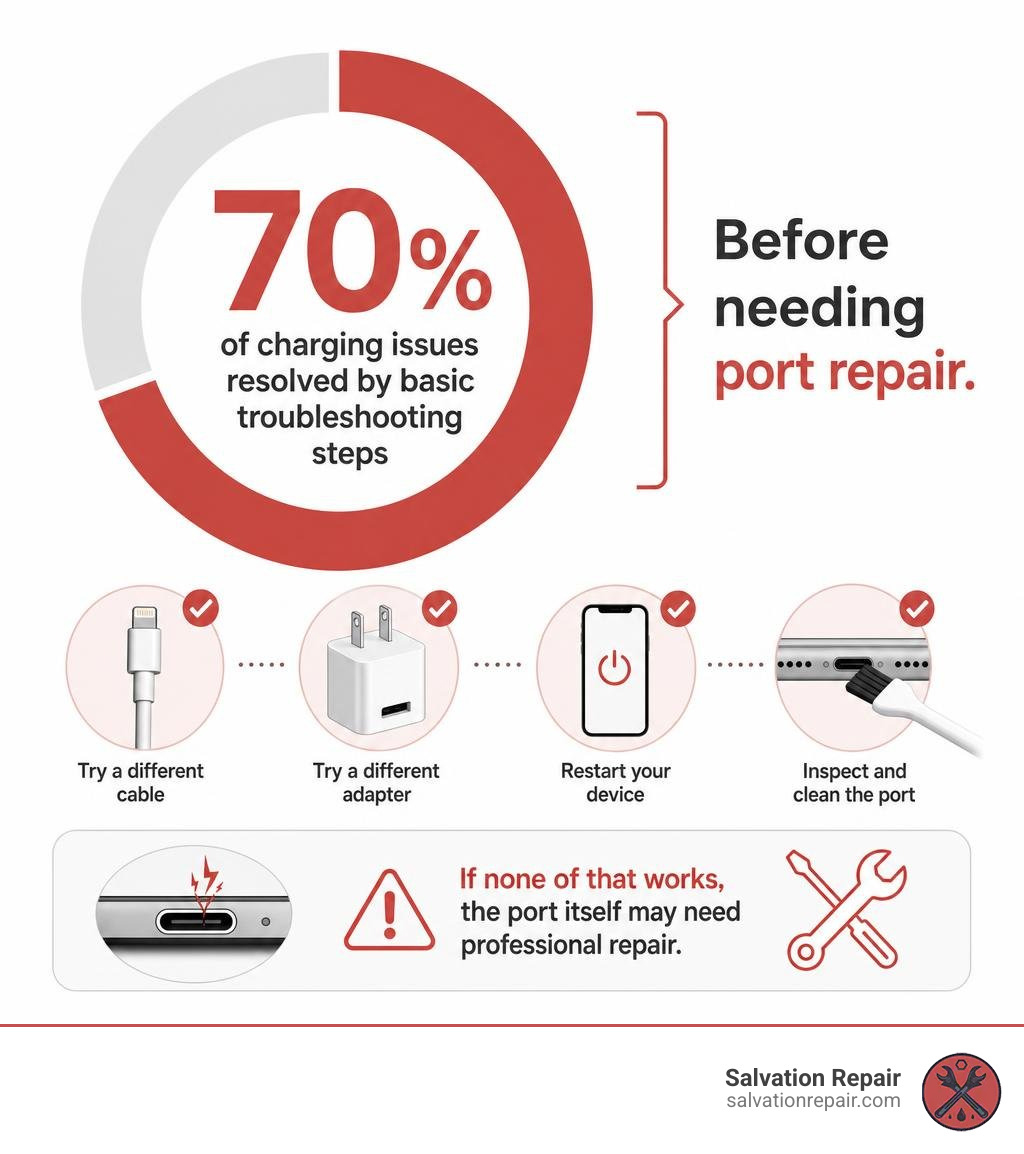
Before spending money on a fix, here’s what to try first:
- Test a different cable — cables fail far more often than ports do
- Try a different wall adapter — a faulty charger is a common culprit
- Restart your device — software glitches can block charging
- Inspect and clean the port — lint and debris cause the majority of “dead port” complaints
- If none of that works — the port itself may need professional repair or replacement
Basic troubleshooting steps like these resolve charging issues more than 70% of the time — meaning most people never need a repair at all.
If you’ve already tried those steps and your device still won’t charge, you’re in the right place. This guide covers everything from safe DIY cleaning to knowing when to hand it off to a professional — and how much it should actually cost.
We’ve all had that frustrating moment: you plug in your phone before bed, wake up to a dead battery, and realize something is wrong. Sometimes it’s a frayed cable. Sometimes it’s a port packed with pocket lint. And sometimes — especially on older devices — the port itself is physically damaged and needs to be replaced.
The repair process looks very different depending on your device. On some phones and tablets, the charging port sits on a small flex cable that’s relatively easy to swap out. On others, like many modern iPhones and Samsung Galaxy models, it’s soldered directly to the motherboard — which means a wrong move can cause serious damage. Knowing the difference matters.
I’m Ralph Harris, a certified Apple repair technician and Wise Level 2 certified phone repair specialist with over 20 years of hands-on experience in charging port repair across phones, tablets, laptops, and gaming consoles. I’ll walk you through everything you need to make a smart, safe decision for your device.
Diagnosing Your Charging Issues Safely
Before you start shopping for replacement parts or searching for a repair shop, you need to isolate the exact point of failure. When a device refuses to charge, the culprit is almost always one of four things: the cable, the power brick, the software, or the physical port itself. Jumping straight to assuming you need a hardware charging port repair can cost you unnecessary time and money.

To diagnose your device safely, follow this step-by-step elimination process:
- The Cable Test: Swap out your current cable for a brand-new or known-working cable. Ensure it is a certified, high-quality cable. If the device charges with the new cable, your old one is destined for the recycling bin.
- The Adapter Test: Plug your cable into a different wall adapter. Sometimes adapters fail or stop delivering the specific voltage your device requires to trigger charging.
- The Software Restart: It might sound overly simple, but a glitching operating system can refuse to acknowledge a power source. Perform a hard restart on your phone or tablet while it is unplugged, then plug it back in.
- The Angle Test: If you have to wiggle the cable or hold it at a very specific angle to get the charging icon to appear, you are likely dealing with a worn-out port housing, broken internal pins, or heavily packed debris.
- The Workaround Test: If your phone supports Qi or MagSafe wireless charging, place it on a wireless charger. If it charges wirelessly but not via the cable, you have successfully isolated the issue to the physical charging port assembly.
If you are dealing with a larger device, our Tablet Charging Port Guide Laurel offers a deep dive into diagnosing power issues on larger screens.
Common Causes of a Damaged Charging Port
Over years of repairing devices in Mississippi, we have seen every imaginable cause of port failure. The most common issues include:
- Lint and Pocket Debris: Every time you slide your phone into your pocket, a tiny amount of lint enters the port. When you plug in your cable, you compress that lint into a dense, felt-like pad at the bottom of the port. Eventually, this pad prevents the cable from seating deeply enough to make electrical contact.
- Physical Wear and Tear: Charging ports are high-traffic areas. Over thousands of plug and unplug cycles, the internal metal spring contacts lose their tension, or the port housing itself becomes loose.
- Bent or Broken Pins: Forcing a cable in backward (especially older Micro-USB styles) or inserting a cable at a harsh angle can bend or break the microscopic gold pins inside the port.
- Moisture and Corrosion: Exposure to rain, sweat, steam, or accidental spills can quickly corrode the copper contacts inside the port. Many modern smartphones feature moisture detection sensors that will disable charging entirely if liquid is detected inside the port.
The Dangers of Cheap or Uncertified Cables
It is highly tempting to grab a cheap, uncertified gas-station cable when you are in a pinch, but these accessories pose a major risk to your device’s charging port and motherboard.
Unlike certified cables (such as Apple MFi-certified cords), cheap knockoffs often lack built-in voltage regulators and overcurrent protection. A sudden power surge from your wall outlet can pass straight through a cheap cable, frying the delicate charging chip (like the U2 IC chip in older iPhones) on your motherboard. Additionally, poorly manufactured connectors may have slightly incorrect dimensions, physically stretching out your port or snapping off inside the socket.
How to Clean and Fix a Charging Port at Home
If your diagnosis points to a dirty port, you can often save yourself a trip to the repair shop by cleaning it yourself. However, you must proceed with extreme caution. One wrong move can bend an internal pin, turning a free cleaning job into an expensive hardware repair.
Before attempting any cleaning, read our Iphone Charging Port Repair Complete Guide to familiarize yourself with the structural layout of modern ports.
Safest DIY Cleaning Methods
If you decide to clean the port at home, follow these safety guidelines to avoid causing permanent damage:
- Power Off the Device: Always turn your phone or tablet completely off before inserting any tool into the port.
- Never Use Metal: Do not use paperclips, safety pins, sewing needles, or SIM ejector tools. Metal objects can easily short-circuit the gold contacts or physically scratch away the delicate protective plating on the pins.
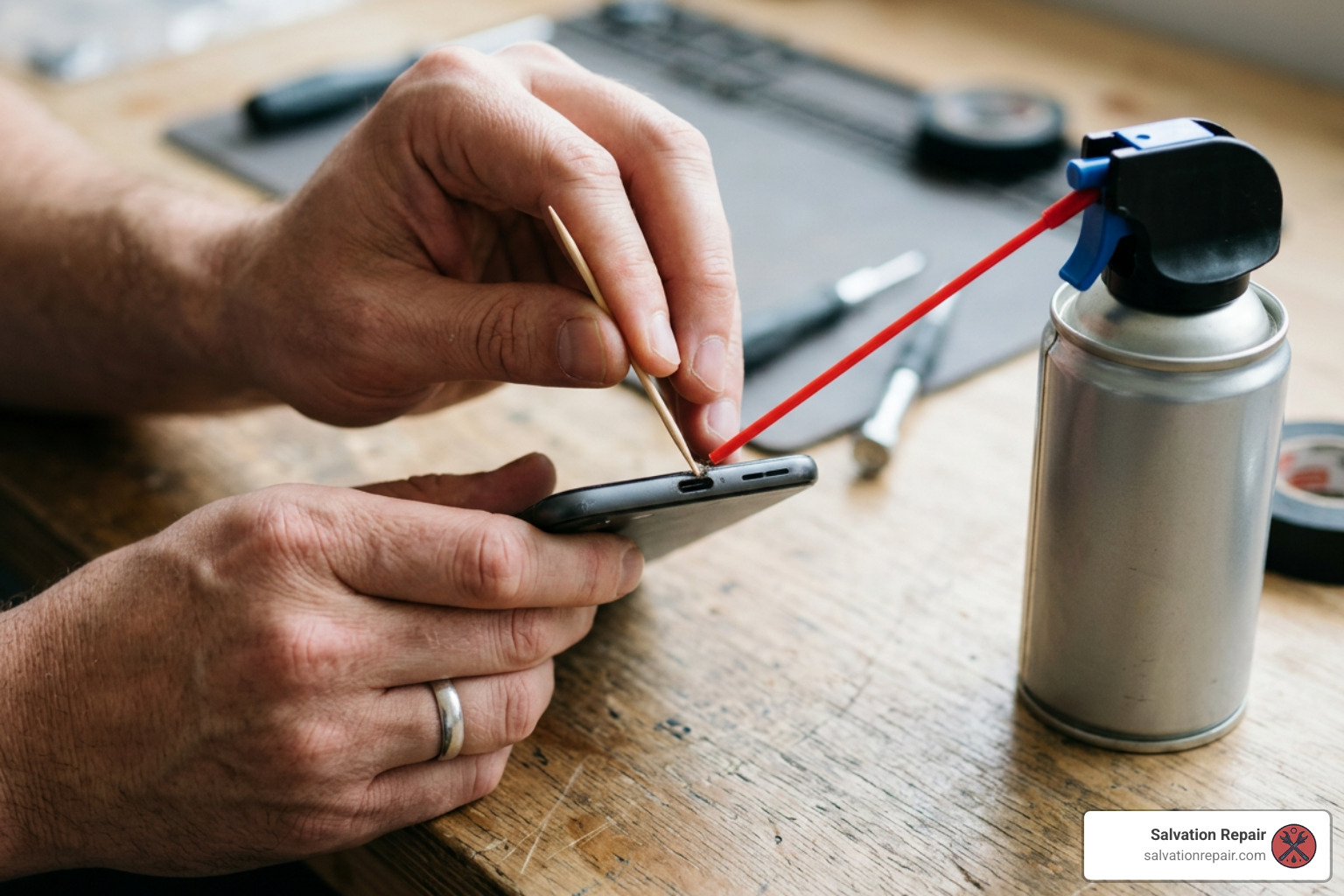
- Use a Wooden or Plastic Toothpick: A thin, wooden toothpick or a plastic dental pick is the safest tool. If the tip of the toothpick is too thick, you can carefully shave it down with a razor blade to make it thinner and flatter.
- Gently Scrape the Bottom: Insert the toothpick straight into the port until you reach the back wall. Gently scrape sideways to loosen the packed lint. Sweep the debris outward. Do not pry upward or downward against the sides where the pins are located.
- Use Compressed Air: Hold a can of compressed air at a slight angle and apply short, controlled bursts to blow out the loosened dust. Never blow into the port with your mouth, as moisture from your breath can cause immediate corrosion.
Tools and Skills Needed for DIY Charging Port Repair
If cleaning does not solve the issue and you are considering a full physical replacement yourself, you must evaluate your tool kit and comfort level.
Modern devices are incredibly compact and held together with strong industrial adhesives. Replacing a charging port on an iPhone 16 Pro, for example, is a highly complex task. According to the iPhone 16 Pro Charging Port Replacement – iFixit Repair Guide , you must carefully heat and remove the back glass, disconnect the battery, remove the Taptic Engine, extract the loudspeaker, and navigate multiple tiny screw sizes (ranging from 1.0mm to 3.6mm) before you can even access the port assembly.
If you are repairing a device where the port is soldered directly to the motherboard (as is the case with many tablets and laptops), you will need advanced micro-soldering skills, a high-quality soldering iron, flux, a hot air rework station, and electrostatic discharge (ESD) safety gear. Without these specialized tools and the training to use them, attempting a DIY replacement carries a very high risk of permanently killing your device.
Professional Charging Port Repair vs. DIY
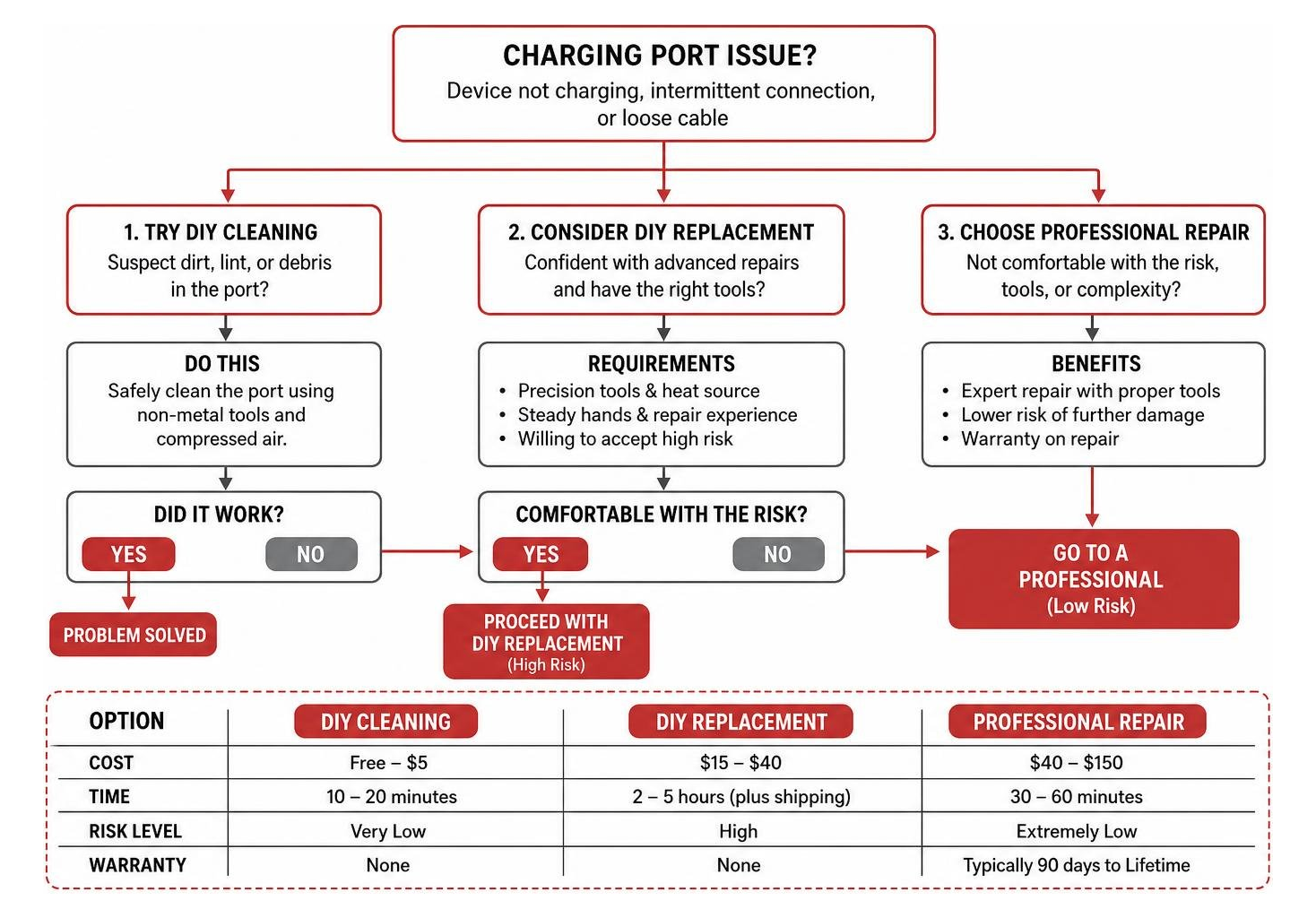
Deciding whether to tackle a charging port repair yourself or hire a professional comes down to risk, cost, and time. To help you weigh your options, we have broken down the key differences below:
| Feature | DIY Repair | Professional Repair |
|---|---|---|
| Average Cost | $15 – $40 (for parts & basic tools) | $40 – $150 (depending on device model) |
| Turnaround Time | 2 – 5 hours (plus shipping time for parts) | 30 – 60 minutes (at a local shop) |
| Risk Level | High (risk of screen damage, battery fire, or motherboard failure) | Extremely Low (reputable shops offer warranties) |
| Specialized Tools | Required (precision screwdrivers, suction cups, heat source, adhesive) | Provided by the technician |
| Warranty | None (if you break a component, you pay for it) | Typically 90 days to a Lifetime Warranty |
If you want to see a step-by-step breakdown of how a complex port replacement is handled on a popular device family, check out The Ultimate Samsung Charger Port Repair Walkthrough.
When to Choose Professional Charging Port Repair
While a simple cleaning can be done at home, you should always hand your device over to a professional technician in the following scenarios:
- The Port is Loose or Wobbly: If the cable physically jiggles inside the port, the internal mounting brackets or solder joints are likely broken.
- The Device Has Water Damage: If the charging issues started after exposure to liquid, professional ultrasonic cleaning and board-level diagnostics are required to prevent progressive corrosion.
- The Port is Soldered to the Motherboard: Swapping a soldered port requires precision temperature control. Too much heat can delaminate the circuit board or blow nearby micro-capacitors.
- You Own a Premium, Modern Device: Opening a high-end phone like the iPhone 17 Pro Max requires extreme care. As shown in the iPhone 17 Pro Max USB-C Port Assembly Replacement – iFixit Repair Guide , the replacement process involves navigating delicate microphone modules, antennas, and screen adhesive gaskets that must be perfectly resealed to preserve water resistance.
Is Repairing an Older Device Worth the Cost?
When dealing with an older phone or tablet, you must calculate whether the cost of repair makes financial sense compared to buying a replacement.
As a general rule of thumb, if the repair cost is less than 50% of the device’s current market value, it is highly recommended to proceed with the repair. Extending the life of your current device by even one or two years is incredibly cost-effective.
Beyond saving money, choosing repair over replacement has a massive positive environmental impact. The Global E-Waste Monitor continuously highlights how millions of tons of electronic waste are generated annually, with many devices discarded prematurely due to simple, repairable issues like charging port failures. By opting for a quick port replacement, you keep valuable electronics out of Mississippi landfills.
Fast Charging Port Repair in Laurel, MS
If you are located in the Pine Belt and need a reliable, stress-free solution for your charging issues, we are here to help. At Salvation Repair, we specialize in fast, professional device repairs designed to get you back up and running without disrupting your day.
We proudly serve the communities of Laurel, MS, Jackson, MS, Ellisville, MS, Soso, MS, Meridian, MS, and all of Jones County, Mississippi.
We understand that being without your phone or tablet is a major inconvenience, which is why we have optimized our repair workflows for maximum speed and quality:
- Charging Port Repairs: Completed in exactly 1 hour.
- Battery Replacements: Completed in just 30 minutes.
- Screen Repairs: Completed in 10 to 15 minutes — and performed right in front of you while you watch!
We also believe in complete pricing transparency. If you happen to need a screen replacement alongside your charging port fix, we offer several tiers of replacement parts to fit your budget. For standard iPhone screen repairs, we quote standard LCD repairs at $129.95, aftermarket OLED at $129.95, and OEM at $149.95.
For our iPhone 16 series, our screen pricing includes:
- iPhone 16 Pro: Standard LCD replacement is $149.95; premium OLED replacement is $199.95.
- iPhone 16 Pro Max: AQ7 LCD is $129.95; aftermarket OLED is $219.95; OEM Refurbished is $399.95; and brand-new factory OEM is $469.95.
Whether you choose our standard LCD (including the high-durability AQ7 LCD), our vibrant aftermarket OLEDs, or our top-tier OEM options, you will receive the same elite level of craftsmanship. We stand behind our work with an industry-leading lifetime warranty and a price-matching guarantee on local competitor rates. True to our motto, we repair “any device with a power button.”
If you are ready to get your phone charging like new again, visit our dedicated Iphone Charging Port Repair In Laurel Ms page to book your appointment.
Frequently Asked Questions
Can a bad charging port damage my battery?
Yes, a severely damaged or corroded charging port can indirectly damage your battery. When a port is loose or dirty, it creates an unstable electrical connection. This causes rapid, intermittent cycling of the charging process (constantly starting and stopping), which generates excess heat and stresses the battery cell. Over time, this unstable voltage delivery can accelerate battery degradation or cause the battery to swell.
How can I prevent future charging port damage?
To protect your newly repaired port, we recommend three simple habits:
- Use Dust Plugs: Soft silicone dust plugs are incredibly cheap and prevent pocket lint and dirt from entering the port in the first place.
- Unplug Straight Out: Always grip the plastic or metal collar of your cable and pull it straight out. Never yank the cable by the cord or pull it out at a sharp angle.
- Switch to Magnetic Cables: Magnetic charging adapters stay permanently plugged into your port, allowing the charging cable to snap on and off magnetically. This completely eliminates physical wear and tear on the internal port pins.
Where can I get a tablet charging port fixed in Laurel, MS?
If your iPad, Samsung Tab, or Kindle has stopped taking a charge, we can help. Tablet ports are highly susceptible to damage because they are frequently used while plugged in, putting leverage on the internal connector. If you are struggling with a dead tablet, read our guide on Charging Port Woes Where To Fix Your Tablet In Laurel Ms for local drop-off details and pricing.
Conclusion
A malfunctioning charging port can make your device feel like a useless paperweight, but it is almost always a highly fixable problem. By walking through basic troubleshooting steps—testing cables, restarting your device, and carefully cleaning out pocket lint—you can resolve the vast majority of charging issues right at home.
When DIY cleaning isn’t enough, trying to perform a complex, hardware-level replacement without specialized tools can easily lead to permanent motherboard damage. Letting a certified, local professional handle the job ensures your device is repaired safely, quickly, and with high-quality components.
If you are tired of wiggling your charger and want a permanent fix, visit our charging port repair service page to explore our professional repair options, or drop by one of our convenient Mississippi locations today!

One thought on “How to Fix Charging Port Fast”