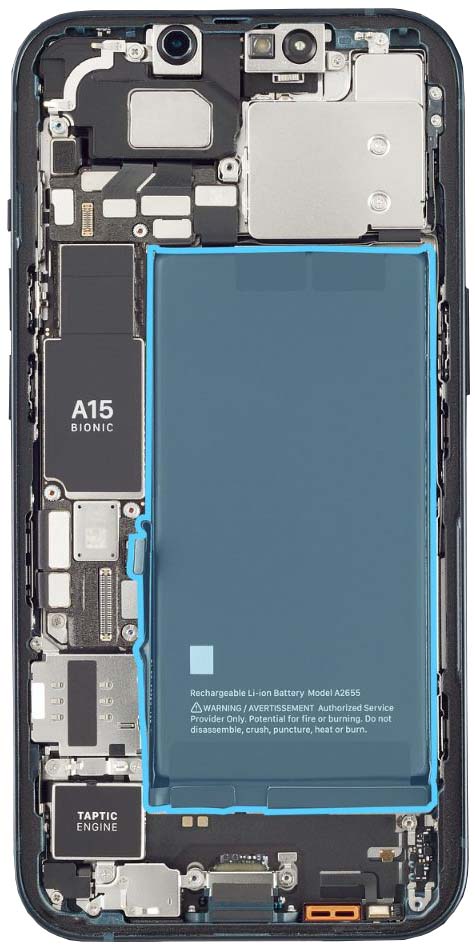
Duration: 60 min.
Steps: 20 Steps
If your battery looks like it’s been hitting the gym a bit too hard, remember that the gas inside is a bit of a fire hazard! If you’re not feeling up to the challenge, it’s totally cool to schedule a repair at a shop.
In this fun and informative photo guide, we’ll walk you through the steps to swap out that battery like a pro! Good luck with your repair adventure!
Step 1
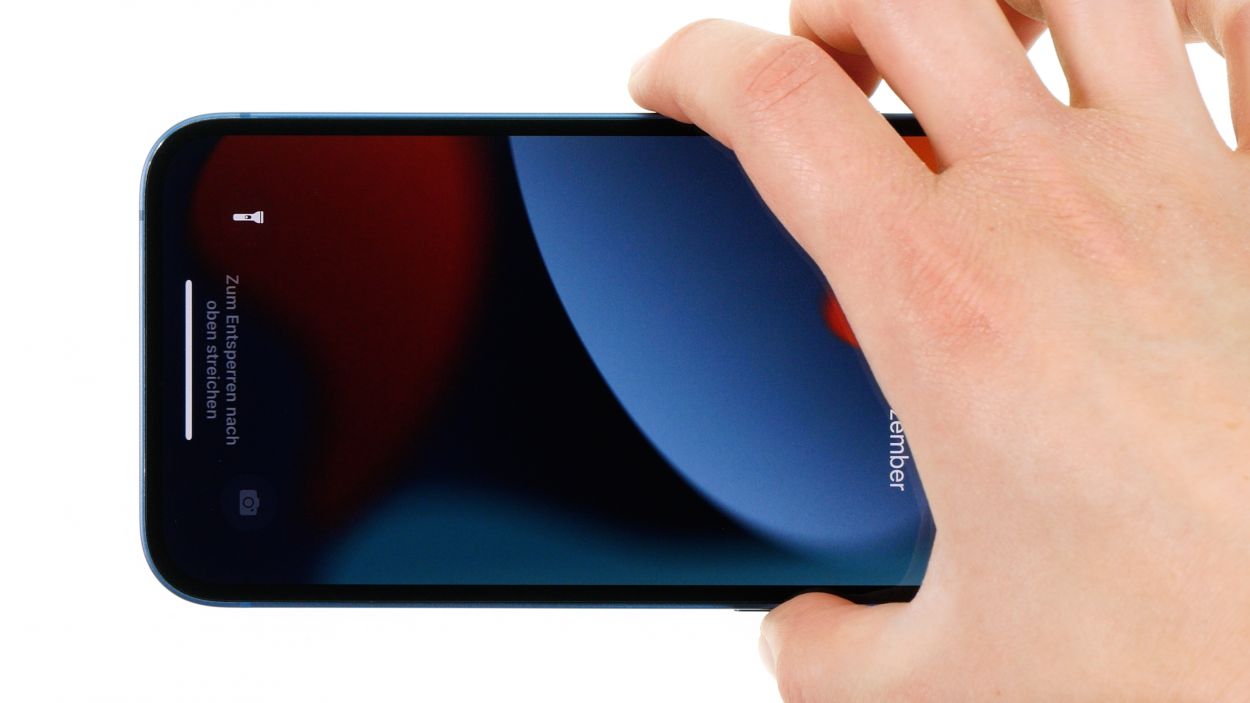
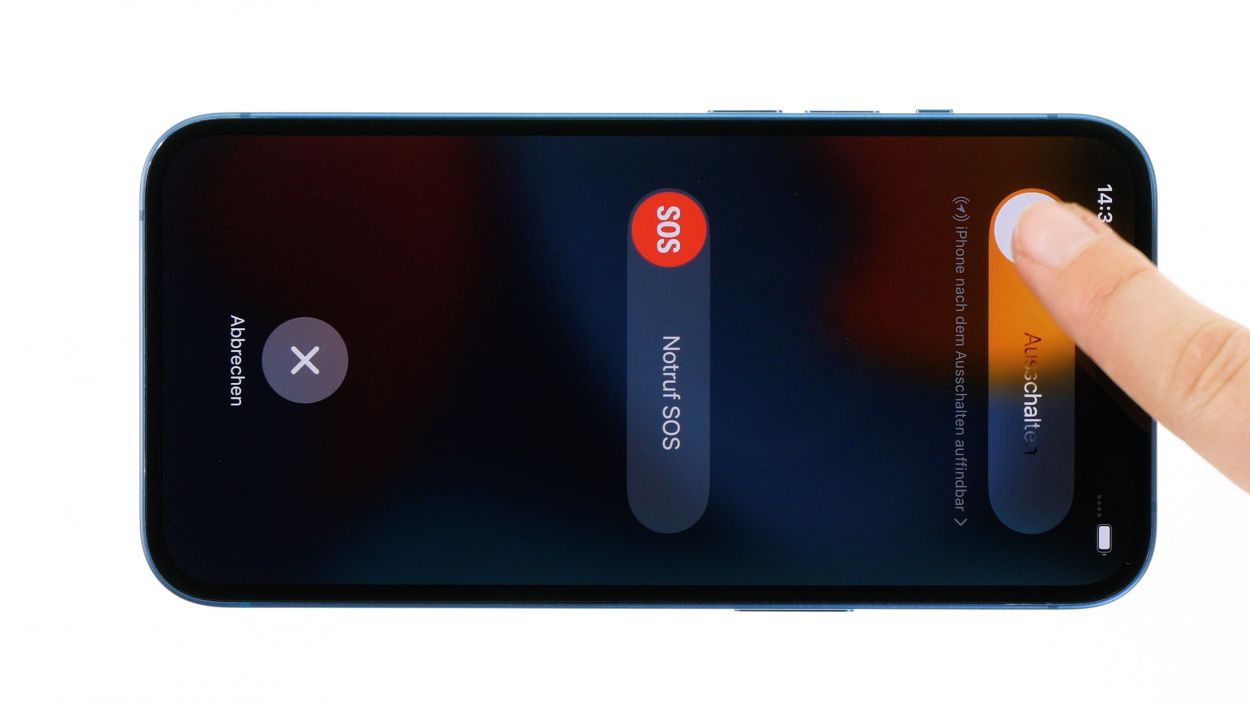
Before diving into the repair fun, give our checklist a whirl to test your iPhone 13’s basic functions. This way, you’ll know if your repair mission was a success!
– Press and hold the side button and the volume down button at the same time for a few seconds. You’ve got this!
– Slide that nifty slider from left to right like a pro.
Step 2
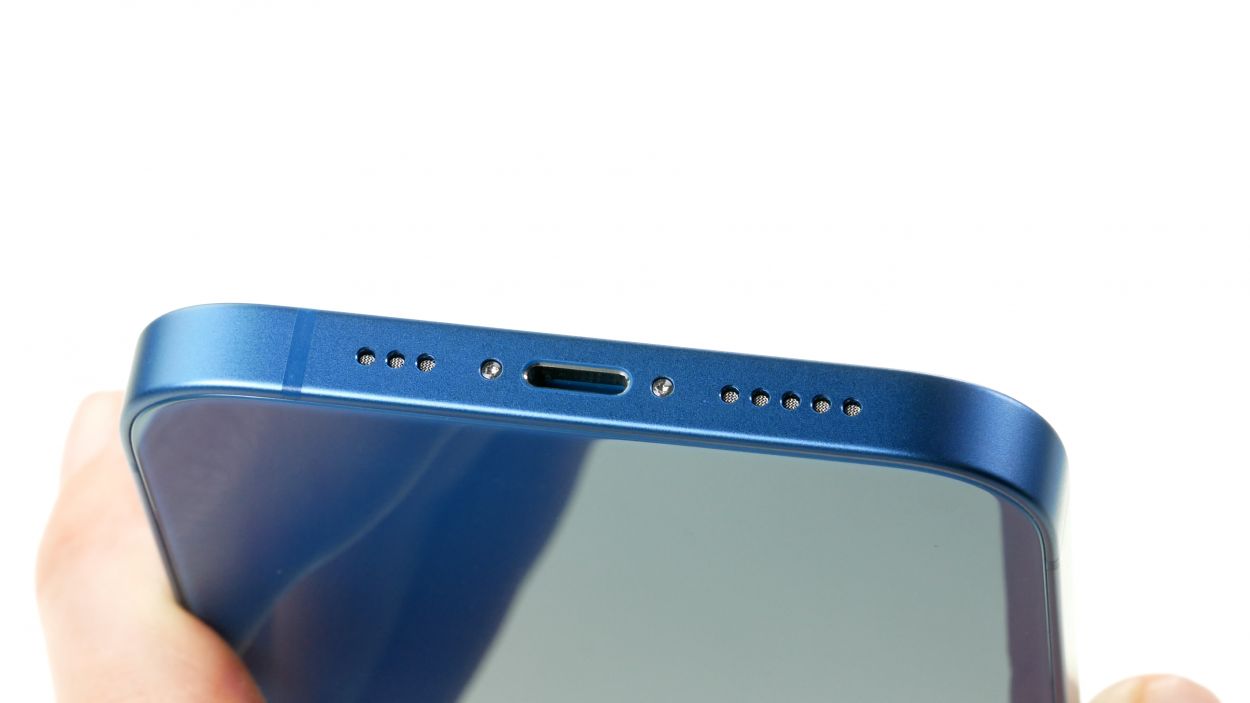
2 × 6.8 mm Pentalobe
Opening up your iPhone? Just a heads-up: that shiny IP68 certification is going to take a little vacation!
We suggest using a screw organizer to keep all your disassembled bits and bobs safe and tidy. Plus, our magnetic pad ensures that everything stays put, so you can focus on the fun parts of the repair!
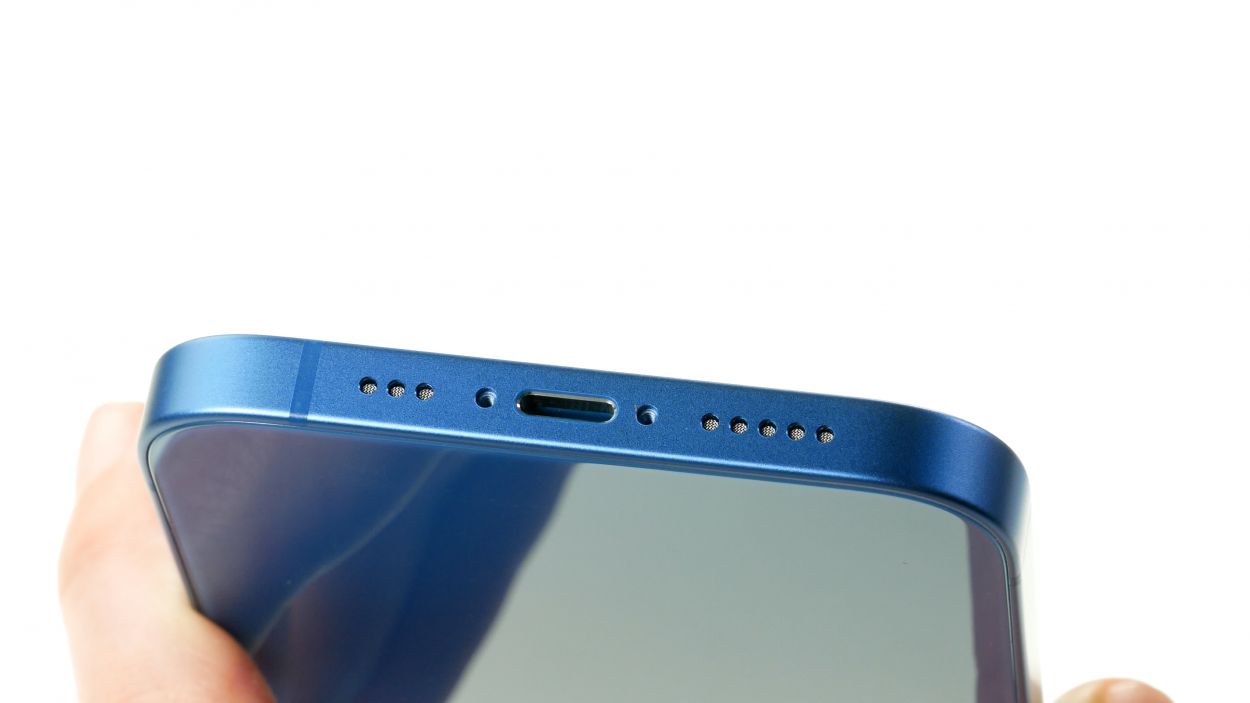
– Twist off those two Pentalobe screws flanking the Lightning connector like a pro!
– Then stash them safely in your screw storage, so they don’t wander off.
Step 3
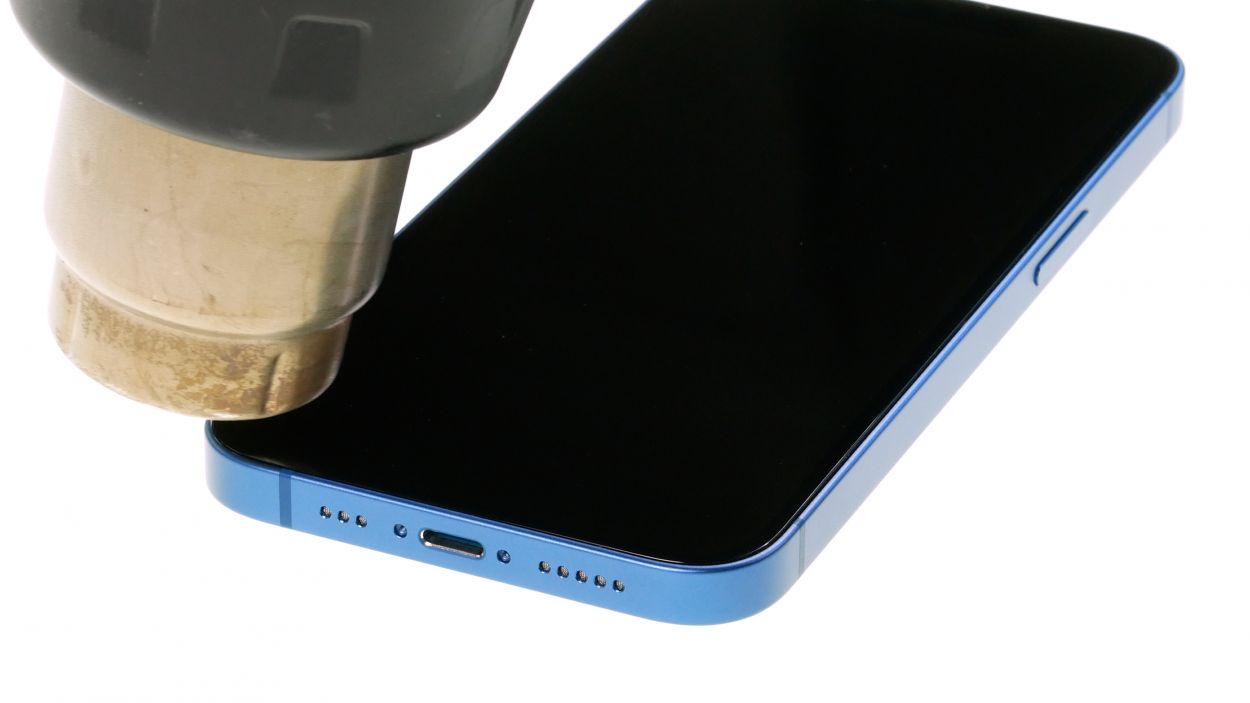
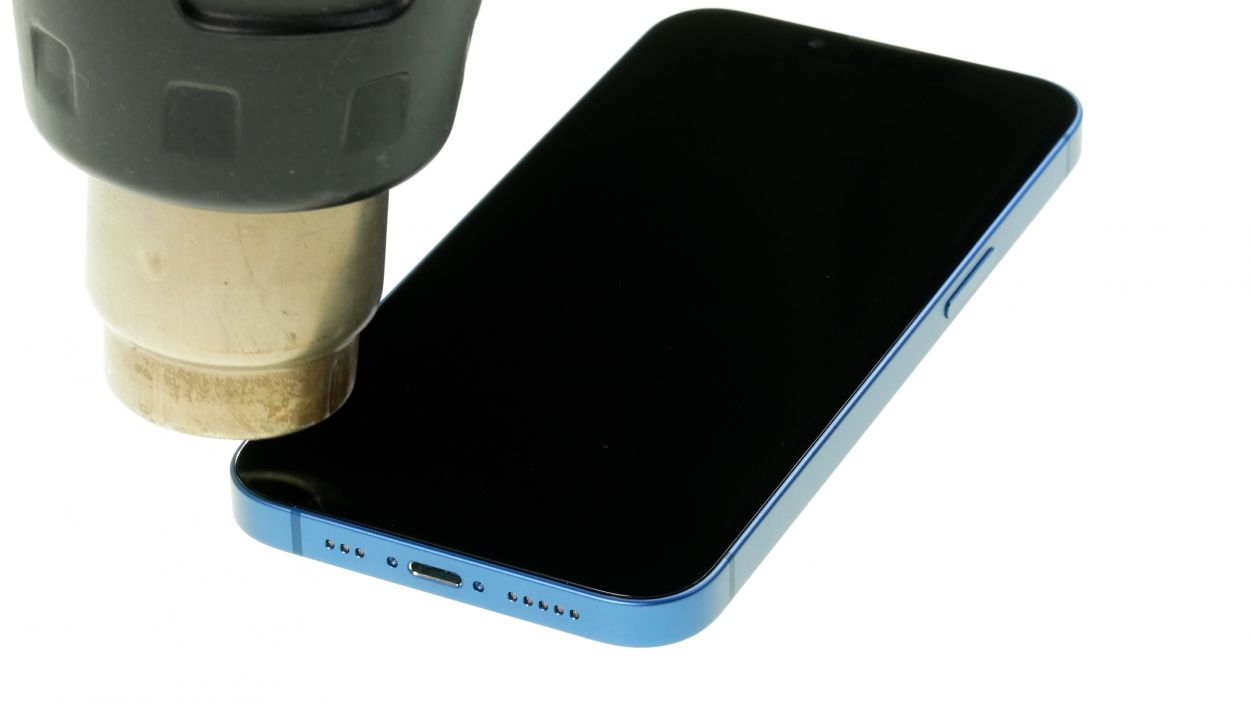
– Wave your hot air device around the edge of the screen like you’re giving it a warm hug!
Tools Used
- <a target="_blank" href="https://www.amazon.com/s?k=Heat+gun+Repair&linkCode=ll2&tag=salvationrepa-20&linkId=1c0aa533b7b8148cb48741a4635ea648&language=en_US&ref_=as_li_ss_tl" title="You can use a heat gun to heat parts that are glued on so they’re easier to remove.
In most cases, you can also use a hairdryer.” rel=”noopener”>Heat gun
Step 4
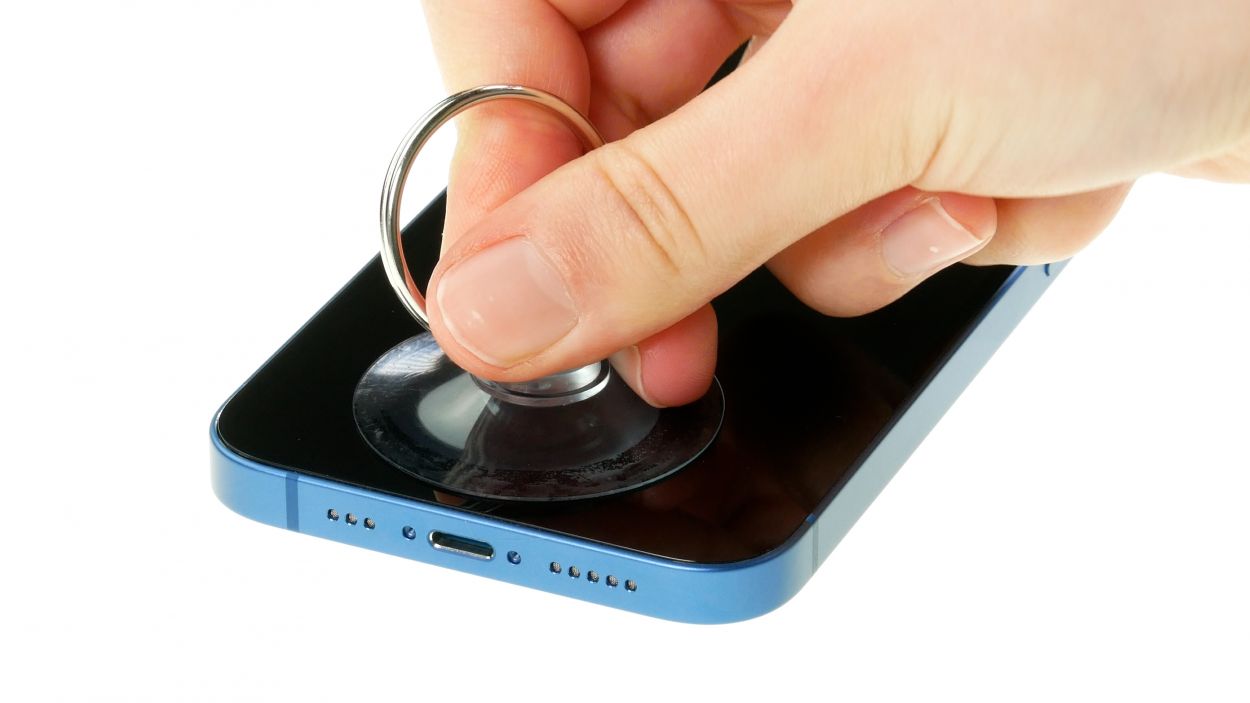
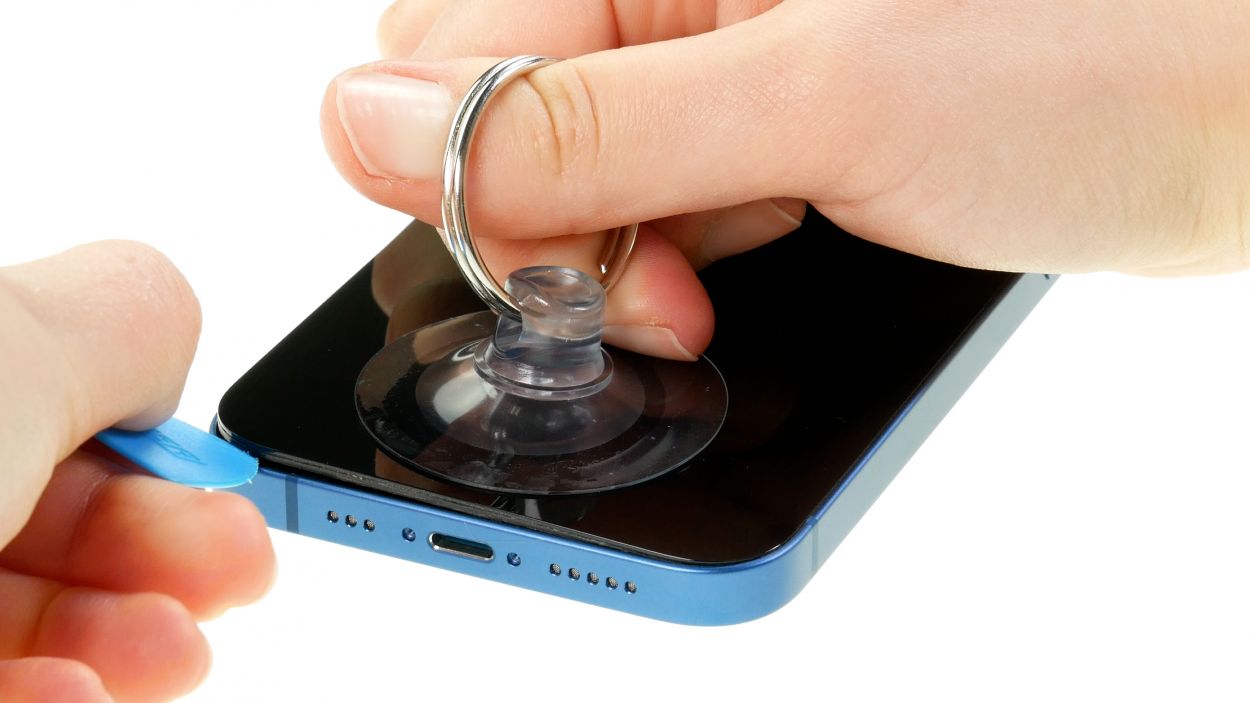
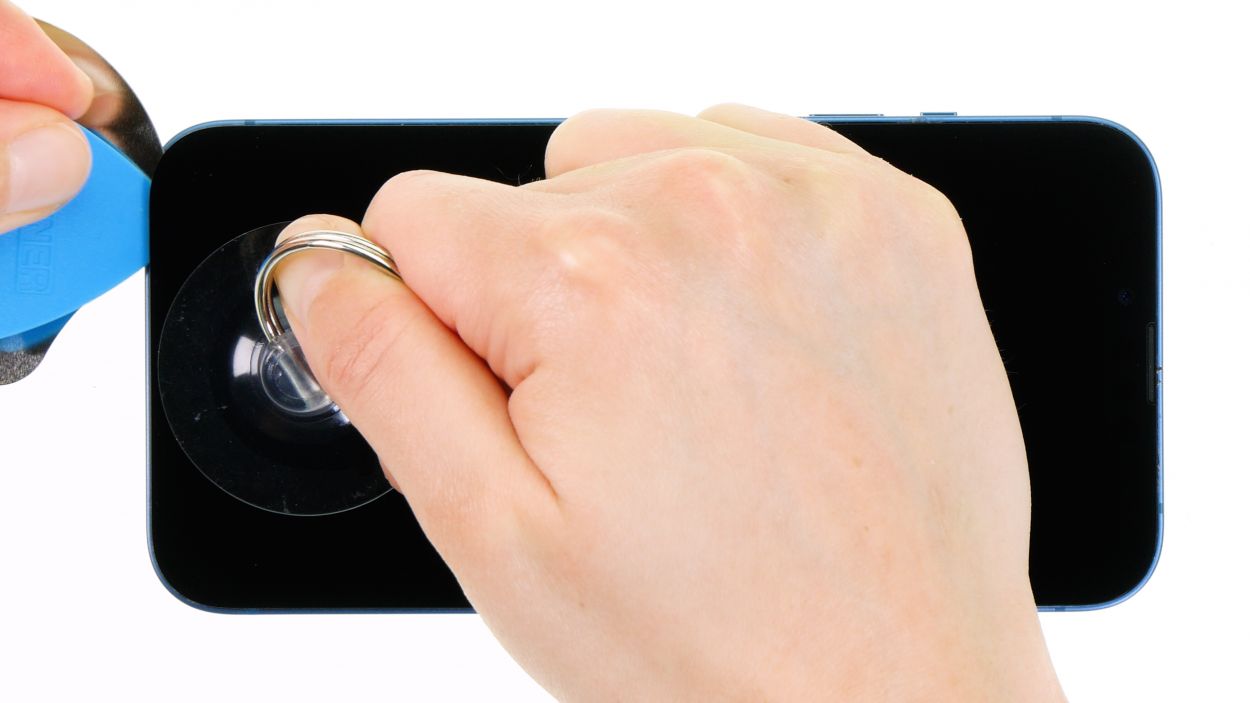
– Grab a suction cup and stick it to the lower edge of the screen. Give it a good pull upwards to create a sneaky little gap between the screen and the case unit.
– Now, slide a flat, sturdy tool into that gap to make it a bit wider. You’re doing great!
Step 5
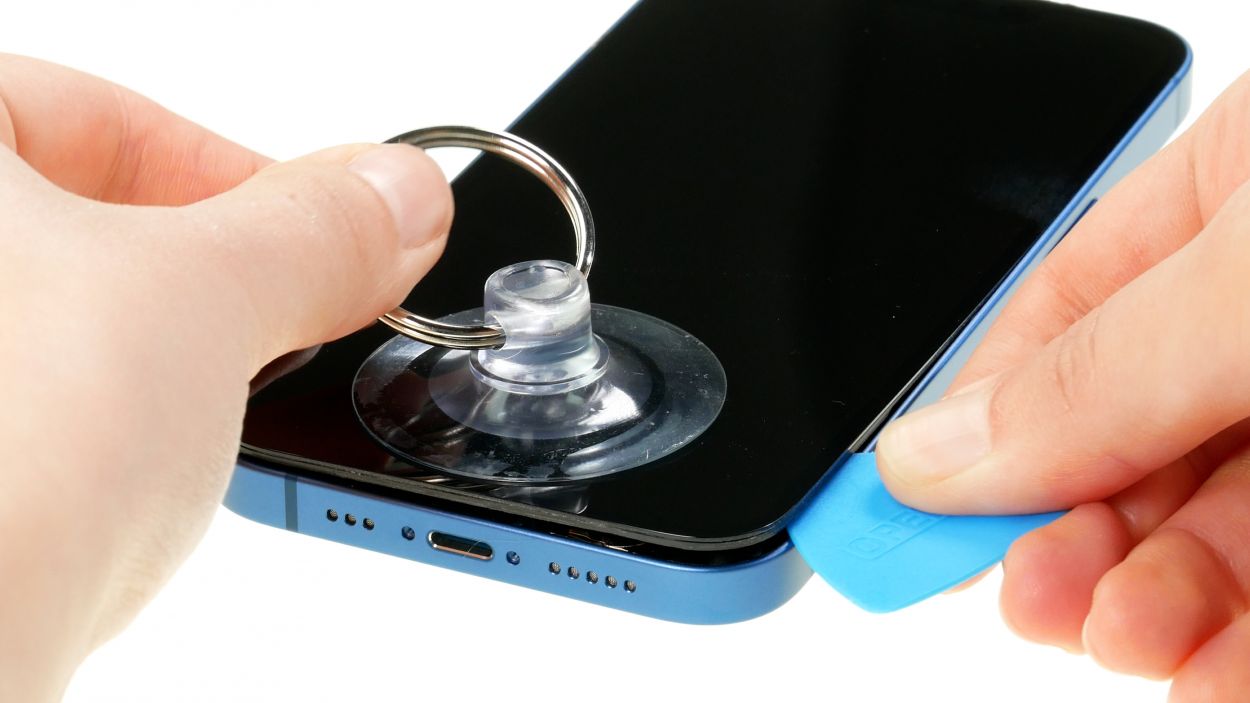
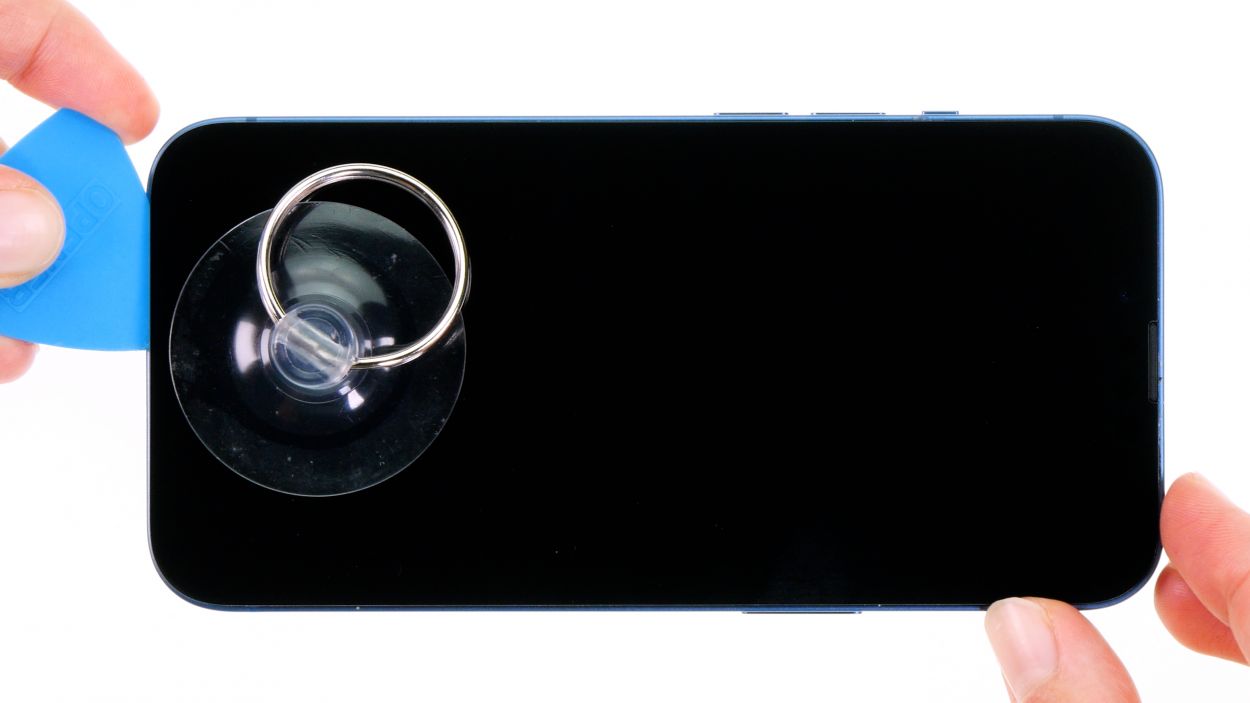

When you’re getting your tool in there, be sure to keep it chill and not too deep near the volume buttons! We don’t want any cables getting squished inside your device.
– Take that plastic tool and glide it all around the edge of the screen like a pro! Give it a little upward nudge to pop those hooked lugs free from the case unit.
– Once the screen is fully free, gently fold it towards the volume buttons and lean it against something sturdy. You’ve got this!
Tools Used
Step 6
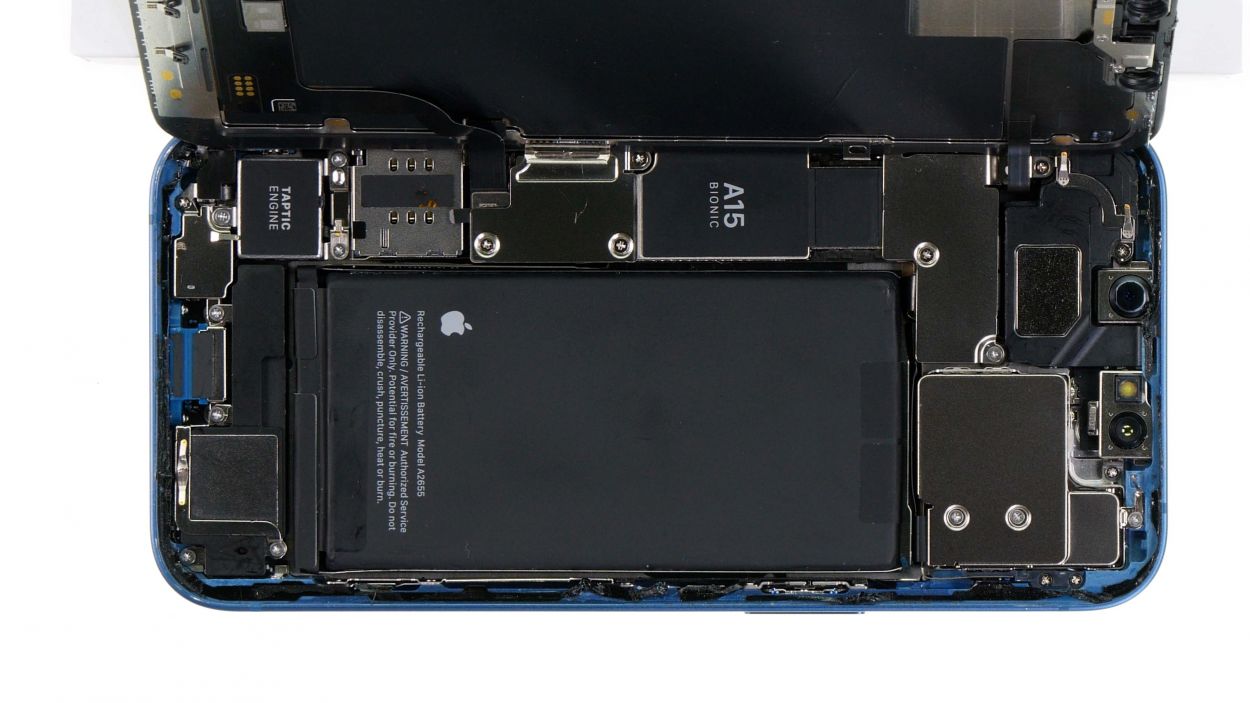
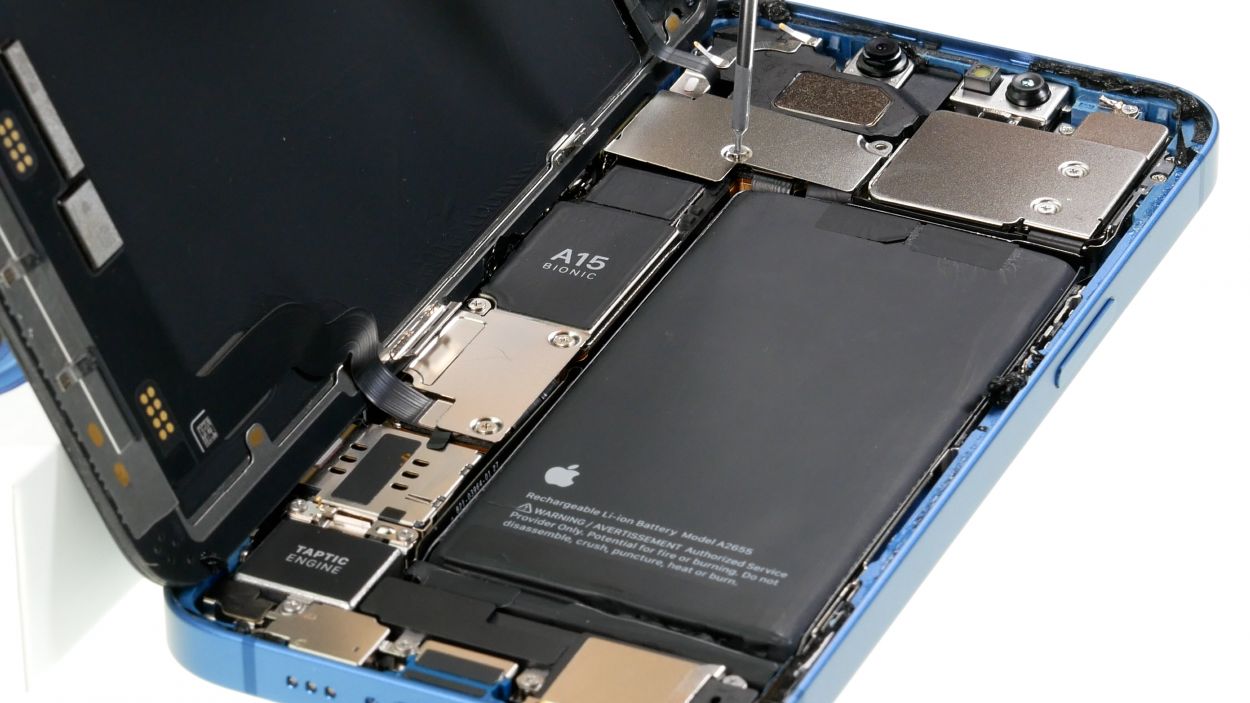
4 × 1.2 mm Phillips
1 × 1.7 mm Y-Type
1 × 1.6 mm Phillips
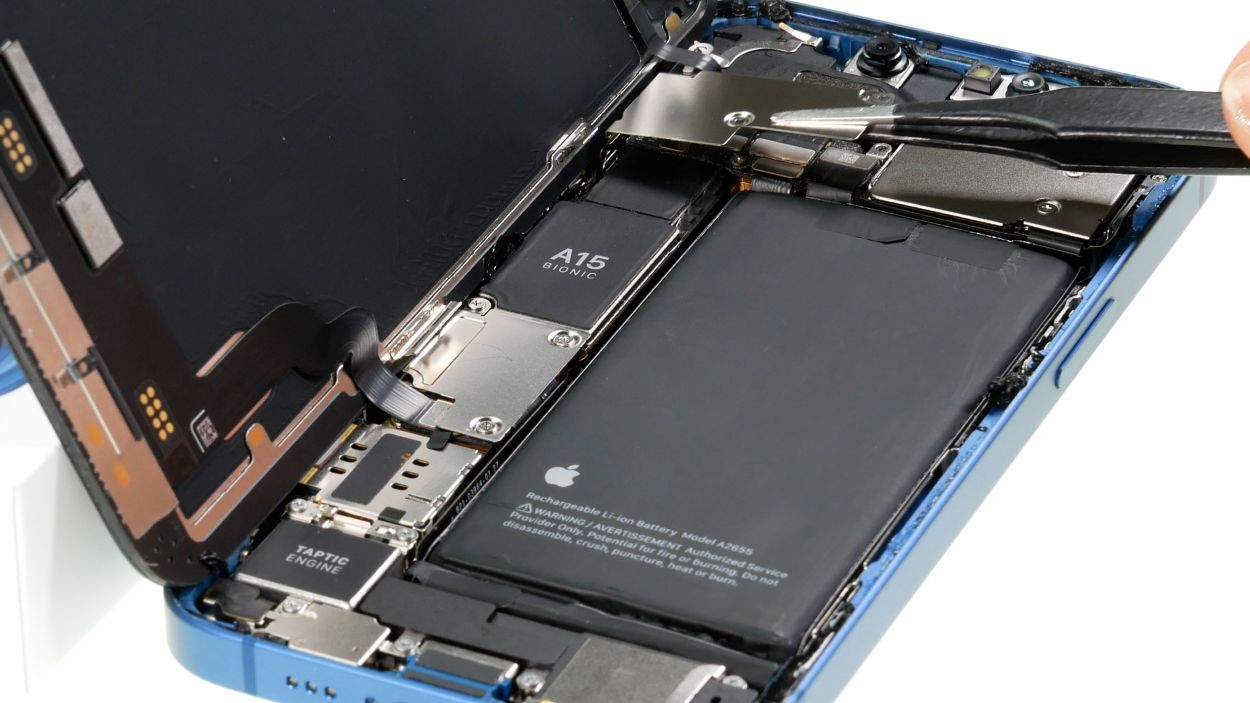
To fully liberate that screen, you’ll need to disconnect the battery connector and the two screen connectors. They’re hiding under a couple of cover plates, so be sure to give them a gentle nudge!
– Unscrew those six little screws from the two cover plates and pop them into your trusty screw storage.
– Now, with a gentle touch, use your tweezers to lift those plates off your device. You’re doing great!
Step 7
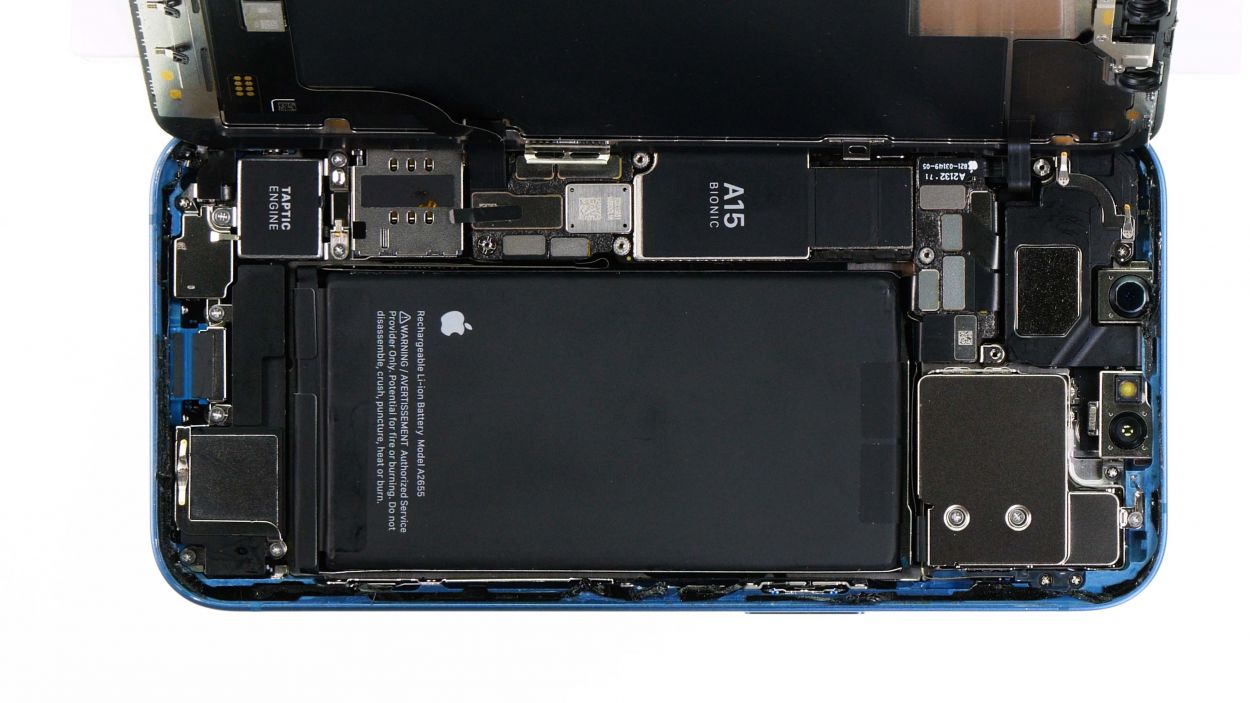
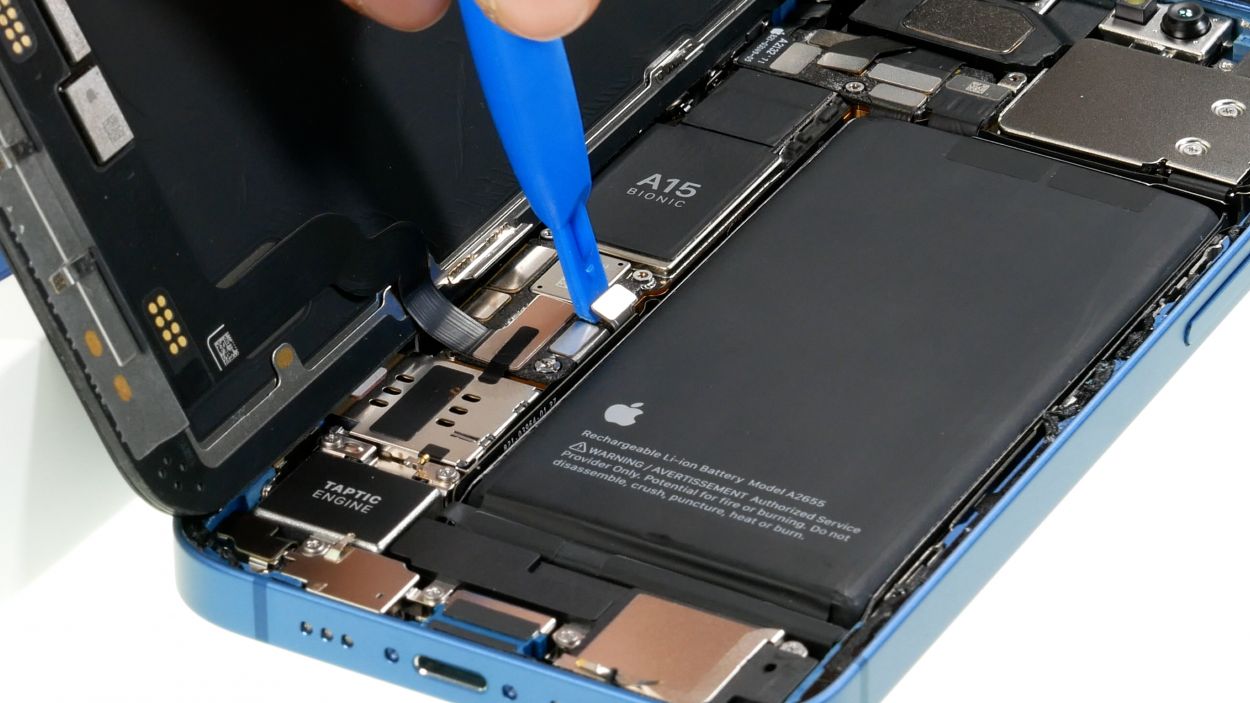
To keep your repair safe and sound, always remember to unplug that battery connector first. It’s like giving your device a little break before the big workout!
– Grab your trusty plastic lever tool and slide it gently under the connector. Give it a little wiggle to separate it from the board. A plastic spudger works wonders for this task!
Tools Used
Step 8
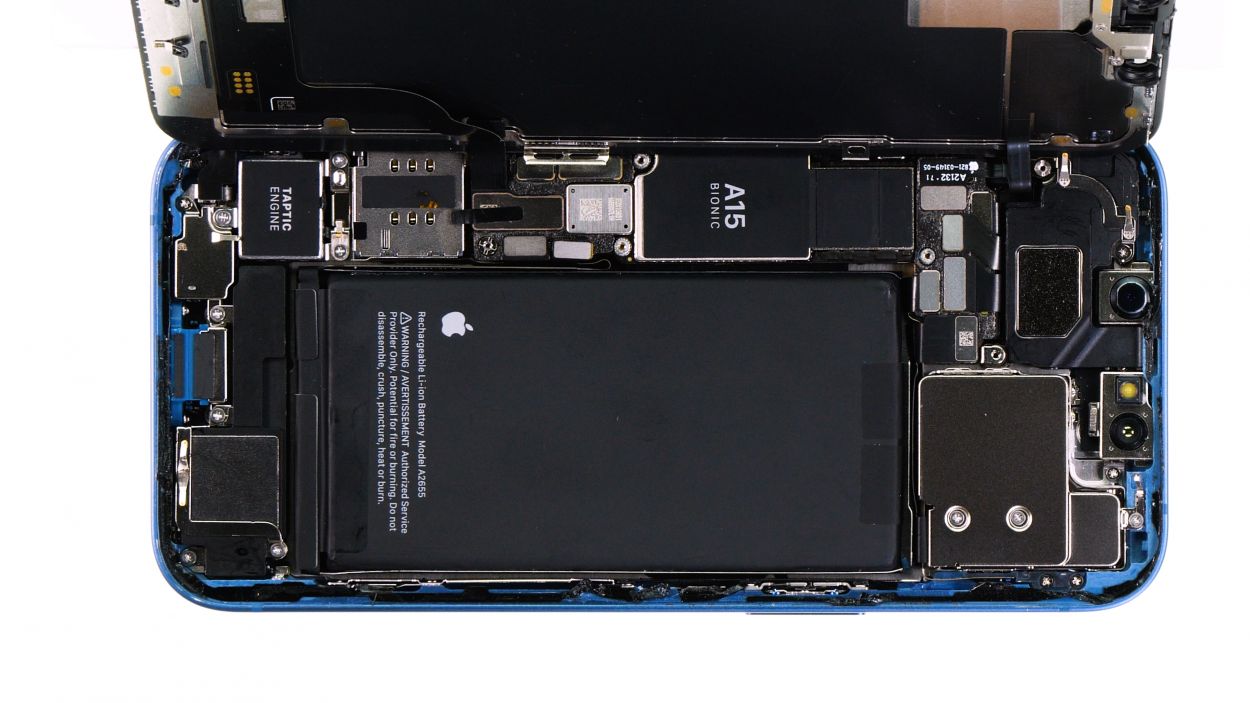
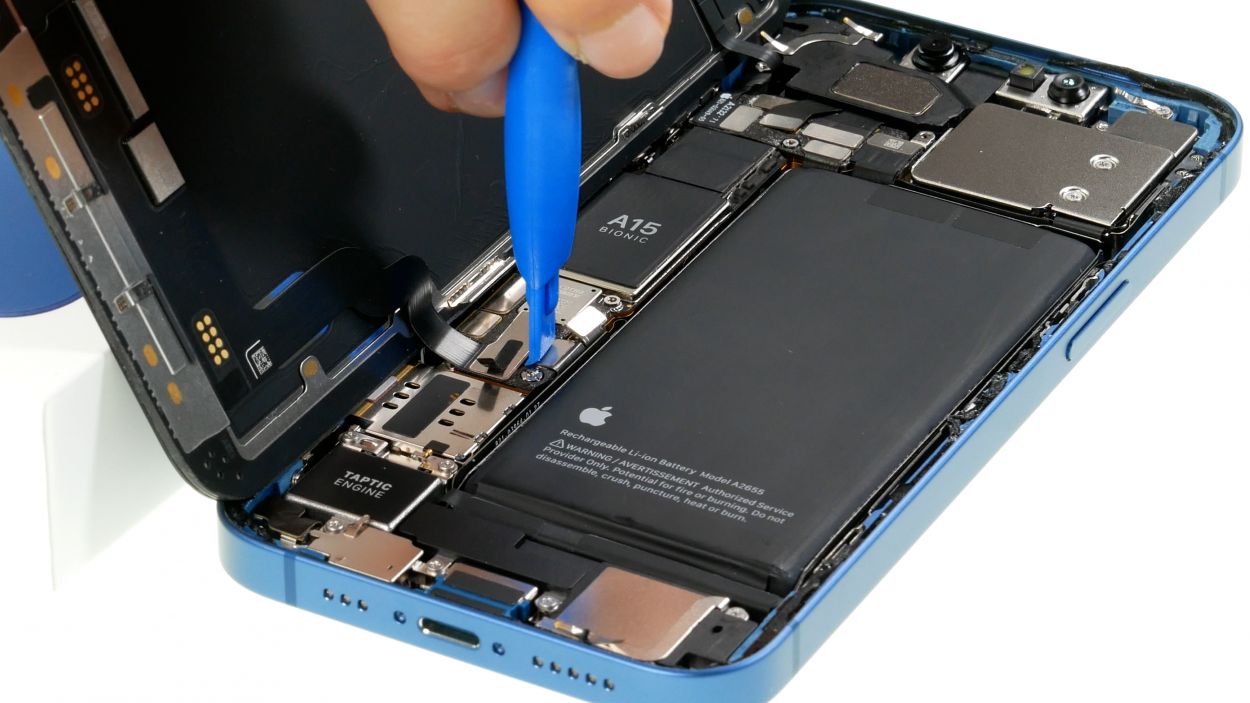
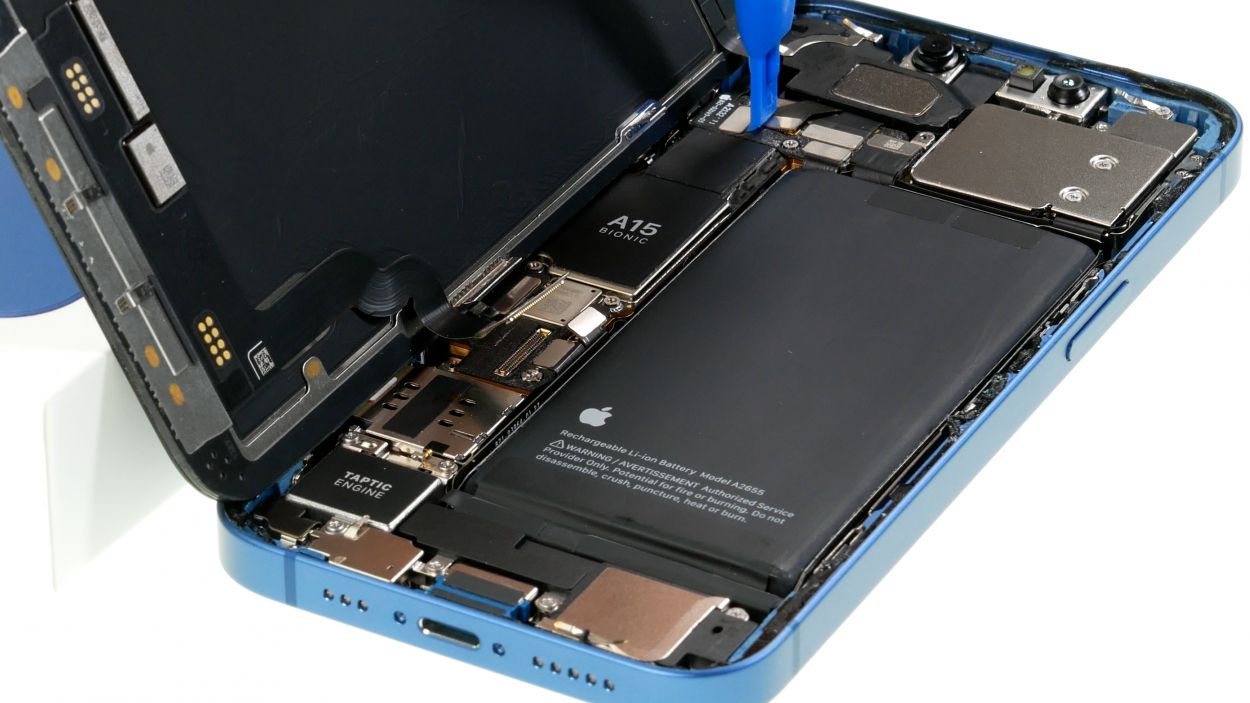

– Gently coax those two screen connectors off the logic board with your trusty spudger—like you’re giving them a little nudge to go on their way!
– Once the screen is free, just set it aside and give it a little wave goodbye!
Tools Used
Step 9
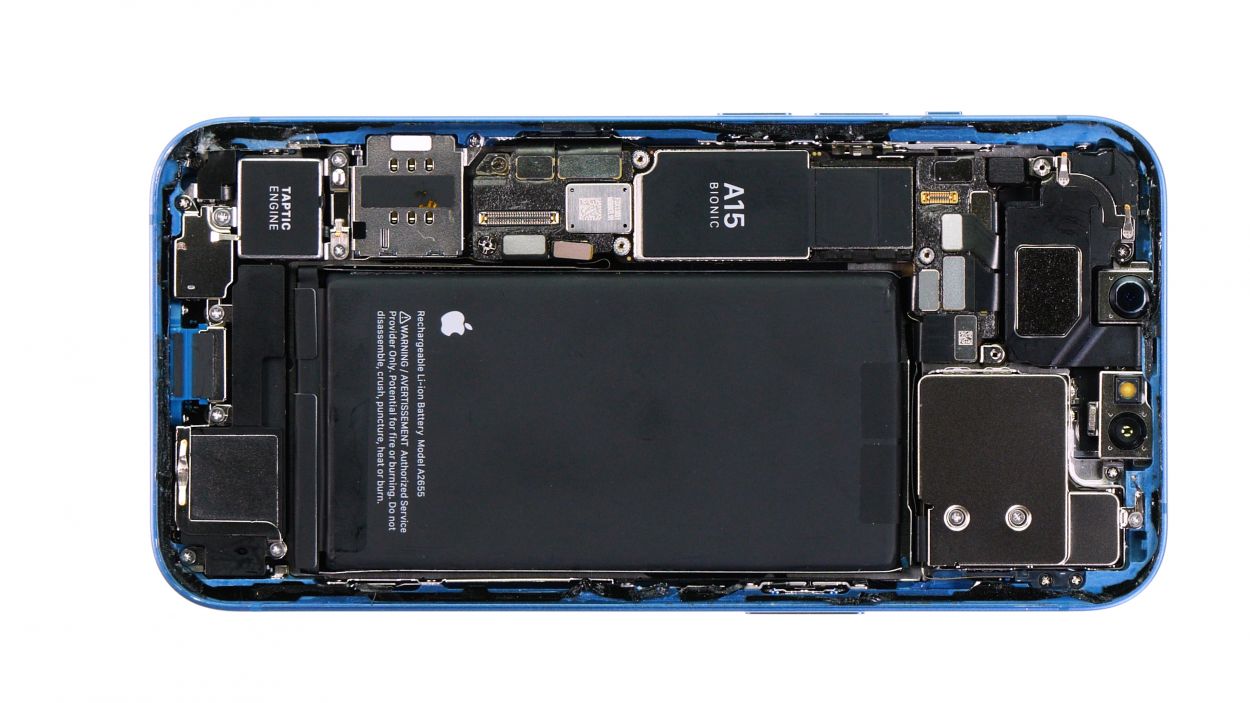
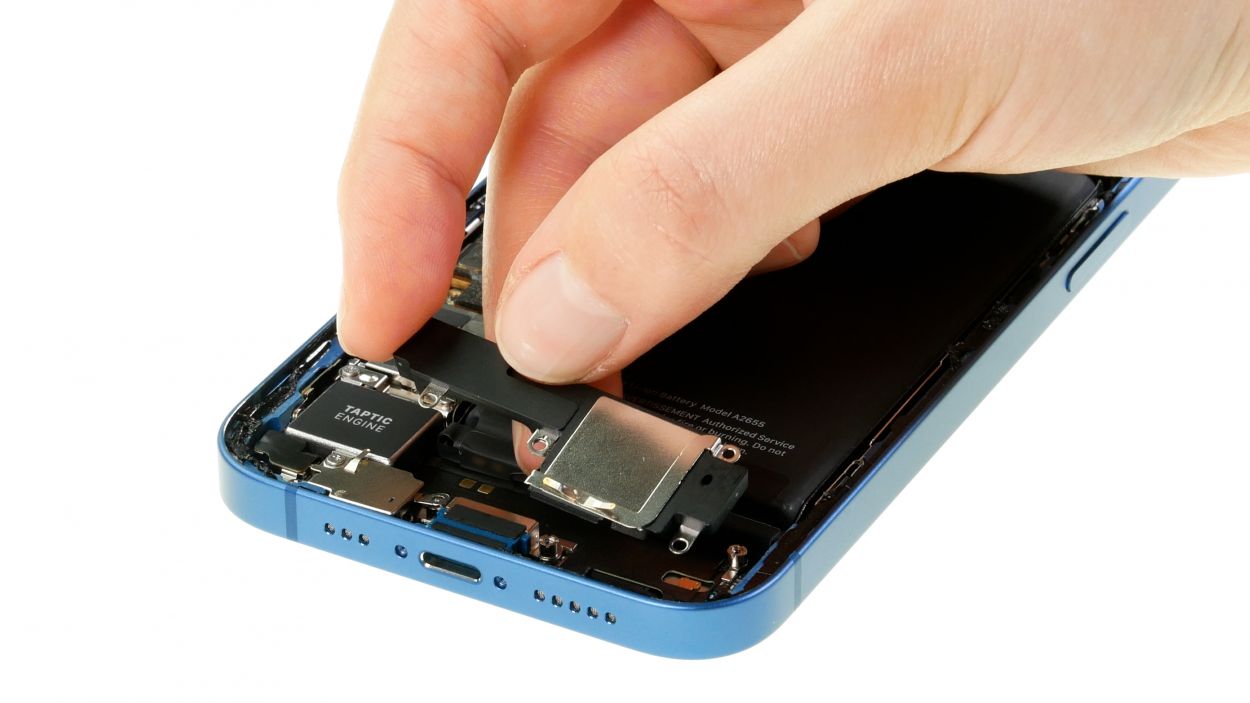
4 × 1.6 mm Phillips
– Start by loosening those four Phillips screws holding the speaker in place. You got this!
– Once they’re loose, gently lift the speaker out of your device like a pro!
Step 10
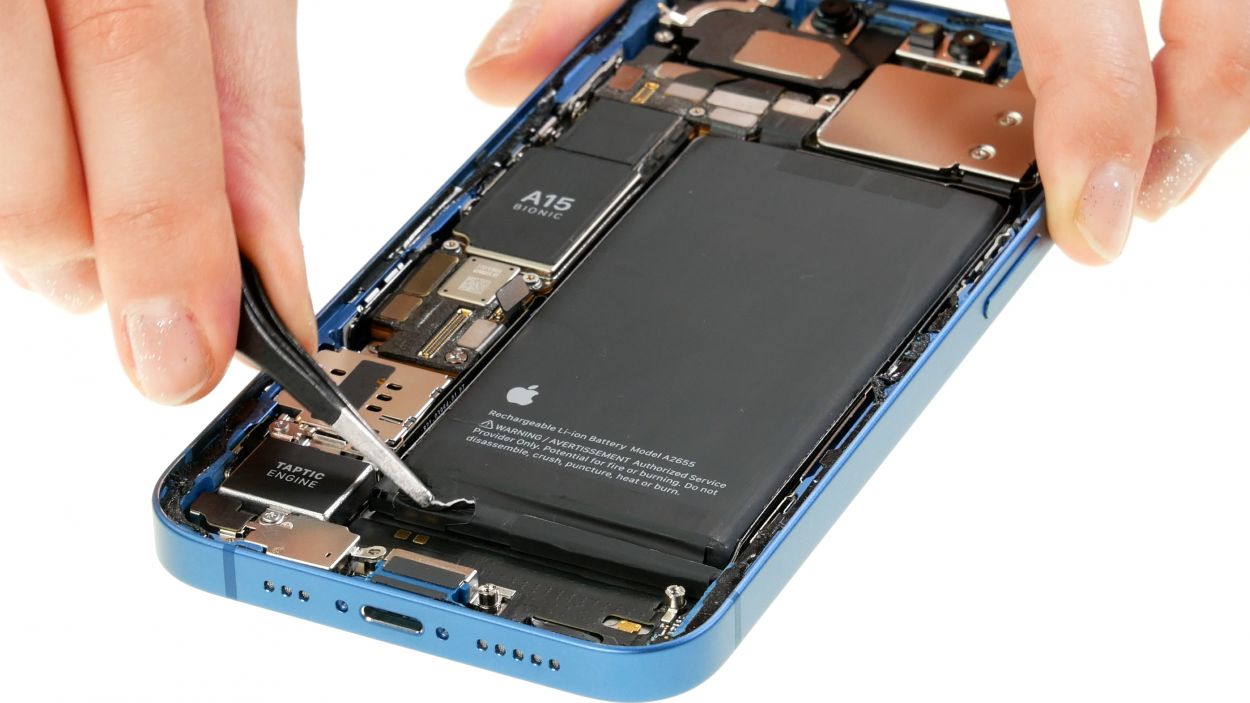
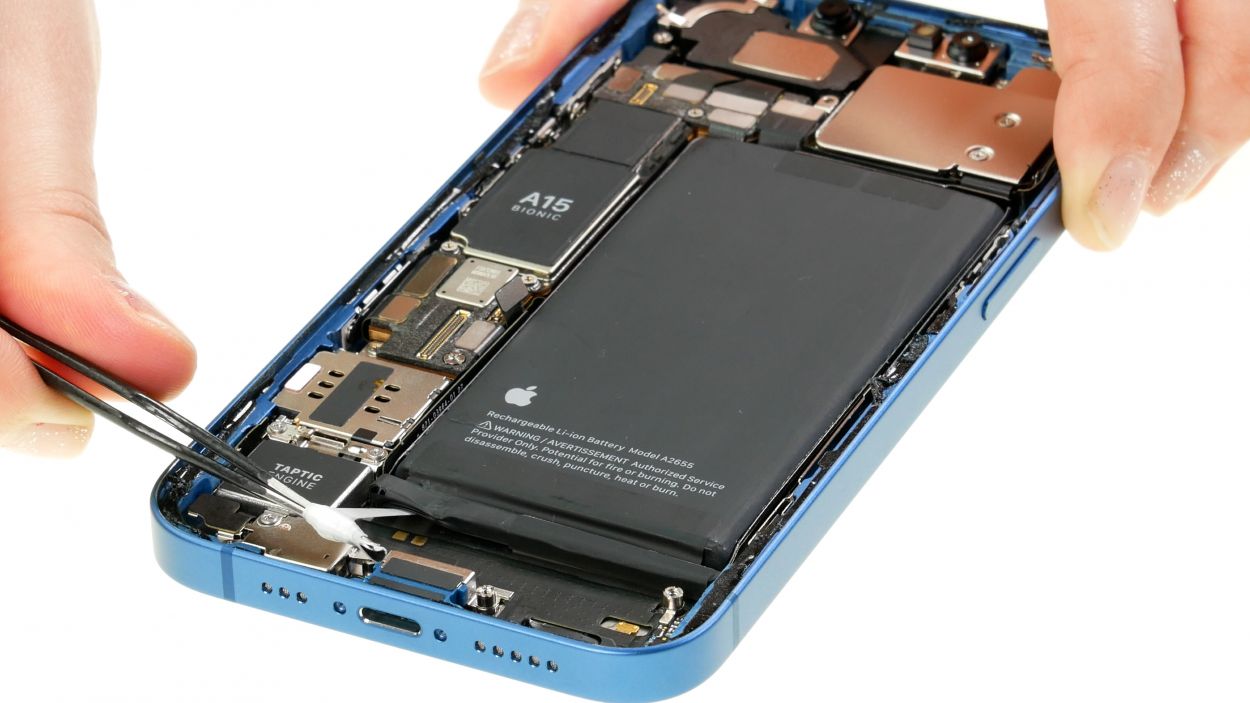
– Using tweezers, gently unhook those black tabs from the battery. You’ve got this!
– Carefully pull the <a target='_blank' href='https://www.amazon.com/s?k=adhesive+strips+iPhone+13&crid=1TJIMMAJSUJUZ&sprefix=repair+tools%2Caps%2C165&linkCode=ll2&tag=salvationrepa-20&linkId=c486487cf454ce8edd6f5beefab4110f&language=en_US&ref_=as_li_ss_tl’>adhesive strips out from beneath the battery with your tweezers. Aim to keep them as flat as possible to avoid any tearing. You’re doing great!
Tools Used
Step 11
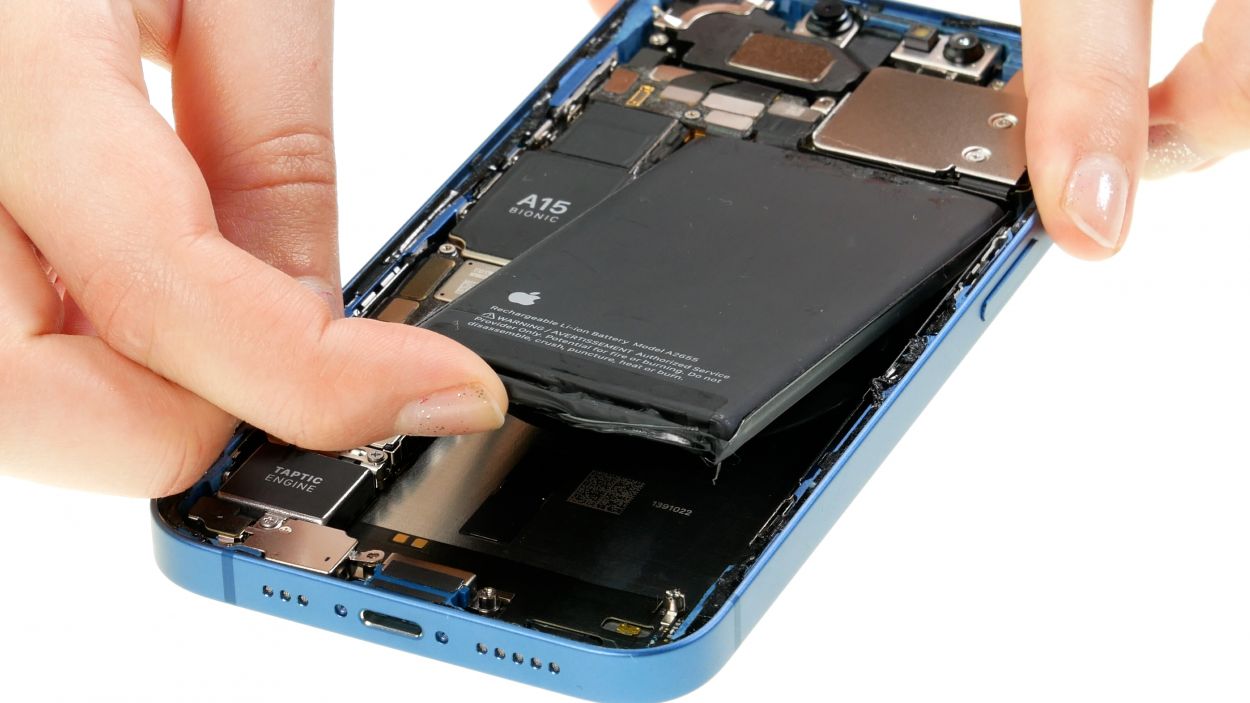
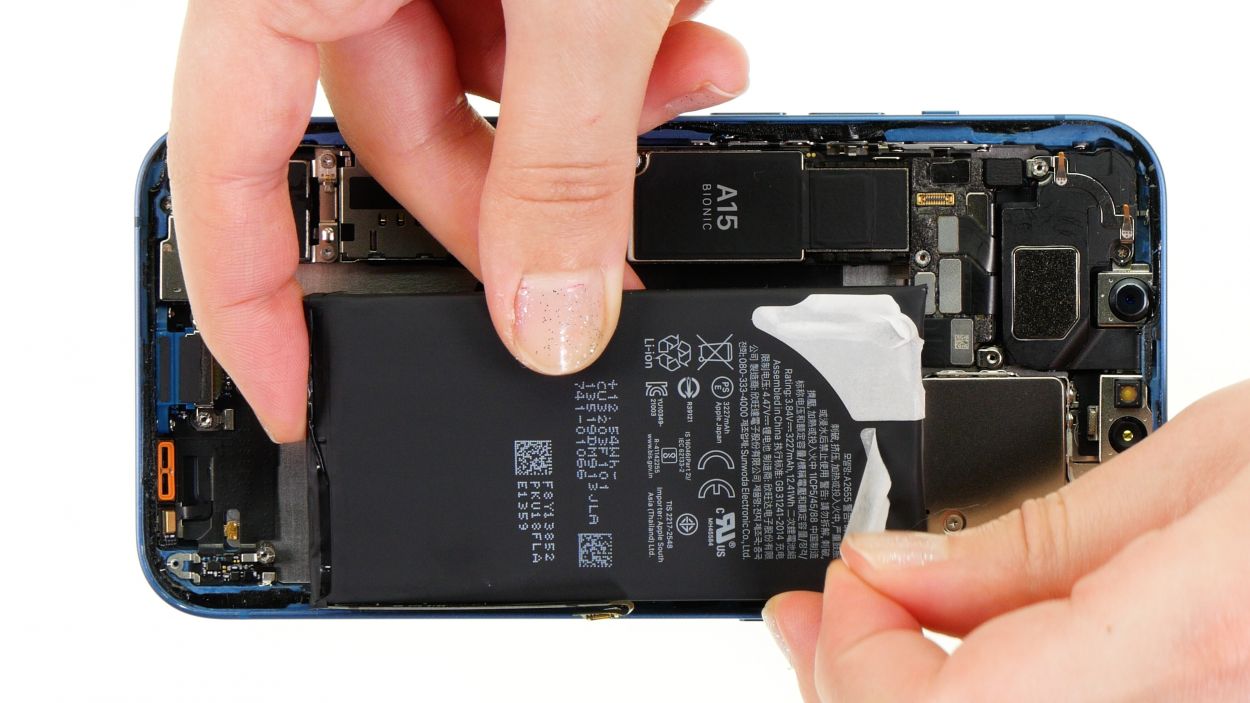
– After you’ve gently coaxed out all those <a target='_blank' href='https://www.amazon.com/s?k=adhesive+strips+iPhone+13&crid=1TJIMMAJSUJUZ&sprefix=repair+tools%2Caps%2C165&linkCode=ll2&tag=salvationrepa-20&linkId=c486487cf454ce8edd6f5beefab4110f&language=en_US&ref_=as_li_ss_tl’>adhesive strips, it’s time to say goodbye to the battery! Just lift it out of the device with care.
– Don’t forget to remove any leftover <a target='_blank' href='https://www.amazon.com/s?k=adhesive+strips+iPhone+13&crid=1TJIMMAJSUJUZ&sprefix=repair+tools%2Caps%2C165&linkCode=ll2&tag=salvationrepa-20&linkId=c486487cf454ce8edd6f5beefab4110f&language=en_US&ref_=as_li_ss_tl’>adhesive strips from the battery’s back and the bottom of the case. We want everything nice and clean!
Tools Used
Step 12
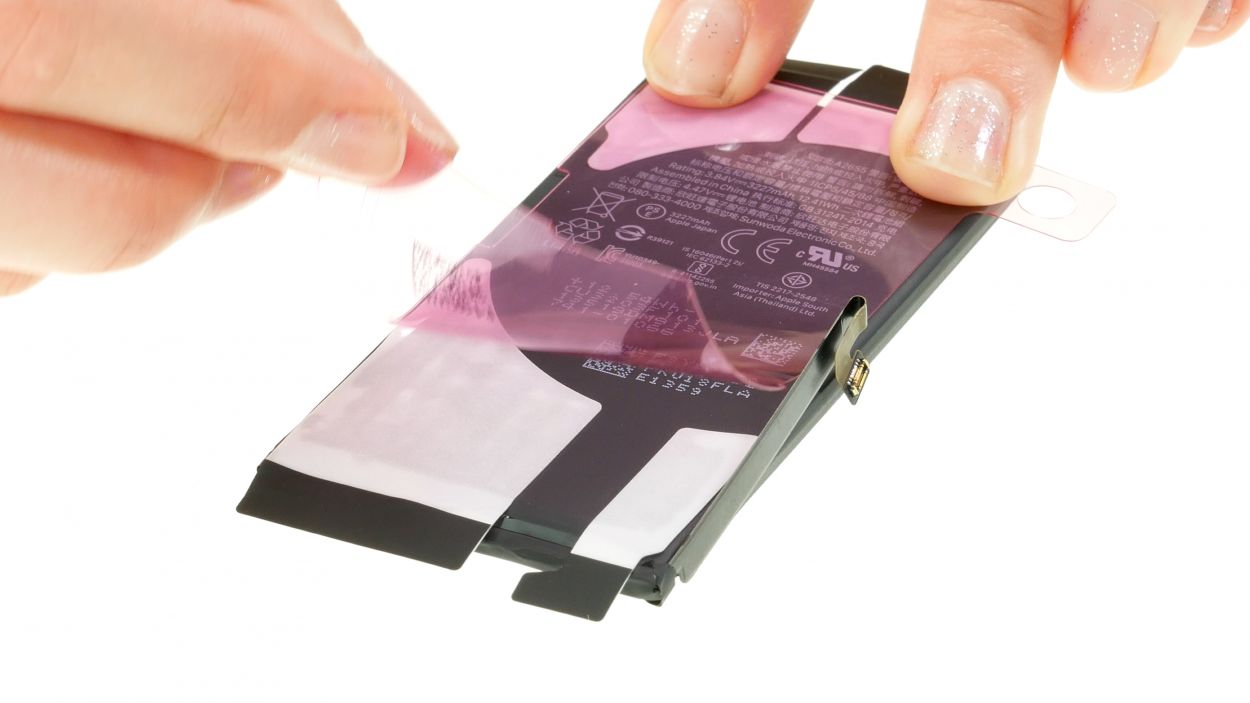
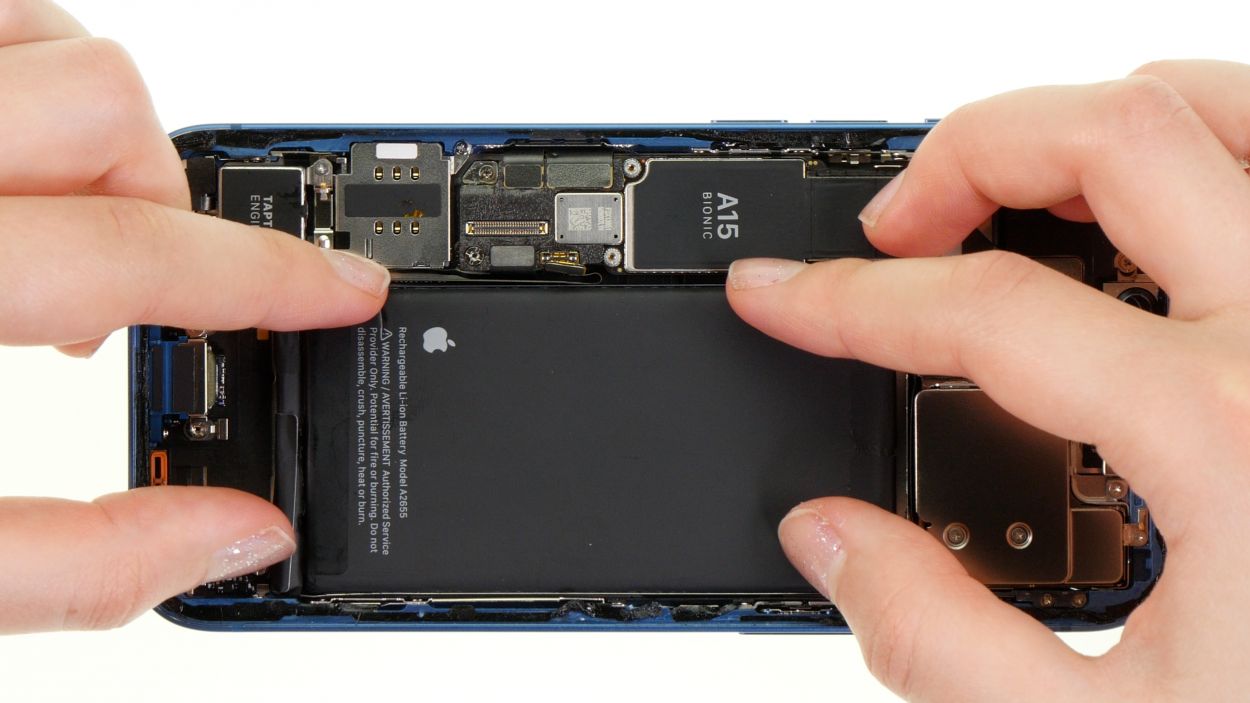
– First things first, peel off that protective film from the <a target='_blank' href='https://www.amazon.com/s?k=adhesive+strips+iPhone+13&crid=1TJIMMAJSUJUZ&sprefix=repair+tools%2Caps%2C165&linkCode=ll2&tag=salvationrepa-20&linkId=c486487cf454ce8edd6f5beefab4110f&language=en_US&ref_=as_li_ss_tl’>adhesive strips already chillin’ on the back of your new battery. You’re doing awesome!
– Now, give that battery a firm press into the rear case. You’ve got this!
Step 13
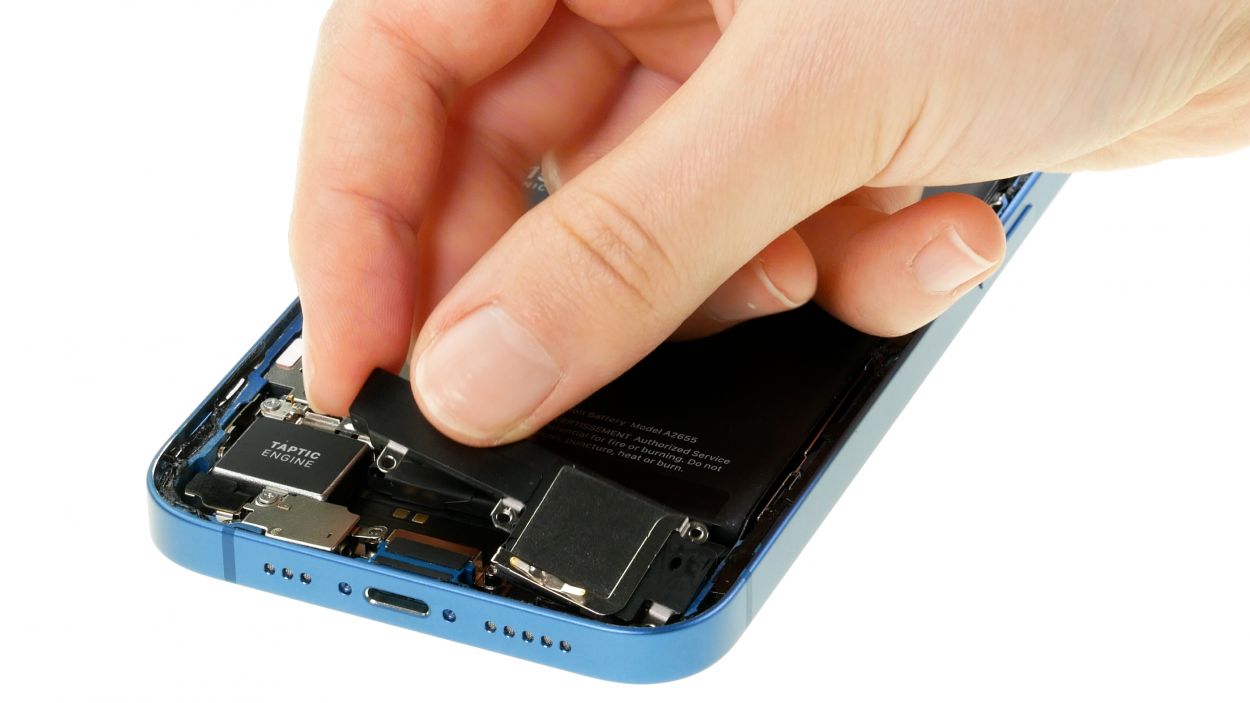
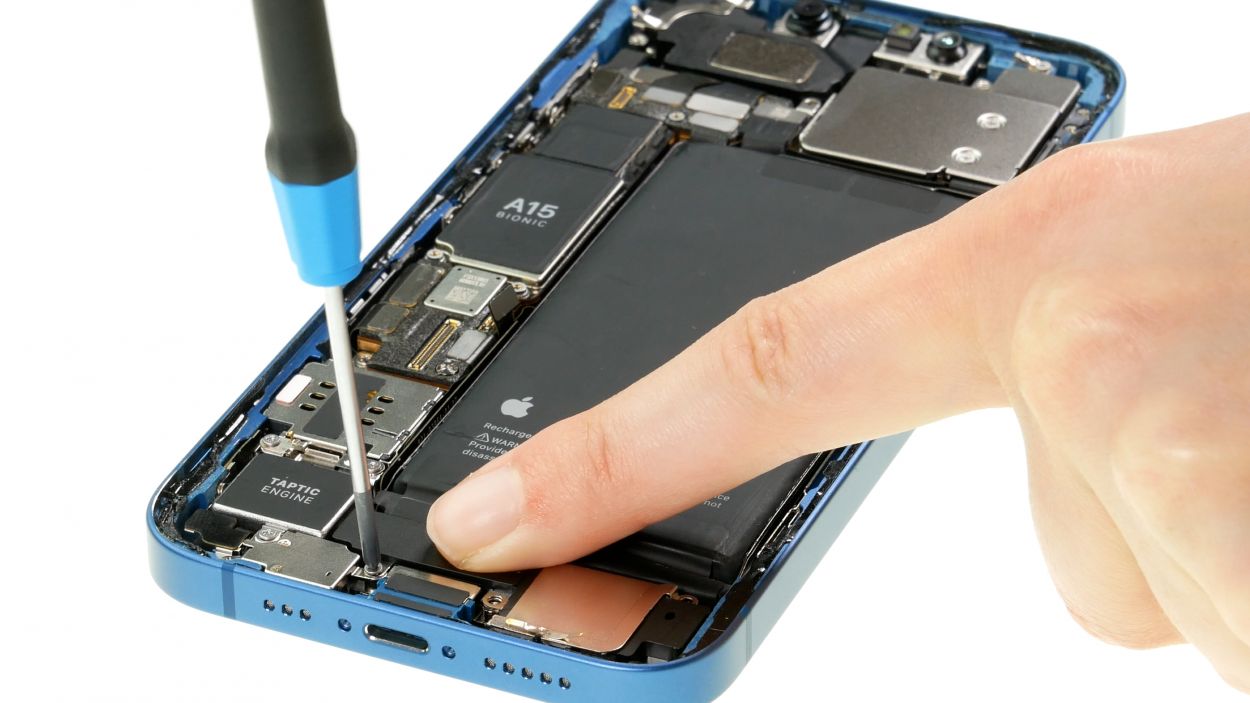
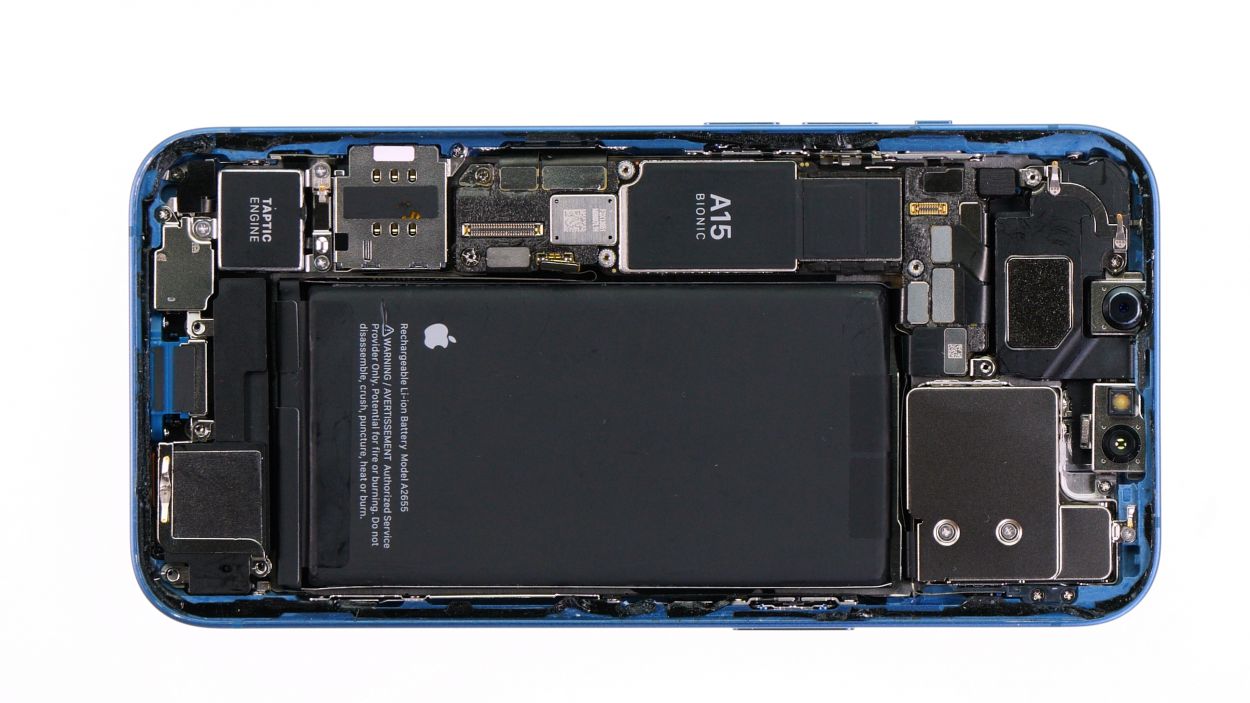
4 × 1.6 mm Phillips
– Pop that speaker back into its cozy spot in the rear case!
– Secure it with the four Phillips screws like a pro—you’re nailing this!
Step 14
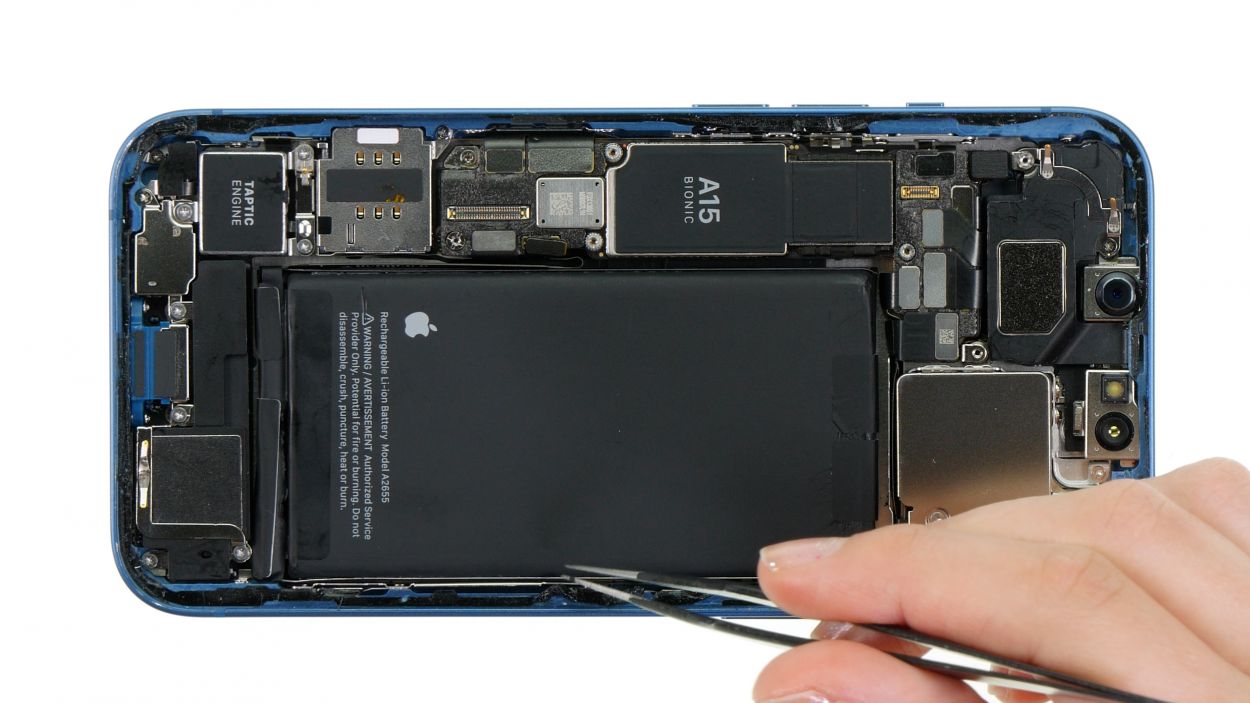
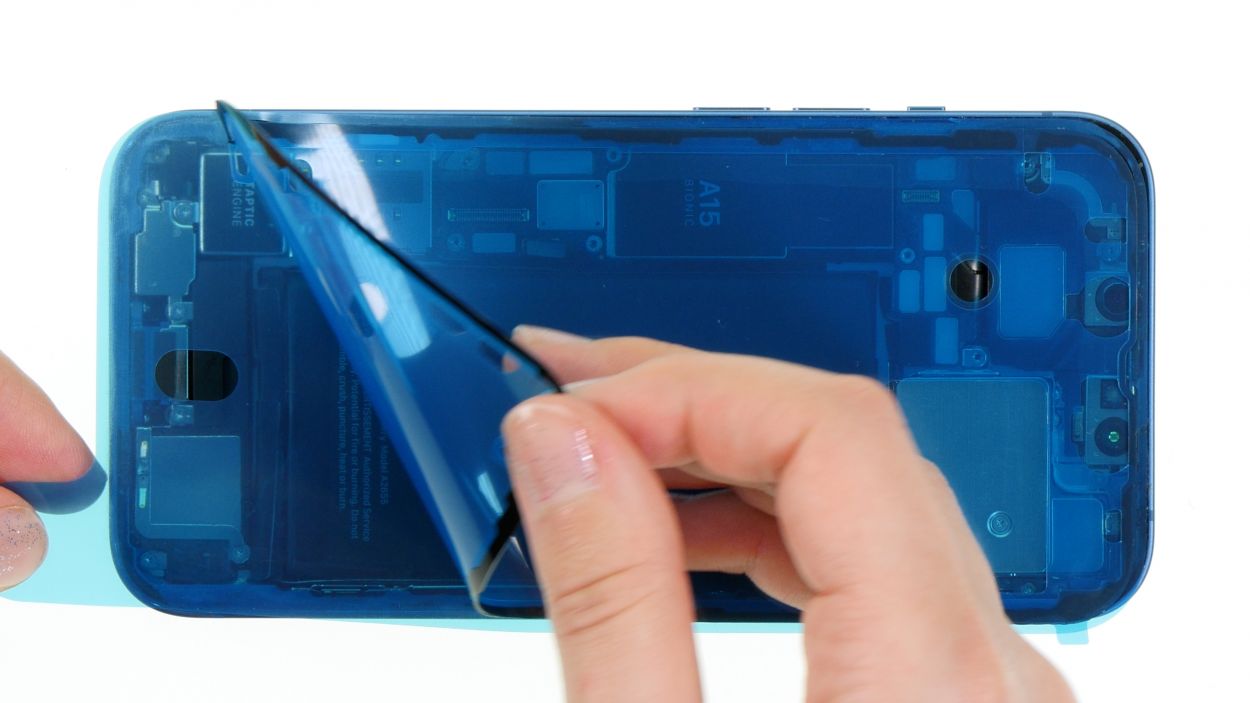
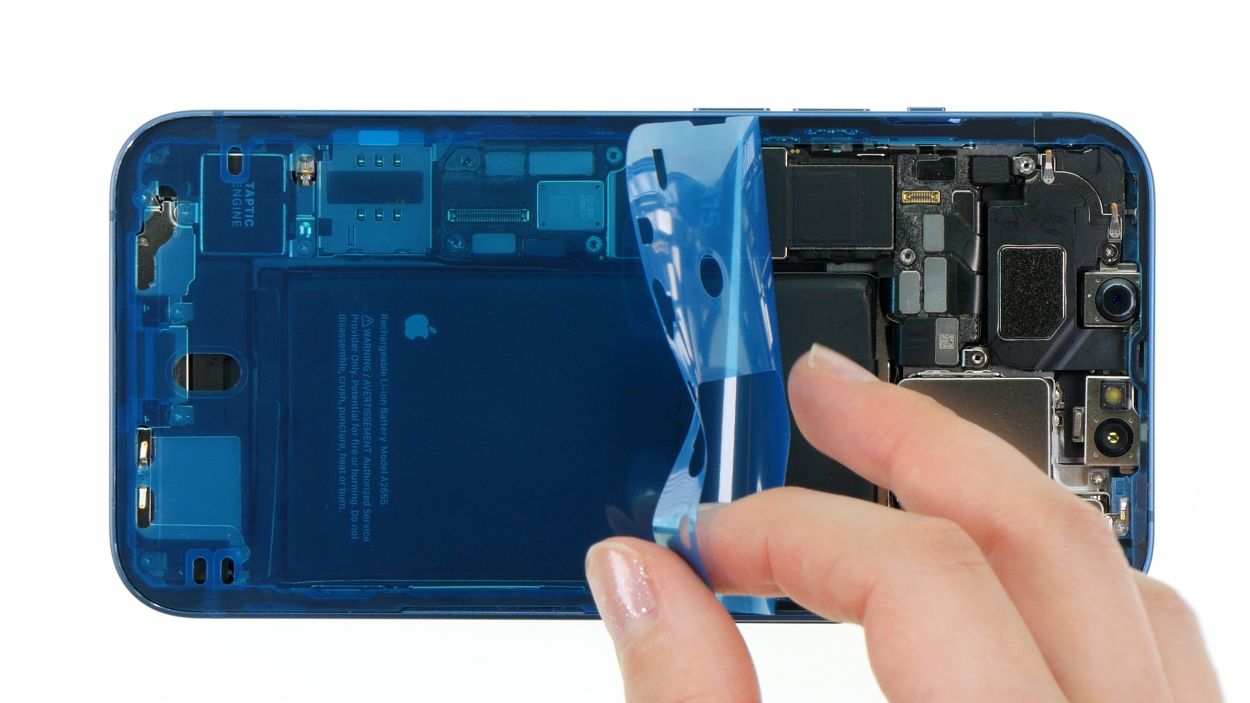
– Warm up that adhesive frame and gently peel it away, piece by piece, using your trusty tweezers.
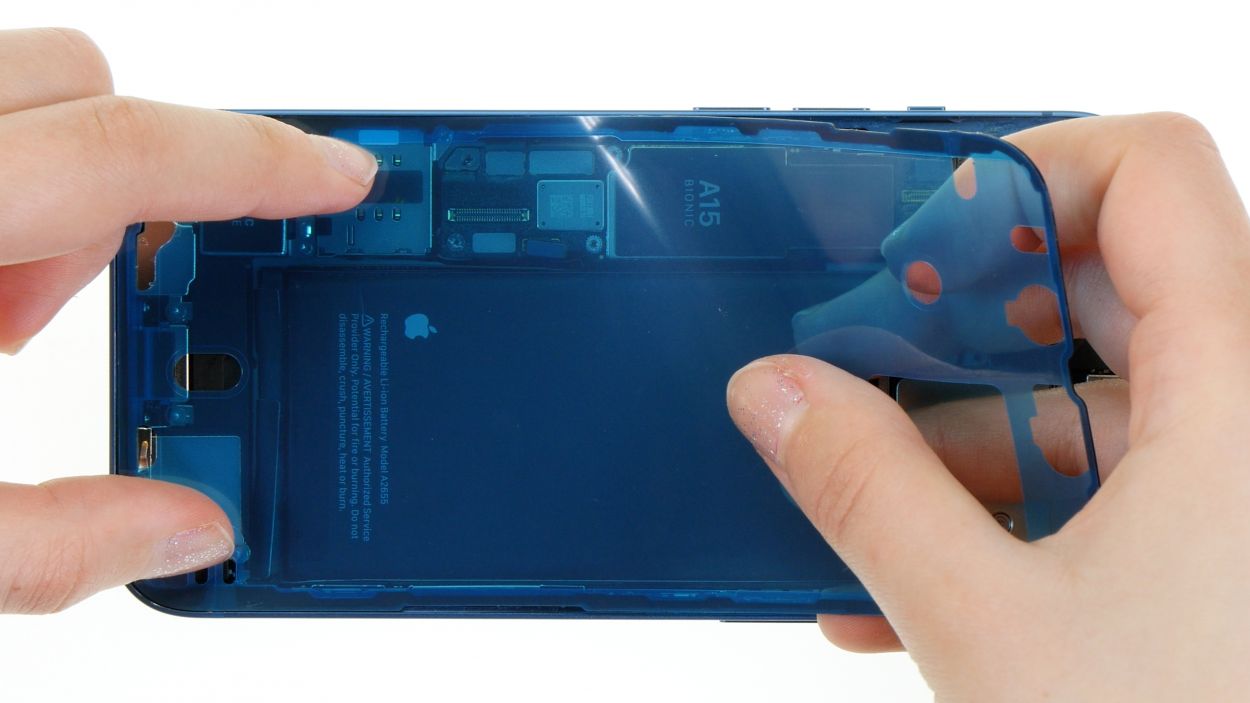
– Next, take off the carrier film from the adhesive frame and press it firmly onto the edge of the case.
– Now, remove the protective film from the top side of the adhesive frame. Just a heads-up: hold off on removing the remaining protective film on the edge of the case until you’re almost done with your repair.
Tools Used
- <a target="_blank" href="https://www.amazon.com/s?k=Heat+gun+Repair&linkCode=ll2&tag=salvationrepa-20&linkId=1c0aa533b7b8148cb48741a4635ea648&language=en_US&ref_=as_li_ss_tl" title="You can use a heat gun to heat parts that are glued on so they’re easier to remove.
In most cases, you can also use a hairdryer.” rel=”noopener”>Heat gun - Piergiacomi Tweezers 2a SA ESD
Step 15
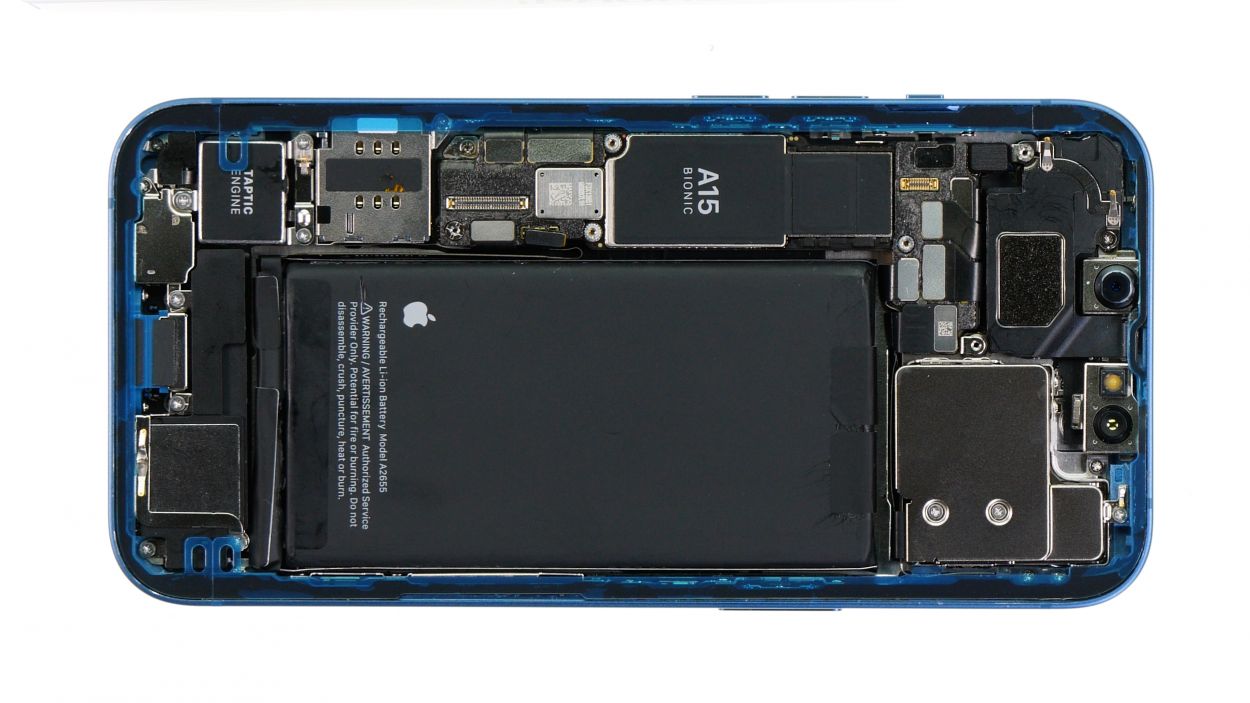
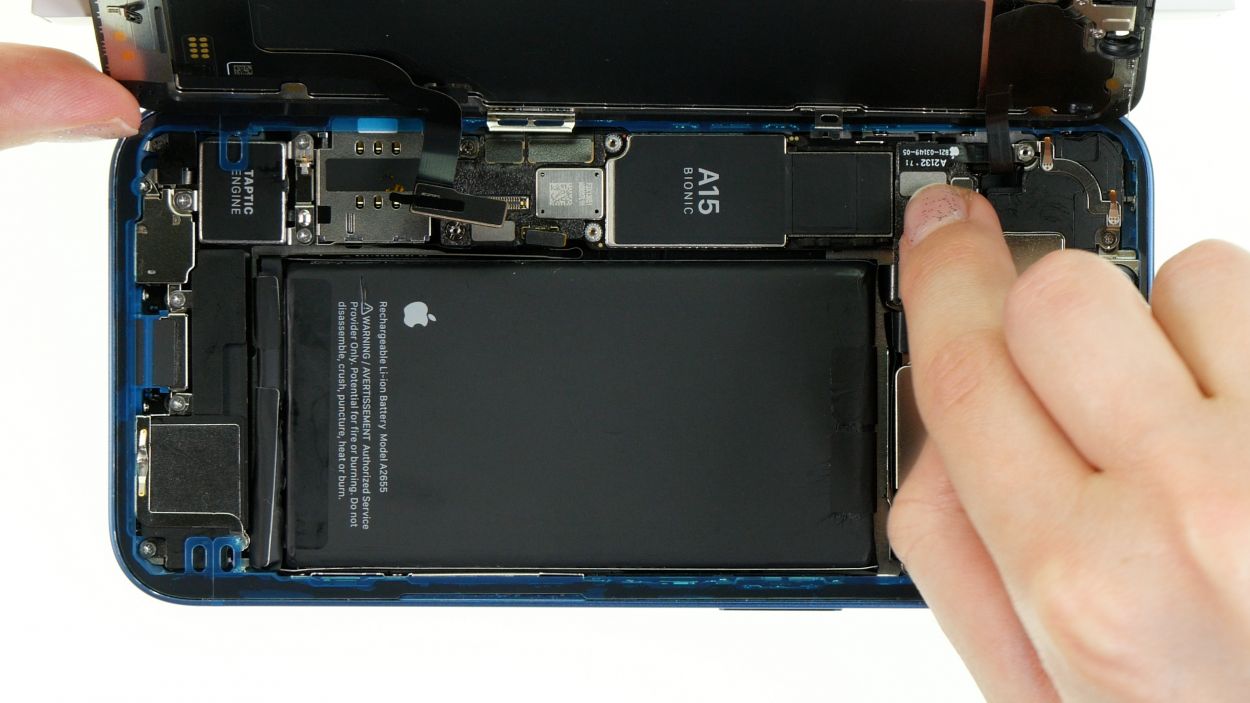
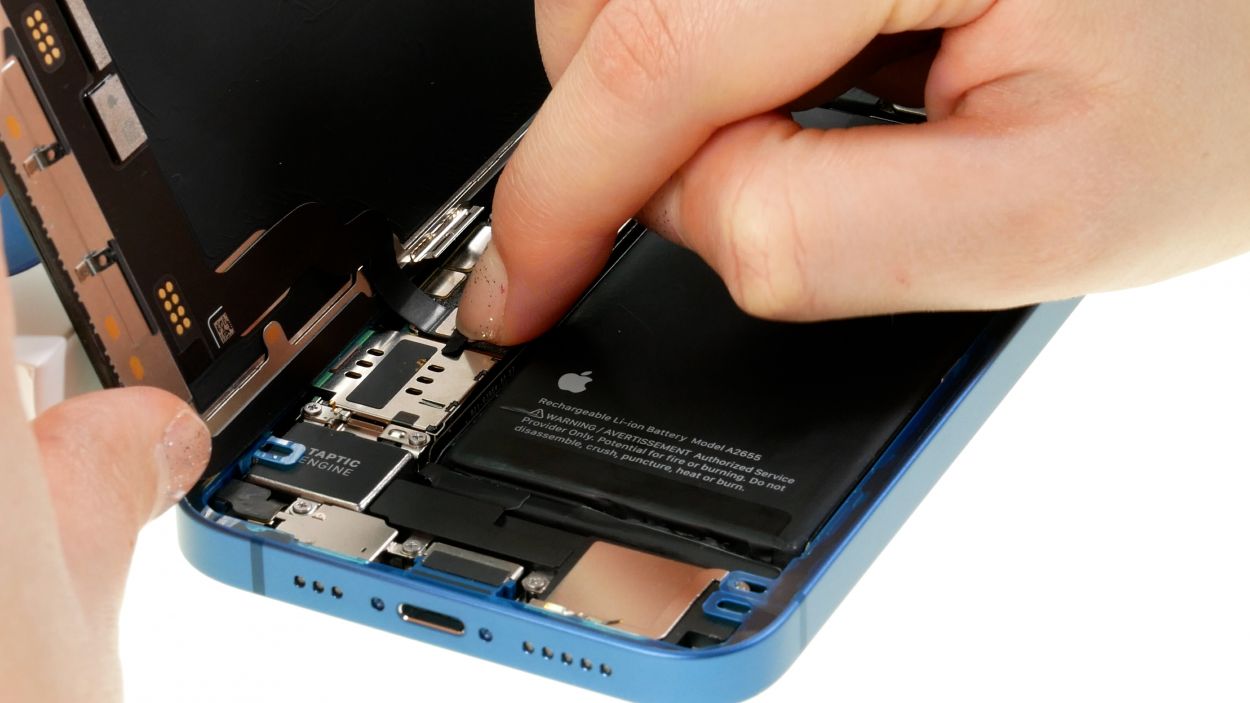
Give those connectors a gentle touch—no need to go all Hulk on them! Too much pressure could lead to a total component meltdown.
– Gently lean the screen back against something sturdy to make that connection happen.
– With care, press the two screen connectors onto the logic board one at a time. Listen for that satisfying click as they snap into place!
Step 16
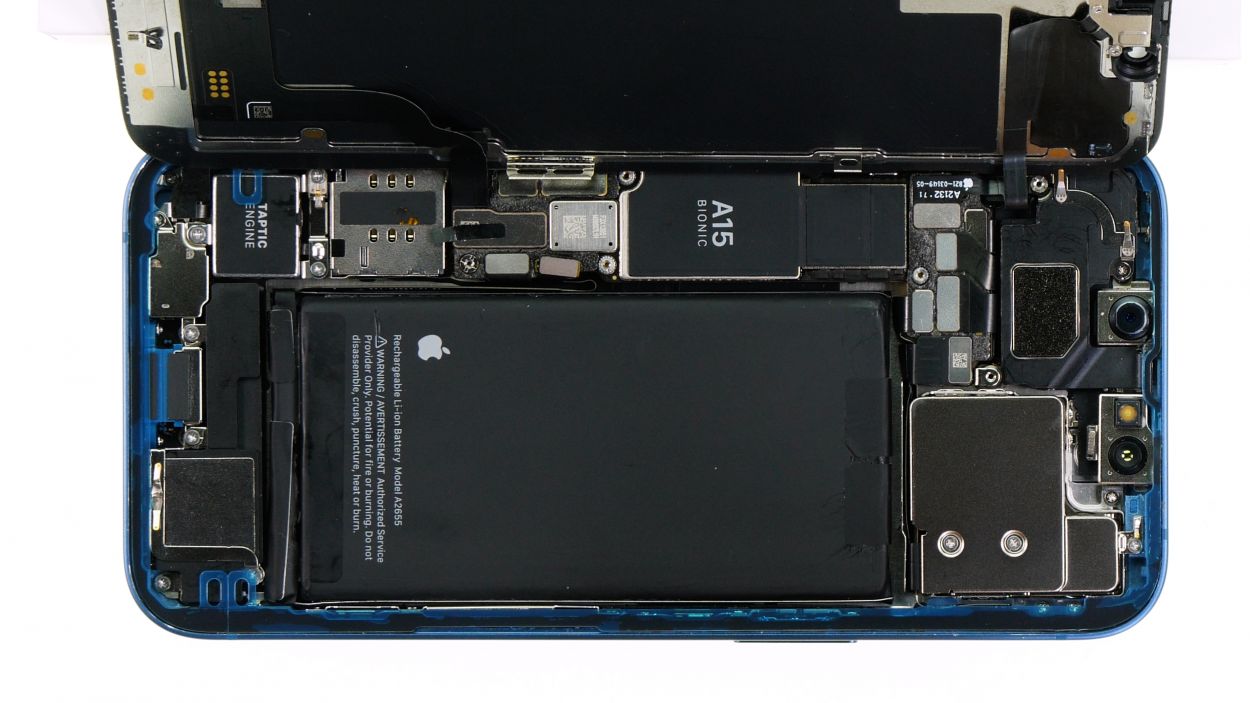
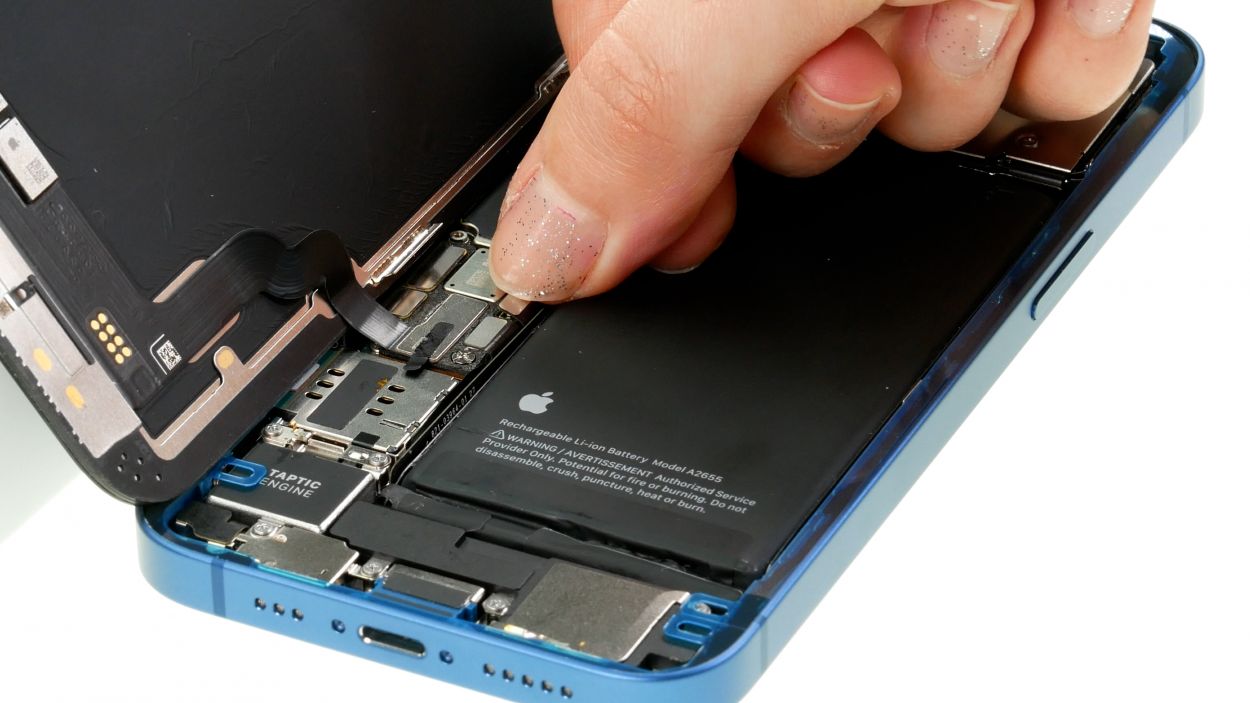
Always connect that battery last to keep things cool and avoid any shocking surprises!
– Gently press that connector onto the logic board, and listen for that satisfying click as it locks into place. You’re doing awesome!
Step 17
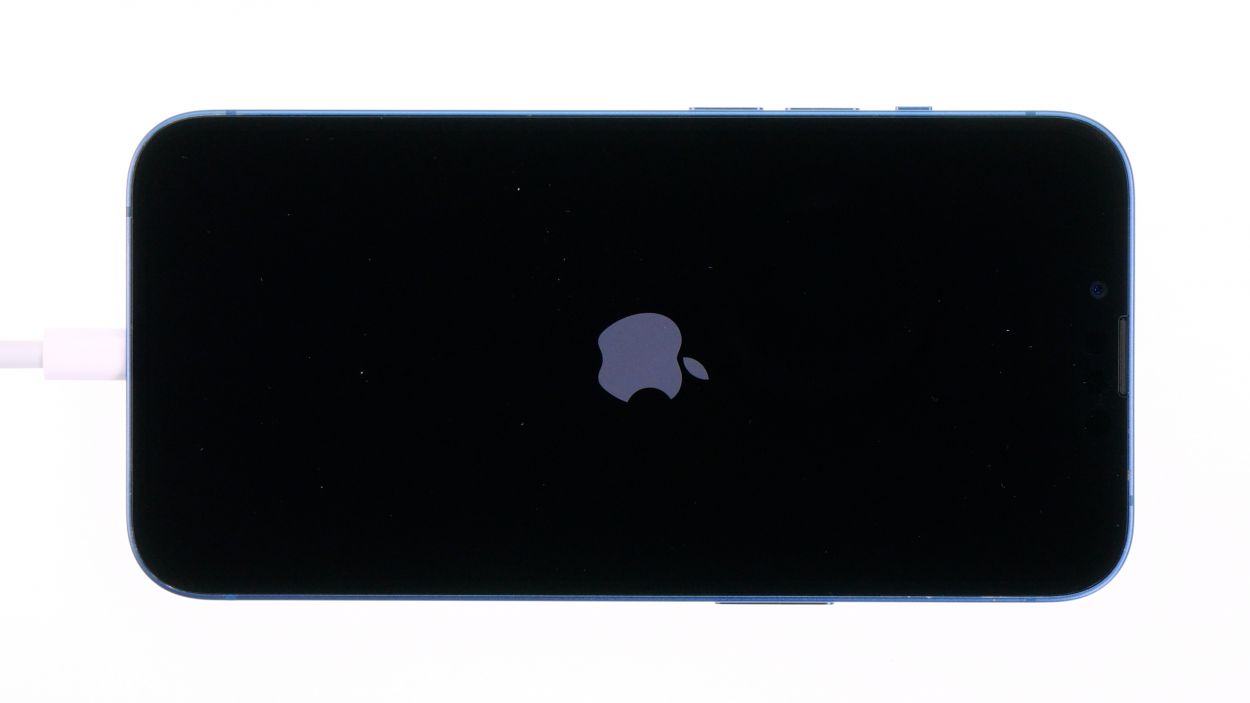
Before sealing the deal on your iPhone 13, why not give that shiny new battery and some basic functions a quick test drive? It’s a great way to confirm that your repair mission was a total win! Don’t forget to check off items on our handy checklist while you’re at it!
Step 18
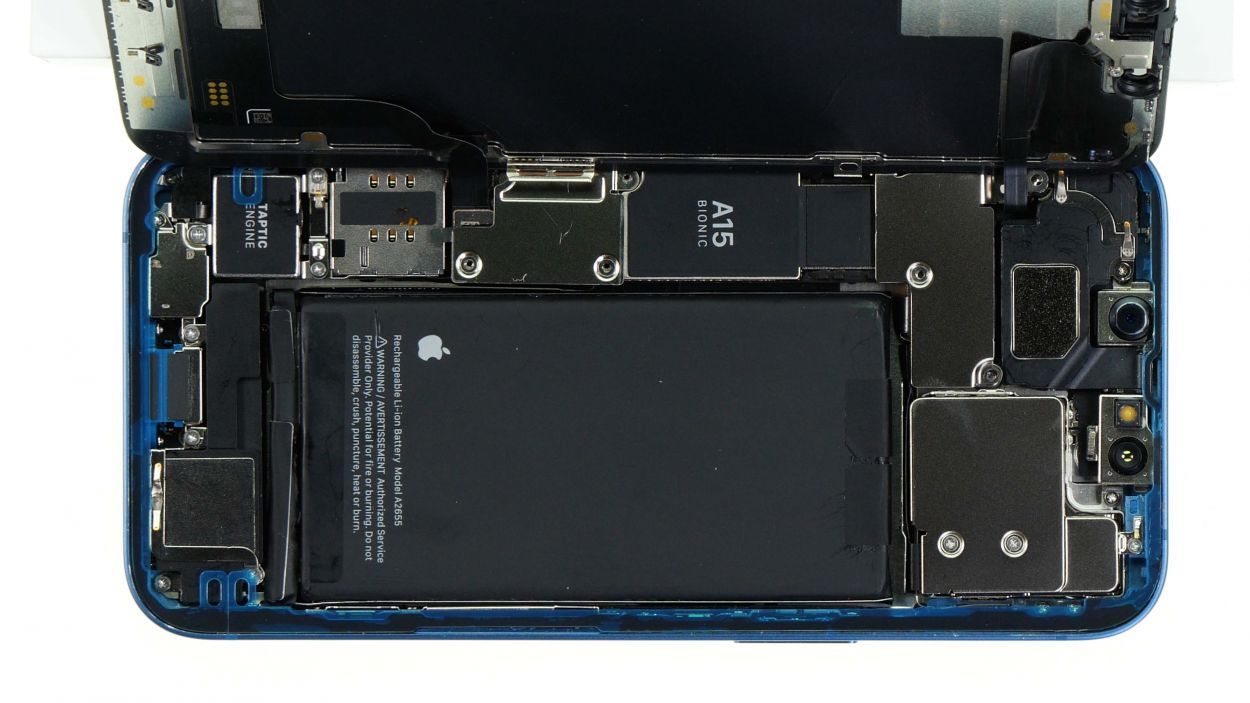
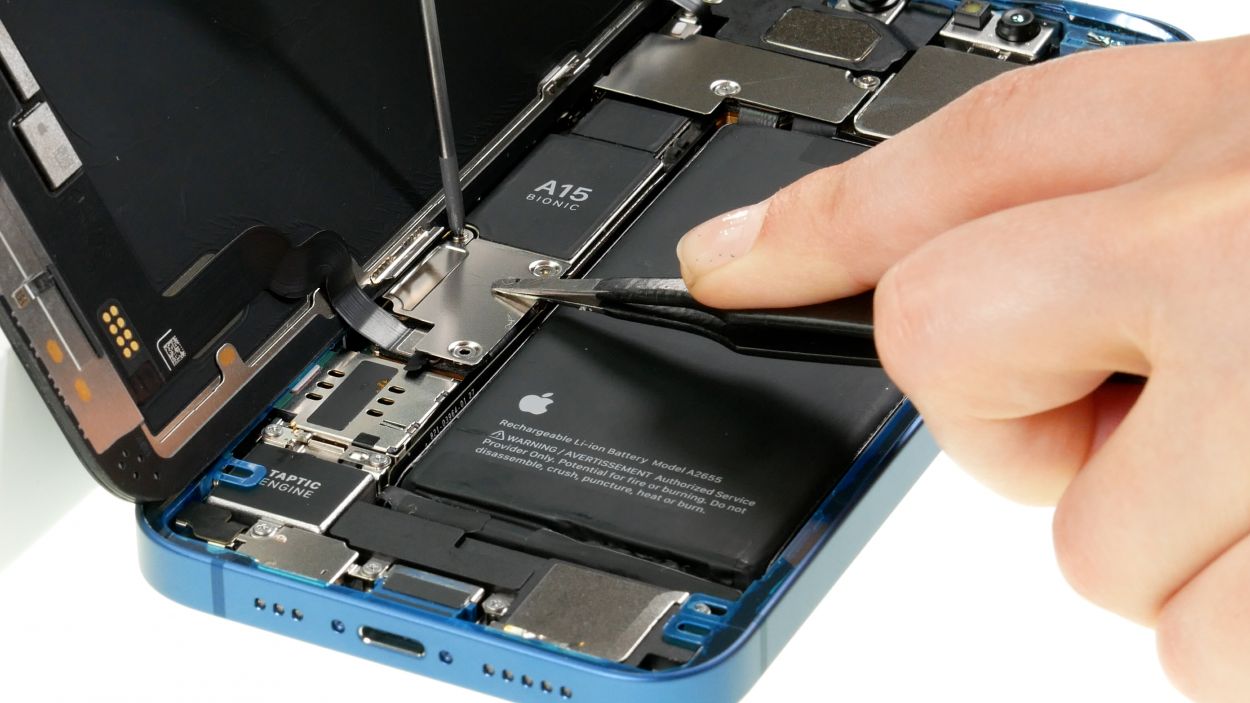
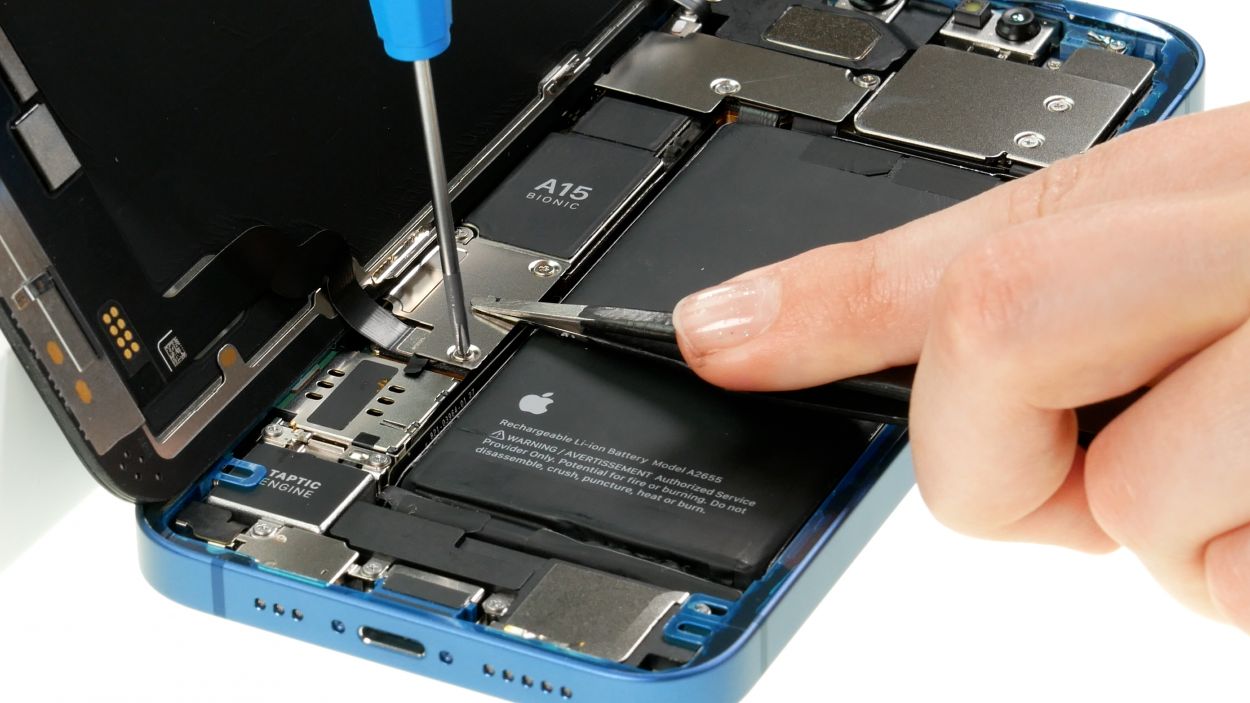
4 × 1.2 mm Phillips
1 × 1.7 mm Y-Type
1 × 1.6 mm Phillips
Watch out for those screw lengths! Mixing them up could lead to a screw-up that might hurt your device. Keep it short and sweet, and you’ll be golden!
The upper cover plate has a little secret—it’s hooked on one side! Just give it a gentle nudge and you’ll be all set to move forward!
– Align the two cover plates over the connectors. Those screw holes are your best buddies for keeping everything in line!
– Secure the cover plates in place. Use tweezers to hold them steady, so they stay put while you work your magic.
Step 19
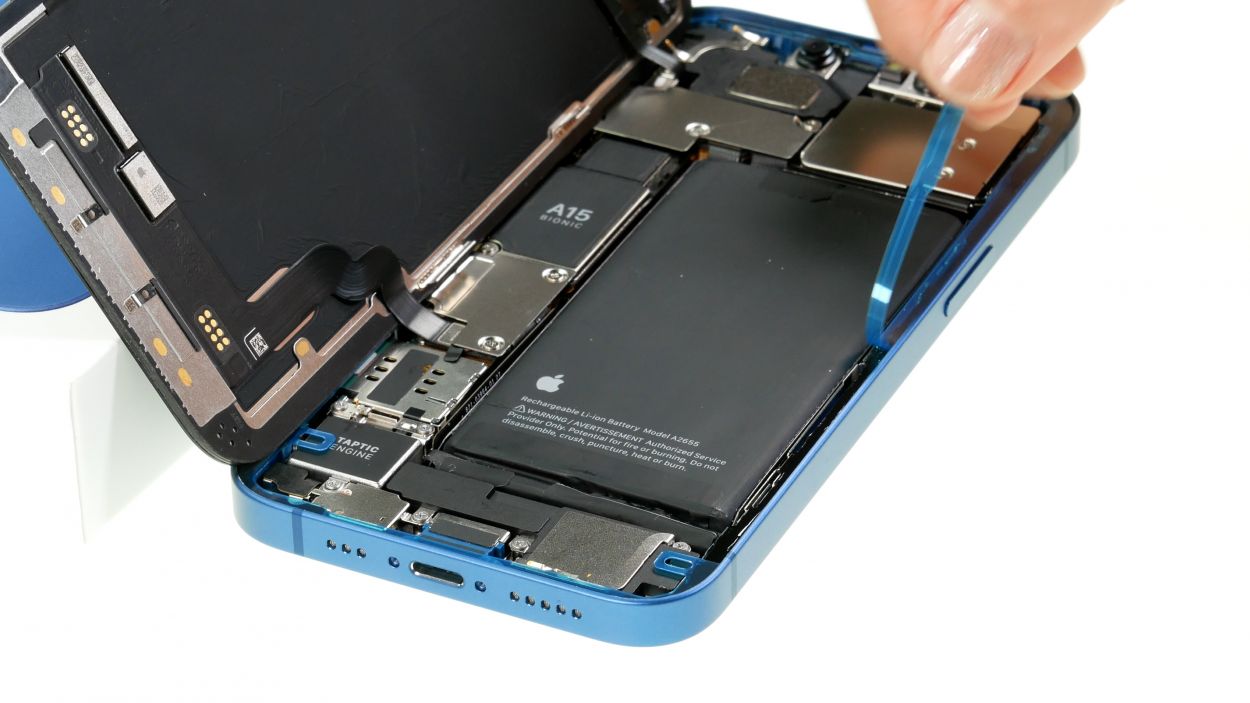
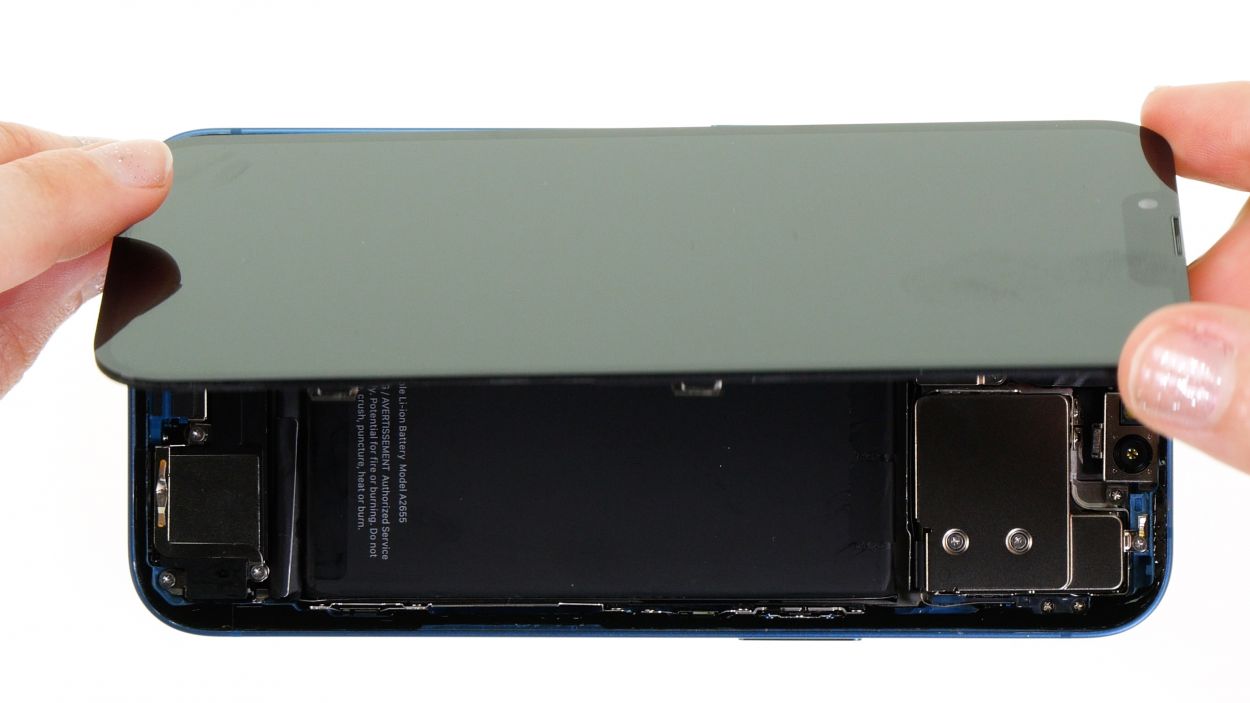
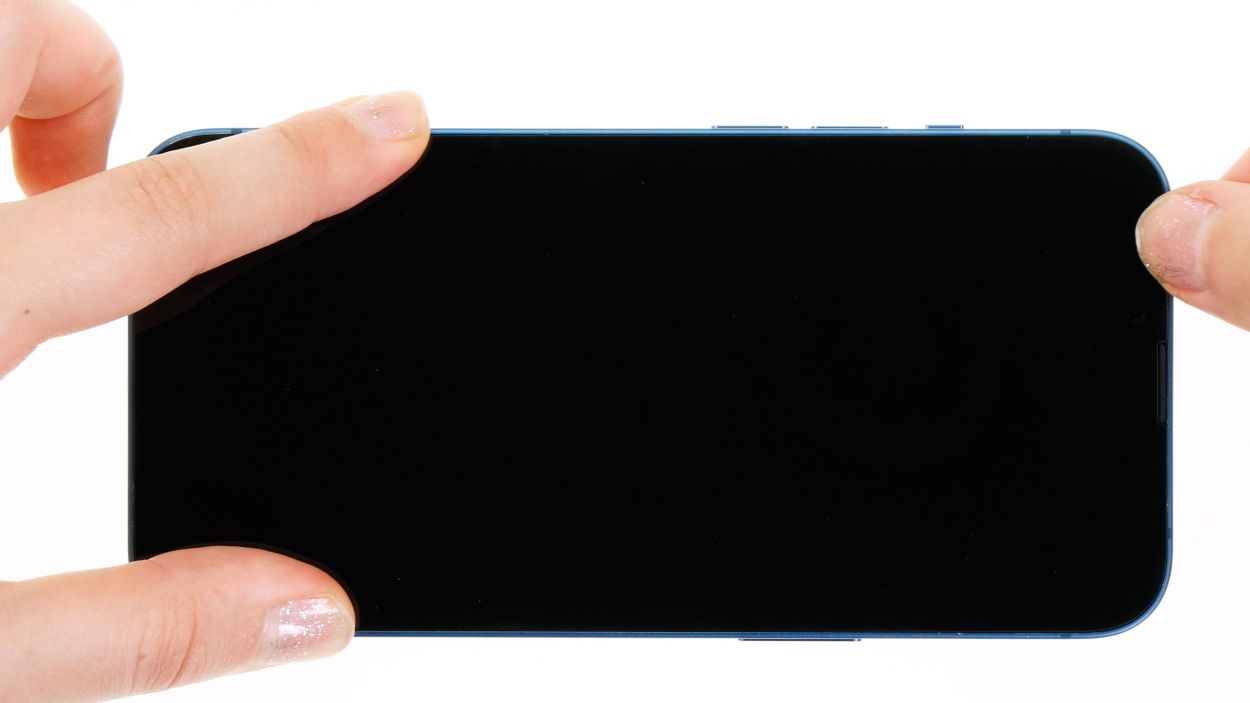
When you’re folding down that screen, just be careful not to give any flex cables a pinch! They deserve a comfy ride too.
– If you’ve just added a fresh adhesive frame, now’s the time to peel off that leftover protective film. You’re almost there!
– Carefully flip the screen back and press it snugly into the case frame, ensuring everything is nice and even. Listen for that satisfying click—it means you’re doing it right!
– To wrap things up, give the edge of the screen a gentle warm-up with some hot air. This helps the adhesive bond like a champ!
Tools Used
- <a target="_blank" href="https://www.amazon.com/s?k=Heat+gun+Repair&linkCode=ll2&tag=salvationrepa-20&linkId=1c0aa533b7b8148cb48741a4635ea648&language=en_US&ref_=as_li_ss_tl" title="You can use a heat gun to heat parts that are glued on so they’re easier to remove.
In most cases, you can also use a hairdryer.” rel=”noopener”>Heat gun - Piergiacomi Tweezers 2a SA ESD
Step 20
2 × 6.8 mm Pentalobe
– Tighten up those two rear case screws to secure the screen back in place. You’ve got this!
Tools Used
