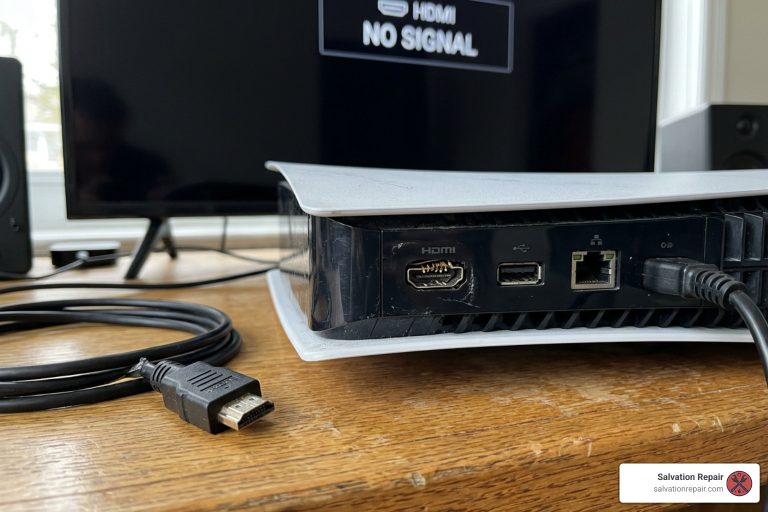
How to Fix PS5 Slim No Display in 5 Steps
What to Do When Your PS5 Slim Has No Display
A PS5 Slim no display problem is one of the most frustrating things that can happen to a gamer. You hit power, the light turns white, the fan spins — and your TV says nothing.
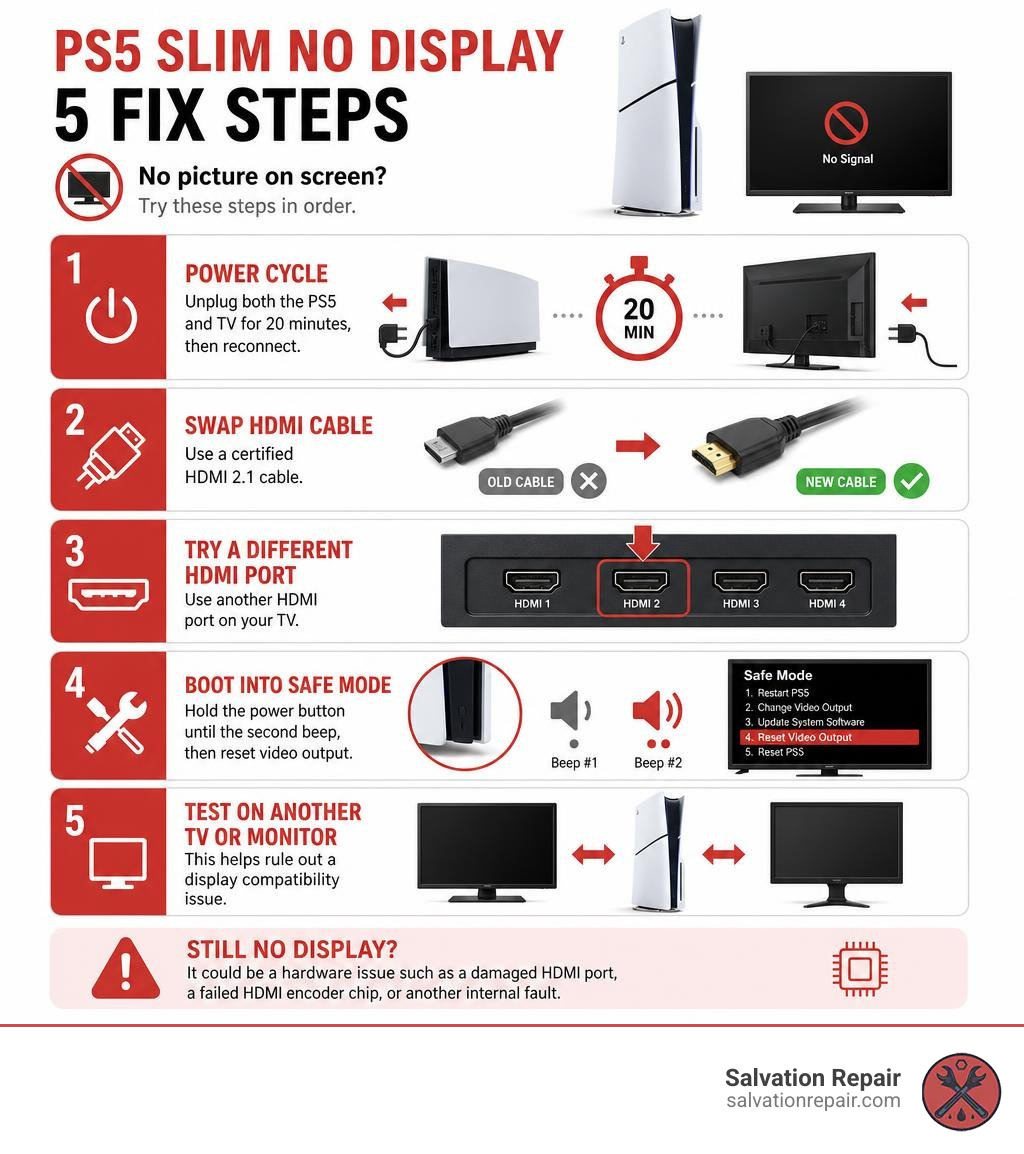
Quick answer — here are the most common fixes:
- Power cycle — Unplug both the PS5 and TV for 20 minutes, then reconnect
- Swap the HDMI cable — Use a certified HDMI 2.1 cable
- Try a different HDMI port on your TV
- Boot into Safe Mode — Hold the power button until the second beep, then reset video output
- Test on a different TV or monitor to rule out a display compatibility issue
If none of those work, the problem is almost certainly a hardware fault inside the console — most often a damaged HDMI port, a failed HDMI encoder chip, or in rarer cases, a deeper issue like RAM calibration failure.
This guide walks you through each step clearly, so you know exactly what you’re dealing with before spending a dime on repairs.
I’m Ralph Harris, an electronics repair specialist with over 20 years of experience diagnosing and fixing devices — including gaming consoles with PS5 Slim no display faults. My background in computer science and hands-on repair work means I can walk you through both the simple fixes and the advanced hardware diagnostics in plain language.
Why Your PS5 Slim No Display Issue Happens: Common Causes
When your console boots up, it performs a brief Power-On Self-Test (POST). On a healthy PS5 Slim, the indicator light bar transitions from pulsing blue to solid white. This blue-to-white transition tells us that the main operating system has loaded successfully. However, if the light is solid white but your TV remains black, you are dealing with a classic “no display” scenario.
Statistically, if you have a white light but no picture, the problem lies in the video output circuit. Based on thousands of consoles analyzed at repair benches worldwide, the hardware failures break down into three primary categories:
- Bent or Broken HDMI Port Pins (Approximately 60% of cases): The HDMI port on the PS5 Slim is surprisingly delicate. The port contains 19 gold-plated pins that are only 0.4mm wide. If someone trips over the HDMI cable, wiggles the connector repeatedly, or forces the cable in at an angle, these tiny pins can easily bend, bridge together, or break away from the motherboard pads.
- Failed HDMI Encoder Chip (Approximately 30% of cases): The HDMI encoder (often a Panasonic MN864739 or MN86471A chip, or a Nuvoton equivalent on newer Slim boards) acts as the translator between the console’s main Graphics Processing Unit (GPU) and your TV. This chip runs hot and is highly sensitive to electrostatic discharge (ESD) or power surges. If lightning strikes near your home or a power surge travels through your TV’s HDMI port, this chip can fail internally while leaving the rest of the console running perfectly.
- APU or RAM Calibration Failures (Approximately 10% of cases): In the worst-case scenario, the Accelerated Processing Unit (APU) itself or the GDDR6 RAM chips surrounding it experience a solder joint fracture or calibration error. When this happens, the console cannot properly initialize its memory bus to output a video signal.
To understand how hardware issues can disrupt your gaming, you can read more about general diagnostic paths on the PlayStation 5 Black Screen – iFixit Troubleshooting page.
How to Fix PS5 Slim No Display in 5 Steps
Before you panic and assume your console needs a hardware replacement, we always recommend running through a systematic checklist. Many display issues are caused by software glitches, temporary system freezes, or simple cable mismatches.
For official guidance, you can also consult the steps on How to troubleshoot picture and sound issues with your PS5 console.
Let’s break down the 5 steps to troubleshoot your PS5 Slim no display issue at home.
Step 1: Power Cycle the Console and TV
An HDMI handshake is a complex digital conversation between your PS5 Slim and your TV. The two devices must exchange security keys (HDCP) and agree on resolution, refresh rate, and color depth before any image appears. Sometimes, this digital handshake fails, leaving your TV screen completely black.
To perform a deep power cycle:
- Turn off your PS5 Slim completely (do not put it in Rest Mode). Hold the physical power button on the front of the console for several seconds until it beeps twice and shuts down.
- Unplug the power cable from the back of the PS5 Slim.
- Unplug your TV or monitor from the wall outlet.
- Disconnect the HDMI cable from both the console and the TV.
- Wait a full 20 minutes. This allows all capacitors inside both the TV and the console to drain their stored electrical charge completely, resetting the HDMI controllers.
- Reconnect the HDMI cable firmly to both devices, plug the power cables back in, and turn on your TV first, followed by the PS5 Slim.
Step 2: Inspect and Swap the HDMI 2.1 Cable
The PS5 Slim is a high-performance machine capable of outputting 4K resolution at 120Hz. To handle this massive amount of data, it requires an Ultra High Speed HDMI 2.1 cable.
Many users make the mistake of using older HDMI 1.4 or 2.0 cables they found in a drawer. While these cables might work for a standard 1080p display, they will fail to establish a handshake when the PS5 Slim attempts to output 4K HDR content.
- Check for damage: Inspect your cable for sharp bends, pinches, or pet chew marks.
- Look inside the connector: Ensure the metal housing of the cable is not bent or loose.
- Upgrade your cable: Ensure you are using the original cable that came with your PS5 Slim or a certified Ultra High Speed HDMI 2.1 cable.
For more details on cable compatibility, check out the guide on Why Is My HDMI Not Working On My PS5 – Easy Fixes – Digi Helpdesk.
Resolving PS5 Slim No Display via Safe Mode
If your PS5 Slim is configured to output a resolution or refresh rate that your TV does not support (for example, if you moved your console from a 4K TV to an older 1080p monitor), you will get a black screen. You can bypass this by forcing the console to boot into Safe Mode, which outputs a basic 480p signal.
- Ensure your console is completely powered off (no lights showing).
- Press and hold the power button. You will hear one beep immediately. Keep holding the button for about 7 seconds until you hear a second beep, then release it.
- Connect your DualSense controller to the console using a USB cable and press the PS button.
- If your screen displays the Safe Mode menu, select Change Video Output.
- Choose Change Resolution and restart your console. When it reboots, select a lower resolution (like 1080p) to see if the display returns.
- If you still have handshake issues, you can also use Safe Mode to set your HDCP version to HDCP 1.4 only, which resolves compatibility glitches on older smart TVs.
You can watch a visual demonstration of these steps in this video: PS5 : How to Fix Black Screen (8 Easy Solutions).
Identifying Physical Damage Causing PS5 Slim No Display
If Safe Mode does not display anything on your screen, it is time to perform a physical inspection of the console’s port.
Grab a bright flashlight or use your smartphone’s camera zoom to look directly into the HDMI port on the back of your PS5 Slim.
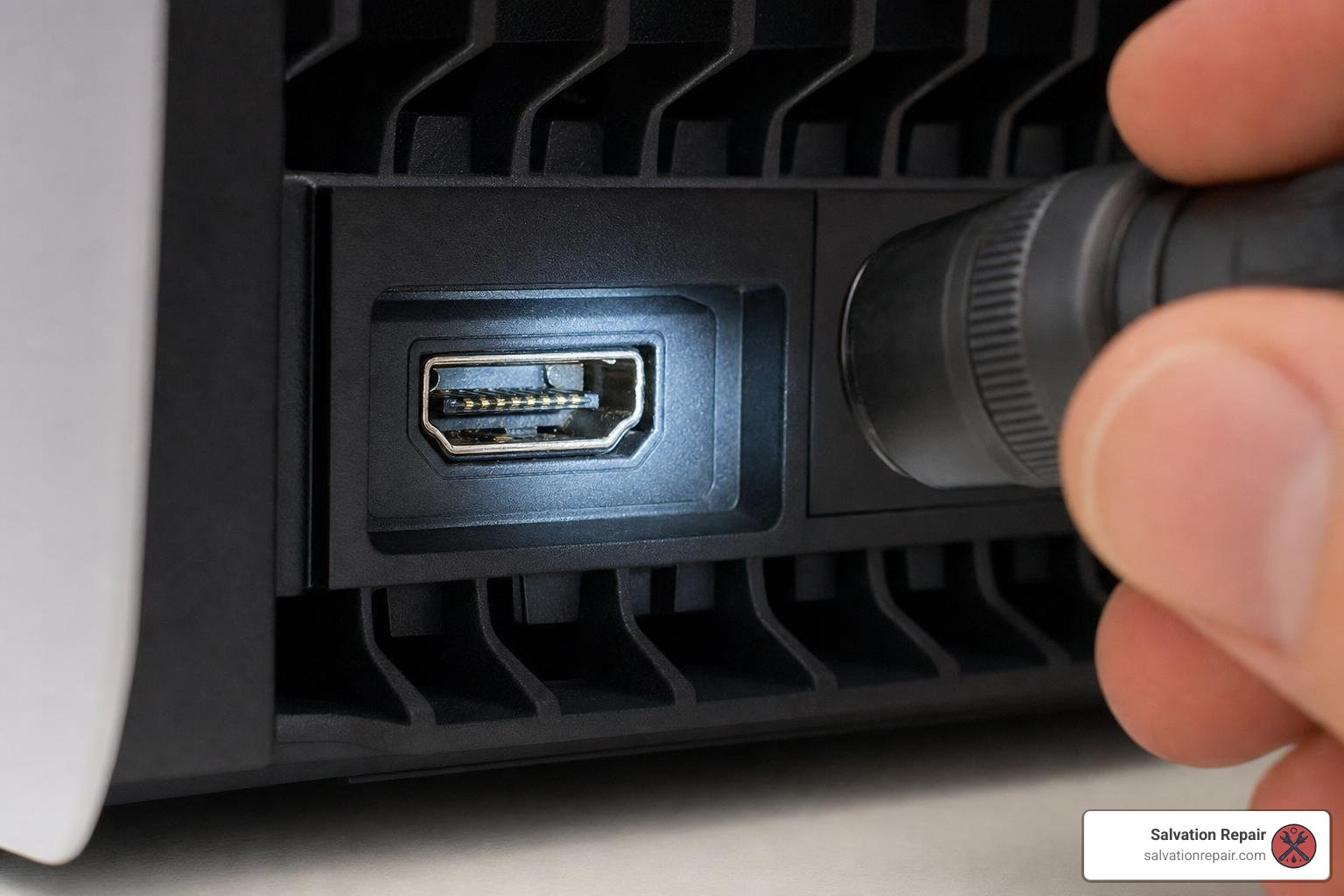
- Look for pushed-back pins: The 19 gold pins should be perfectly aligned in a neat row. If you see even one pin pushed backward, bent upward, or missing entirely, the port is physically broken.
- Check the housing: The outer metal shield of the HDMI port should be flush with the plastic casing of the console. If it wiggles or feels loose when you gently touch it, the solder joints holding the port to the motherboard have cracked.
If you find physical damage, the port must be desoldered and replaced. You can learn more about this process by visiting our PS5 HDMI Port Replacement service page, or watch a teardown of the physical failure points here: WHY YOUR PS5 SLIM WON’T DISPLAY – HDMI PORT ….
Step 5: Test on a Different TV or Monitor
Sometimes, the issue is not your console or your cable, but a specific firmware conflict with your display. Users of high-end displays like the Sony X900H, LG OLED, and LG CX series have reported persistent HDMI handshake bugs where the TV fails to recognize the PS5 Slim after it wakes from sleep mode.
- Test on a basic monitor: Try plugging your PS5 Slim into a simple 1080p computer monitor or a different TV in your house.
- Switch inputs: If you get a black screen, try switching your TV’s input source to HDMI 2, then back to HDMI 1, or power cycle the TV while the console is turned on. This often forces the TV to re-initiate the handshake.
Advanced Hardware Diagnostics: HDMI Encoder, Chokes, and RAM Calibration
For the DIY enthusiasts and micro-soldering technicians, diagnosing a PS5 Slim no display fault when the physical port looks pristine requires specialized tools like a multimeter, an oscilloscope, or a UART serial diagnostic reader.
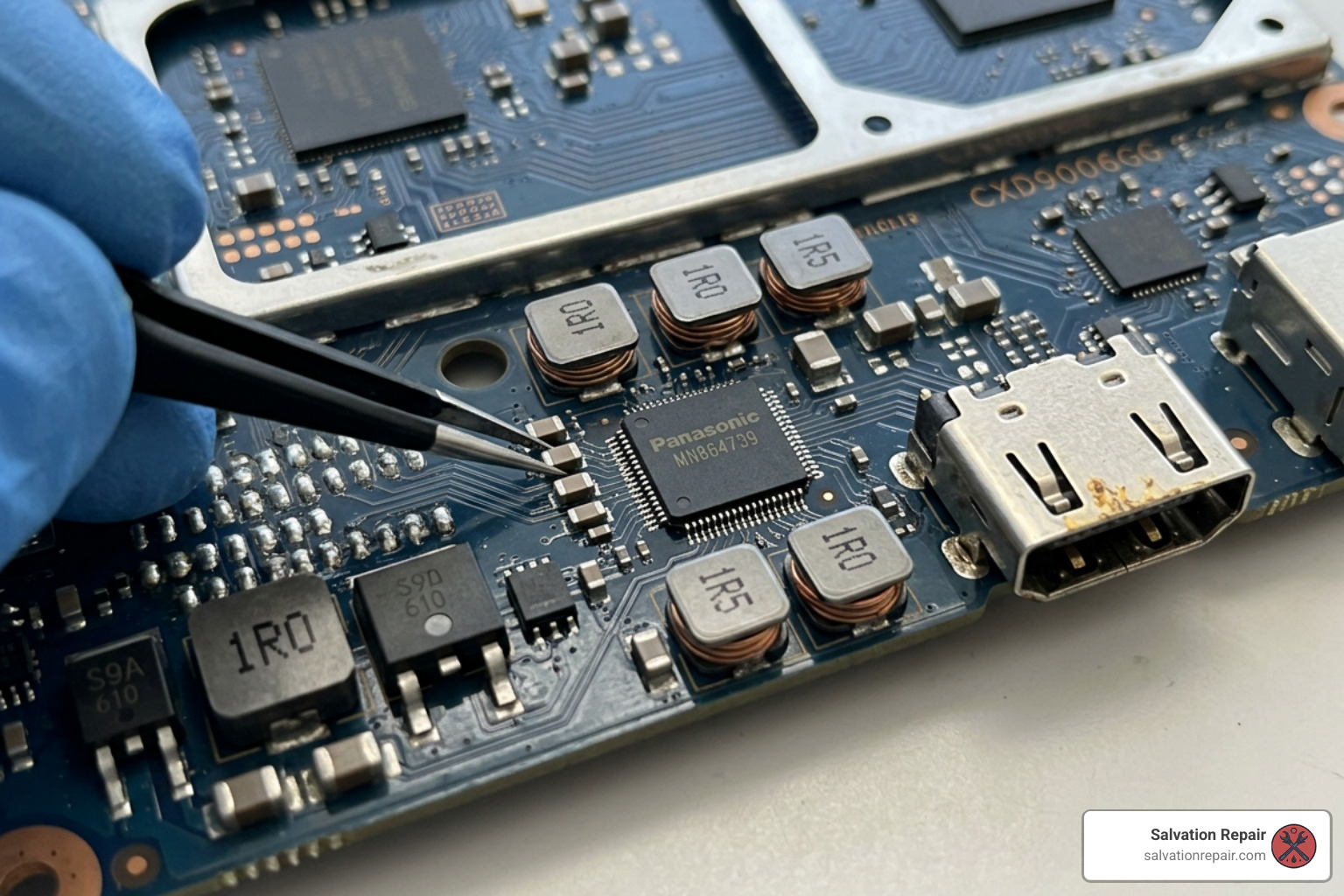
The PS5 Slim utilizes the EDM-041 motherboard revision (CFI-2016 models). On this board, the video output circuit consists of the APU, the GDDR6 RAM, the HDMI Encoder IC, four dual-line EMI chokes, and the HDMI port itself.
Diode Mode Testing and Voltage Checks
To diagnose where the signal is dropping off:
- Diode Mode Readings: Connect an HDMI breakout board to the HDMI port and use a multimeter in diode mode. Measure the readings on all 19 pins. A normal reading on the data lines (pins 1 through 9) should hover around 0.5V to 0.6V. If any line shows “OL” (Open Loop), there is a broken connection between the port and the chokes, or a blown choke itself.
- Checking the Chokes: There are four EMI chokes (filters) located between the encoder chip and the HDMI port. They carry the 8 high-speed data lines. If a console experienced an electrical surge, these chokes can burn out. Check continuity across each side of the chokes.
- The Pin 13 Voltage Bug: On the PS5 Slim, a common diagnostic clue is checking the voltage on Pin 13 (CEC/Control line). On a fully working unit, Pin 13 should read approximately 4.0V when powered on. On faulty units experiencing encoder failures, this line often drops to 3.0V, indicating a failing pull-up resistor or an internal short within the Nuvoton/Panasonic encoder chip.
- Encoder Chip Voltages: The HDMI encoder requires multiple voltage rails to function: 5.0V, 3.3V, 1.8V, and 0.9V. If any of these rails are missing due to a blown motherboard fuse or a failed voltage regulator, the chip will remain offline.
For a highly detailed, component-level repair walkthrough, check out the PlayStation 5 No Image and No Sound – Repair Wiki.
RAM Calibration and UART Errors
On the newer EDM-041 Slim boards, a brief blue light that transitions to white but produces no display can occasionally be tracked down to a RAM calibration error.
By soldering a USB-to-TTL serial adapter to the motherboard’s UART TX/RX pads, technicians can read the console’s internal Syscon error logs. An error code such as 80801510 indicates a RAM calibration or impedance fault on GDDR6 Chip 5. This prevents the APU from properly initializing its video buffer.
You can read more about these highly technical board-level troubleshooting cases on the PlayStation 5 Slim (CFI-2016) – EDM-041 – powers on briefly (blue light), fan spin, video detected, then shuts down – Badcaps forum thread.
To help you quickly distinguish between these hardware failures, we’ve compiled this comparison table:
| Symptom / Test Point | Damaged HDMI Port | Failed HDMI Encoder | APU / RAM Failure |
|---|---|---|---|
| Visual Inspection | Bent, bridged, or loose pins inside the port | Port looks perfectly clean and secure | Port looks clean; liquid metal might be dry |
| Light Bar Behavior | Solid white light | Solid white light | Blue light turns off or shuts down briefly |
| Pin 13 Voltage | Healthy (approx. 4.0V) | Abnormal (drops to 3.0V or lower) | Healthy (approx. 4.0V) |
| Diode Mode Test | “OL” or shorted readings on affected pins | Normal readings or shorted lines near the IC | Normal readings across all HDMI pins |
| UART Error Code | No error code (POST completes successfully) | No error code (POST completes successfully) | Errors like 80801510 (RAM calibration) |
For more benchmark statistics and failure rates, refer to the PS5 No Display? HDMI Port Repair Guide (2026).
Frequently Asked Questions about PS5 Slim Display Issues
FAQ 1: How do I know if my HDMI port is broken or if it’s the encoder chip?
If you shine a flashlight into the HDMI port and see that all 19 gold pins are perfectly straight, even, and none are pushed back, your physical port is likely fine. If you still get a solid white light but no signal on multiple TVs with different cables, the issue is almost certainly a failed HDMI encoder chip on the motherboard.
FAQ 2: Can a failed RAM chip cause a black screen on the PS5 Slim?
Yes. If one of the GDDR6 RAM chips on the EDM-041 motherboard fails its startup calibration test, the console may fail to output video. This issue is usually accompanied by a brief power-on sequence where the console turns on with a blue light, spins the fan, detects video briefly, and then shuts down completely.
FAQ 3: How much does it cost to repair a PS5 Slim HDMI port?
A professional HDMI port replacement typically costs between $100 and $150. If the HDMI encoder chip needs to be replaced, the cost generally ranges from $150 to $250 due to the precision micro-soldering required. This is far cheaper than buying a brand-new console!
To learn more about repair rates, visit our Gaming Console Repair page.
Professional Repair Options in Laurel, MS
If you have tried all the troubleshooting steps and your PS5 Slim no display issue persists, it is time to bring your console to the professionals. Micro-soldering on a multi-layered motherboard like the PS5 Slim’s EDM-041 requires commercial-grade hot air rework stations, preheaters, microscopes, and years of experience. Attempting to repair this at home with a standard soldering iron will almost certainly result in torn motherboard pads and permanent damage.
At Salvation Repair, we specialize in repairing “any device with a power button.” We serve the local communities of Laurel, MS, Jackson, MS, Ellisville, MS, Soso, MS, Meridian, MS, and Jones County, Mississippi.
Why Choose Salvation Repair?
- Lifetime Warranty: We stand behind our work. All of our micro-soldering and console repairs come with an industry-leading lifetime warranty.
- Price Matching: We will match any local competitor’s advertised price for the same repair.
- Expert Technicians: Whether it’s a delicate HDMI port replacement, diagnosing a noisy console with our PS4 Loud Fan Repair service, or fixing stick drift with our Xbox Controller Fixers program, we have you covered. We also love keeping up with the latest gaming hardware debates, such as our article Cool or Con: Unpacking the Xbox Series X External Fan Debate.
Our Other Rapid Repair Services
While you wait for your console diagnostics, we also offer lightning-fast repairs for your mobile devices:
- iPhone Screen Repairs: Done in just 10 to 15 minutes, performed right in front of you! We clearly distinguish between our screen options:
- Standard LCD / AQ7 LCD: Affordable, high-quality LCD options starting at $129.95 for the iPhone 16 Pro Max.
- Aftermarket OLED: Vivid colors and deep contrast for $219.95 (iPhone 16 Pro Max).
- OEM Refurbished: Original Apple glass and panel refurbished to factory specs for $399.95 (iPhone 16 Pro Max).
- New OEM: Brand-new, genuine Apple screens for $469.95 (iPhone 16 Pro Max).
- iPhone Battery Replacement: Completed in just 30 minutes.
- Charging Port Repairs: Completed in 1 hour.
Don’t let a blank screen keep you out of the game. Bring your console to our shop in Laurel, MS, or contact us today to get your PS5 Slim running like new again! Check out our dedicated Gaming Console Repair page to book your diagnostic appointment.

One thought on “How to Fix PS5 Slim No Display in 5 Steps”