The Black Screen of Death: Quick DIY Fixes for Your Laptop
When Your Laptop Screen Goes Black: What It Means and What to Do
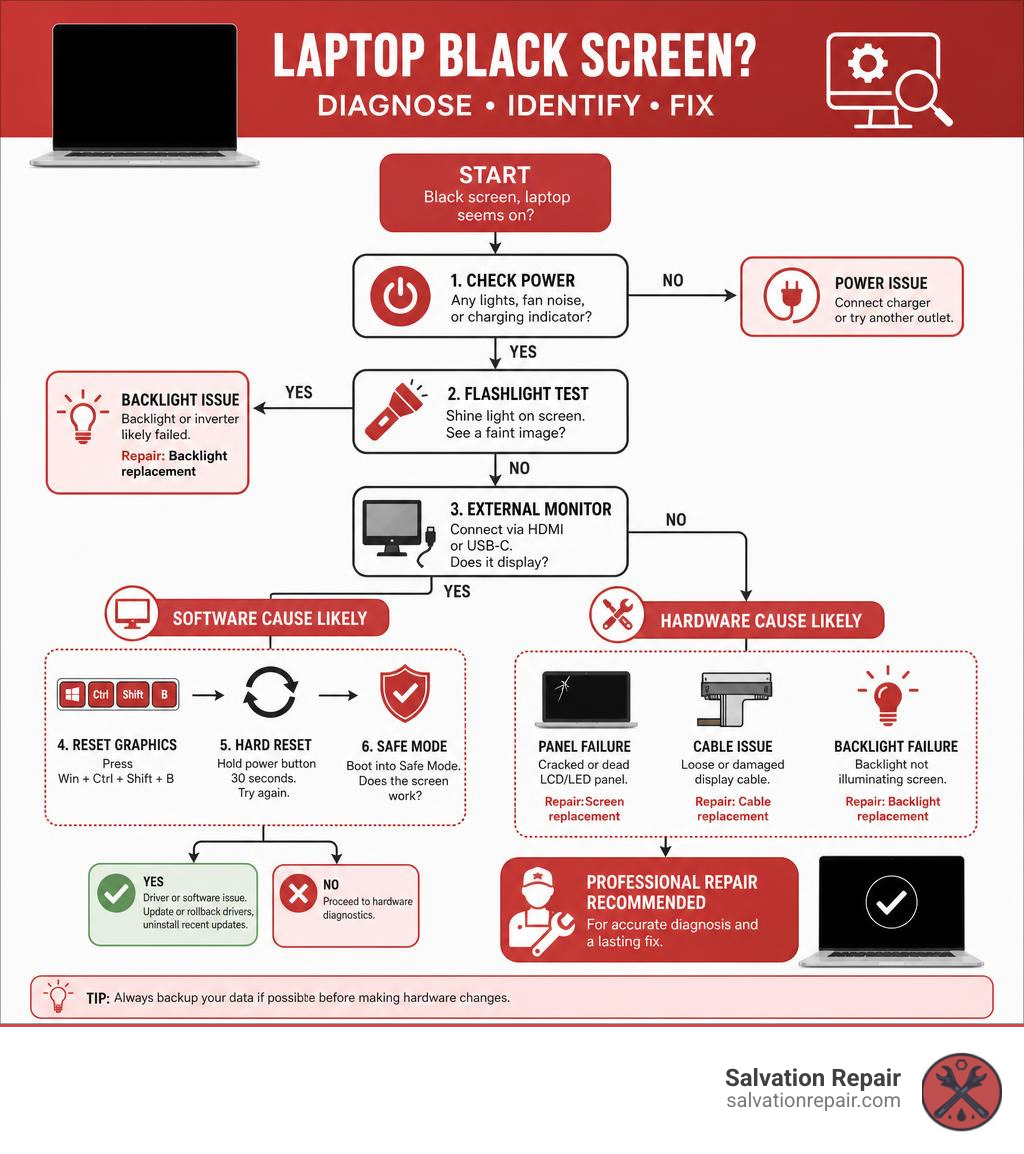
If you’re dealing with laptop screen repair black issues, here’s the quick answer before we dive deeper:
Quick Fix Checklist — Black Laptop Screen:
- Check power — Look for fan noise, keyboard lights, or a charging indicator. If they’re active, the laptop is on.
- Shine a flashlight on the screen in a dark room. A faint image means the backlight has failed, not the whole display.
- Connect an external monitor via HDMI or USB-C. If it works, the problem is your internal screen or cable.
- Try a hard reset — Hold the power button for 30 seconds with the charger unplugged.
- Press Win + Ctrl + Shift + B on Windows to reset the graphics driver.
- Boot into Safe Mode — If the screen works there, a driver or software update is the likely cause.
- Still black? The panel, backlight, or display cable likely needs professional repair. LCD repairs start at $89.95 at Salvation Repair in Laurel, MS.
A black laptop screen is one of the most alarming things that can happen to a device you depend on every day. One moment you’re working, and the next — nothing. Just black.
But here’s the good news: a black screen doesn’t always mean your laptop is dead. In fact, most of the time it isn’t. The laptop is often running just fine in the background. The problem is somewhere in the display chain — the backlight, the cable, the panel, or a software driver — not the machine itself.
The cause could be as simple as a graphics driver that crashed after a Windows update. Or it could be a worn display cable that finally gave out after years of opening and closing the lid. Either way, the fix is usually faster and cheaper than people expect.
I’m Ralph Harris, and with over 20 years of electronics repair experience and more than 500 Apple repair certifications under my belt, I’ve diagnosed and resolved hundreds of laptop screen repair black cases across nearly every major brand. Let’s walk through exactly how to find the cause — and fix it.
Diagnosing the Root Cause of a Black Laptop Screen

When your laptop boots up but displays absolutely nothing, it is easy to assume the worst. However, our first task as technicians is to separate a system-wide hardware failure from a localized display issue or a temporary software glitch.
If your laptop shows “signs of life”—such as the whirring of cooling fans, keyboard backlighting, status LEDs, or the classic startup chime—the motherboard, processor, and RAM are likely functioning. The breakdown is happening elsewhere. To narrow down the culprit, we highly recommend checking out our comprehensive laptop repair complete guide to understand how all these components interact.
Generally, the root causes of a black screen fall into three main categories:
- Software Glitches & Driver Failures: The operating system cannot communicate with the graphics processing unit (GPU), or a corrupted driver prevents any output.
- Backlight or Panel Failures: The display itself is physically broken, or the background light source (backlight) has failed.
- Display Cable or Connection Issues: The fragile cable running through the laptop’s physical hinge has worn down, torn, or wiggled loose from its socket.
How to Avoid Laptop Screen Repair Black Out Issues via Software Resets
Before you reach for a screwdriver, we always want to rule out software conflicts. A bad graphics driver, an interrupted Windows update, or a corrupted operating system file can easily trick you into thinking your physical screen is broken.
If your laptop screen goes black unexpectedly, try these quick software resets first:
- Restart the Graphics Driver: On a Windows laptop, press Windows Key + Ctrl + Shift + B simultaneously. You will hear a short beep, and the screen will flicker as Windows forces the graphics driver to restart. This is incredibly effective for waking up a stalled GPU process.
- Toggle Display Outputs: Press Windows Key + P to open the project menu. Even if you cannot see the menu, tapping the arrow keys and hitting Enter can cycle through display modes (PC screen only, Duplicate, Extend, Second screen only), which occasionally snaps a black screen back to life.
- Perform a Driver Rollback in Safe Mode: If the black screen occurred immediately after a Windows update, the new graphics driver might be incompatible with your GPU. Force-shut down your laptop three times in a row during boot to trigger the Windows Recovery Environment. From there, navigate to Troubleshoot > Advanced Options > Startup Settings > Restart, and select Safe Mode. If your screen displays normally in Safe Mode, open Device Manager, find your display adapter, right-click it, and choose Roll Back Driver.
Is It Hardware? The Flashlight Test and External Monitor Diagnostics
If software resets do not yield results, it is time to isolate the physical hardware. We use two highly reliable diagnostic tests to pinpoint the exact failure point.
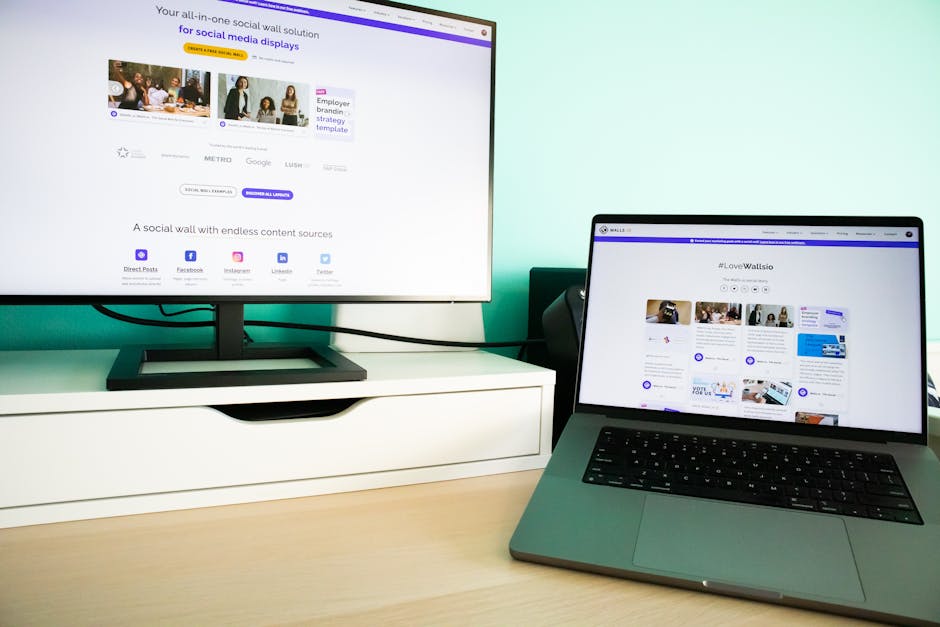
The first is the External Monitor Test. Connect your laptop to an external TV, desktop monitor, or projector using an HDMI, DisplayPort, or USB-C cable.
- If the external monitor works: Your laptop’s motherboard, CPU, and GPU are working perfectly. The problem is strictly isolated to your laptop’s internal display panel, the backlight, or the internal display cable.
- If the external monitor is also black: The issue lies deeper within the motherboard, RAM, or GPU, meaning the internal screen itself might be completely fine. If you happen to be troubleshooting a specialty machine, you can read more about brand-specific quirks in the Razer Laptop Black Screen Troubleshooting on iFixit.
The second diagnostic is the Flashlight Test. Take your laptop into a dark room, power it on, and shine a strong flashlight or phone light directly at the screen from a sharp angle. Look very closely.
- If you can see faint outlines: If you can barely make out your desktop icons, login screen, or a mouse cursor under the bright light, your LCD panel is actually working and displaying an image! The problem is that the backlight has failed. The backlight inverter or the LED strip is dead, leaving the screen too dark to see under normal conditions.
- If the screen is entirely blank: If you see absolutely nothing, not even a faint shadow of an icon, the entire display panel has lost power, or the display cable has disconnected completely.
Step-by-Step Troubleshooting for Windows and Mac Laptops
Now that you have a basic idea of whether you are facing a hardware or software issue, let’s look at platform-specific troubleshooting guides. Windows and macOS handle display configurations differently, so the steps to recover a black screen vary. If you are dealing with a Dell machine in the Magnolia State, explore our local options for Dell laptop repair near me for professional hands-on assistance.
Before starting, perform a hard reset on either system:
- Unplug the charger and disconnect all external peripherals (USB drives, mice, external keyboards, dongles). Sometimes a malfunctioning external device causes a boot-loop or display conflict.
- Press and hold the power button down for a full 30 seconds. This drains all residual power from the motherboard’s capacitors and resets the system’s hardware state.
- Plug only the power cord back in and attempt to boot.
Windows Laptop Black Screen Fixes
If your Windows laptop boots to a black screen, but you can see your mouse cursor, the operating system is running, but the user interface shell has failed to load.
Follow these steps to force the interface to load:
- Press Ctrl + Alt + Delete on your keyboard.
- If the security options screen appears, click on Task Manager.
- In Task Manager, click File in the top menu and select Run new task.
- Type
explorer.exeinto the box, check the box that says “Create this task with administrative privileges,” and press Enter. This manually launches the Windows graphical interface. - If this works, your display driver or a startup program is corrupted. We recommend running a system file check. Open a command prompt as an administrator and type
sfc /scannowto repair corrupted Windows system files.
For HP-specific machines facing these issues, you can read our targeted walkthrough on the HP laptop screen fix page.
MacBook Black Screen and Horizontal Line Troubleshooting
MacBooks are notoriously elegant, but they are not immune to the black screen of death. Older Intel-based MacBooks and newer Apple Silicon (M1/M2/M3) Macs require slightly different approaches.
- PRAM/NVRAM Reset (Intel MacBooks Only): Shut down your Mac. Press the power button, and immediately hold down Command + Option + P + R simultaneously. Keep holding these keys for about 20 seconds until you hear the startup chime a second time or see the Apple logo appear and disappear twice. This resets hardware settings related to display resolution and startup disk selection.
- SMC Reset (Intel MacBooks Only): If your screen is black and the fans are running at maximum speed, reset the System Management Controller. Shut down, plug in the power adapter, and press Shift + Control + Option on the left side of the keyboard while pressing the Power Button. Hold for 10 seconds, release all keys, and turn the Mac back on.
- The Lid Angle Test for “Flexgate” Issues: Many MacBook Pro models suffer from a known hardware flaw where the internal display cable (a thin ribbon cable) is slightly too short. Over time, opening and closing the lid wears down the cable. If your screen works when opened to a 45-degree angle, but goes completely black when opened past 90 degrees, your display cable is damaged and requires a display assembly replacement.
- Symmetric Horizontal Lines: If your MacBook screen displays thin, black, or colored horizontal lines, this is almost always a hardware issue caused by display cable wear or a cracked LCD panel. Sometimes, even a tiny grain of sand trapped between the tight-fitting keyboard and screen when closing the lid can crack the glass.
Hardware Failures: Backlights, Cables, and Panel Types
When software resets fail, we have to look closely at the physical components. The display system is a delicate assembly of glass, high-density LED arrays, and micro-thin copper cables. If you are running a high-performance machine, you might also want to check out our gaming laptop repair options, as gaming laptops run hot and are especially prone to GPU solder degradation.
Identifying Backlight Failure vs. Display Cable Damage
Understanding the difference between a bad backlight and a damaged display cable is crucial because it dictates your repair path.
- Display Cable Damage: The display cable (often an eDP or LVDS cable) runs from the motherboard, through the high-friction hinge area, and up into the screen. Because it bends every time you open or close your laptop, it is a frequent point of failure. Typical signs of a bad display cable include a screen that flickers when you move the lid, colors that distort at certain angles, or a display that goes black only when the laptop is fully opened.
- Backlight Failure: Modern screens use an LED array to illuminate the picture. If the backlight driver on the motherboard or the LED strip itself fails, the screen remains completely black, even though the LCD is still rendering the image (as proven by the flashlight test). For a deeper look into how manufacturers classify these physical screen issues, you can refer to the official HP Support Guide on Damaged Screens.
Choosing the Right Panel for Laptop Screen Repair Black Displays
If the LCD panel itself is cracked, bleeding ink, or completely dead, the entire panel must be replaced. Depending on your laptop model and your budget, you generally have three choices when selecting a replacement screen.
| Panel Option | Description | Pros | Cons |
|---|---|---|---|
| Standard LCD | The traditional liquid crystal display used in most standard laptops. | Most affordable option, highly reliable, excellent for general office work. | Lower contrast ratios and color depth compared to OLED. |
| Aftermarket OLED | High-quality third-party organic light-emitting diode screens. | Incredible contrast, deep blacks, vibrant colors, more budget-friendly than OEM. | Minor color calibration differences from the original factory specs. |
| OEM Screen | Original Equipment Manufacturer parts directly from the brand (Apple, Dell, HP). | Guaranteed perfect compatibility, exact factory color accuracy, maximum resale value. | Highest price point. |
Professional Laptop Screen Repair Black Screen Solutions and Costs
At Salvation Repair, we believe in complete transparency. You should never have to guess how much a repair will cost or worry about hidden fees. If you are located near Laurel, MS, you can view our complete service menu on our computer repair Laurel complete guide page.
Repair vs. Replacement: Cost Breakdown and Warranty Expectations
If your laptop screen is physically damaged or the backlight has failed, you do not necessarily need to buy a brand-new computer. Repairing the screen is highly cost-effective and keeps your personal data exactly where it is.
Our screen repair options are straightforward and competitively priced:
- Standard LCD Repairs: Starting at $89.95
- Aftermarket OLED Repairs: Starting at $129.95
- OEM Screen Repairs: Starting at $149.95
Why Choose Salvation Repair?
- Lifetime Warranty: We stand behind our work. All our screen repairs come with an industry-leading lifetime warranty against defects in parts and workmanship.
- Price Matching: We will match any local competitor’s advertised price for the same repair.
- Same-Day, On-Site Service: We know you cannot afford to be without your computer. We offer rapid turnaround times to get you back up and running fast.
- We Fix Anything with a Power Button: Beyond laptops, we specialize in lightning-fast mobile repairs. Our iPhone screen repairs take just 10 to 15 minutes and are performed right in front of you. Need a new battery? That takes us 30 minutes. A broken charging port? We will have it swapped out in one hour.
Frequently Asked Questions About Laptop Black Screens
Why is my laptop screen black but the power light is on?
This indicates that your laptop is receiving power and booting, but the video signal is not reaching the screen. The most common culprits are a failed backlight (which you can confirm with the flashlight test), a loose or damaged display cable in the hinge, or a crashed graphics driver.
Can a Windows update cause my laptop screen to go black?
Yes, absolutely. If a graphics driver update fails or installs an incompatible version, the operating system will lose its ability to communicate with the screen. You can usually fix this by booting into Safe Mode and rolling back your display adapter driver to the previous version.
Is it worth repairing an older laptop with a black screen?
Generally, yes! If your laptop is less than four to five years old, a screen repair starting at $89.95 is significantly cheaper than purchasing a comparable new machine. Plus, repairing your screen saves you the hassle of migrating your files, software licenses, and settings to a new system. However, if the repair cost exceeds 50% of the laptop’s current market value, we will honestly advise you on whether a replacement makes more sense.
Conclusion
A black laptop screen can feel like a major disaster, but in the vast majority of cases, it is a highly fixable issue. Whether it is a simple driver reset you can perform at home or a physical hardware failure requiring a panel replacement, you do not have to navigate this alone. For a deeper dive into physical screen damage, read our broken laptop screen complete guide.
If you have tried the DIY troubleshooting steps and your screen is still dark, let us take care of it for you. At Salvation Repair, we proudly serve communities across Mississippi, including Laurel, Jackson, Ellisville, Soso, Meridian, and all of Jones County.
Whether you need a laptop screen swap, a 10-15 minute iPhone screen repair done right in front of you, a 30-minute battery replacement, or a one-hour charging port fix, we are here to help.
Bring your device to us today, or contact us to schedule an on-site, same-day repair. We will match any local price, back our work with a lifetime warranty, and get your digital life back on track in no time!
