
How to Fix Black iPhone Screen in 5 Easy Steps
What to Do When Your iPhone Is On and Screen Is Black
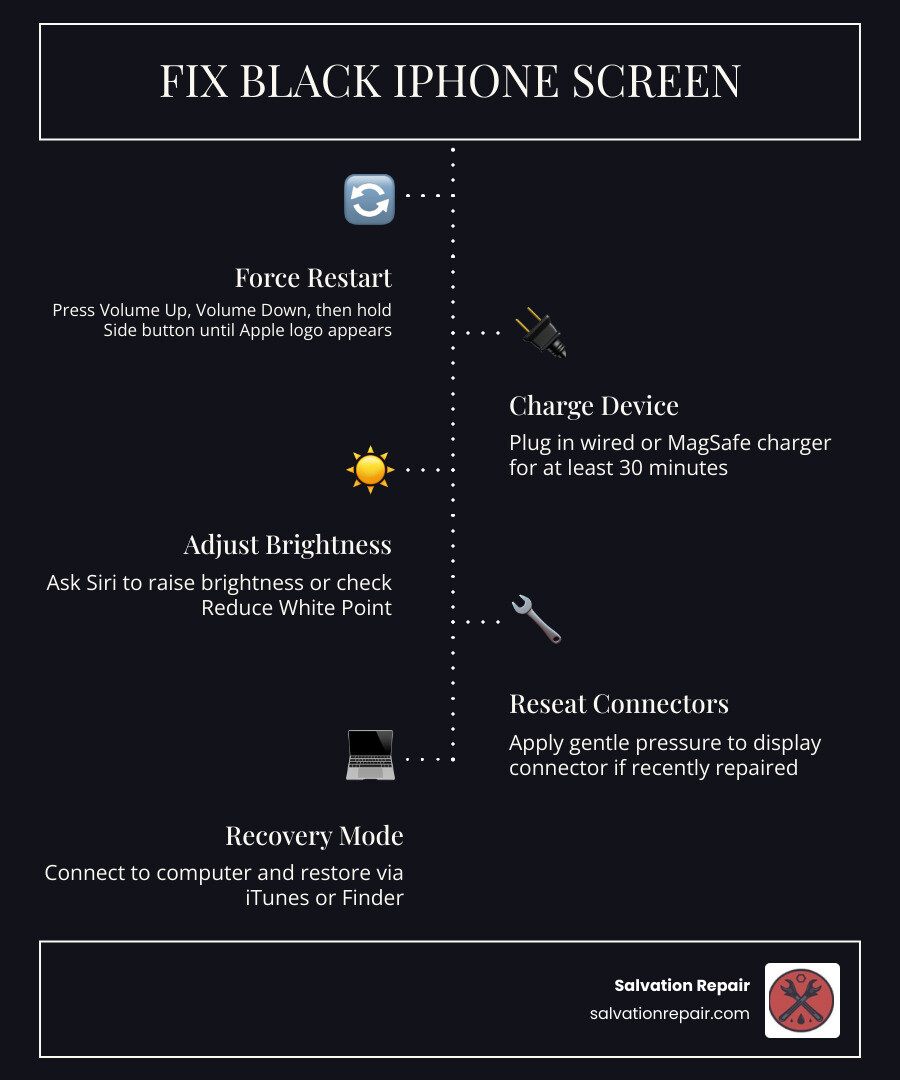
If your iPhone is on but the screen is black, here is what to try first:
- Force restart your iPhone (press Volume Up, Volume Down, then hold the Side button until the Apple logo appears)
- Plug in your charger for at least 30 minutes — or try a wireless/MagSafe charger if wired doesn’t work
- Check brightness settings — ask Siri to “turn up the brightness”
- Adjust Accessibility settings — turn off Reduce White Point if a screen repair was recently done
- Use Recovery Mode if none of the above work
Most black screen issues are fixed by steps 1 or 2 below.
It’s one of the more alarming things that can happen with your phone. Your iPhone is on, the screen is black, and yet it buzzes with notifications, rings when someone calls, and Siri responds when you talk to it. The display is just… dark. No lock screen. No Apple logo. Nothing.
This happens more than you might think. iPhone black screen problems rank among the top 5 most reported iPhone issues in 2025–2026, and the good news is that most cases are fixable without a repair shop. A simple force restart resolves the majority of black screen situations, according to Apple’s own support documentation. In some cases, it’s a drained battery, a frozen display driver, or even a single accessibility setting that’s causing the problem.
That said, some black screens do point to a hardware issue — a loose display connector, a failed backlight, or screen damage — and those need professional attention.
I’m Ralph Harris, a technician with over 20 years of electronics repair experience and more than 500 Apple repair certifications, and I’ve diagnosed and fixed hundreds of cases where an iPhone is on but the screen is black — from simple software freezes to full display replacements. This guide walks you through every fix, in the right order, so you don’t waste time or make things worse.
Quick fix – Here’s a pro tip for most iPhones – If the phones on, but the screen isn’t, do this:
- Press and quickly release the Volume Up button.
- Press and quickly release the Volume Down button.
- Press and hold the Side (Power) button for at least 10 to 15 seconds. Keep holding it even when the screen remains dark, and only let go when you see the bright Apple logo appear.
- COUNT – one mississippi, two mississippi… to (ten). If you don’t hit the buttons fast enough it does not restart. if you don’t hold the side button long enough it does not restart.
- If it restarts and your screen is still black you probably need a new screen (especially if it has been dropped) or the cables have come loose (unlikely).
Why Your iPhone Is On Screen Is Black: Common Causes
When your iphone is on screen is black, it means the logic board (the “brain” of your phone) is still running, processing data, and communicating with cellular towers, but the display panel itself is not outputting light or images.

According to a detailed analysis from Why Is My iPhone Screen Black But the Phone Is Still Working , this frustrating paradox usually boils down to two main categories: software crashes and physical hardware failures.
Software Glitches: When the iPhone Is On Screen Is Black
The most common culprit is a temporary system freeze. iOS is a highly sophisticated operating system, but it can still experience memory overflows or firmware conflicts. When this happens, the display driver (the background process that tells the screen what to show) crashes and stops sending signals to the display panel.
Because the rest of the processor is still functioning, your phone will still vibrate, make sounds, and connect to Wi-Fi. If you are experiencing this kind of frozen state, our iPhone Unresponsive Screen Complete Guide covers the deep-rooted background software loops that can trigger these lockups.
Hardware Failures: What to Do When Your iPhone Is On Screen Is Black
If software isn’t to blame, we are looking at physical hardware. The most common hardware causes include:
- Loose Display Connector: Inside your iPhone, the screen connects to the logic board via tiny, delicate press-fit ribbon cables. A hard drop, even if it doesn’t crack the glass, can cause these connectors to shift slightly out of place.
- Backlight Failure: The LCD or OLED panel is technically working, but the backlight generator has failed. If you shine a bright flashlight directly at the screen in a dark room and can see faint outlines of your apps, your backlight is dead.
- Physical Screen Damage: Micro-cracks in the organic light-emitting diode (OLED) matrix can completely disable the screen’s ability to display an image while leaving the touch digitizer or internal logic intact. For a deeper look at these physical issues, check out our resource on iPhone Screen Not Working.
5 Steps to Fix an iPhone with a Black Screen
Before you assume your phone is gone for good, let’s walk through our battle-tested, step-by-step DIY troubleshooting checklist.
We recommend going through these steps in order. These instructions align with official recommendations found in If your iPhone won’t turn on or the screen is black – Apple Support .
Step 1: Perform a Force Restart
A standard restart requires you to see and swipe the screen. A force restart, however, is a hardware-level override that cuts power to the processor for a split second, forcing the display driver to reboot regardless of what the software is doing. This will not erase any of your data.
Depending on your model, the button sequence varies:
- For Face ID Models (iPhone 8, X, XS, XR, 11, 12, 13, 14, 15, 16, 17, and newer):
- Press and quickly release the Volume Up button.
- Press and quickly release the Volume Down button.
- Press and hold the Side (Power) button for at least 10 to 15 seconds. Keep holding it even when the screen remains dark, and only let go when you see the bright Apple logo appear.
- For iPhone 7 and iPhone 7 Plus:
- Press and hold both the Side button and the Volume Down button simultaneously until the Apple logo displays on the screen.
- For iPhone 6s, SE (1st Gen), and older:
- Press and hold both the Home button and the Top (or Side) button at the same time until the Apple logo appears.
If you want to dive deeper into alternative physical reboot methods, you can read our guide on iPhone Black Screen Fix and Other Hardware Hacks.
Step 2: Charge Your Device (Wired vs. Wireless)
Sometimes, the screen is black because the battery is deeply depleted, and the phone doesn’t even have enough charge to display the “low battery” graphic.
Connect your phone to a high-quality, high-wattage charger (ideally 20W or higher) and let it sit undisturbed for at least 30 minutes.
The 2025–2026 Battery Glitch & The Wireless Charging Trick
In late 2025 and early 2026, tech forums lit up with reports of a unique battery flaw affecting newer devices like the iPhone 17 and iPhone Air. When these devices drain to exactly 0%, plugging them into a standard wired charger fails to boot them. USB power meters show the power oscillating erratically between 0W and 2.1W without delivering a steady charge.
As documented by New iPhone Battery Flaw Is Leaving Users Stuck On Black Screen — Here’s How To Fix It – AOL , the secret fix is wireless charging. Placing the unresponsive black-screen iPhone on a MagSafe or Qi-certified wireless charging pad bypasses the wired charging port’s controller glitch, successfully delivering a steady current that boots the phone within minutes. If your wired charger is giving you a black screen, try a wireless pad!
Step 3: Adjust Accessibility and Display Settings
If your phone is on, but the screen is so incredibly dim that it looks black, you might have an issue with your display settings.
- Use Siri: Activate Siri (hold the Side button or say “Hey Siri”) and say, “Turn my screen brightness to maximum.”
- The “Reduce White Point” Bug: This is a common issue on devices like the iPhone 11. The “Reduce White Point” accessibility setting is designed to dim bright colors, but a software glitch can cause it to scale down to 100% dimness, rendering the screen completely black. If you recently had a screen repair and are facing this, ask Siri to “Turn off Reduce White Point” or navigate to Settings > Accessibility > Display & Text Size once you get the screen temporarily active.
Step 4: Apply Gentle Pressure to Reseat Connectors
If your iPhone recently took a tumble onto a carpeted floor or vibrated violently, the internal display connector may have partially unseated from the logic board.
As outlined in How To Fix iPhone Black Screen Of Death: A Step By Step DIY Repair Guide | CHINA PHONEFIX SHOP Team , you can sometimes temporarily resolve this with a gentle physical massage:
- Locate the area of the display connectors (usually in the upper right-hand quadrant of the screen, just below the front-facing camera assembly).
- Place a soft microfiber cloth over your screen to protect the glass.
- Using your thumb, apply gentle, even pressure to the front of the screen and the matching spot on the back of the phone, squeezing them together slightly.
- If you hear a tiny click or notice the display suddenly flicker back to life, your connector was loose. This is a temporary fix—the connector will likely loosen again, and the phone will eventually need to be opened and secured.
Step 5: Use Recovery Mode or DFU Restore
If your computer detects your iPhone when plugged in, but the screen is still black, the operating system’s firmware might be corrupted. You can force iOS to reinstall itself using Recovery Mode.
- Connect your iPhone to a computer running the latest version of iTunes (on Windows) or Finder (on Mac).
- Perform the Force Restart steps listed in Step 1, but do not let go of the buttons when you see the Apple logo. Keep holding them until you see the Recovery Mode screen (which shows a laptop and a lightning cable icon) on your phone.
- On your computer, a pop-up window will appear offering to Update or Restore.
- Choose Update. This will attempt to reinstall the iOS firmware without wiping any of your personal photos, messages, or apps.
If your phone’s power system is completely unresponsive during this process, read our expert guide on iPhone No Power Repair for advanced recovery options.
Screen Repair Options: LCD vs. Aftermarket OLED vs. OEM
If you have tried all five steps and your iphone is on screen is black, the physical display panel is likely broken and needs to be replaced. When getting a screen repair, you generally have three tiers of replacement parts to choose from.
| Feature | LCD Screen | Aftermarket OLED | OEM (Original) Screen |
|---|---|---|---|
| Technology | Liquid Crystal Display (Backlit) | Organic LED (Self-lit Pixels) | Original Apple Spec OLED |
| Color & Contrast | Good colors, gray-ish blacks | Deep blacks, vibrant colors | Perfect color accuracy, maximum brightness |
| Battery Consumption | Higher (Backlight is always on) | Low (Black pixels consume 0 power) | Optimized to original factory specs |
| Salvation Repair Price | $89.95 | $129.95 | $149.95 |
| Best Suited For | Budget-conscious repairs, older models | Excellent balance of price and OLED quality | Users who want factory-original performance |
Choosing the right screen depends on your budget and how you use your phone. An LCD is a fantastic, wallet-friendly option for older models. However, because modern iPhones are designed around OLED technology, upgrading to an Aftermarket OLED or an OEM screen will give you those rich, deep blacks and save precious battery life. For a deeper dive into these options, consult our iPhone Screen Repair Complete Guide.
Frequently Asked Questions About Black iPhone Screens
Why does my iPhone vibrate but the screen remains black?
When your phone vibrates, plays ringtones, or makes clicking sounds but the screen is dark, it confirms that your logic board is fully powered on and functioning. The issue is strictly isolated to the display hardware.
As noted in iPhone Display Black Screen? 4 Causes and Fixes (2026) , this is almost always caused by a severed or loose connection between the screen and the motherboard, a blown backlight fuse on the board, or a cracked internal OLED matrix.
How long should I charge my iPhone before assuming it is broken?
We recommend charging your iPhone for at least 30 to 60 minutes using a known-working wall adapter and cable. If your battery has been completely flat for weeks, it can take up to an hour of continuous charging to rebuild enough voltage to wake the system.
If you are using a wired charger and nothing happens, try a wireless MagSafe charger, as this often bypasses wired charging controller bugs. For a visual walkthrough of this charging diagnosis, check out this guide: How to Fix iPhone Black Screen But Still Works – 2025 – YouTube .
What should I do if my screen went black after a battery replacement?
If you recently had a battery replacement and your screen suddenly went black, the technician likely did not secure the display plate properly, or the display cable was slightly torn during the battery removal process.
Because the display cables sit directly adjacent to the battery compartment, they are easily disturbed. If this happened to you, refer to our guide on dealing with a Broken Phone Screen or read about the famous iphone 12 black screen glitch to see how minor physical shifts can disrupt display connections.
Professional iPhone Repair in Laurel, MS
If you’ve tried the force restarts, the wireless charging tricks, and the settings adjustments, and your iphone is on screen is black, it’s time to bring in the pros.
At Salvation Repair, we specialize in fast, high-quality, and transparent electronic repairs. We proudly serve the communities of Laurel, MS, Jackson, MS, Ellisville, MS, Soso, MS, Meridian, MS, and Jones County, Mississippi.
Here is why local residents trust us with their devices:
- Insane Repair Speeds: We know you can’t live without your phone. That’s why our iPhone screen repairs take 10-15 minutes in front of the customer. Battery repairs take 30 minutes, and charging port repairs take 1 hour.
- Lifetime Warranty: We stand behind our work. Every single screen and hardware repair we perform comes backed by our industry-leading lifetime warranty.
- Price Match Guarantee: We will match any local competitor’s advertised price for the same repair.
- We Fix Anything: True to our motto, we repair “any device with a power button,” from iPhones and Samsung devices to tablets, laptops, and game consoles. If you have an iPad Dead Screen or a Cracked Screen, we’ve got you covered.
While there are other options in town, Salvation Repair offers a personalized, local touch with unmatched speeds, a price match guarantee, and lifetime warranties along with me, Ralph, an Apple certified tech with over 25+ years of experience fixing all kinds of things as well as thousands of phones – available everyday in-store or by phone.
Don’t let a black screen keep you in the dark. Bring your device to our experts for a same-day diagnostic and repair. Check out our Professional iPhone Repair services or read our comprehensive guide on the iPhone Screen Repair Cost to find the perfect repair path for your budget.
