iPhone black screen fix and other hardware hacks
Your iPhone Screen Went Black? Here’s How to Fix It Fast
An iPhone black screen fix is something thousands of iPhone owners need every year — and in most cases, you can solve it yourself in under five minutes.
Quick fixes to try right now:
- Charge your iPhone for at least 30–60 minutes using a certified cable
- Force restart your iPhone using the button sequence for your model (details below)
- Enter Recovery Mode via Finder or iTunes if force restart fails
- Use DFU Mode for deep firmware issues (last resort before professional repair)
- Visit a repair shop if the screen is physically damaged or unresponsive after all software fixes
Picture this: you wake up, reach for your iPhone, and the screen is completely dark. No response. But you can hear it buzzing with notifications. You’re not alone — over 638 Apple Community users reported the exact same experience on iPhone XS Max and similar models. It’s one of the most frustrating device problems out there, and it can be caused by anything from a simple software glitch to a failed screen connector.
The good news? Most cases are fixable without a trip to the repair shop.
I’m Ralph Harris, and with over 20 years of electronics repair experience, more than 500 Apple repair certifications, and hundreds of published repair guides, the iPhone black screen fix is one of the most common issues I’ve helped people solve. Let’s walk through everything you need to know, from the simplest checks to advanced recovery options.
Similar topics to iPhone black screen fix:
Identifying the iPhone Black Screen of Death
It’s April 2026, and while iPhones have become incredibly advanced, the “Black Screen of Death” remains a persistent thorn in the side of users from Laurel, MS to Jackson, MS. But before we panic, we need to determine if your phone is actually “dead” or just “sleeping” with a broken display.
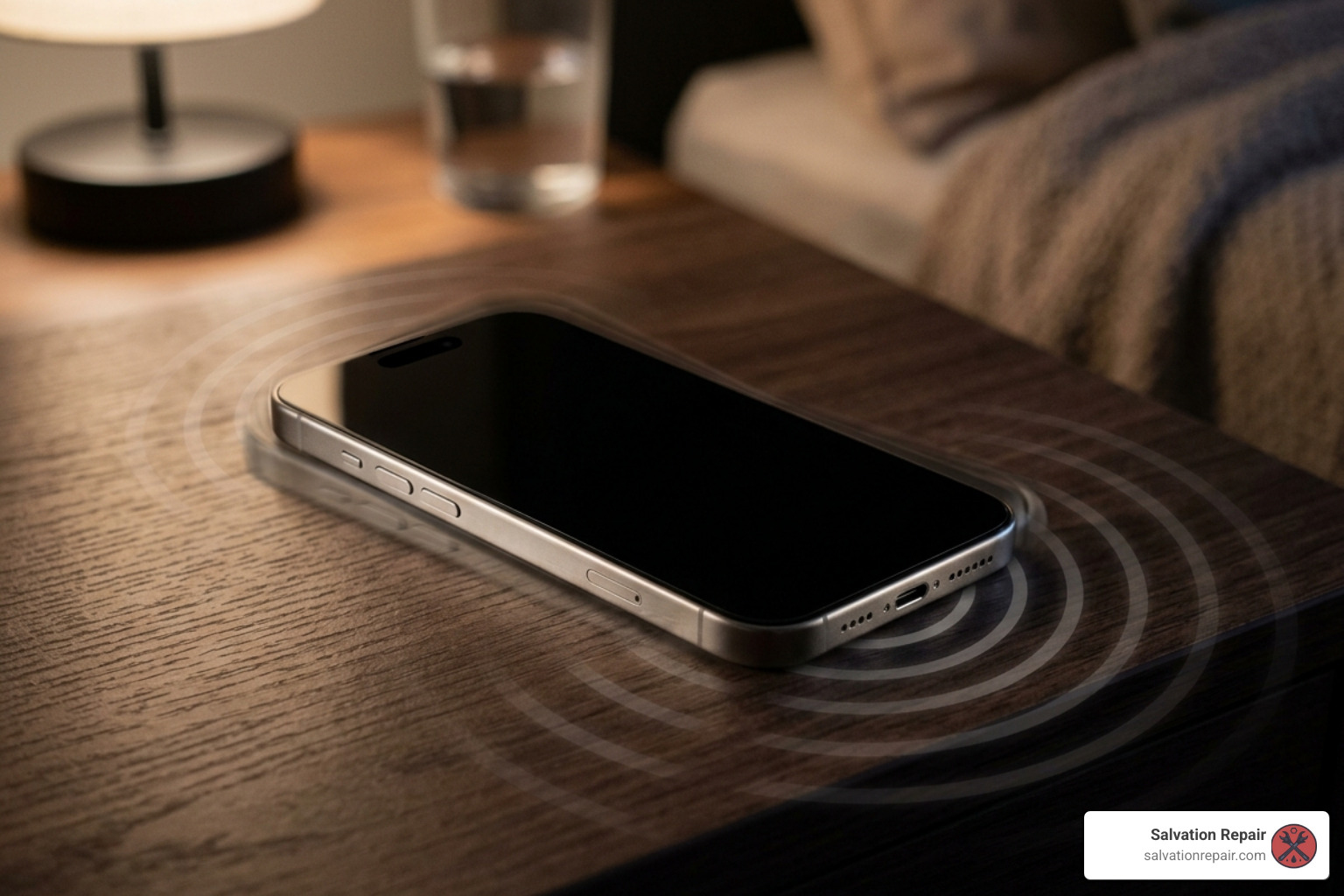
How do you know if your iPhone is powered on despite the darkness? We look for signs of life, often called haptic feedback or power indicators.
- The “Buzz” Test: Flip the silent switch on the side of your phone. Do you feel a vibration?
- The Sound Check: Have someone call you or try to trigger “Find My” from another device. If it rings, the “brain” is working, but the “face” (the screen) is not.
- The Charging Status: Plug it into a known working charger. Does it make a chime?
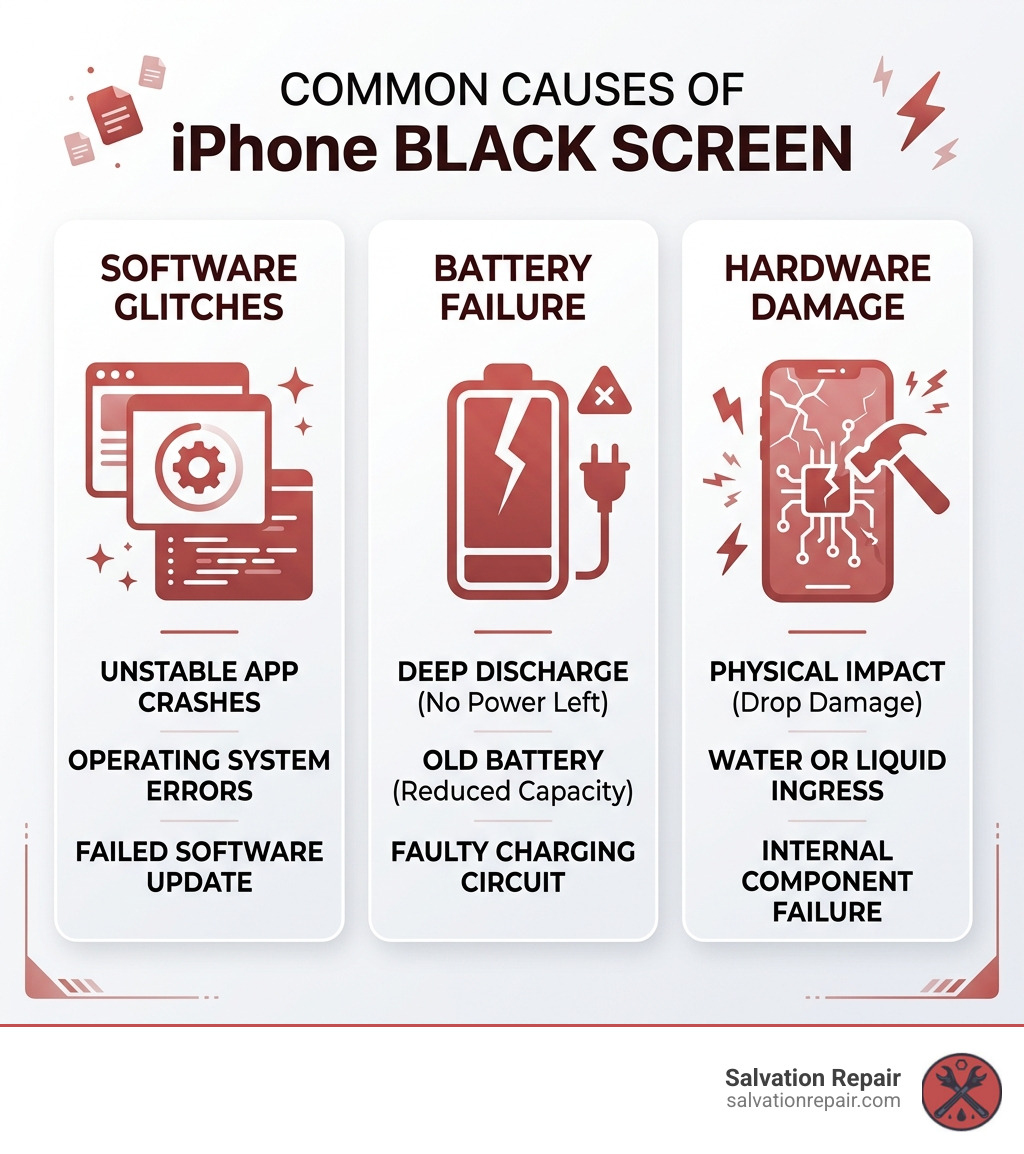
The distinction between a software glitch and a hardware failure is vital. A software glitch means the iOS system has crashed or gotten stuck in a loop—this is usually fixable with a few button presses. A hardware failure, such as a disconnected display cable or a fried backlight circuit, requires a more hands-on approach. If you’ve confirmed the phone is on but the display is dark, you might be dealing with an iPhone No Power Repair or a display-specific failure. For more official guidance, you can also check out If your iPhone won’t turn on or the screen is black – Apple Support.
The Ultimate iPhone Black Screen Fix: Force Restart Guide
If your iPhone is unresponsive, the first and most effective iPhone black screen fix is the force restart. Unlike a regular “slide to power off,” a force restart cuts power to the logic board and forces the software to reboot from scratch. This is the “Have you tried turning it off and on again?” of the smartphone world, and it works surprisingly often.
Precision is everything here. As experts like Jason Jones—who has helped over 71,534 users—will tell you, the timing of these button presses must be exact. If you don’t see the Apple logo within 30 seconds, you likely didn’t hit the sequence fast enough.
| iPhone Model Group | First Step | Second Step | Final Step |
|---|---|---|---|
| Face ID Models (8 & Newer) | Press & release Vol Up | Press & release Vol Down | Hold Side Button (until Logo) |
| iPhone 7 / 7 Plus | Press & hold Vol Down | Press & hold Sleep/Wake | Hold both until Logo appears |
| iPhone 6s / SE (1st Gen) | Press & hold Home | Press & hold Sleep/Wake | Hold both until Logo appears |
For a deeper dive into these procedures, visit If your iPhone won’t turn on or the screen is black – Apple Support.
iPhone black screen fix for Face ID Models
Whether you are rocking the iPhone 13, the iPhone 15, or the brand-new iPhone 17 (released in late 2025), the method remains the same.
- Press and quickly release the Volume Up button.
- Press and quickly release the Volume Down button.
- Press and hold the Side Button.
Crucial Tip: Do not let go when you see the “Slide to Power Off” slider. Keep holding that side button until you see the white Apple logo. This can sometimes take up to 30 seconds if the system is heavily bogged down.
iPhone black screen fix for Home Button Models
For our neighbors in Jones County still loving their iPhone 7, 8, or the classic SE models, the process is slightly different. On the iPhone 7, you’ll hold the Volume Down and the Sleep/Wake buttons simultaneously. For the iPhone 6s and earlier, it’s the Home button and the Top/Side button. These legacy models are sturdy, but they aren’t immune to the occasional system freeze.
Advanced Software Recovery and DFU Mode
What happens if the force restart fails? It’s time to bring in the big guns: Recovery Mode and DFU Mode. Before you start, ensure your iPhone has been on a charger for at least one hour. If the battery was completely drained, it might need 30 minutes just to show a low-battery icon.
Pete, an electronic engineer who has assisted 37,409 customers, often recommends checking the iPhone Screen Repair Complete Guide before assuming the software is the only culprit. However, if your phone is stuck in a boot loop (showing the Apple logo then going black), software recovery is your best bet.

Entering Recovery Mode without data loss
Recovery Mode allows you to “Update” the iOS without wiping your photos and messages.
- Connect your iPhone to a computer (Mac or PC).
- Open Finder (on macOS Catalina or later) or iTunes.
- Perform the force restart sequence for your model, but keep holding the buttons even after you see the Apple logo.
- Wait until the “Connect to Computer” screen appears on your iPhone.
- On your computer, choose Update. This will attempt to reinstall the operating system without erasing data.
For more details, see If your iPhone won’t turn on or the screen is black – Apple Support.
When to use DFU mode safely
DFU stands for Device Firmware Update. It is the deepest possible restore. It doesn’t just reload the software; it reloads the firmware that controls the hardware. Expert Randy has resolved over 23,379 issues using this method for devices where the iPhone Screen Not Working was caused by corrupted code.
Warning: DFU mode will erase every single byte of data on your phone. If you haven’t backed up to iCloud or your computer, that data will be lost. This is a last-resort iPhone black screen fix. Entering DFU mode involves a very specific “dance” of holding the side and volume buttons for exactly 5 seconds, then releasing one while holding the other. If the screen stays black but the computer recognizes an iPhone in recovery, you’ve successfully entered DFU mode.
Hardware Hacks and Professional Repair Solutions
If you’ve tried the force restart, the one-hour charge, and the DFU restore, and your screen is still as dark as a Mississippi night in the middle of the woods, we are likely looking at a hardware issue.
At Salvation Repair, we see several common hardware failures:
- Loose Display Connector: Sometimes a small drop doesn’t crack the glass but jiggles the internal ribbon cable loose.
- Backlight Failure: The screen is technically “on,” but the lightbulb behind it is out. You can sometimes see your icons if you shine a very bright flashlight directly against the glass.
- Battery Failure: A swollen or dead battery can prevent the screen from getting enough voltage to fire up.
- Water Damage: Even “water-resistant” iPhones can suffer from internal corrosion over time.
If you’re in the Laurel or Jackson area, you don’t have to mail your phone away for weeks. We offer same-day service for iPhone & Samsung Repair in Laurel, MS. Curious about the potential hit to your wallet? Check out our guide on How Much It Cost to Repair iPhone Screen.
Preventing Future iPhone Black Screen Issues
Once you’ve got your phone back in working order, you’ll want to make sure this doesn’t happen again. Prevention is much cheaper than repair!
- Keep iOS Updated: Many black screen issues are caused by “memory leaks” in older software. Apple releases patches specifically to stop these crashes.
- Use MFi-Certified Accessories: Cheap gas station chargers can send irregular voltage to your phone, potentially frying the “Tristar” or “Hydra” power chips on the logic board.
- Monitor Battery Health: Go to Settings > Battery > Battery Health. If you’re below 80%, your phone may shut down unexpectedly under heavy load.
- Protect the Glass: Even a small hairline fracture can let moisture in. Consider a professional Screen Repair or at least a high-quality tempered glass protector if you have a Cracked Screen.
Frequently Asked Questions about iPhone Display Issues
Why is my iPhone 11 Pro Max screen black but it still rings?
This is almost always a “Display Assembly” failure. The phone’s logic board is functioning perfectly (which is why it can receive calls), but the OLED panel has failed or the cable has become detached. A force restart is worth a try, but this usually requires a screen replacement.
Will a factory reset fix my iPhone black screen of death?
If the cause is a deep software conflict or firmware corruption, yes, a factory reset via DFU mode will fix it. However, if the screen is black because of a hardware drop or water damage, no amount of software resetting will bring those pixels back to life.
How do I know if my iPhone screen is broken or if it’s a software bug?
Try the “Flashlight Test.” Shine a bright light at an angle against the black screen. If you can see a very faint image of your lock screen or the Apple logo, your screen’s backlight is broken. If the screen is completely dead even under a bright light, but the phone vibrates, the entire display panel likely needs replacing.
Conclusion
Dealing with a black screen is stressful, but it doesn’t have to be the end of your device. From the simple iPhone black screen fix of a force restart to the more technical DFU restore, most issues can be handled with a little patience.
However, we know that your time is valuable. If you’ve tried these steps and your iPhone is still unresponsive, let the experts handle it. At Salvation Repair, we serve the communities of Laurel, Jackson, Ellisville, Soso, and Meridian with pride. We specialize in same-day, on-site repairs for iPhones and iPads, and we stand by our work with a lifetime warranty and price matching.
Don’t let a black screen slow you down. Whether it’s a software bug or a Broken Phone Screen, we’ve helped thousands of customers save money versus the cost of a brand-new device.
Get your professional Screen Repair here and let us bring your iPhone back to life today!