How to Fix iPhone Charging Port Issues in 5 Simple Steps
How to Fix an iPhone Charging Port That Won’t Charge
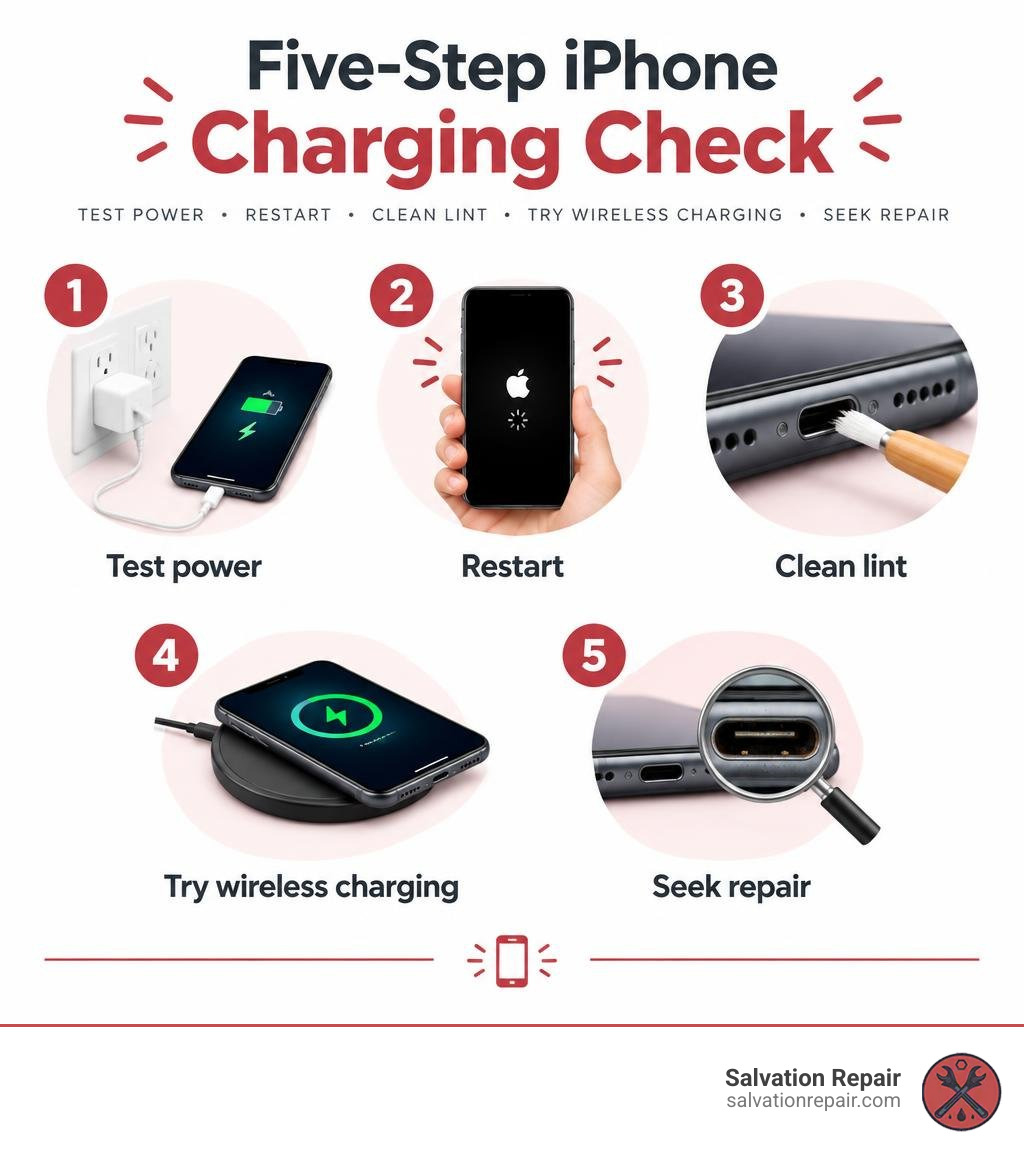
Start with the simple checks before assuming the port is broken:
- Try a known-good cable, adapter, and wall outlet.
- Restart your iPhone.
- Turn it off, inspect the port with a flashlight, and gently lift out visible lint with a dry, soft brush or wooden pick. Keep the tool away from the contacts.
- If your iPhone supports wireless charging, test it to help narrow down the problem.
- If wired charging still fails, or you see bent contacts or corrosion, stop cleaning and get the phone checked.
A cable that feels loose may simply be blocked by compacted pocket lint. If the port needs repair, Salvation Repair in Laurel, MS, typically completes charging port repairs in about one hour.
I’m Ralph Harris, a certified Apple repair technician with more than 20 years of hands-on experience. In this guide, I’ll help you determine whether you can safely fix an iPhone charging port with basic cleaning or if your device requires a component repair.
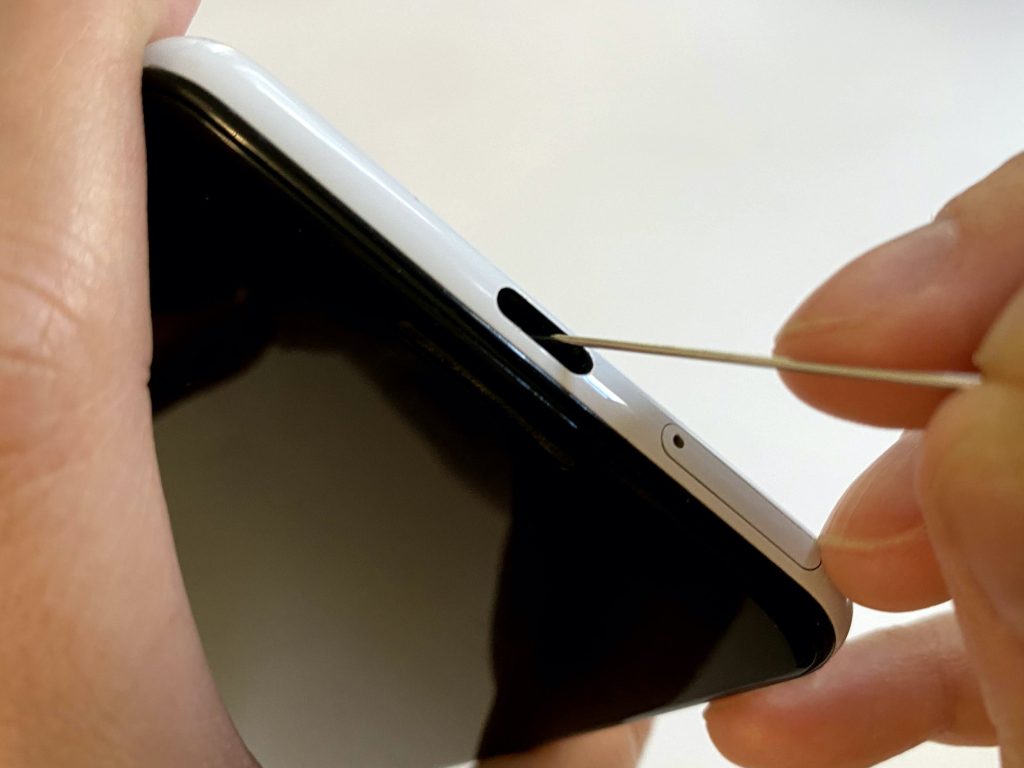
Explore our foundational guides on charging port repair and phone charging port cleaning to learn more about port maintenance.
Why Your iPhone Won’t Charge (Even with a New Cable)
Plugging in your iPhone only to see zero response is an infuriating experience. When a brand-new cable fails to resolve the issue, it is natural to worry that your device has suffered catastrophic hardware failure. However, roughly 80% of all iPhone charging issues stem from simple compacted debris inside the port rather than a fried circuit board.
Every time you slide your iPhone into a pocket, purse, or backpack, the port acts like a tiny vacuum, gathering lint, dust, and fabric fibers. Each time you plug in a charging cable, you push that loose debris deeper into the cavity. Over weeks and months, the lint becomes compressed into a dense, felt-like pad against the back wall. This barrier physically blocks the connector pins from making clean electrical contact with your cable.
Beyond pocket lint, mechanical and electrical wear take a toll on hardware:
- Cable Lifespan Limits: The average Lightning cable lasts 8 to 14 months under daily use, while USB-C cables typically hold up for 12 to 18 months before internal wire fatigue occurs.
- Pin Degradation and Insertion Stress: Repeatedly plugging in cables at sharp angles flattens the spring-loaded contact pins inside the port. This pin degradation from angled insertion and repeated plugging cycles typically leads to failure within 12 to 18 months.
- Fast-Charging Heat Build-Up: Modern fast charging can cause port temperatures to climb significantly, which can stress microscopic internal solder joints over time.
- Software Throttling: Built-in iOS features like Optimized Battery Charging pause charging at 80% under warm conditions to preserve battery longevity.
If your device refuses power completely, systematic troubleshooting helps confirm whether software safety limits or hardware faults are at play.
5 Simple Steps to Fix iPhone Charging Port Problems at Home
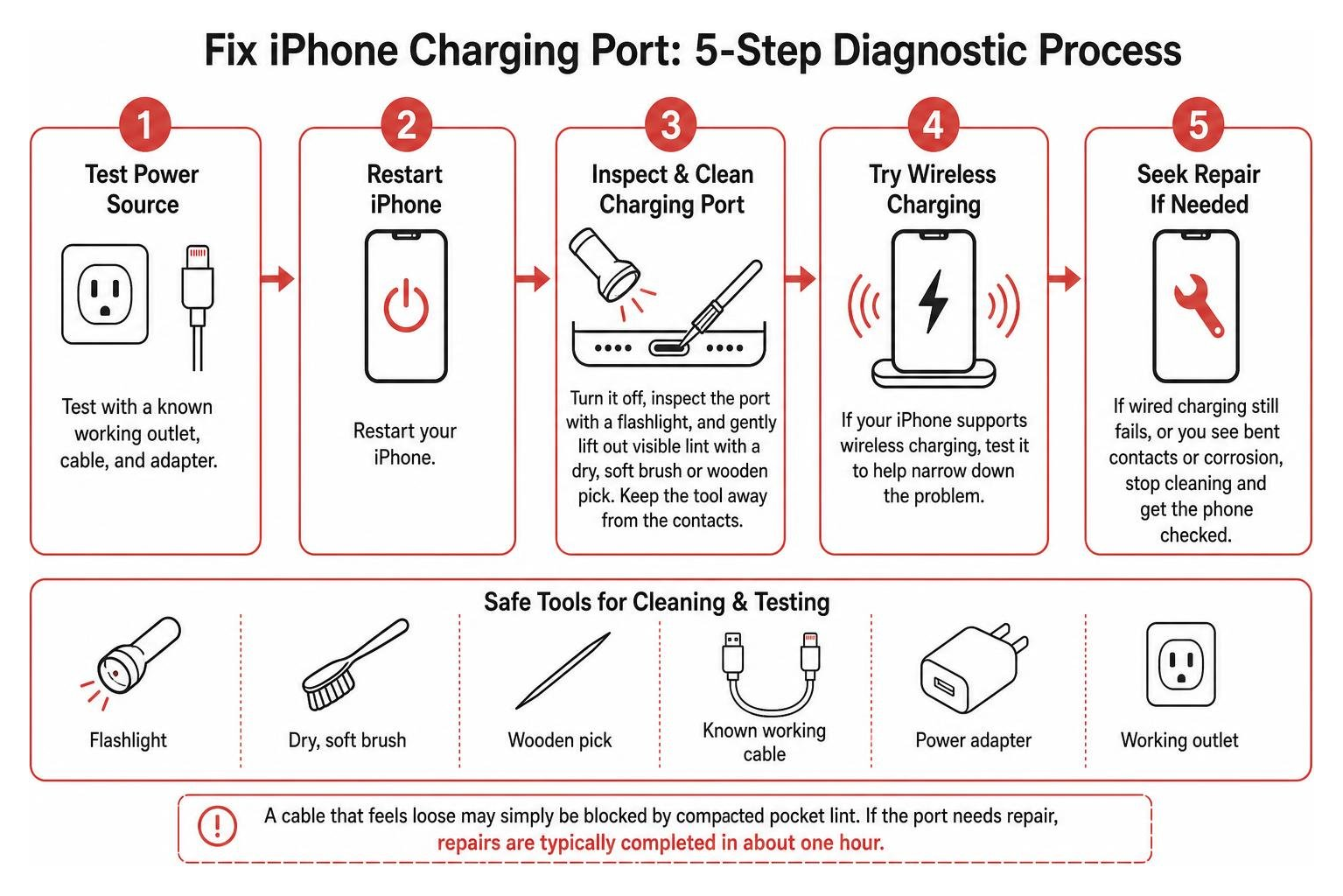
Before spending money on replacement hardware, systematically work through these five safe, field-tested troubleshooting steps.
Step 1: Inspect and Test Cables, Adapters, and Power Sources
Cables frequently fail internally without showing exterior tears. A worn cord might supply power intermittently or fail to negotiate voltage with your iPhone’s power management controller.
Always test your device using an Apple-certified MFi (Made for iPhone) Lightning cable or an official USB-C cable paired with a verified wall brick. Plug directly into a reliable wall outlet rather than an unpowered USB hub, computer port, or loose power strip to avoid voltage drops. Isolating faulty accessories before assuming your hardware is broken is a key part of any iPhone charging diagnosis, as detailed in Business Insider’s guide on iPhone charging fixes.
Step 2: Restart Your Device and Check Battery Settings
Software glitches can freeze the charging status or lock the Power Management Integrated Circuit (PMIC). A simple reboot or hard force restart forces iOS to reset its hardware detection routines.
Navigate to Settings > Battery > Battery Health & Charging to see if Optimized Battery Charging or the 80% Charge Limit is active. If your iPhone gets warm while running intensive apps or sitting in direct sunlight, iOS will halt charging past 80% until the internal temperature drops. If your screen is completely frozen or black alongside charging problems, our troubleshooting guide for unresponsive screens walks you through resetting system firmware safely.
Step 3: Safely Clean and Fix iPhone Charging Port Debris
If visual inspection reveals a layer of fuzz inside the connector cavity, you need to extract it without shorting delicate electronics.
Never use metal objects like sewing needles or safety pins. Metal tools scratch gold contact plating and easily cause fatal short circuits across live power pins. Instead, use a non-conductive wooden toothpick, plastic dental pick, or dedicated anti-static tool.
Power down your iPhone completely. Gently insert the pick along the bottom or top edge, working around the delicate spring pins, and drag compacted lint outward in light sweeps. Finish with brief, controlled bursts from a can of compressed air held upright. For a comprehensive walkthrough on cleaning techniques, check out the easiest way to clean your phone charging port.
Step 4: Test Wireless Charging to Isolate Hardware Faults
If your iPhone supports Qi or MagSafe wireless charging (iPhone 8 and newer), place it on a wireless charging pad.
If your iPhone charges wirelessly without issue but fails to charge via cable, your battery, display, and primary logic board are fully functional—the fault is isolated directly to the charging port flex assembly. If the phone refuses both wireless and wired power, the issue points toward a drained battery, a dead power management chip, or an internal board-level fault.
Step 5: Evaluate Port Tightness and Connection Stability
When you plug a cable into a healthy iPhone port, you should feel a crisp, mechanical click. The plastic collar of the cable should sit flush against the phone’s frame without wobbling side to side.
If the cable feels loose, falls out under its own weight, or only charges when held upward at a 45-degree angle, debris is likely preventing full insertion. If the port is completely clean yet still loose, the internal retention springs have worn out. Read our practical guide on how to fix charging port fast to determine if mechanical adjustments or component swaps are necessary.
Cleaning vs. Repair: Signs Your Charging Port Needs Replacement
Not every port issue can be solved with a wooden pick. Physical wear, liquid intrusion, and drop impacts eventually require component-level service.
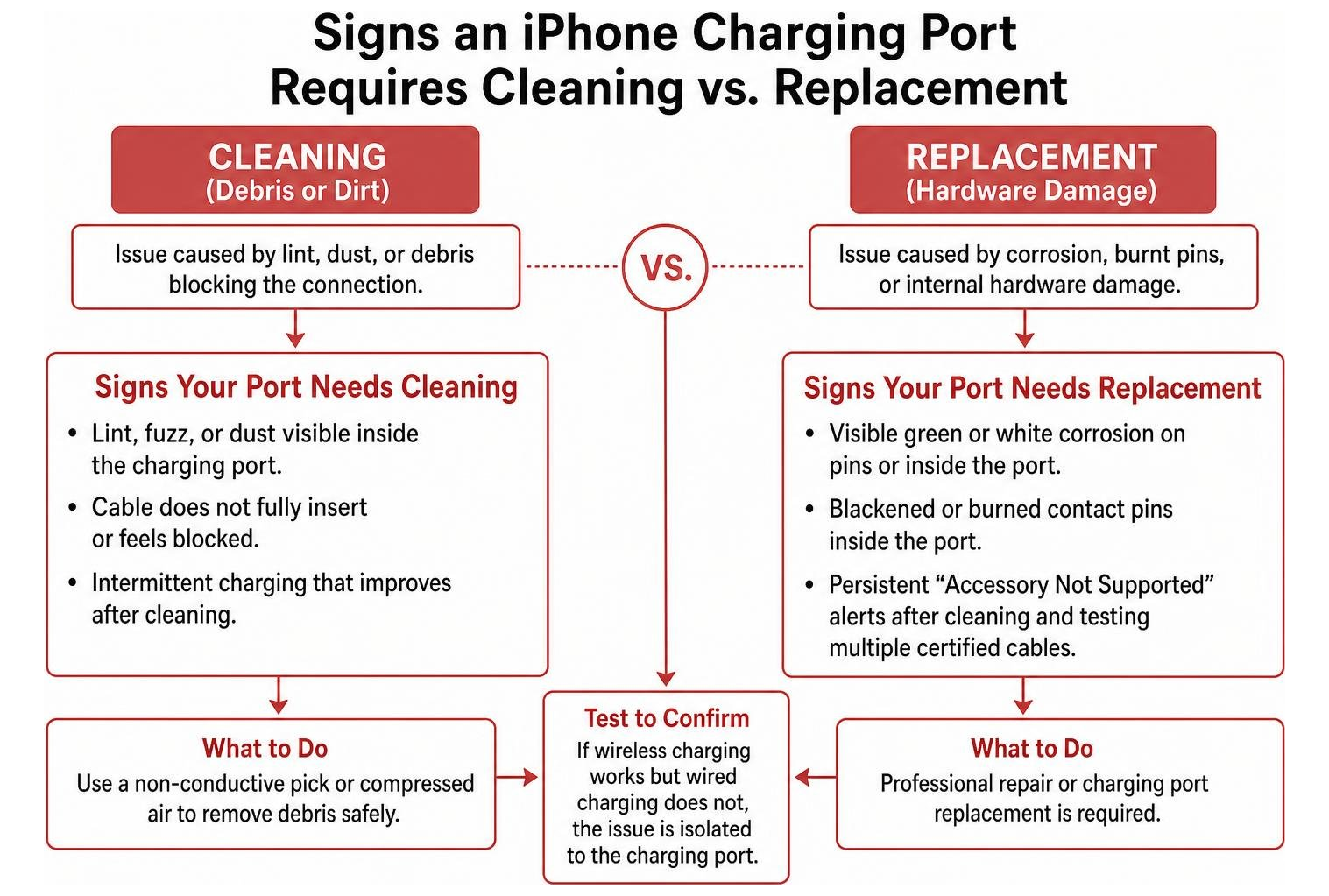
Signs your port requires replacement rather than cleaning include:
- Visible Green or White Corrosion: Moisture exposure oxidizes copper and gold pins, destroying electrical conductivity.
- Blackened or Burned Contact Pins: Electrical arcing from liquid exposure or cheap uncertified chargers leaves scorched pins that cannot conduct power.
- Persistent “Accessory Not Supported” Alerts: If this warning persists across multiple certified cables after thorough cleaning, the data/power handshake pins are damaged.
- Total Lack of Data Syncing: If a computer will not detect your phone via USB, the flex cable’s data transmission lines are fractured.
- Drop Damage: Impact shock from dropping your phone while plugged in can crack internal flex cables or tear the port assembly loose from its internal mounting bracket.
Can You Fix iPhone Charging Port Looseness Without Replacement?
If the port is clean but loose, many users wonder if they can bend internal pins back into position. Manually bending pins with tweezers inside modern compact ports carries an extremely high risk of snapping the delicate gold contacts or shorting the logic board.
When the internal metal retention springs lose their mechanical tension, temporary workarounds (like wrapping cables or wedging adapters) provide unreliable connections that can drop power mid-charge. The only durable, permanent solution for a worn, loose port is swapping the modular charging port flex assembly.
Professional iPhone Charging Port Repair Costs and Timeframes
When DIY cleaning does not resolve the issue, you have several repair routes. Professional port cleanings generally run between $10 and $25, which can instantly resolve the issue and save you well over $100 compared to full hardware replacement.
If physical replacement is required, DIY replacement parts cost $16 to $30 (for models like the iPhone 14), but performing the repair yourself requires complete device teardown, including removing the delicate OLED display, logic board screws, lower speaker assembly, and Taptic Engine.
| Repair Method | Estimated Cost | Typical Turnaround Time | Risk Level |
|---|---|---|---|
| Professional Port Cleaning | $10 – $25 | 10 – 15 minutes | Zero risk |
| DIY Port Replacement | $16 – $30 (parts only) | 1 – 2 hours | High (screen/board damage) |
| Third-Party Repair Shop | $60 – $159 | 30 – 60 minutes | Low (with warranty) |
| Manufacturer (Out of Warranty) | $269 – $549+ | 3 – 5 business days | Zero (whole unit swap) |
Out of warranty, manufacturer service centers generally treat charging port failure as full-unit damage, replacing the entire device rather than swapping the sub-assembly, which drives costs up to $269–$549+. Third-party repair shops replace the dedicated modular flex cable directly for a fraction of that price. For a full breakdown of model-specific considerations, read our iPhone charging port repair complete guide.
How to Prevent Future iPhone Charging Port Issues
Taking proactive care of your phone’s connector eliminates unnecessary wear and protects your pocketbook.
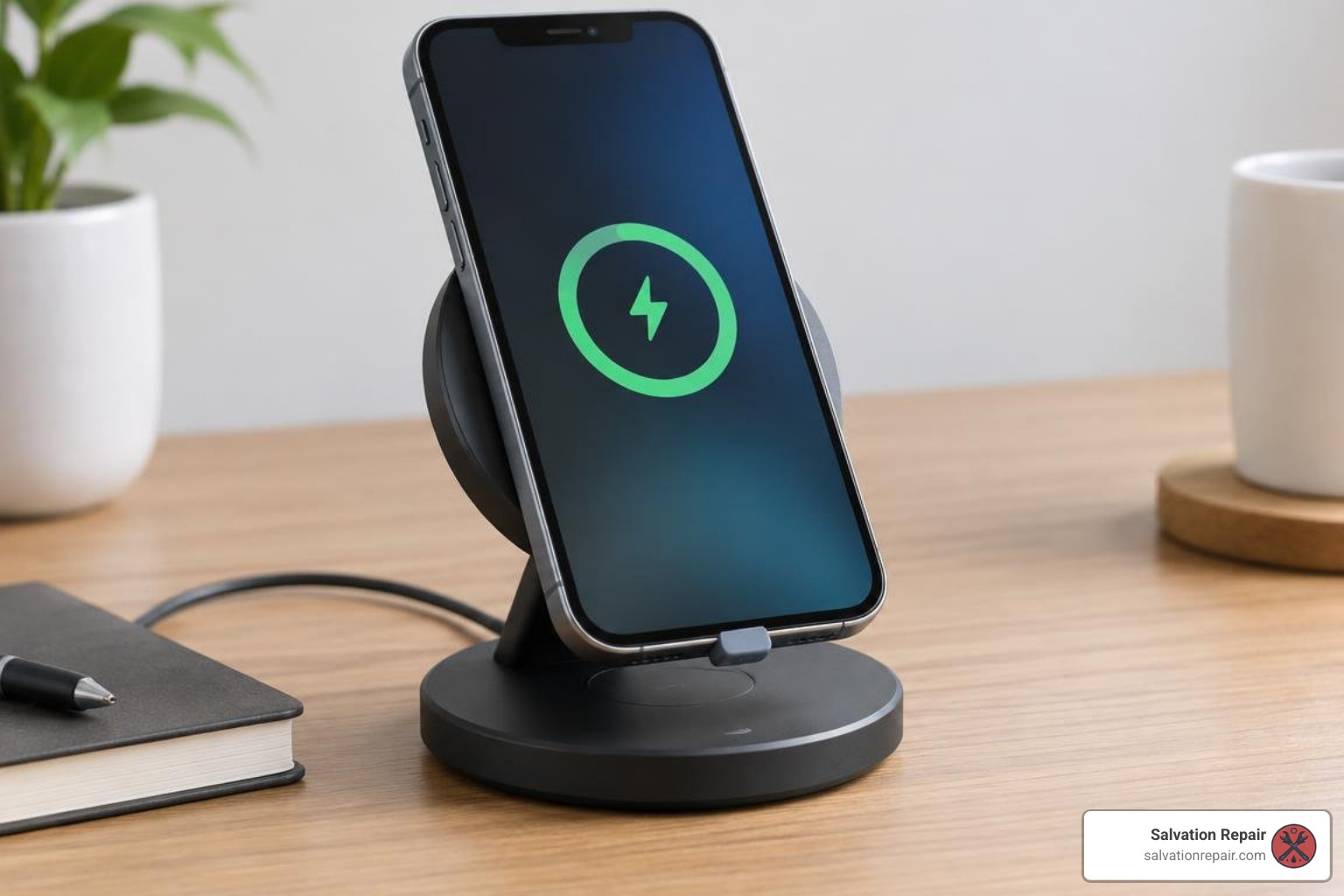
- Embrace Magnetic and Wireless Charging: Charging wirelessly at your desk or bedside nightstand and using a magnetic mount in your vehicle drastically limits physical wear. If your charging port sees use once a week instead of twice daily, that provides a 14x reduction in mechanical wear cycles.
- Use Silicone Anti-Dust Plugs: If you work in construction, landscaping, or environments with heavy dust and sawdust, pop an inexpensive silicone dust plug into your port.
- Plug In Straight: Always align the cable connector straight with the port. Avoid rocking the cable up and down or yanking it out sideways, which widens the port housing and flattens spring pins.
- Avoid Counterfeit Cables: Cheap, unbranded charging cords often feature irregular pin dimensions and poor voltage regulation, which can physically score pins or blow internal charging chips.
Frequently Asked Questions About iPhone Charging Ports
How much does it cost to fix an iPhone charging port?
A professional cleaning typically costs between $10 and $25, which fixes the problem in roughly 80% of cases. If the port hardware is physically damaged, third-party repair shops generally charge between $60 and $159 depending on your specific iPhone model, whereas manufacturer out-of-warranty unit replacements range from $269 to $549+.
Can you clean an iPhone charging port with alcohol?
Yes, but only use high-grade 90%+ isopropyl alcohol, applied very sparingly. High-percentage alcohol evaporates almost instantly and does not leave conductive moisture behind. Lightly dampen the tip of a wooden toothpick or precision swab—never pour or spray liquid directly into the port cavity.
Is it worth repairing the charging port on an older iPhone?
Yes. Because third-party port replacement is relatively inexpensive compared to purchasing a new phone, fixing the port extends the usable life of your iPhone by several years. Even if you plan to upgrade, a fully functional charging port dramatically boosts trade-in and resale value.
Conclusion
A non-responsive iPhone charging port does not mean your device is destined for the landfill. In most cases, removing compressed pocket lint with a non-conductive pick or swapping out a worn cable will get your battery charging normally in minutes.
If your device has bent contact pins, water corrosion, or a loose internal flex cable, professional repair is the fastest and safest route. At Salvation Repair, we provide expert diagnostics and reliable same-day service for customers in Laurel, MS, as well as our neighboring communities in Ellisville, Bay Springs, and Soso. We complete charging port repairs in 1 hour, battery repairs in 30 minutes, and iPhone screen repairs in 10-15 minutes in front of the customer, backing all hardware fixes with a lifetime warranty and price matching. For screen replacements, every service includes a free screen protector, and we give customers the option to upgrade from an LCD or OLED screen to an OLED or OEM screen at any point within 60 days of their repair. Standard screen repairs are quoted at $129.95 for LCD, $129.95 for aftermarket OLED, and $149.95 for OEM. For iPhone 16 Pro, screen repairs are $149.95 for LCD and $199.95 for OLED. For iPhone 16 Pro Max, options include AQ7 LCD at $129.95, aftermarket OLED at $219.95, OEM refurbished at $399.95, and new OEM at $469.95.
If your phone refuses to hold a charge, stop by our shop at 1503 Lakeview Rd in Laurel, MS, or book your professional charging port repair today to get your phone running like new!
