
How to Fix iPhone Black Screen Without Data Loss
Your iPhone Screen Is Black — Here’s How to Fix It Fast
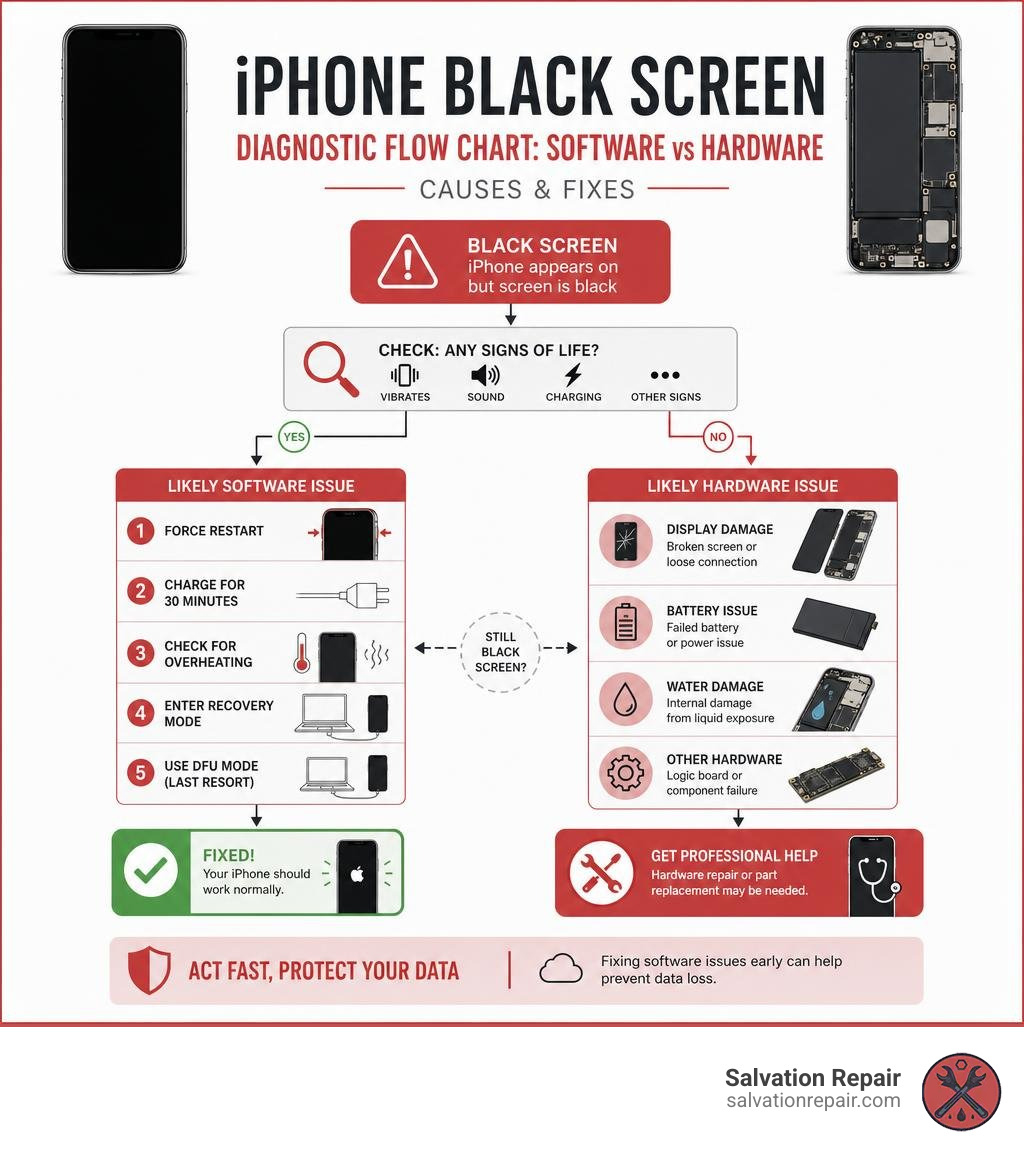
If you need a quick iphone black screen fix, here are the most effective steps in order:
- Force restart your iPhone — press Volume Up, Volume Down, then hold the Side button until the Apple logo appears
- Charge it for 30 minutes — a completely drained battery can cause a black screen
- Check for overheating — let the phone cool down and try again
- Enter Recovery Mode — connect to a Mac or PC and update iOS without losing data
- Use DFU Mode — last resort before seeking professional repair
- Get professional help — if none of the above work, the display or hardware may need replacing
Picture this: you wake up, reach for your iPhone, and the screen is completely dark. No response. But you can hear it buzzing with notifications. Your phone is clearly still on — so what’s happening?
This is one of the most common iPhone problems people face. The good news? Most black screen issues are caused by software, not broken hardware. That means you can often fix it yourself in minutes — without losing a single photo or contact.
However, some cases do point to a hardware failure — a cracked display cable, a failing battery, or water damage. Knowing the difference is the key to fixing it fast and cheaply.
I’m Ralph Harris, a certified electronics repair technician with over 20 years of experience and more than 500 Apple repair certifications. I’ve diagnosed and resolved countless iphone black screen fix cases — from simple software crashes to full display replacements — and this guide walks you through everything I’d do, in the exact order I’d do it.
Why Is My iPhone Screen Black But Still Vibrating?
It is incredibly frustrating when your iPhone behaves like a “tech zombie.” It vibrates when you get a text, plays your ringtone when someone calls, and haptically clicks when you plug it in—yet the screen remains pitch black.
This exact scenario is surprisingly common. In fact, over 638 Apple Community users reported this exact black screen experience on the iPhone XS Max and similar models. When this happens, it means your phone’s brain (the logic board) is alive and kicking, but the signal isn’t reaching your eyes.
To understand why this happens, watch this helpful video on How to Fix iPhone Black Screen But Still Works – 2025 – YouTube. For a deeper dive into this specific state, you can also check out our guide on what to do when your iPhone Screen Black But Still Vibrating Here Is the Fix.
Software Glitches vs. Hardware Failures
When diagnosing an iPhone, we must separate software glitches from physical hardware failures.
- Software Glitches: A sudden iOS driver crash can freeze the display system while the background processes keep running. This frequently happens right after a major iOS update, when the system runs out of storage space (having less than 2GB of free storage dramatically increases system crash risks), or when a background app gets stuck in an infinite loop. Sometimes, software bugs can even leave your phone trapped in a state where it feels completely locked up, similar to when an iPhone is stuck in SOS mode.
- Hardware Failures: If your phone was recently dropped, exposed to water, or left in a hot environment (thermal trauma), the cause is likely physical. A drop can cause a display cable shift, loosening the tiny press-fit connector inside the phone. Extreme heat, like leaving your phone on a dashboard in the Mississippi sun, can cause thermal expansion that separates delicate solder joints.
The Flashlight and Buzz Diagnostic Tests
Before you panic, we can run two quick diagnostic tests to pinpoint the issue:
- The Buzz Test: Plug your iPhone into a charger or toggle the Ring/Silent switch. If you hear a chime or feel a vibration, your logic board is receiving power and running iOS. The issue is strictly isolated to the display path.
- The Flashlight Test: Take your iPhone into a dark room, shine a bright flashlight directly at the screen at an angle, and look closely. Can you see a very faint outline of your lock screen or the Apple logo? If yes, your display is working, but your backlight has failed. If the screen is absolutely dead-black under the light, the OLED/LCD panel itself or its connection to the board has failed.
If your screen remains completely unresponsive to any touch inputs despite these tests, read our iPhone Unresponsive Screen Complete Guide for advanced diagnostic steps.
Step-by-Step iPhone Black Screen Fix Guide
Now that we have a basic idea of what we are dealing with, let’s go through the step-by-step troubleshooting sequence. These are the exact methods our team at Salvation Repair uses to rescue customer phones every single day.

Before moving to complex software restores, always start with the simplest hardware reset. Many users are surprised to find that a simple button combination can snap the phone out of its daze. If you want to follow a quick, simplified checklist, read our guide on How to Fix Black iPhone Screen in 5 Easy Steps.
For official documentation on these procedures, you can also refer directly to the instructions on If your iPhone won’t turn on or the screen is black – Apple Support.
How to Force Restart Different iPhone Models
A standard restart requires you to interact with the screen. Since your screen is black, you must perform a Force Restart (also known as a hard reset). This cuts power directly from the battery to the processor, forcing a clean reboot.
Do not release the buttons when the “Slide to Power Off” slider would normally appear; keep holding until you see the Apple logo. Ensure there is no delay between your button presses.
| iPhone Model | Button Combination |
|---|---|
| Face ID Models (iPhone 8 through iPhone 17 series) | Press and quickly release Volume Up, press and quickly release Volume Down, then press and hold the Side button for 10–20 seconds until the Apple logo appears. |
| iPhone 7 and 7 Plus | Press and hold both the Side button and the Volume Down button simultaneously until you see the Apple logo. |
| iPhone 6s, SE (1st Gen), and earlier | Press and hold both the Home button and the Top/Side button at the same time until the Apple logo appears. |
Expert Tip from Pete (who has assisted 37,409 customers with display problems): “Many customers tell me they tried a force restart and it didn’t work. When I try it in the shop, it works instantly. The secret is speed—you must click and release the volume buttons rapidly, then hold the power button firmly without letting go!”
Advanced Software Recovery: Recovery Mode and DFU Mode
If the force restart fails, or if your phone displays the Apple logo but immediately fades back to black, you are likely dealing with corrupted firmware. This is common when an update gets interrupted, such as the reported black screen issues on the iPhone 17 after the iOS 26.3 update. If you are experiencing this post-update issue, check out this guide on How to Fix iPhone 17 Black Screen After iOS 26.3 Update | The Droid Guy.
To resolve deep system corruption, you have two options:
1. Recovery Mode (No Data Loss)
This allows your computer to communicate with your iPhone’s operating system to reinstall iOS without touching your personal data.
- Connect your iPhone to a computer running iTunes or Finder.
- Perform the Force Restart button sequence for your model, but continue holding the final button even after the Apple logo appears. Keep holding until you see the “Connect to Computer” screen.
- On your computer, a prompt will appear. Choose Update. This will download and reinstall the latest iOS version while keeping your photos and files intact.
2. DFU Mode (Device Firmware Update – Erases Data)
DFU mode is the deepest restore possible. It bypasses the iOS bootloader entirely, allowing you to rewrite the underlying code.
- Warning: This will erase all data on the phone. Only perform this if you have an iCloud or computer backup.
- Expert Randy, who has resolved over 23,379 issues using DFU mode, recommends this as a last-resort software fix before declaring a hardware failure.
- To enter DFU: Connect to a computer. Press and release Volume Up, press and release Volume Down, then hold the Side button for 10 seconds. While still holding the Side button, press and hold the Volume Down button for 5 seconds. Release the Side button but continue holding Volume Down for another 10 seconds.
- If done correctly, the screen will remain completely black, but your computer will detect an iPhone in recovery mode. Click Restore.
How to Handle Physical and Water Damage
If you have tried software recovery and the screen remains black, we must look closer at physical or environmental causes.
Physical drops and liquid exposure are the leading causes of hardware-related black screens. If you suspect your phone has suffered physical trauma, check out our iPhone Screen Repair Complete Guide to see what steps are involved in a professional fix.
Checking for Water Damage and Drops
Water resistance is not water-proofing. Over time, the adhesive seals on your iPhone degrade, allowing moisture to seep inside.
To check for water damage, pop open your SIM card tray and look inside the slot using a flashlight. You are looking for the Liquid Contact Indicator (LCI). Normally, this indicator is white or silver. If it has turned bright red, your phone has had direct contact with liquid, which has likely shorted out the display backlight or the logic board itself.
The Rice Myth: If your phone is wet, do not put it in a bowl of dry rice. Rice does not dry out internal components effectively, and the fine starch dust can enter your charging port and headphone jack, forming a destructive paste. Instead, leave the phone in a well-ventilated area with a fan blowing across it.
If your phone went black after a drop, the issue is likely a display cable shift. The screen’s digitizer and display data cables are held in place by tiny metal brackets and screws. A hard impact can cause these connectors to pop loose from the logic board, cutting the video signal entirely. You can read more about these physical failures in this article on How to Fix iPhone Black Screen of Death – 2025.
Professional Screen Repair Options and Costs
When DIY methods fail, it is time to look at professional repair options. Depending on your budget and whether you have AppleCare+, you have a few routes to choose from.
For a transparent look at what you might pay for a professional fix, refer to our guide on iPhone Screen Repair Cost.
LCD vs. OLED vs. OEM Screen Replacements
If you need a new screen, you will generally be offered a few different tier options. For standard models, our standard LCD repairs are quoted at $129.95, aftermarket OLED at $129.95, and OEM at $149.95. It is important to know what you are paying for:
- Standard LCD (including AQ7 LCD): This is the most budget-friendly option. It uses a backlight, meaning blacks will look slightly greyish, and it may consume slightly more battery life than an OLED.
- Aftermarket OLED: This matches the original display technology of modern iPhones. It offers deep blacks, vibrant colors, and excellent power efficiency at a fraction of the cost of an official Apple screen.
- OEM Refurbished: These are original Apple screens that had cracked glass. Specialized facilities replace just the top glass layer while preserving the original Apple OLED panel and digitizer beneath. This gives you 100% original display quality at a lower price than brand new.
- New OEM: This is a brand-new, original screen sourced directly from Apple’s supply chain, ensuring perfect compatibility and factory-spec performance.
If you are rocking the latest hardware, here is a quick breakdown of our screen repair pricing for the iPhone 16 Pro Max:
- AQ7 LCD: $129.95
- Aftermarket OLED: $219.95
- OEM Refurbished: $399.95
- New OEM: $469.95
Repair Times and What to Expect
No one wants to leave their phone at a repair shop for days on end. At Salvation Repair, we value your time. Here is what you can expect when you bring your device to us:
- iPhone Screen Repairs: Take just 10-15 minutes and are performed directly in front of the customer. You can watch our technicians work their magic!
- Battery Repairs: Take 30 minutes. If your battery health is dipping below 80%, it can cause sudden voltage drops that trigger black screens. Learn more about battery pricing in our iPhone Battery Replacement Cost guide.
- Charging Port Repairs: Take 1 hour. If your phone cannot charge, a dead battery will keep your screen black forever.
Frequently Asked Questions about iPhone Black Screens
Here are some of the most common questions we hear from customers coming into our Laurel, MS shop.
Will a force restart delete my photos during an iphone black screen fix?
No. A force restart is completely safe. It simply cuts and restores power to the hardware, clearing the temporary system RAM. It does not touch your physical storage, meaning your photos, messages, contacts, and apps are completely safe. It is the equivalent of pulling the plug on a frozen desktop computer and plugging it back in.
When should I seek a professional iphone black screen fix?
You should seek professional help if:
- The force restart, charging, and Recovery Mode updates fail to bring the screen back to life.
- Your computer does not recognize the phone when plugged in.
- You see physical cracks on the glass or feel localized heat near the back camera (indicating a short circuit).
- Your LCI water indicator is red.
If you are ready to let a certified expert handle the job, read about our Professional iPhone Repair services.
How do I know if my display is broken or if it is a software bug?
Use the Flashlight Test and the Buzz Test. If your phone vibrates and makes sounds, but the screen remains completely dark—even under a bright flashlight—your display panel is physically broken or disconnected. If the screen displays a faint Apple logo or recovers after a hard reset, it was a software bug.
Additionally, an aging battery can cause sudden system blackouts. Check out The Ultimate Guide to iPhone Battery Replacement and Costs to see if a failing battery might be the root cause of your display issues.
Conclusion
A black iPhone screen can feel like a major disaster, but in most cases, it is a highly fixable issue. By working your way through force restarts, charging checks, and Recovery Mode updates, you can resolve the majority of software-related black screens right at home.
However, if physical drops, water exposure, or an aging battery have taken their toll, Salvation Repair is here to help. We are proud to serve the communities of Laurel, MS, Jackson, MS, Ellisville, MS, Soso, MS, Meridian, MS, and Jones County, Mississippi.
We offer same-day, on-site electronic repairs with industry-leading benefits:
- Lifetime Warranty on all screen and parts replacements.
- Price Matching to ensure you get the absolute best deal in the region.
- Our famous promise: We repair “any device with a power button.”
Don’t let a black screen keep you disconnected. Get your iPhone black screen fixed today by visiting Salvation Repair, and let us bring your device back to life in minutes!

One thought on “How to Fix iPhone Black Screen Without Data Loss”