iPhone Screen Black But Still Vibrating? Here is the Fix
Your iPhone 13 Screen Is Black But the Phone Still Works — Here’s What to Do
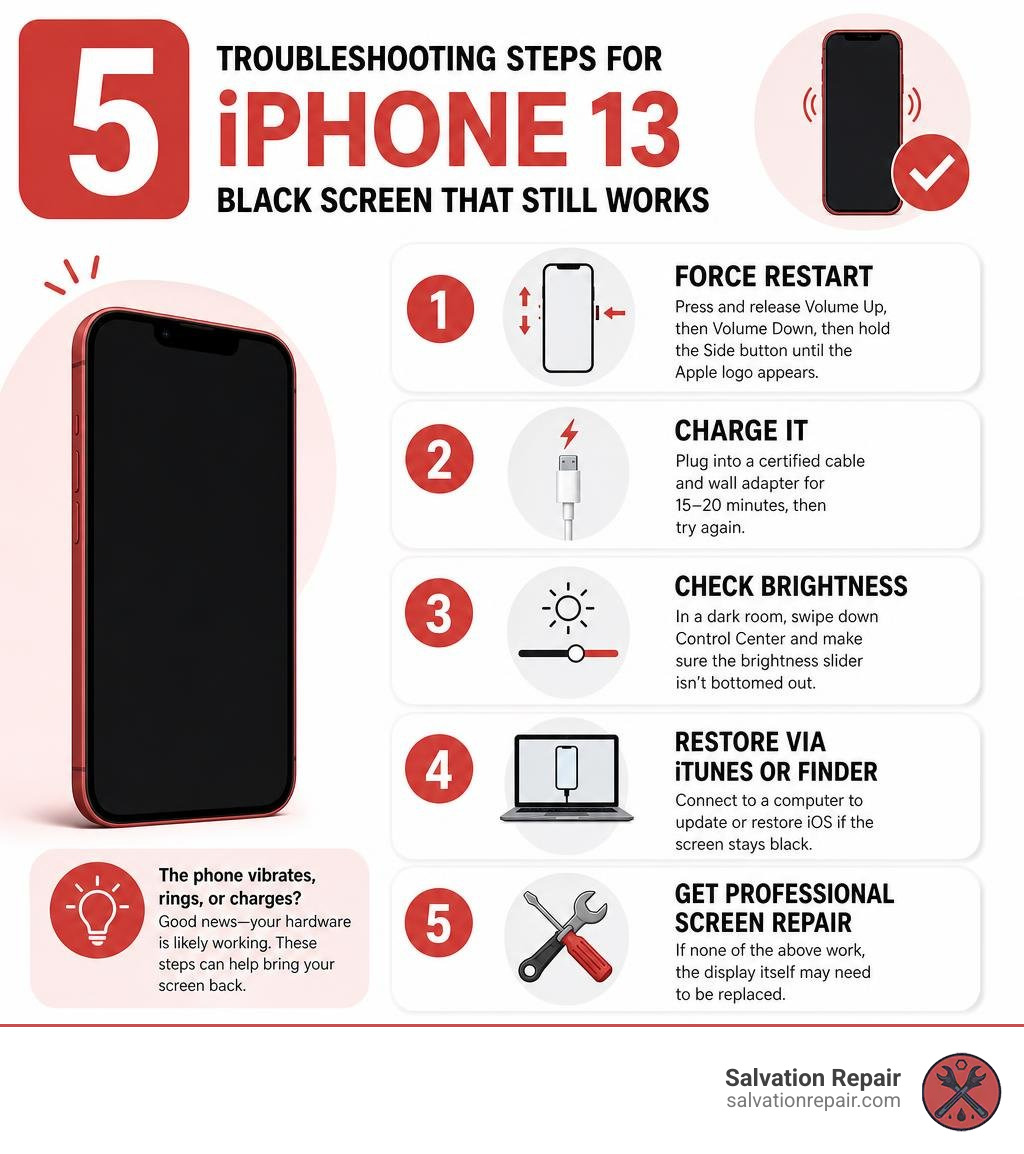
If your iphone 13 screen black but still works — meaning it still vibrates, rings, or charges — here are the fastest fixes to try right now:
- Force restart — Press and release Volume Up, then Volume Down, then hold the Side button until the Apple logo appears.
- Charge it — Plug into a certified cable and wall adapter for 15–20 minutes, then try again.
- Check brightness — In a dark room, swipe down Control Center and make sure the brightness slider isn’t bottomed out.
- Restore via iTunes or Finder — Connect to a computer to update or restore iOS if the screen stays black.
- Get a professional screen repair — If none of the above work, the display itself may need to be replaced.
The good news? A black screen while the phone still buzzes and rings is usually a software problem — not a broken phone. It means the hardware is working. Something just went wrong with what the screen is displaying.
That said, it can also point to a loose display connector or damaged OLED panel — especially if the phone was recently dropped. Over 16,700 people have looked up this exact issue on iFixit, and nearly 1,000 Apple Community users have flagged it as something they experienced too. You are definitely not alone.
This guide walks you through every fix, from a 10-second force restart to professional screen replacement — in plain language, no tech degree required.
I’m Ralph Harris, and with over 20 years of electronics repair experience and more than 500 Apple repair certifications under my belt, I’ve seen the iphone 13 screen black but still works issue more times than I can count. I’ll help you figure out exactly what’s going on and how to fix it fast.
Why Your iPhone 13 Screen Black But Still Works
It is incredibly frustrating when your phone vibrates in your hand, plays notification sounds, and rings when someone calls, yet the screen is as black as a midnight sky in Jones County. Because the iPhone 13 features an OLED display rather than an older LCD, it behaves a bit differently when things go wrong. OLED panels do not have a separate backlight; each individual pixel produces its own light. When an OLED display fails or loses its connection, there is no faint “glow” to let you know it is powered on—it simply goes completely dark.
According to the iPhone 13 Black Screen – iFixit Troubleshooting documentation, there are several distinct hardware and environmental reasons why this happens:
- OLED Oxidation: If moisture or air gets past the sealed layers of your display panel, the OLED materials can oxidize. This often starts as a small black spot or splotch that slowly grows over several days until the entire screen is blacked out, even if the glass on top isn’t cracked.
- Ambient Light Sensor Fault: The sensor near your front-facing camera controls auto-brightness. If this sensor fails or experiences liquid corrosion, it can trick your iOS system into turning the screen brightness down to absolute zero, making it appear dead.
- Liquid Contact: Even if your phone has a water-resistance rating, liquid can seep into the SIM tray or speaker grilles. Checking the Liquid Contact Indicator (LCI) inside the SIM tray with a light is a great way to verify this. If the indicator has turned pink or red, water has reached the interior.
- Drop Impact & Loose Brackets: Apple secures display connectors with metal brackets screwed directly into the logic board. However, a hard impact from a drop can crack the delicate internal display glass or fracture the thin solder joints inside the display flex cable.
If you want a deeper look at general screen failures, check out our guide on iPhone Screen Not Working.
Software Glitches and Firmware Crashes
Sometimes, the physical hardware is completely fine, but the brain of the phone (iOS) has suffered a temporary blackout. A severe iOS crash, a frozen system process, or a conflict with an incompatible third-party app can cause the display driver to crash.
When this happens, the operating system is technically still running in the background—which is why the phone still vibrates when you toggle the silent switch or plug in a charger—but it has stopped sending visual signals to the screen. In other cases, a failed background update can leave the device stuck in DFU (Device Firmware Update) mode. Since there is no backlight on an OLED screen, DFU mode looks exactly like a dead screen.
For a deeper dive into these soft-brick scenarios, you can read the expert analysis on iPhone 13 Screen Went Black: Expert Solutions & Fixes.
Hardware Failures and Loose Display Connectors
If your phone has recently taken a tumble, the underlying cause is almost certainly physical. Even without a single crack on the outer ceramic shield glass, the impact can cause the internal flex cable to tear or dislodge slightly from its socket on the motherboard.
This is particularly common if the phone has had a cheap, third-party screen replacement in the past where the technician forgot to reinstall the protective metal bracket over the screen connector. When that bracket is missing, even a minor drop onto a carpeted floor can pop the screen cable loose.
As discussed in the My iPhone 13 suddenly shows black screen … – Apple Community threads, sudden black screens without any physical drops can also point to internal component degradation or micro-cracks on the logic board itself.
How to Fix an iPhone 13 Screen Black But Still Works Issue at Home
Before you pack up your device and drive out to see us, there are several highly effective DIY troubleshooting steps you can perform at home to get your screen back up and running. These steps are safe and will not cause any data loss if followed correctly.
For a quick summary of these steps, you can also browse our article on How to Fix Black iPhone Screen in 5 Easy Steps.
Force Restarting an iPhone 13 Screen Black But Still Works
The absolute first step for any black screen issue is a force restart (also known as a hard reset). This cuts the power directly from the battery to the logic board for a split second, clearing out frozen RAM and forcing iOS to boot up fresh.
Because your screen is black, you must perform this blind. The timing must be precise:
- Press and quickly release the Volume Up button (do not hold it).
- Press and quickly release the Volume Down button (do not hold it).
- Press and hold the Side button (Power button).
- Keep holding the Side button for at least 15 to 30 seconds. Do not let go if the phone vibrates; keep holding until you see the bright white Apple logo on the screen.
If the Apple logo appears, your hardware is fine, and a system crash was the culprit! If you need official step-by-step visual guidance, check out the If your iPhone won’t turn on or the screen is black – Apple Support page.
Step 2: Charge and Check the Charging Port
If the force restart didn’t work, your battery might be critically low, or a software loop might have drained it completely.
- Plug your iPhone 13 into a wall outlet using an official Apple or MFi-certified Lightning cable and a known working USB-C wall adapter. Do not use a computer USB port or a wireless charger for this step, as they do not provide enough starting amperage.
- Let the phone charge undisturbed for at least 15 to 20 minutes.
- While it is charging, inspect your charging port with a flashlight. Pocket lint, dust, and debris easily build up in the port, preventing the cable from making full contact. If you see dirt, gently clean it out using a clean, dry wooden toothpick.
- After 20 minutes of charging, attempt the force restart sequence again while the phone is still plugged in.
Step 3: Use iTunes or Finder to Restore iOS
If your computer detects your phone but the screen remains black, you may have a corrupted iOS operating system. You can use a Mac (using Finder) or a Windows PC (using iTunes) to reinstall iOS without wiping your data.
- Connect your iPhone 13 to your computer using a certified Lightning-to-USB cable.
- Open Finder (on macOS Catalina or later) or iTunes (on Windows or older macOS versions).
- With the phone connected, perform the force restart sequence: press Volume Up, press Volume Down, and then hold the Side button.
- Do not let go of the Side button when you see the Apple logo. Keep holding it until you see the Recovery Mode screen (which displays a cable pointing toward a computer) on your phone.
- A pop-up will appear on your computer screen asking if you want to Update or Restore.
- Select Update. Your computer will download the latest version of iOS and reinstall it on your device. This process preserves your photos, messages, and app data.
For alternative software restoration methods and tools, you can read more at iPhone 13 Black Screen Fix: 6 Proven Solutions (2026)-Dr.Fone.
Step 4: Entering Recovery Mode or DFU Mode
If the standard “Update” option fails or throws an error, you will need to try a deeper restore. A DFU (Device Firmware Update) restore is the deepest type of restore you can perform on an iPhone. It bypasses the bootloader completely, allowing you to recover a heavily corrupted system.
Warning: A DFU or Recovery Mode Restore will erase all data on your device. Only proceed if you have a recent iCloud or computer backup.
To enter DFU mode:
- Connect your iPhone 13 to your computer.
- Press and quickly release Volume Up, then Volume Down.
- Press and hold the Side button for 10 seconds until the screen goes black.
- While still holding the Side button, press and hold the Volume Down button for 5 seconds.
- After 5 seconds, release the Side button but keep holding the Volume Down button for another 10 seconds.
- If the screen remains completely black and iTunes/Finder displays a message saying it has detected an iPhone in recovery mode, you have successfully entered DFU mode. You can now click Restore to wipe and rebuild your device’s firmware.
For community discussions on dealing with stubborn DFU loops, check out the iPhone 13 stuck at black screen – Apple Communities thread, or check out our guide Don’t Despair Repair: Fixing Your iPhone 13 Screen.
Professional Screen Repair Options for iPhone 13
If you have tried the force restart, charged your device, and connected it to a computer only to find that it still vibrates but refuses to display an image, you are dealing with a hardware issue. The internal OLED panel is likely cracked or disconnected.
At this stage, you will need a professional screen replacement. To understand what goes into professional screen pricing, read The Real Cost of Clarity: iPhone 13 Screen Repair Prices Revealed.
Understanding Screen Types: LCD, Aftermarket OLED, and OEM
When getting your iPhone 13 screen repaired, you have several choices regarding the type of display panel installed. It is important to understand what you are paying for:
- Standard LCD / AQ7 LCD: These are budget-friendly aftermarket screens. Because the iPhone 13 was designed for OLED, using an LCD will result in slightly thicker bezels, lower contrast ratios, and higher battery consumption (since LCDs require a continuous backlight).
- Aftermarket OLED: These are high-quality replica screens that match the original OLED technology. They offer deep blacks, vibrant colors, and excellent battery efficiency at a much lower price point than original Apple parts.
- OEM Refurbished: These are original Apple OLED panels that had cracked outer glass. Professional refurbishers separate the broken glass and fuse a brand-new glass layer onto the original Apple OLED panel. This gives you 100% original display quality and touch sensitivity.
- New OEM (Original Equipment Manufacturer): These are brand-new, genuine Apple screens sourced directly from Apple’s supply chain. When paired with iOS 18+ Repair Assistant, these parts restore full True Tone and auto-brightness functions seamlessly without any “Unknown Part” warnings.
| Screen Type | Contrast & Colors | Battery Consumption | Price Range | Best For |
|---|---|---|---|---|
| Standard LCD | Moderate | Higher | Budget | Quick, low-cost fixes |
| Aftermarket OLED | Excellent | Original Spec | Mid-Range | Balanced price & performance |
| OEM Refurbished | Perfect (Original) | Original Spec | Premium | Users wanting original display quality |
| New OEM | Perfect (Original) | Original Spec | Highest | Flawless repair with Apple pairing |
Repair Times and What to Expect
No one wants to leave their phone at a repair shop for days on end. At Salvation Repair, we understand that your phone is your lifeline. That is why we specialize in lightning-fast, transparent repairs:
- iPhone Screen Repairs: Take only 10 to 15 minutes and are performed directly in front of the customer. You can watch our certified technicians work their magic!
- Battery Replacements: Take approximately 30 minutes.
- Charging Port Repairs: Take about 1 hour.
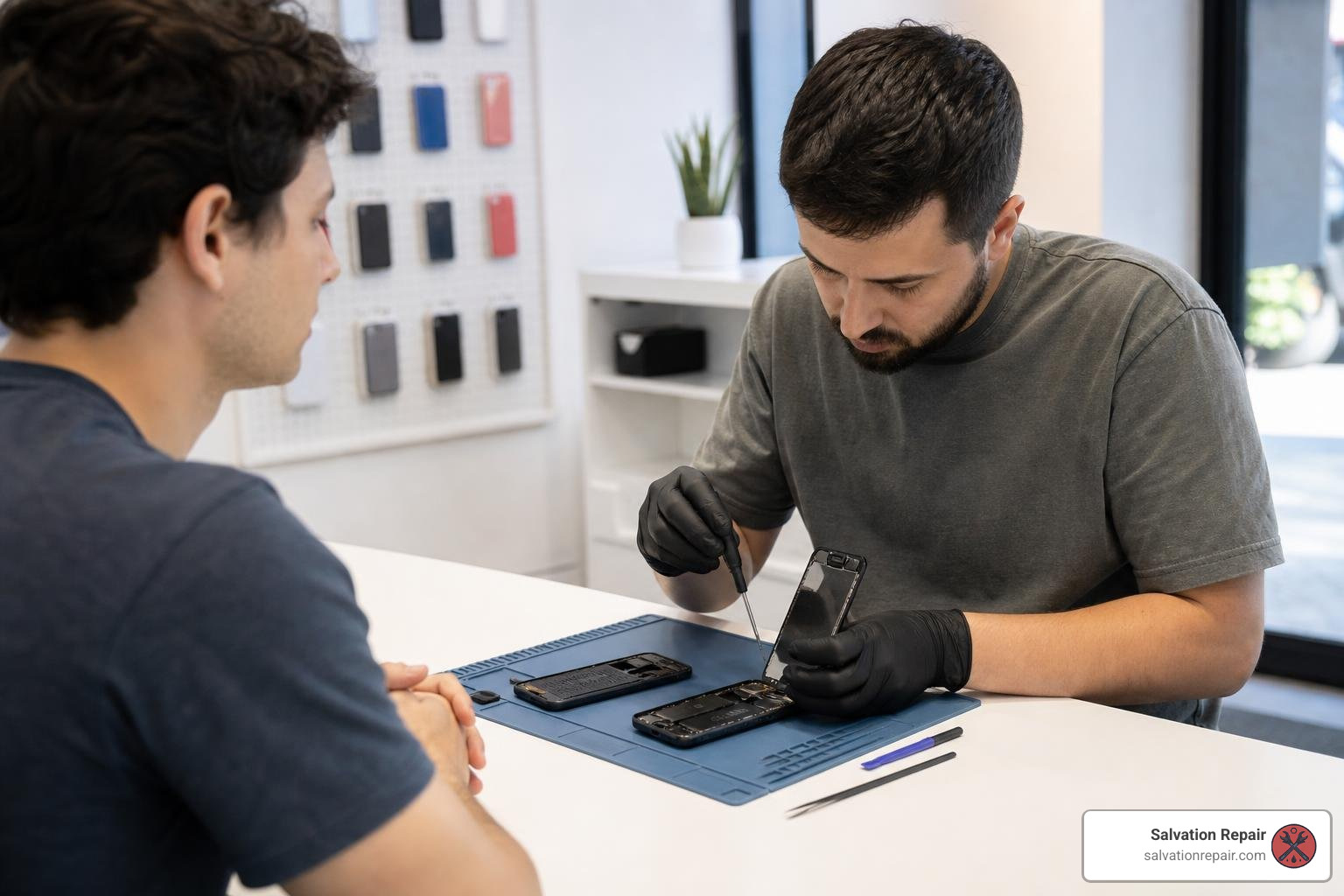
Whether you are in Laurel MS, Jackson MS, Ellisville, Soso, or Meridian, we make sure you are in and out in no time. For a deeper look at what to expect during your appointment, check out our Detailed Guide to iPhone Screen Repair Time.
How to Prevent the iPhone 13 Screen Black But Still Works Issue
Once your screen is repaired and working beautifully, you will want to take steps to ensure this stressful situation never happens again. Proper maintenance can extend the lifespan of your device significantly. For a look at fast repair options and preventative tips, view The Fast Track to Flawless: Quick iPhone Screen Repair Options.
Best Practices for iOS and App Management
Keeping your software healthy is the easiest way to prevent sudden black screen crashes:
- Only Download from the App Store: Avoid sideloading or installing unverified apps that can cause display driver conflicts.
- Enable Automatic Updates: Keep iOS updated to patch bugs that cause system freezes.
- Perform a Weekly Restart: Simply turning your phone off and on once a week clears out accumulated system cache and keeps iOS running smoothly.
- Manage Battery Health: Avoid letting your battery drop to 0% regularly, as low voltage can trigger boot loops and screen glitches.
Physical Protection and Temperature Control
Hardware protection is your second line of defense:
- Invest in a Rugged Case: Use a protective case with raised edges to absorb shock during drops, protecting the delicate internal display connectors from disconnecting.
- Apply a Tempered Glass Screen Protector: This absorbs the impact of direct hits, saving your expensive OLED panel underneath.
- Avoid Extreme Heat: Do not leave your iPhone 13 in direct sunlight or on a hot car dashboard. High temperatures can cause the display adhesive to degrade and trigger automatic thermal shutdowns.
Frequently Asked Questions about iPhone 13 Black Screen
We hear many of the same questions from our customers in Jones County, Mississippi. Here are the quick answers you need.
Why is my iPhone 13 screen black but it still vibrates?
This occurs when your phone’s logic board and vibration motor (Taptic Engine) are powered on and functioning, but the display output has failed. This is usually caused by a crashed display driver in iOS, a loose display flex cable after a drop, or internal damage to the OLED panel. You can learn more about this by watching this helpful video: How to Fix iPhone Black Screen But Still Works – 2025.
Will a force restart erase my data?
No! A force restart is completely safe. Unlike a factory restore, a force restart simply cuts and restores power to the system to reboot it. It does not delete your photos, messages, contacts, or app data. It simply clears the temporary system RAM.
How much does it cost to fix an iPhone 13 black screen?
If the issue is software-related, it can often be fixed at home for free. If you need a professional screen replacement, the cost will depend on the type of screen you choose (LCD, aftermarket OLED, or OEM). For reference, you can read our complete breakdown of iPhone Screen Repair Cost or check out The Ouch Factor: A Guide to iPhone Screen Repair Costs. If you want a full overview of the repair process, check out our iPhone Screen Repair Complete Guide.
Conclusion
A black screen on your iPhone 13 doesn’t have to mean the end of the world—or a massive hit to your wallet. By following the troubleshooting steps outlined in this guide, there is a very good chance you can bring your screen back to life right from the comfort of your living room.
However, if your phone continues to buzz and ring while the screen remains stubbornly dark, it is time to call in the professionals. At Salvation Repair, we proudly serve the Laurel, MS, Jackson, MS, Ellisville, Soso, and Meridian areas.
We specialize in same-day, on-site repairs for any device with a power button. We offer a lifetime warranty on our parts and labor, and we will happily price match any local competitor to ensure you get the absolute best deal. Best of all, our screen repairs take just 10 to 15 minutes, performed right in front of you.
Don’t let a black screen keep you disconnected. Stop by and see us today, or read more about our repair philosophy at iPhone Black Screen Fix and Other Hardware Hacks.
