
How to Update or Restore Your PS5 System in Simple Steps
PS5 System Update and Restore: Start in Safe Mode
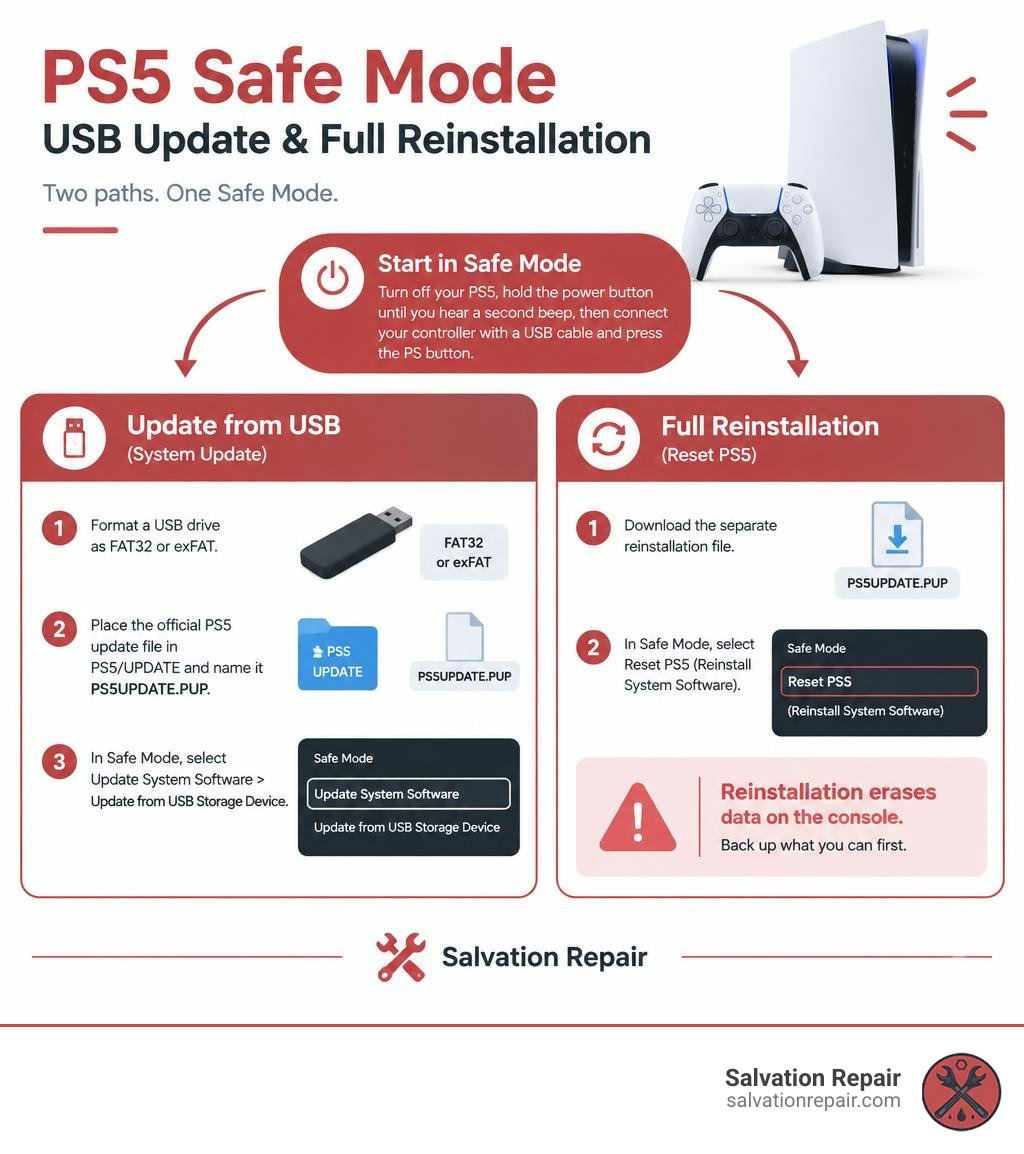
Start with Safe Mode: Turn off your PS5 completely. Hold the console’s power button until you hear a second beep, then connect your controller with a USB cable and press the PS button.
To update by USB, format a drive as FAT32 or exFAT. Put the official PS5 update file in PS5/UPDATE and name it PS5UPDATE.PUP. In Safe Mode, select Update System Software > Update from USB Storage Device. If you need a full restore, download the separate reinstallation file and select Reset PS5 (Reinstall System Software) instead. Reinstallation erases data on the console, so back up what you can first.
I’m Ralph Harris. I’ve spent more than 20 years repairing electronics, including gaming consoles, and writing guides that make tasks like PS5 System Update & Restore easier to follow.
How to Enter PS5 Safe Mode and Navigate Menu Options
Entering Safe Mode provides a bare-bones diagnostic environment that bypasses the primary operating system interface. This mode proves essential when the console is stuck in a boot loop, crashes during startup, or refuses to download standard over-the-air patches.
To boot your console into Safe Mode:
- Press and hold the power button on the front of the console for three seconds to turn it off completely. The power indicator light will blink before turning off.
- Once the console is completely powered down, press and hold the physical power button again.
- Release the button only after you hear a second beep, which occurs about 7 seconds after the initial press.
- Connect your DualSense wireless controller to the console using a USB-C data cable.
- Press the PS button on the controller to activate the on-screen menu.
Understanding Safe Mode Options for PS5 System Update & Restore
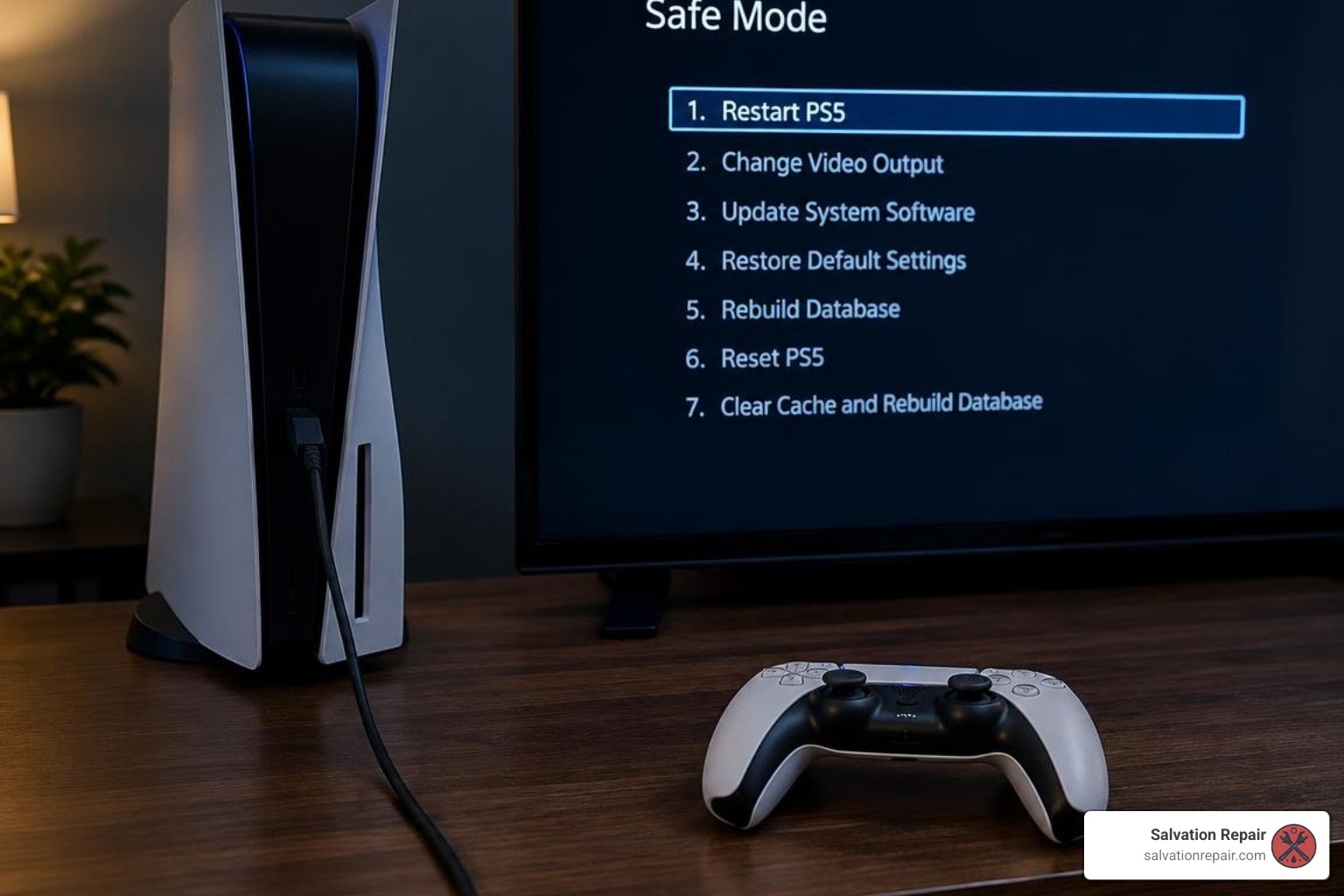
When the recovery menu appears, several options allow you to repair, rebuild, or reinitialize your system:
- 1. Restart PS5: Exits Safe Mode and attempts to boot the operating system normally.
- 2. Change Video Output: Adjusts the display output resolution or switches between HDCP modes, useful if you encounter a blank screen.
- 3. Update System Software: Lets you install the latest firmware using an active internet connection or an external USB storage drive.
- 4. Restore Default Settings: Resets all system settings back to factory defaults without deleting your saved games or installed media.
- 5. Clear Cache and Rebuild Database: Clears temporary system files or reconstructs the internal drive database to resolve frozen downloads and performance stutters.
- 6. Reset PS5: Completely wipes all user data and settings, returning the console to its out-of-the-box state.
- 7. Reset PS5 (Reinstall System Software): Deletes every bit of data on the internal drive and installs clean operating system firmware from an external USB drive. Review the official instructions to reinstall PS5 console and PS4 console system software using Safe Mode when normal recovery paths fail.
Step-by-Step PS5 System Update & Restore via USB and Safe Mode
When unstable network connections interrupt firmware downloads or corrupted files cause system errors, offline USB installation is the most reliable recovery method.
Step 1: Format the USB Drive and Download Firmware Files
Preparing your storage drive correctly is essential. The PS5 console’s recovery loader will fail to detect update packages if the file system or directory hierarchy is incorrect:
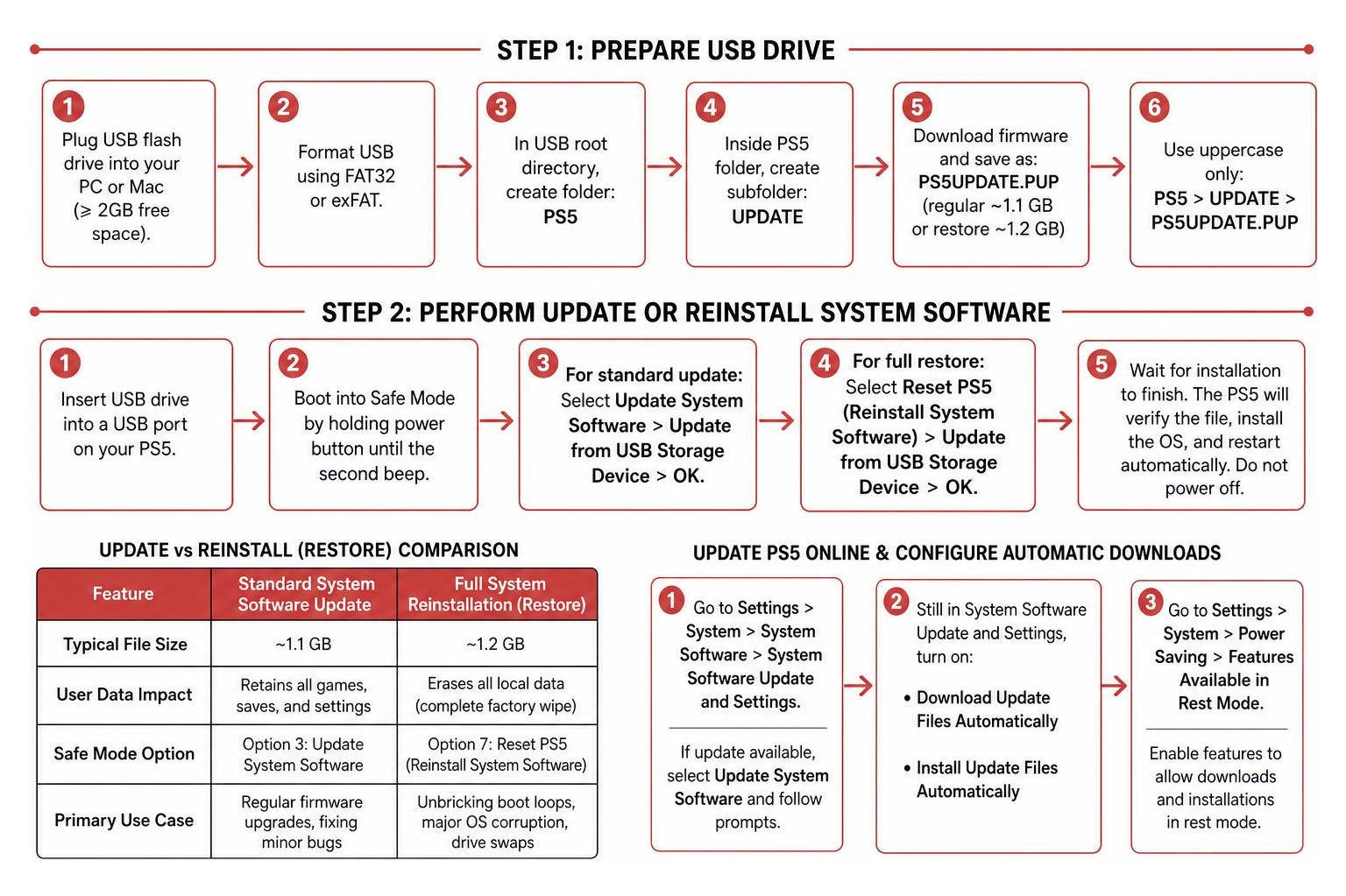
- Plug a standard USB flash drive into your PC or Mac. Ensure it has at least 2GB of available space.
- Format the USB flash drive using either the FAT32 or exFAT file system format.
- Open the formatted USB root directory and create a new folder named
PS5. - Inside the
PS5folder, create a new subfolder namedUPDATE. - Download the necessary firmware file from the official source:
- For regular updates (~1.1 GB): Download from the guide on how to update system software on a PS5 console and save it as
PS5UPDATE.PUP. - For a complete factory restore (~1.2 GB): Download the full PUP file from the official PS5 reinstallation file download page and save it as
PS5UPDATE.PUP.
- For regular updates (~1.1 GB): Download from the guide on how to update system software on a PS5 console and save it as
- Ensure all folder names and file extensions are typed strictly in uppercase characters (
PS5>UPDATE>PS5UPDATE.PUP).
Step 2: Perform the Update or Reinstall System Software
After setting up the USB storage drive, complete the installation process inside Safe Mode:
- Insert the USB drive into one of the USB ports on your PS5 console.
- Boot into Safe Mode by holding the power button until the second beep sounds.
- For a standard update: Select Update System Software > Update from USB Storage Device > OK.
- For a full restore: Select Reset PS5 (Reinstall System Software) > Update from USB Storage Device > OK.
- Wait for the installation to finish. The PS5 will verify the file, install the operating system, and restart automatically. Never power off the console during this stage.
| Feature | Standard System Software Update | Full System Reinstallation (Restore) |
|---|---|---|
| Typical File Size | ~1.1 GB | ~1.2 GB |
| User Data Impact | Retains all games, saves, and settings | Erases all local data (complete factory wipe) |
| Safe Mode Option | Option 3: Update System Software | Option 7: Reset PS5 (Reinstall System Software) |
| Primary Use Case | Regular firmware upgrades, fixing minor bugs | Unbricking boot loops, major OS corruption, drive swaps |
How to Update PS5 Online and Configure Automatic Downloads
If your console boots up normally, running updates over your home network is straightforward. Navigate to Settings > System > System Software > System Software Update and Settings. If an update is available, select Update System Software and follow the prompts.
To keep your console ready for gaming, configure background downloads:
- Open Settings > System > System Software > System Software Update and Settings.
- Turn on Download Update Files Automatically and Install Update Files Automatically.
- Open Settings > System > Power Saving > Features Available in Rest Mode.
- Turn on Stay Connected to the Internet and Enable Turning On PS5 from Network.
For detailed setup options across hardware revisions, refer to the manufacturer guide on how to set up auto-downloads and updates on PlayStation consoles.
Backing Up Console Data Before a PS5 System Update and Restore
A full system reinstallation permanently wipes your console storage. Protect your data by backing it up to an external USB drive:
- Connect an external FAT32 or exFAT formatted storage device to your console.
- Go to Settings > System > System Software > Back Up and Restore > Back Up Your PS5.
- Choose the data categories you want to save (saved data, games, applications, and settings).
- Select Next and click Back Up. The console will restart to compile the backup archive.
Check the step-by-step instructions on how to back up and restore PS5 console data to ensure your saves and media remain intact. Trophies are not included in local backups and should be synced to your PlayStation Network account beforehand.
How to Check System Software Version and Connection
To verify that your installation was successful:
- Navigate to Settings > System > System Software > Console Information.
- View your System Software line to check if the firmware says Up to date.
- This menu also displays network details such as your current MAC and IP addresses.
You can verify patch logs and platform versions directly through the official overview on how to check for updates on PS5 consoles and PS4 consoles.
Troubleshooting Failed Updates and Hardware Faults
Software updates can occasionally stall or fail due to network interruptions, file corruption, or hardware faults:
- Stuck Download Loops: If an update halts mid-download, open the Control Center, go to Downloads/Uploads, select View Error Info, and click Try Again.
- Unrecognized USB Files: Ensure your drive is formatted to FAT32 or exFAT, verify uppercase naming (
PS5/UPDATE/PS5UPDATE.PUP), and plug directly into the rear USB ports if the front port fails to detect it. - Boot Loops and Freezes: If updating causes a recurring crash or blinking blue indicator light, boot into Safe Mode and run Clear Cache and Rebuild Database before attempting a clean reinstall.
When software reinstallations repeatedly fail or your console shuts down unexpectedly with a single beep during the flashing process, the issue often stems from hardware damage. A compromised power rail, thermal throttling from an overheating PS5 console, or underlying circuit faults can interrupt critical firmware writes. If your console shuts off abruptly during boot, review our guide to PlayStation 5 one beep no power troubleshooting to determine whether professional gaming console repair is required.
Frequently Asked Questions About PS5 System Updates
How do I fix a PS5 that does not recognize the USB update file?
First, verify that your USB drive is formatted as FAT32 or exFAT rather than NTFS. Next, check that the root folder is named PS5, contains a subfolder named UPDATE, and the installation file is named PS5UPDATE.PUP. All directory names and file names must use uppercase letters. If the issue persists, test a different USB drive or plug it into a rear USB port.
Does reinstalling the PS5 system software delete my games and saves?
Yes. Selecting Reset PS5 (Reinstall System Software) performs a complete factory reset. It erases all user accounts, save files, installed games, and customized system settings from the internal storage. Always back up your saved data to PlayStation Plus cloud storage or an external drive before initiating a full reinstallation.
How do I restart a stuck or failed PS5 system software download?
Press the PS button on your controller to open the Control Center, navigate to the Downloads/Uploads icon, and highlight the paused update. Select View Error Info and click Try Again. If the download remains stuck, restart your console, test your network connection under Settings > Network, or boot into Safe Mode and select Clear Cache and Rebuild Database.
Conclusion
Keeping your PS5 firmware updated ensures optimal system stability, security, and access to network features. While standard over-the-air updates handle most routine patches, understanding how to use Safe Mode and prepare offline USB recovery media allows you to resolve corrupted files, boot loops, and failed installations.
If your console experiences persistent errors, fails to read USB drives, or shuts down mid-installation due to motherboard shorts or power delivery issues, our team at Salvation Repair is here to help. Located at 1503 Lakeview Rd, Laurel, MS 39440, we provide trusted PlayStation 5 repair services in Laurel, MS, backed by a lifetime warranty and price matching to get your console running smoothly again. We also provide full-service phone and electronics maintenance: standard LCD repairs are quoted at $129.95, aftermarket OLED at $129.95, and OEM at $149.95 (for iPhone 16 Pro, LCD is $149.95 and OLED is $199.95; for iPhone 16 Pro Max, AQ7 LCD is $129.95, aftermarket OLED is $219.95, OEM refurbished is $399.95, and new OEM is $469.95; for S22 Ultra, labor-included screen repairs are aftermarket OLED $219.95, refurbished OEM $309.95, and new OEM $339.95). iPhone screen repairs take 10-15 minutes in front of the customer, battery repairs take 30 minutes, and charging port repairs take 1 hour. Every screen repair includes a free screen protector, plus the option to upgrade from an LCD or OLED screen to an OLED or OEM screen at any point within 60 days of repair. We also offer a deep cleaning and blowout service for ports and speakers for $29.95.
