The Cheapest Ways to Fix a Cracked iPad Screen
Evaluating Your iPad Screen Cracked Damage: Glass vs LCD
When an iPad hits the floor, the resulting damage usually falls into one of two categories: superficial glass breakage or deep display trauma. Knowing the difference before seeking quotes prevents you from paying for parts you do not need.
An iPad display assembly consists of distinct functional layers:
- Top Glass & Digitizer: The exterior tempered glass fused with a grid of capacitive sensors that register finger taps and Apple Pencil inputs.
- Display Panel (LCD or OLED): The internal component responsible for rendering colors, text, backlighting, and graphics.
- Structural Frame: The aluminum chassis holding everything together.
Is Your iPad Screen Cracked on the Glass or LCD?
To determine which component is damaged, run a quick 60-second diagnostic check:
- Visual Surface Check: Run a fingernail lightly over the fractures. If you feel spiderweb patterns but the image beneath remains crisp, bright, and free of distortions, your display panel is likely intact.
- Pure White Background Test: Open a blank Safari page or Notes document with your screen brightness turned up. Look for colored vertical bars, discolored patches, or black blotches resembling spilled ink. Liquid crystal bleeding indicates a destroyed LCD panel.
- Touch Responsiveness Test: Tap and hold an app icon until it jiggles, then drag it across all four quadrants of the screen. If the icon drops suddenly in a specific spot, that sector of the touch digitizer has failed.
- Blank Screen Check: If the tablet chimes when plugged into power or responds to Siri but displays no image, review troubleshooting steps for an iPad dead screen before assuming the motherboard has failed.
Understanding these visual cues helps you navigate iPad glass repair costs without overpaying for full screen replacements when only the glass has shattered.
Why an iPad Screen Cracked on Non-Laminated Models Costs Less
The total repair bill depends heavily on whether your iPad features a non-laminated or laminated display architecture.
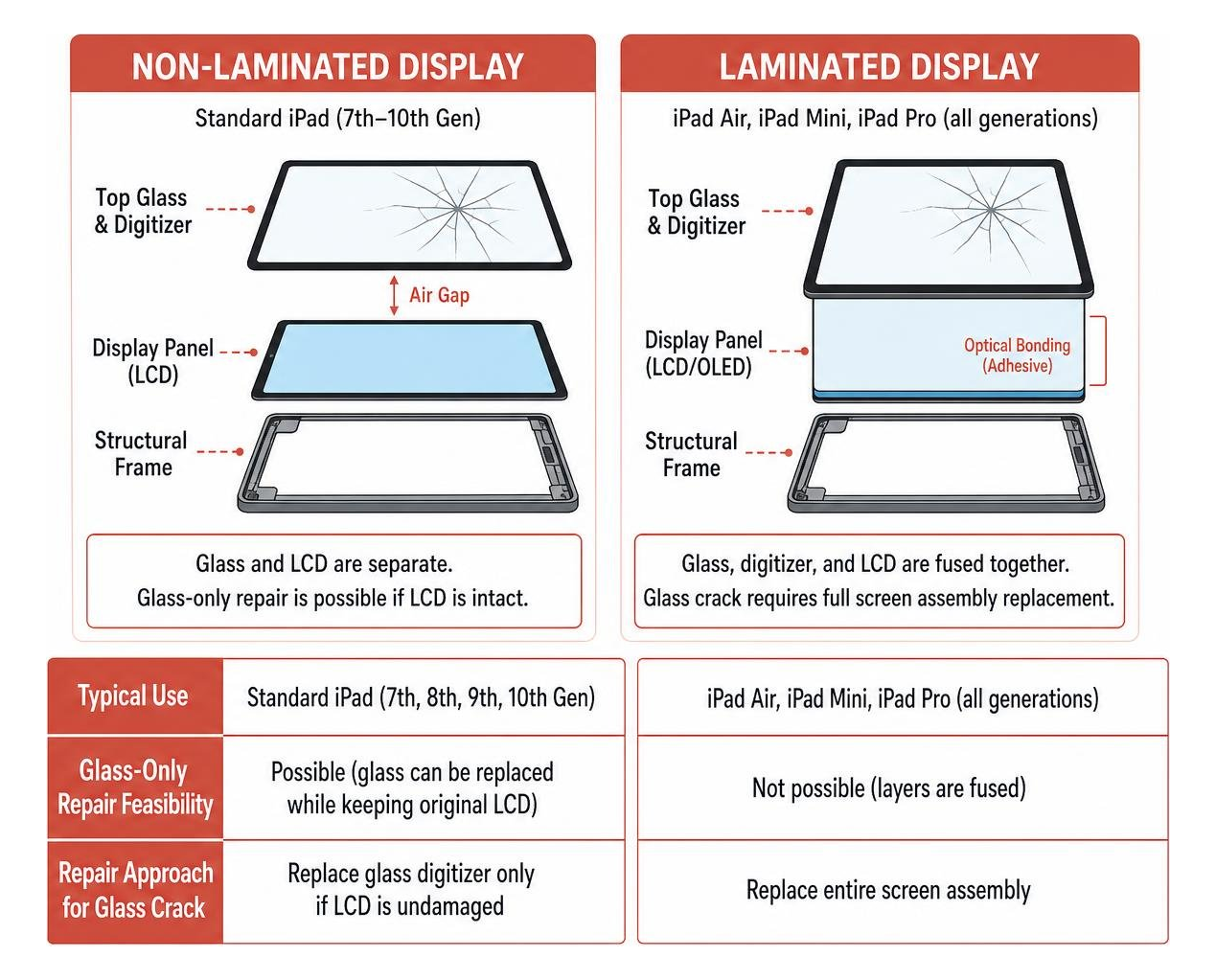
- Non-Laminated Displays: Used primarily in standard base-model iPads (such as the iPad 7th, 8th, 9th, and 10th Generations). The exterior glass digitizer sits slightly above the LCD panel, separated by a tiny air gap. If the glass cracks while the LCD remains undamaged, a technician can lift the broken glass and install a new digitizer while keeping your original Apple LCD in place.
- Laminated Displays: Standard on iPad Air, iPad Mini, and iPad Pro lineups (including modern M-series configurations). Apple optically bonds the front glass, touch digitizer, and display panel into a single fused assembly using clear optical adhesive. Because the layers cannot be peeled apart without industrial clean-room equipment, replacing a cracked top glass requires replacing the entire screen assembly.
| iPad Model Architecture | Display Type | Glass-Only Repair Feasibility | Average Third-Party Repair Cost | Average Apple Out-of-Warranty Cost |
|---|---|---|---|---|
| Base iPad (7th–10th Gen) | Non-Laminated LCD | Yes (Independent shops) | $100 – $199 | $249 – $349 |
| iPad Air (4th–6th Gen / M2/M3) | Laminated Liquid Retina | No (Full Assembly Required) | $150 – $280 | $349 – $449 |
| iPad Mini (5th–7th Gen / A17) | Laminated Liquid Retina | No (Full Assembly Required) | $130 – $240 | $299 – $399 |
| iPad Pro 11″ & 12.9″ / 13″ (M1–M4) | Laminated Mini-LED / Tandem OLED | No (Full Assembly Required) | $200 – $499+ | $499 – $749 |
Comparing Repair Costs: Apple, Independent Shops, and DIY
Evaluating your repair avenues involves balancing turn-around time, part quality, and overall budget.
Apple Out-of-Warranty and AppleCare+ Pricing
If you carry active AppleCare+ coverage, Apple replaces your screen or exchanges the device for a flat deductible of $49, regardless of whether you have an entry-level iPad or a top-tier iPad Pro.
Without AppleCare+, Apple rarely replaces individual glass panels at the Genius Bar. Instead, they classify screen damage as a tier-based out-of-warranty unit exchange:
- Base iPads: $249 to $349
- iPad Air Models: $349 to $449
- iPad Pro Models: $499 to $749+ (especially for 12.9″ Mini-LED and 13″ Tandem OLED units)
For owners without supplemental insurance, reviewing the broader iPad screen repair cost landscape helps identify practical alternatives.
Third-Party Repair Shops and Upgrades
Independent repair specialists provide modular repairs, replacing only what is physically broken. Rather than charging flat replacement fees for an entire device, local technicians can install replacement digitizers or complete display modules.
High-standard shops distinguish between component grades to suit different budgets:
- Standard LCD & AQ7 Aftermarket Displays: Budget-friendly options for routine everyday use.
- Aftermarket OLED Panels: High-contrast replacements for premium models seeking a balance of cost and deep black levels.
- OEM Refurbished & Brand-New OEM Assemblies: Original Apple displays salvaged and re-glassed, or factory-fresh original panels that maintain exact color profiles, Apple Pencil latency, and refresh rates.
At Salvation Repair, we offer clear pricing across display types for various electronics. For standard devices, LCD repairs are quoted at $129.95, aftermarket OLED at $129.95, and OEM at $149.95. Our Samsung Galaxy S22 Ultra screen repairs feature labor-included options: aftermarket OLED at $219.95, refurbished OEM at $309.95, and new OEM at $339.95. For iPhone models, our rates include the iPhone 16 Pro (LCD at $149.95 / OLED at $199.95) and the iPhone 16 Pro Max (AQ7 LCD at $129.95, aftermarket OLED at $219.95, OEM refurbished at $399.95, and new OEM at $469.95). In addition, we give customers the flexibility to upgrade from an LCD or OLED screen to an OLED or OEM screen at any point within 60 days of their original repair.
When choosing a repair path, review professional iPad repair options to find certified technicians who back their work with warranties.
The Repair or Replace Calculation
Before spending money on a fix, apply standard repair math:
$$\text{Repair Threshold} = \frac{\text{Repair Cost}}{\text{Current Market Value of Device}} \times 100$$
- Under 50% of Used Value: Repair immediately. This extends the working life of your device at a fraction of upgrade costs.
- 50% to 70% of Used Value: Worth repairing if your tablet has high internal storage (256GB+), contains data you cannot easily back up, or serves dedicated daily workflows.
- Over 70% of Used Value: Consider upgrading to a newer or certified refurbished model, unless personal data retrieval takes priority.
To explore how these formulas apply across consumer gadgets, check cracked screen repair costs and consult detailed step-by-step iPad repair insights to evaluate hands-on feasibility.
Step-by-Step Guide to Affordable DIY iPad Screen Repair
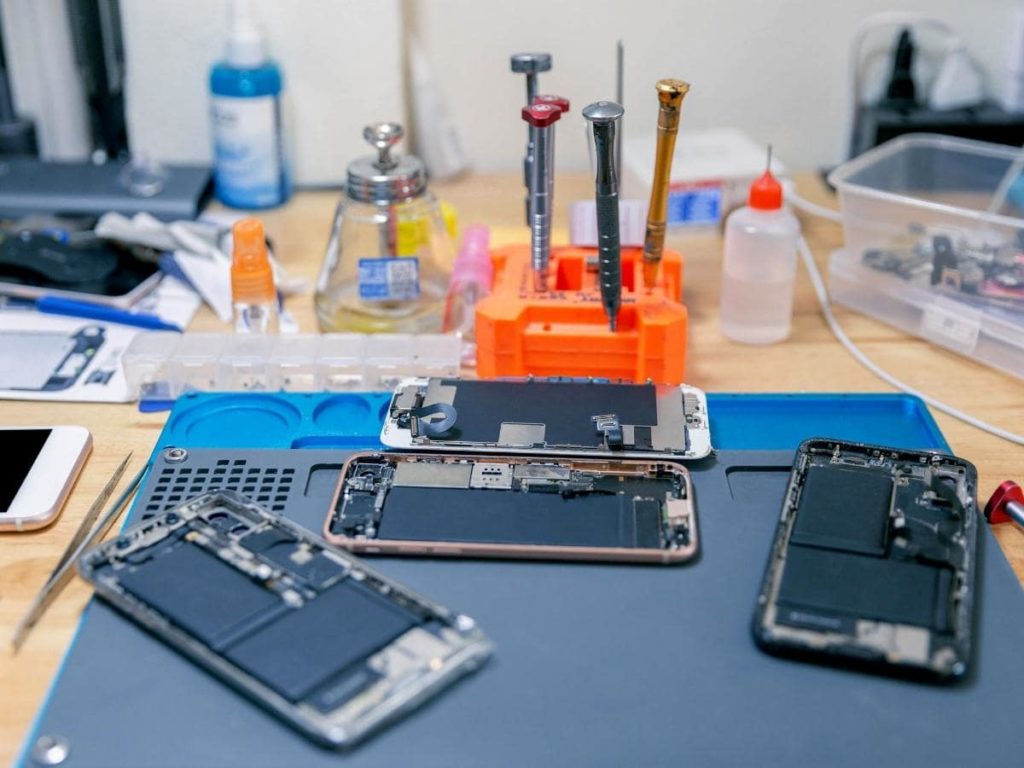
Taking on an iPad screen replacement yourself can save between $100 and $250 over out-of-warranty professional services. However, because tablets lack external chassis screws, the procedure relies entirely on heat, patience, and adhesive management.
Essential Tools, Safety, and Workspace Setup
Set up a clean, well-lit, static-free workspace and assemble the following tools:
- High-wattage heat gun or temperature-controlled thermal pad (an iOpener works for minor heat retention)
- Infrared digital thermometer
- Plastic opening picks (0.1 mm to 0.3 mm) and nylon spudgers
- Heavy-duty suction cup handle
- Precision screwdriver set (Phillips #000, Tri-point, and Torx bits)
- Battery isolation pick or plastic card
- Liquid B-7000 adhesive or pre-cut perimeter adhesive strips
- Anti-static wristband and eye protection
Safety Warning: Discharge your iPad battery below 25% before starting. Puncturing a charged lithium-ion battery with a metal tool can trigger thermal runaway and fire. Cover shattered glass with clear packing tape before heating to prevent glass shards from scattering.
Safe Disassembly and Component Transfer
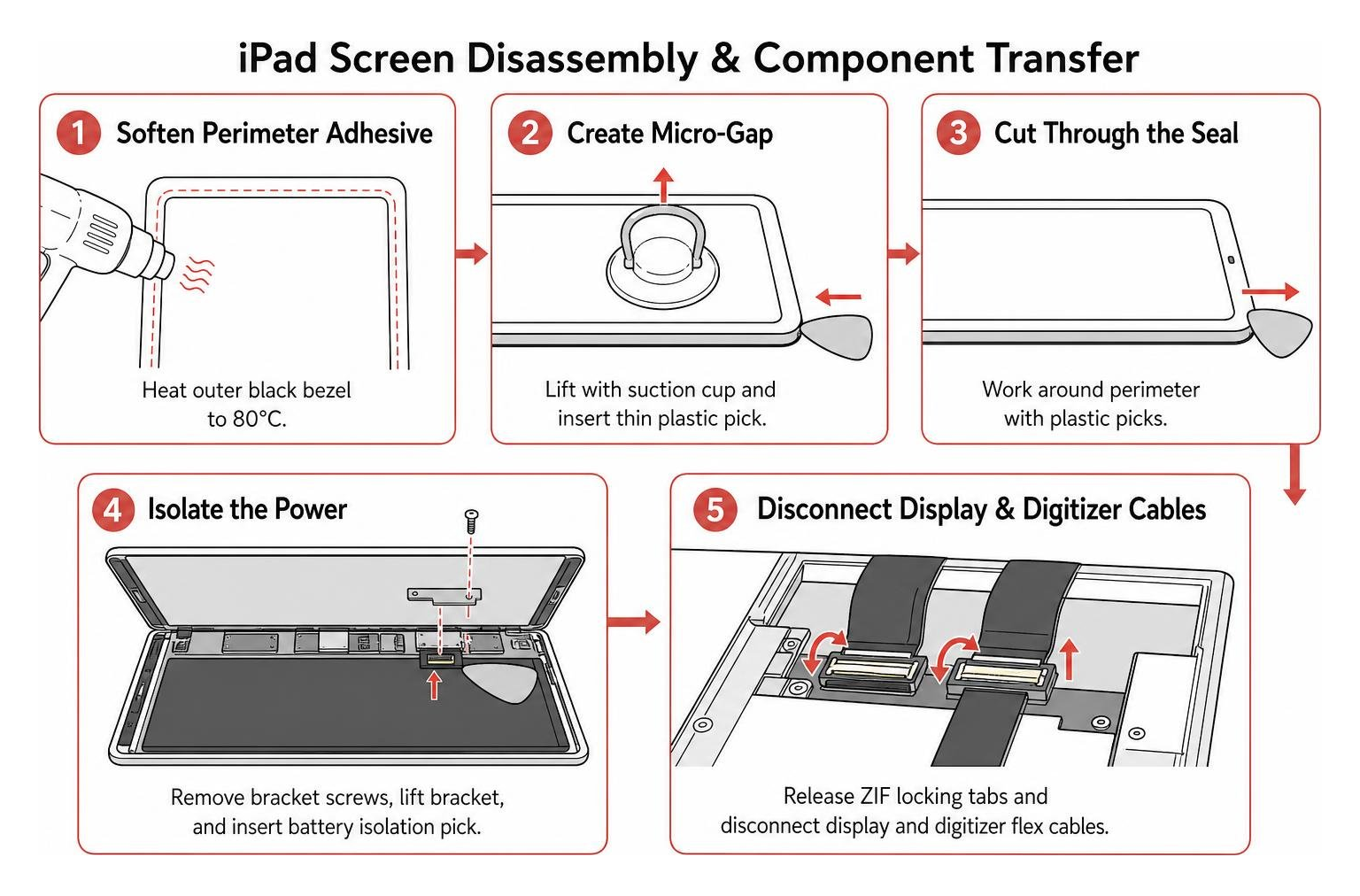
- Softening the Perimeter Adhesive: Use your heat gun along the outer black bezel. Maintain the surface temperature at 80°C. Exceeding 100°C risks permanent LCD discoloration, while temperatures below 70°C will fail to soften the factory structural tape.
- Creating the Micro-Gap: Place your suction cup near an edge away from internal antennas and gently pull upward until a small gap appears. Slip a thin plastic pick into the seam. Never insert picks deeper than 2–3 mm to avoid severing underlying ribbon cables.
- Cutting Through the Seal: Work slowly around the perimeter with plastic picks. Never use metal blades near internal circuitry, as metal tools are the primary cause of blown backlight filters and board-level short circuits.
- Isolating the Power: Once the screen opens like a book, locate the logic board shield. Remove the retaining screws, lift the bracket, and insert a plastic battery isolation pick beneath the battery connector terminal before touching other ribbon cables.
- Disconnecting Display and Digitizer Cables: Release the Zero Insertion Force (ZIF) locking tabs and gently disconnect the digitizer and LCD flex cables.
- Transferring Critical Hardware: If working on a base-model iPad with a physical Home button, transfer the original Home button assembly and bracket to the new glass. Touch ID is hardware-paired to your iPad logic board; using a replacement third-party Home button will restore physical click action but permanently disable biometric fingerprint reading.
Sealing and Curing to Prevent Ghost Touches
- Surface Preparation: Scrape away every trace of old adhesive and microscopic glass debris from the aluminum frame using isopropyl alcohol (90%+ purity) and a nylon tool. Any left-behind shard will create a pressure point that cracks the new glass when pressed down.
- Pre-Sealing Testing: Connect the new screen cables, remove the battery isolation pick, and power on the iPad. Test touch responsiveness across the entire panel, check brightness levels, and test Apple Pencil input before applying adhesive.
- Adhesive Application: Turn off the iPad. Apply specialized pre-cut adhesive strips or a uniform bead of B-7000 liquid adhesive along the recessed perimeter shelf.
- Weighted Curing Period: Seat the display evenly into the chassis. Apply padded repair clamps or distribute uniform, moderate weight across the perimeter. Allow the tablet to cure for a minimum of 120 minutes. Skipping this curing window allows the digitizer to lift slightly, causing ghost touches and erratic inputs.
For an expanded walkthrough of thermal techniques and cable preservation, review this guide on repairing smashed iPad displays.
Frequently Asked Questions About Cracked iPad Screens
Does replacing a cracked iPad screen delete personal data?
No. An iPad screen replacement is strictly a hardware repair that affects only the external input and display assemblies. Your files, photos, operating system, and apps remain stored on the logic board’s NAND flash memory chips. However, making an updated iCloud or computer backup before any repair remains standard practice.
Why does an iPad develop ghost touches after a screen replacement?
Ghost touches (where the iPad registers phantom taps or swipes on its own) typically stem from three installation errors:
- Insufficient adhesive curing time or poor clamping pressure, allowing the digitizer flex cable to bow and touch the metal housing.
- Warped or bent aluminum chassis corners putting uneven mechanical tension across the glass.
- Low-grade digitizer grids that lack electromagnetic shielding against internal components.
Can aftermarket screens disable Apple Pencil or True Tone?
Budget aftermarket screens with low digitizer polling rates can introduce pencil jitter, line breaking, and input latency. Additionally, ambient light sensors transferred incorrectly during DIY repairs will disable True Tone auto-white balance adjustments. Choosing OEM-grade or refurbished OEM display assemblies preserves factory pencil accuracy and display calibration.
Conclusion
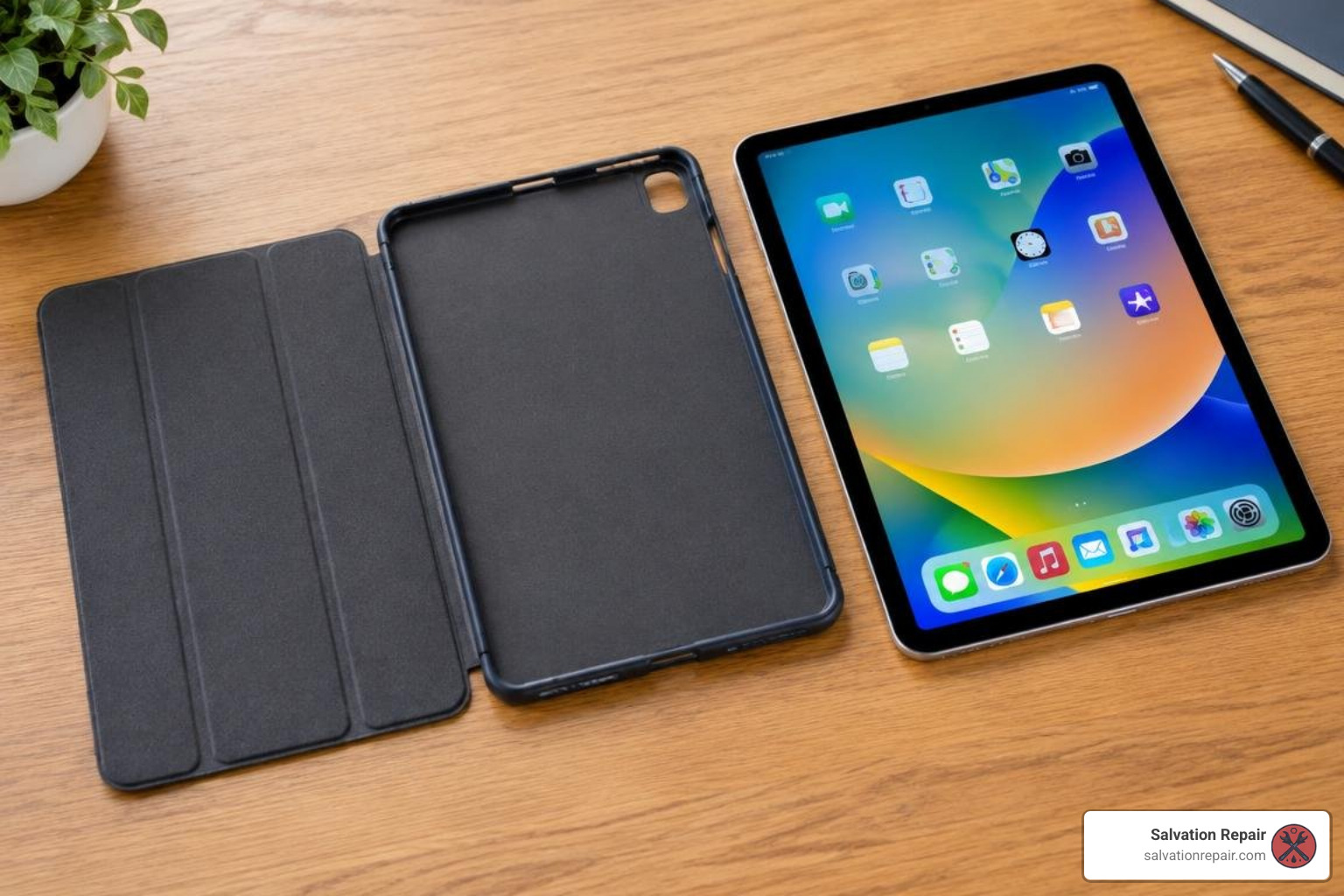
A cracked iPad display does not mean you have to retire your tablet. By diagnosing whether you have surface glass damage or internal LCD failure—and knowing if your device uses a non-laminated or laminated panel—you can pick the most economical path forward. While DIY repairs can save money on older, non-laminated base models, modern laminated iPad Air and iPad Pro displays require specialized heating tools and steady micro-soldering experience to avoid costly missteps.
If you prefer professional service without dealership markups, Salvation Repair is here to help. Located at 1503 Lakeview Rd, Laurel, MS 39440, we provide fast, on-site device repairs for customers in Laurel, Ellisville, Bay Springs, and Soso. We handle “any device with a power button,” backed by competitive price matching and our lifetime warranty on parts and labor. We complete iPhone screen repairs in 10–15 minutes right in front of you, battery replacements in 30 minutes, and charging port repairs in one hour.
Every screen repair at Salvation Repair includes a complimentary screen protector, plus a flexible 60-day window to upgrade your display tier at any point. Schedule your screen repair today to restore your iPad with lasting peace of mind.
