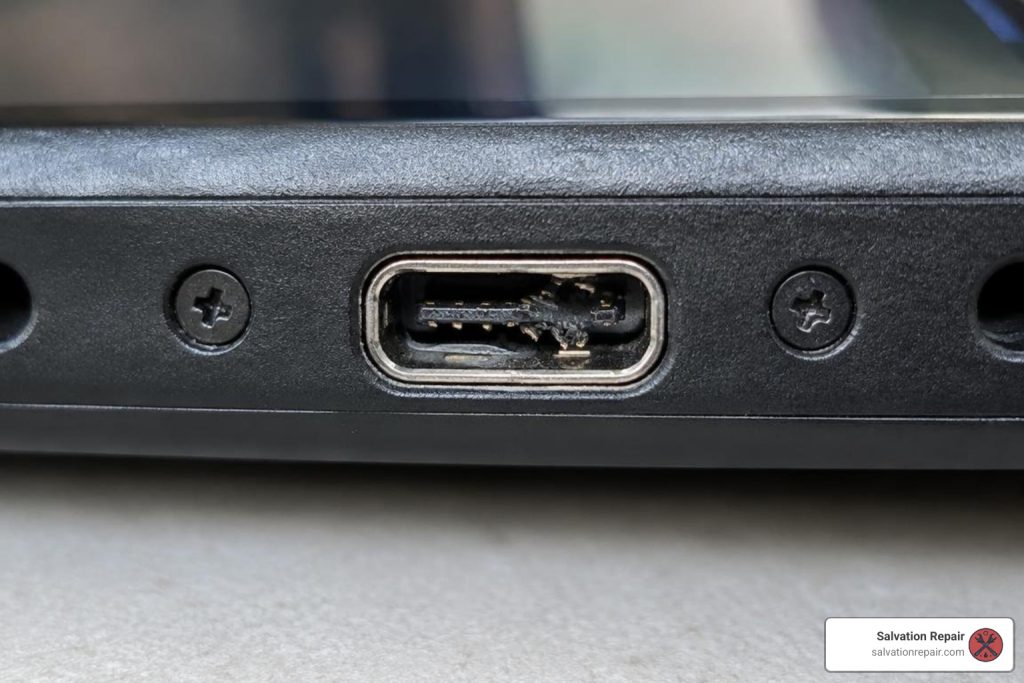
The Most Effective Solution for Nintendo Switch Charging Port Replacement
How to Replace a Nintendo Switch Charging Port Safely
First, rule out a bad charger or debris. Try the official Nintendo Switch adapter, inspect the USB-C port for bent pins, and let a fully drained console charge for at least 30 minutes. If the cable feels loose, charging works only at an angle, or TV output has stopped, the port may need replacement.
Replacing it means removing the motherboard and using hot-air rework and a microscope to solder a new connector. A standard soldering iron is not enough, and this is not a good first soldering project. If the port looks sound but the Switch still will not charge, a technician should test the power-management chips before replacing parts.
I’m Ralph Harris, an electronics repair technician and writer with more than 20 years of hands-on experience, including work on gaming consoles. That experience shapes this guide to Nintendo Switch changing port replacement, starting with diagnosis before moving to the repair itself.
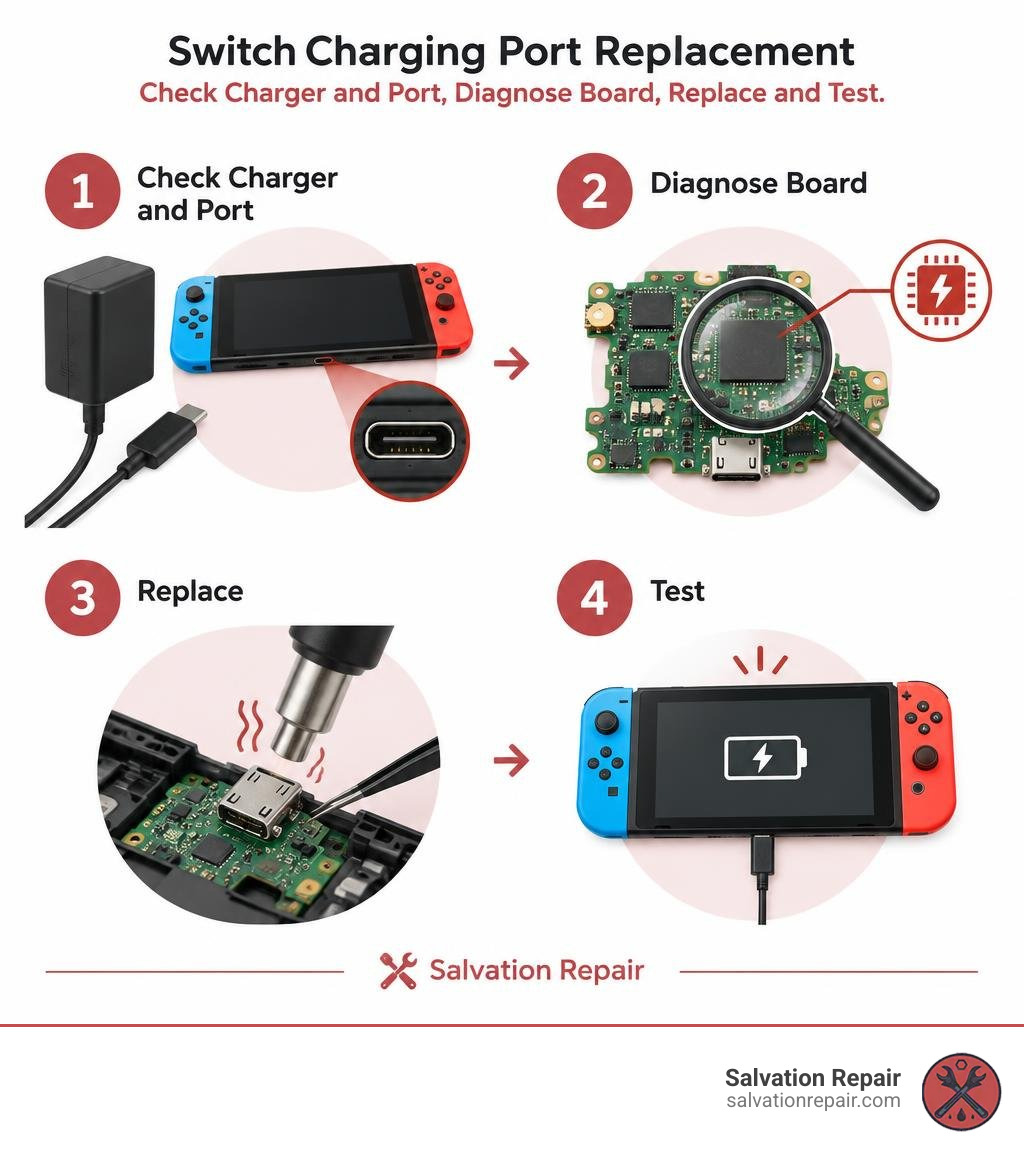
Identifying Port Failure vs. Power IC Issues
Before firing up a rework station or tearing down your handheld, you must determine whether the issue stems from physical connector damage or an integrated circuit (IC) failure on the mainboard. The symptoms often mimic one another, leading many to replace a perfectly functional port when a power management chip is actually dead.
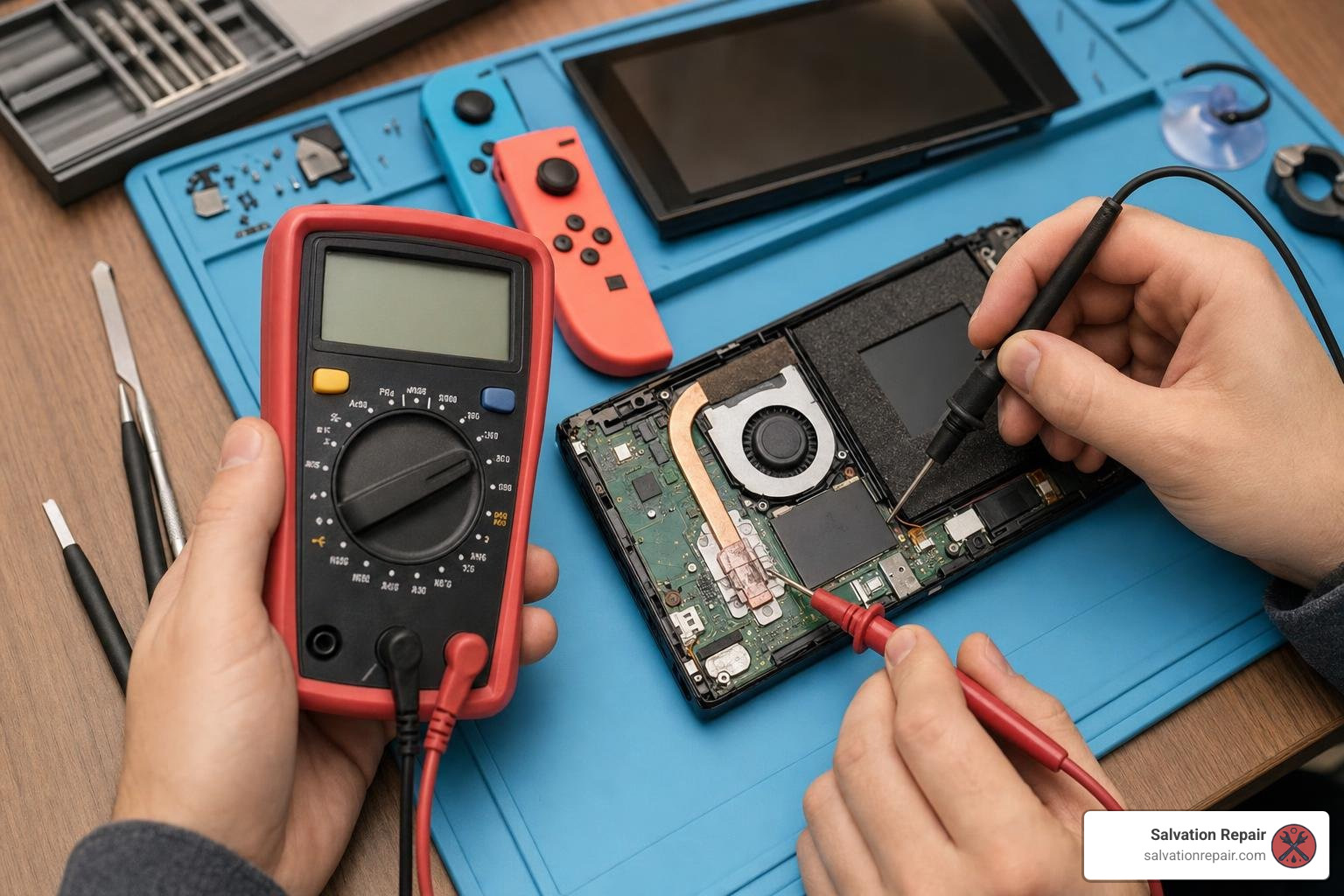
If you are trying to understand the physical mechanics of hardware wear, learning how to fix a charging port fast starts with a thorough physical and electrical inspection.
Recognizing Symptoms and Docking Issues
The Nintendo Switch USB-C connector is not an off-the-shelf standard smartphone port. It features a custom 24-pin dual-layer configuration containing both surface-mount pins and a hidden row of through-hole/under-body pins. These lines route high-voltage Power Delivery (up to 15V) alongside high-speed DisplayPort audio/video signals.
Common symptoms indicating physical failure include:
- Angle-dependent charging: The console charges only when tilting the cable or applying upward pressure.
- Loose physical fit: The USB-C cord falls out easily or wobbles significantly.
- Handheld charging works, but dock mode fails: When docked, the green light flashes briefly, but no picture displays on the TV. This happens when the hidden pin row dedicated to video transmission cracks while the primary power pins maintain contact.
- Bent, bridged, or missing pins: Peering inside with a flashlight reveals crooked gold pins or black burn marks.
According to the Switch Charging Port: USB-C Replacement Risks & Guide, bridged pins in the port can cross the 15V VBUS line directly into low-voltage data or video channels, causing severe secondary component failure across the motherboard.
Diagnosing M92T36 and BQ24193 Chip Faults
When a Switch shows no signs of life, draws 0.00A or a static 0.41A on a USB-C ammeter, or throws an error on boot, an IC might be blown.
The primary chips responsible for power management on the Switch motherboard include:
- M92T36 IC: The Power Delivery control chip. It negotiates 5V and 15V power profiles with the charger. When broken, the console remains dead or halts at boot.
- BQ24193 IC: The battery management and charging controller. If this chip shorts, battery charging halts entirely.
- P13USB (or PI3USB) IC: The video multiplexer chip. It handles switching between handheld mode and TV dock mode. A damaged charge port frequently shorts 15V into this chip, blowing it out.
If your console halts on boot with a specific numerical error, consult the Repair Wiki Nintendo Switch Error Code: 2101-0001 Diagnostic Guide to trace communication issues across the I2C bus back to a shorted M92T36 chip.
| Failure Symptom | Most Likely Root Cause | Diagnostic Test Method |
|---|---|---|
| Charges only when wiggling cable | Physical USB-C Port | Visual inspection under microscope |
| Charges at 5V slow, refuses 15V fast charge | M92T36 IC or CC Lines | USB-C power meter test |
| Charges normally, no TV dock output | P13USB IC or Hidden Port Pins | Test docking with official dock |
| Error Code 2101-0001 on boot | M92T36 IC / I2C Bus Short | Multimeter diode mode on nearby caps |
| Console pulls 0.00A / completely dead | Blown Fuse, BQ24193, or M92T36 | Resistance to ground on main rails |
To test these chips, switch your digital multimeter to diode mode. Place the red probe on a ground shield and probe the decoupling capacitors surrounding the M92T36 and BQ24193 chips with the black probe. A short to ground (a beep or 0.00V drop) on both sides of a capacitor confirms a failed chip that must be replaced.
Step-by-Step Nintendo Switch Changing Port Replacement Guide
When physical inspection reveals crushed pins or broken interior plastic, a Nintendo Switch changing port replacement becomes necessary. This procedure requires micro-soldering expertise and dedicated rework tools.
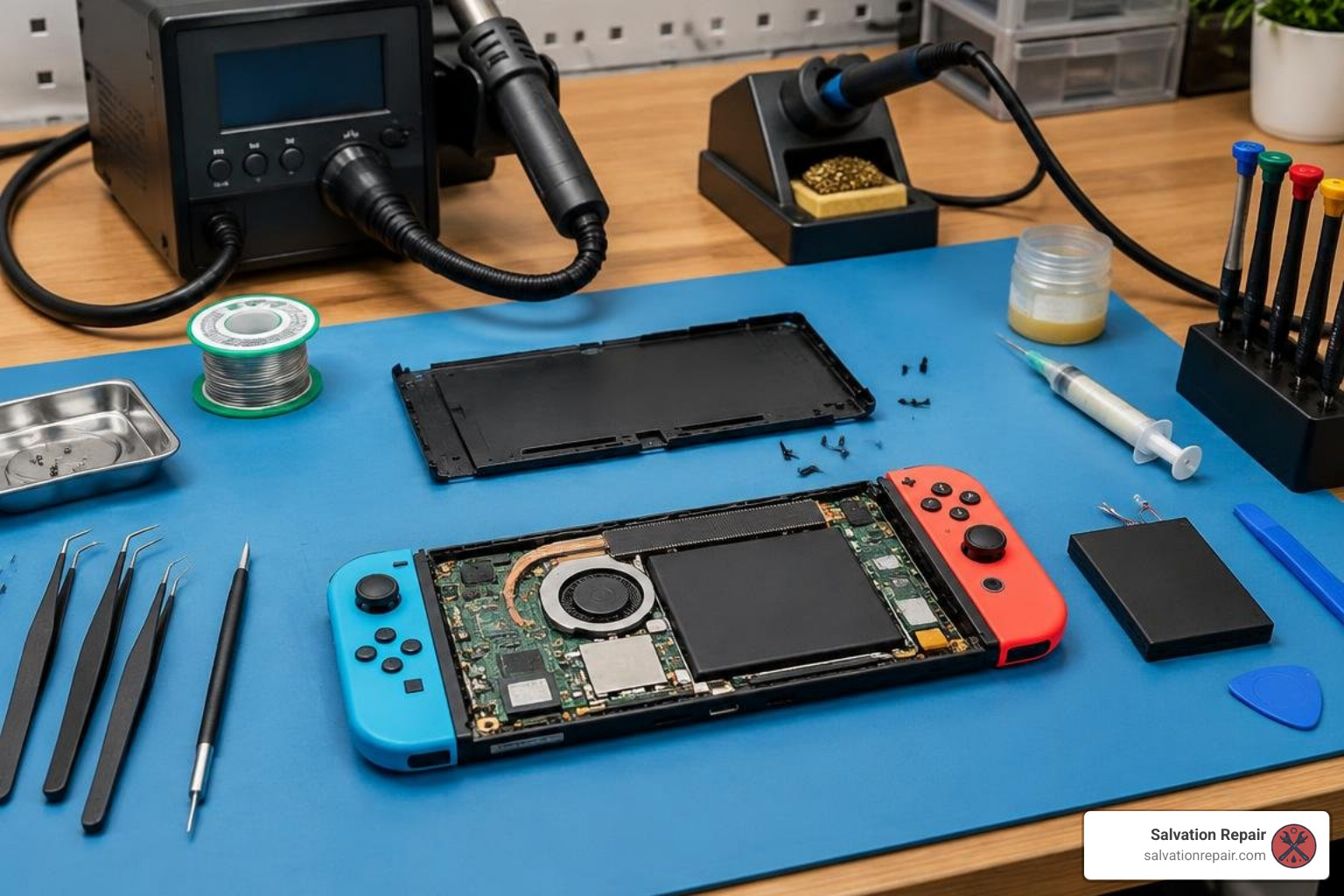
Handling complex circuit boards requires patience and specialized equipment, much like any advanced gaming console repair project.
Essential Micro-Soldering Tools and Safety Gear
Before opening the console, gather the required equipment:
- Temperature-controlled hot-air rework station (capable of stable 350°C to 450°C output)
- Micro-soldering station with fine conical and knife-edge tips
- Stereo microscope or high-definition digital inspection camera
- Low-melt bismuth solder alloy (melts around 138°C–144°C)
- 63/37 leaded solder or high-grade lead-free solder wire
- No-clean tacky flux
- Copper desoldering wick (1.5mm–2.5mm width)
- High-temperature Kapton tape and aluminum foil heat shielding
- Precision ESD tweezers and 99% Isopropyl Alcohol (IPA)
Executing the Nintendo Switch Changing Port Replacement
Step 1: Disassembly and Mainboard Isolation
- Remove the back plate, kickstand, MicroSD card reader board, and aluminum shielding.
- Disconnect the battery immediately to prevent accidental short circuits.
- Disconnect all ribbon cables (eMMC, digitizer, display, game card reader, Joy-Con rails).
- Remove the cooling fan, heat sink, and mainboard mounting screws, then lift the board out.
Step 2: Thermal Shielding and Pre-Heating
- Cover surrounding surface-mount passive components, the audio jack, and plastic connectors with Kapton tape.
- Secure the motherboard in a PCB holder.
- Pre-heat the entire board from the underside at 180°C–200°C for 2 minutes to minimize thermal shock and prevent board warping.
Step 3: Desoldering the Damaged Port
- Apply a generous amount of tacky flux to the anchoring through-hole legs and top pins.
- Add low-melt solder to the anchoring points using your soldering iron to lower the overall melting point of the factory lead-free solder.
- Direct your hot-air wand (set to approximately 380°C–400°C at 40% airflow) from the underside of the board beneath the port, or evenly over the connector shield.
- Allow the solder to liquefy fully across all 24 pins and 4 anchor tabs.
- Gently lift the port upward with tweezers. Never yank or pry the connector—doing so will rip delicate copper traces off the board.
Step 4: Pad Preparation and Cleaning
- Flood the bare pads with fresh flux.
- Use desoldering braid and a flat iron tip to gently wick away residual factory solder until the pads are flat and shiny.
- Clear out the four structural through-holes using copper wick.
- Clean the entire area thoroughly using 99% IPA and a soft ESD brush.
- Lay down a thin, uniform coat of fresh solder on all outer and hidden pads.
Step 5: Installing the New Port
- Apply a thin layer of flux across the prepared pads.
- Carefully align the replacement OEM USB-C socket, making sure the hidden second-row pins settle over their respective board pads.
- Apply heat evenly from beneath the board at 380°C. As the solder liquefies, surface tension will pull the connector into alignment.
- Tap the top of the metal housing lightly with tweezers to ensure the internal pins seat securely into the solder paste.
- Remove heat and hold the port steady until the solder solidifies.
- Touch up the visible outer row of pins and the four mounting anchor legs using a fine-tipped soldering iron and fresh solder.
Post-Repair Testing and Voltage Checks
Do not fully assemble the console before confirming electrical continuity:
- Microscope Inspection: Inspect the outer pins to ensure no solder bridges exist between adjacent lines. Use a dental pick to nudge each pin gently; if a pin moves, reflow it.
- Diode Mode Pin Testing: Using a USB-C breakout test board, check resistance and voltage drops across all 24 pins to ensure ground, VBUS, CC1, CC2, and data lines are not shorted together.
- 5V Low-Power Test: Connect an official 5V USB charger through an inline ammeter. Confirm the device draws 0.40A to 1.50A without heating up.
- 15V Fast-Charging Test: Connect the official Nintendo Switch power adapter (MOD. HAC-002) and verify the console negotiates fast charging.
- Dock Test: Place the assembled board into the TV dock to verify clean video transmission and charging.
Weighing the Risks: DIY vs. Professional Repair
While DIY repair videos make connector swaps look straightforward, this particular repair represents one of the most mechanically and thermally challenging jobs in consumer electronics.
Technicians note that among consoles brought in after failed DIY repairs, roughly 25% exhibit secondary faults—such as damaged GPUs, delaminated motherboards, or fried RAM chips caused by uncontrolled heat gun usage.
Board Delamination and Pad Damage Hazards
The primary hazards of attempting this repair without commercial-grade micro-soldering tools include:
- Torn Solder Pads: Pulling the port before the hidden solder completely liquefies tears delicate copper pads. Repairing missing pads requires microscopic jumper wires under a stereomicroscope.
- Board Bubbling (Delamination): Applying excessive heat to a single spot without preheating causes the internal layers of the multi-layer printed circuit board to separate, permanently ruining the console.
- Bridged Internal Pins: The hidden second row of pins cannot be viewed from the front. If solder bridges form beneath the connector housing, connecting 15V power lines directly to the CPU/GPU data lines will permanently destroy the primary processor.
- Melted Plastic Components: Inexperienced users often melt nearby ribbon cable latches, game card slots, and audio jack assemblies with stray hot air.
Cost and Complexity of Nintendo Switch Changing Port Replacement
If you do not already own specialized micro-soldering equipment, a DIY attempt is rarely economical compared to professional repair services.
| Repair Path | Upfront Hardware / Tool Cost | Replacement Part Cost | Total Financial Investment | Skill Level Required | Risk of Permanent Damage |
|---|---|---|---|---|---|
| DIY Repair | $150 – $300 (Station, Scope, Flux) | $5 – $10 | $155 – $310+ | Advanced Micro-soldering | High |
| Professional Shop | $0 | Included in service | $80 – $120 | Master Technician | Very Low (Backed by Warranty) |
| Nintendo Factory Repair | $0 | Included in service | ~$100 – $120 | Factory Service Center | Very Low (May Swap Console) |
If you are weighing console restoration projects, exploring The Cheapskate Guide to Buying and Repairing a Broken 3DS XL provides a helpful contrast in difficulty: older consoles use straightforward through-hole ports, whereas modern handhelds feature dense, high-pin-count micro-soldering layouts.
Preventing Future USB-C Port and Console Damage
Once your Switch is functioning again, practicing good hardware care will ensure your port lasts for the life of the console.
Safe Docking and Cable Handling Practices
- Slide Straight Down: Never tilt the Switch sideways when inserting it into the original TV dock. Align the console directly above the center connector and lower it gently.
- Avoid Playing While Tethered: Using the Switch in handheld mode while connected to a taut charging cable places severe upward and downward torque on the internal pins. If you drop the console while plugged in, the leverage can snap the interior anchor legs immediately.
- Use Quality Cables: Avoid frayed charging cables with warped USB-C male ends, as bent connector shells physically grind against internal pins.
Power Supply Selection and Routine Maintenance
- Stick to the OEM HAC-002 Adapter: The Nintendo Switch uses non-standard Power Delivery negotiation protocols. Uncertified third-party wall bricks and cheap travel docks can deliver unregulated voltage spikes, blowing the M92T36 chip.
- Clean with Compressed Air Only: Never insert metal safety pins, sewing needles, or paper clips into the USB-C port to fish out debris. Metal objects short out energized pins and bend delicate internal contacts. Use low-pressure compressed air or a soft, non-conductive ESD nylon brush.
Frequently Asked Questions About Switch Port Repairs
Will replacing the USB-C charging port delete my game saves?
No. Replacing the physical USB-C port is strictly a hardware repair performed on the power delivery section of the motherboard. Your internal eMMC NAND flash storage chip—which stores your operating system, downloaded digital games, screenshots, and local game saves—remains completely untouched.
However, if you send your console to Nintendo’s official factory service center, their standard procedure is often to replace the entire motherboard or ship a refurbished replacement console, which results in complete data loss unless your saves are backed up to the Nintendo Switch Online cloud. Independent micro-soldering shops keep your original board and data intact.
Can I fix the charging port with a standard soldering iron?
No. A conventional soldering iron cannot reach the hidden row of 12 internal surface-mount pins tucked underneath the center shield of the connector.
While you can reach the four structural support tabs and the front 12 pins with a fine iron tip, leaving the hidden pins unbonded means the console will fail to dock to the TV and may not negotiate 15V fast charging. Installing this component properly requires a hot-air rework station to evenly flow solder beneath the port housing.
How long does a professional repair usually take?
Most independent repair shops complete a Nintendo Switch charging port replacement within 24 to 48 hours of intake.
The physical micro-soldering procedure itself takes an experienced technician approximately 45 to 60 minutes, which includes console teardown, board pre-heating, component extraction, pad prep, soldering, multi-point continuity testing, and reassembly with fresh thermal paste.
Conclusion
A damaged Nintendo Switch USB-C port does not mean your console is destined for the electronics recycling bin. While the 24-pin dual-layer configuration makes this a challenging micro-soldering repair for beginners, professional replacement restores full handheld charging and TV dock output safely while preserving your saved games.
When handling portable electronics—from gaming consoles to smartphones—investing in certified hardware repairs backed by a clear warranty provides long-term peace of mind. For those needing assistance across various devices, exploring our full range of game consoles restoration services or booking an appointment through our convenient schedule repair portal makes restoring your favorite tech simple.
If you are dealing with broken pins, charging dropouts, or complete power failure, visit Salvation Repair at 1503 Lakeview Rd, Laurel, MS 39440. We specialize in fast, on-site device repairs—with standard charging port repairs taking 1 hour, battery repairs taking 30 minutes, and iPhone screen repairs taking 10-15 minutes in front of the customer—along with price matching and a comprehensive lifetime warranty on our workmanship.
Whether you need assistance in Laurel or nearby Ellisville, Bay Springs, and Soso, stop by or contact our team today for expert charging port repair to get your console back in the game!
