The Easiest Way to Clean Your Phone Charging Port
The Safest Way to Clean a Phone Charging Port
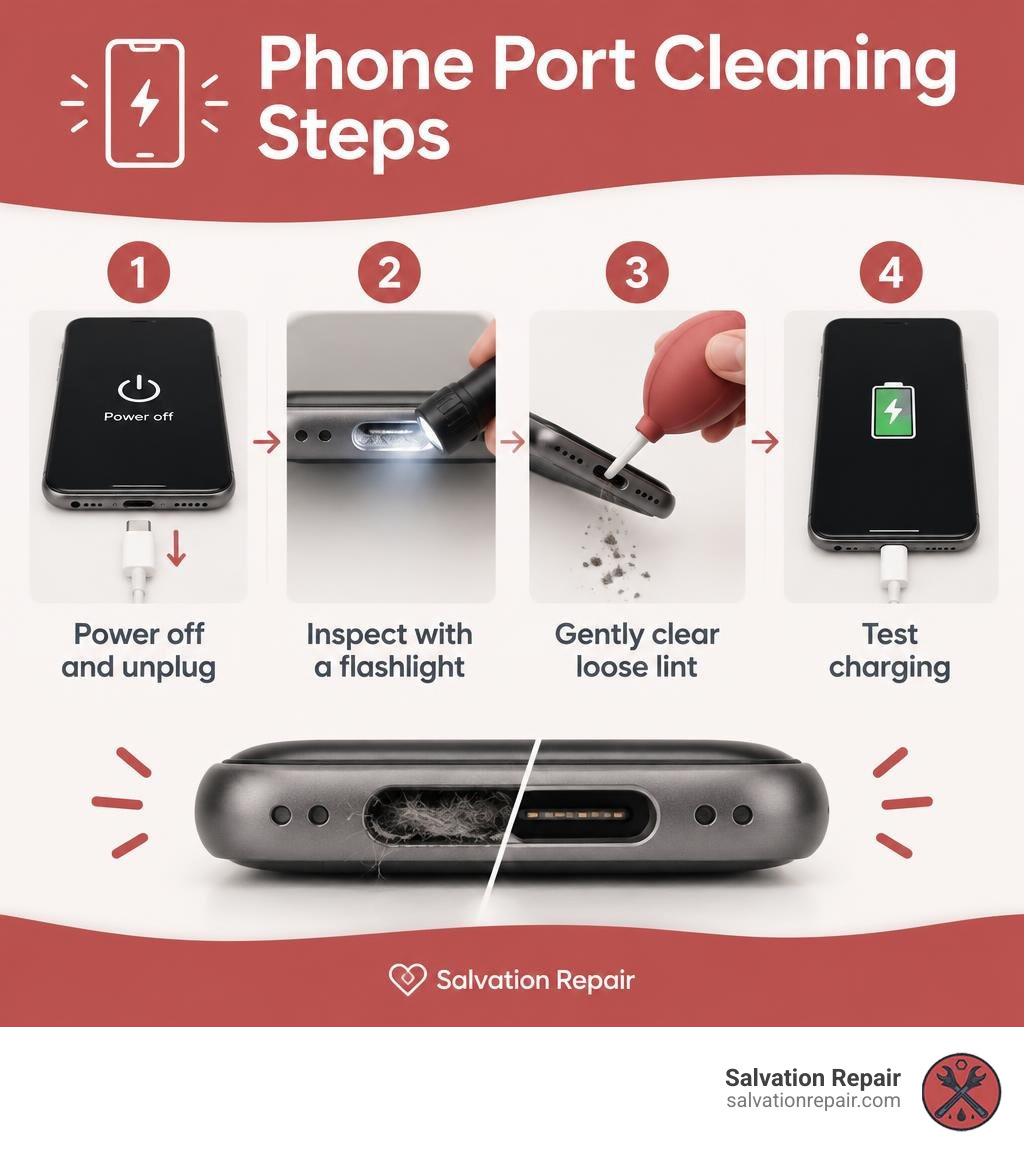
For phone charging port cleaning, turn off and unplug your phone. Shine a flashlight into the port. If you see loose lint, hold the port facing down and use a gentle hand-powered air blower to clear it. For compacted debris, use a non-conductive wooden toothpick or plastic pick to carefully lift lint from the outer walls, and 99% isopropyl alcohol can be applied sparingly with a non-conductive tip for sticky grime. Don’t put a paperclip, cotton swab, or standard 70% rubbing alcohol inside. If debris is packed in, the port looks damaged, or charging still fails, stop and have a repair technician check it.
I’m Ralph Harris. I’ve spent more than 20 years repairing electronics and writing guides, and I use that hands-on experience to help people approach phone charging port cleaning without turning a small blockage into a bigger problem.
Signs Your Phone Charging Port Needs Cleaning
Smartphones spend their lives riding around in tight jeans pockets, tumbling inside backpacks, and resting on dusty counters. Over time, fabric fuzz, pocket lint, makeup residue, and microscopic debris find their way into the tiny opening at the bottom of your phone. Every time you plug in your power cable, you inadvertently compress this debris deeper into the cavity. Eventually, what started as a few floating dust specks turns into a rock-solid plug of compacted lint.
When a layer of grime sits between your cable and the conductive pins, you will begin experiencing annoying charging problems. Some of the most common warning signs include:
- Intermittent Charging: The charging indicator blinks on and off, or your phone only charges when the cable is bent at an odd angle or held firmly in place.
- A Loose or “Spongy” Connection: The cable connector will not click into place or falls out with the slightest tug. If the plastic casing of your cable doesn’t sit completely flush against the phone’s frame, lint is blocking it.
- Sluggish Charging Rates: Your device switches out of fast-charging mode and takes several hours to gain battery percentage because debris is insulating the data pins needed to negotiate higher wattage.
- Unrecognized Accessory Errors: Your smartphone claims the connected accessory is unsupported or fails to transfer data when plugged into a car or computer.
- Persistent Moisture Warnings: Foreign material inside the port can trap ambient humidity and bridge contacts, causing the phone’s sensors to think liquid is present. In these situations, troubleshooting Samsung moisture detected warnings often reveals that pocket lint is the real culprit tricking the sensor.

Recognizing Physical Blockages vs Port Damage
Before attempting any fix, it helps to identify whether you are dealing with a standard debris buildup or genuine hardware wear.
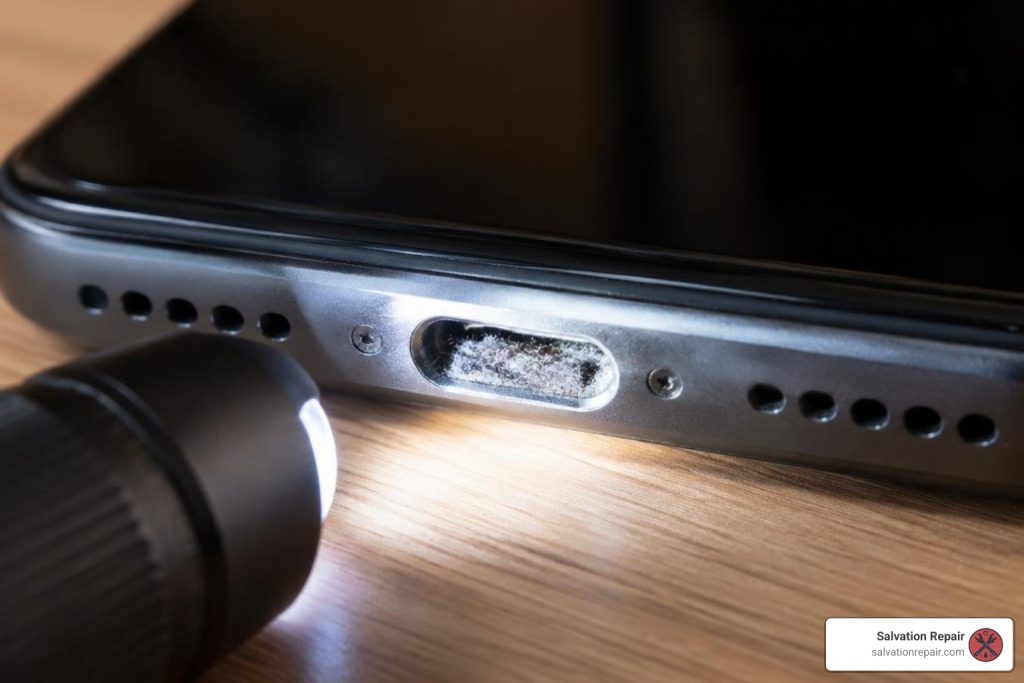
Grab a bright flashlight (or use another phone’s LED light) and look directly into the socket. In a clean port, you will see clean metal walls and a distinct plastic base or center connector tongue. If the interior looks fuzzy, gray, or uneven, a physical blockage is present.
Conversely, if the cable feels wiggly from side to side and wobbles inside the housing without any visible debris, the internal tension clips may be worn out. If you see green or black crust inside the cavity, the gold contact pins have corroded due to moisture exposure. In these cases, following fast troubleshooting steps to fix a charging port will help you determine whether simple cleaning will work or if the hardware has failed.
Safe Tools for Phone Charging Port Cleaning
Using the right tool makes the difference between an effortless fix and a completely broken device. The microscopic pins inside modern USB-C and Lightning connectors are fragile. You need non-conductive, non-abrasive tools that lift debris without scratching gold plating.
Here are the safest tools to assemble before you begin:
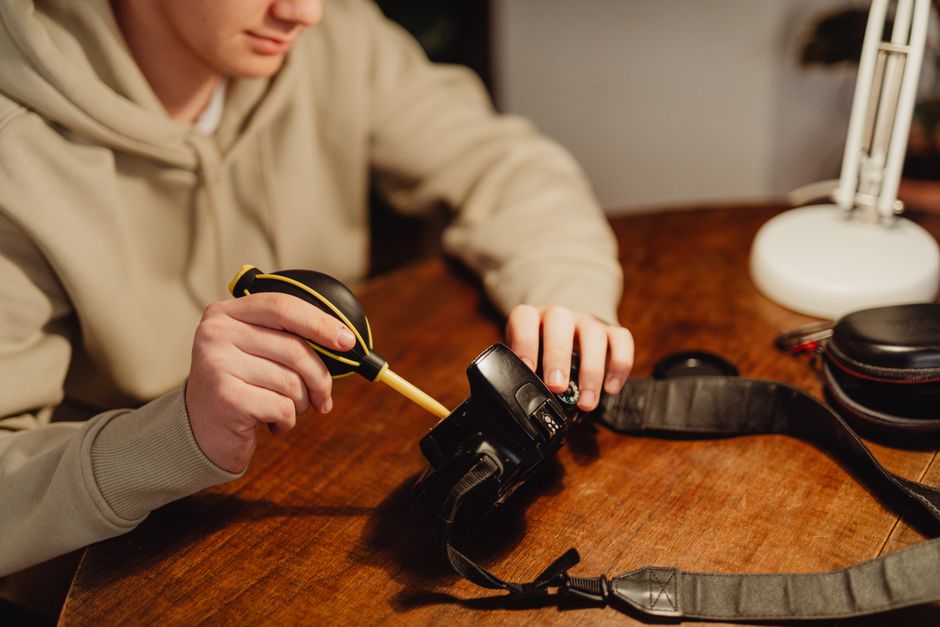
- Hand-Powered Air Bulb / Camera Lens Blower: A gentle, dry air pump provides clean airflow without introducing moisture or extreme pneumatic force.
- Can of Compressed Air: If used correctly—in short, 1-to-2-second bursts from several inches away while keeping the can completely vertical—canned air can safely blow loose debris free.
- Non-Conductive Plastic Dental Pick or Wooden Toothpick: A fine, flat wooden toothpick or a plastic dental floss pick allows you to carefully scrape along the bottom perimeter without conducting electricity.
- Anti-Static Cleaning Brush: A stiff-bristled, ESD-safe mini brush helps sweep loose particles out of the port walls.
- 99% Isopropyl Alcohol: Standard 70% rubbing alcohol contains 30% water, which can corrode internal components. High-purity 99% electronic-grade alcohol evaporates almost instantly and is safe for cleaning sticky grime when applied sparingly with a non-conductive tip.
- Microfiber Cloth: Ideal for wiping down the exterior perimeter and catching loosened dirt.
For wider device care tips, including how to safely treat audio grills without pushing dirt inward, consult Consumer Reports cleaning recommendations for smartphone ports and speakers to protect your device’s acoustic mesh and seals.
Tools to Avoid During Phone Charging Port Cleaning
Well-meaning DIY guides often recommend household items that can ruin a phone in seconds. Avoid the following dangerous items at all costs:
- Metal Safety Pins, Needles, and Paperclips: Metal conductive tools short-circuit pins across the live power lines of the battery, permanently blowing the motherboard charging chip. They also scrape away delicate gold conductive coatings.
- Cotton Swabs and Q-Tips: Standard cotton buds are too thick for modern charging slots. Jamming one inside will shred the cotton fibers, leaving more lint behind than you started with.
- Blowing With Your Mouth: Your breath carries high amounts of humidity and microscopic saliva droplets. Blowing into the port acts as a moisture bomb, leading to instant corrosion on electrical contacts.
- Water, Soapy Solutions, and Household Cleaners: Liquids create short circuits and trigger internal liquid contact indicators (LCIs), voiding your device warranty.
| Tool | Safe to Use? | Primary Risk / Benefit |
|---|---|---|
| Non-Metal Toothpick | Yes (With Care) | Safely hooks compacted lint without conducting electricity |
| Plastic Floss Pick | Yes | Thin, flexible, non-conductive material |
| Hand Air Blower | Yes | Dry, controlled air burst that removes loose particles |
| Metal Safety Pin / Needle | No | Scratches gold pins, causes short circuits and permanent damage |
| Paperclip | No | Bends internal pins and snaps center connector tongues |
| Cotton Swab / Q-Tip | No | Leaves torn cotton fibers behind and packs lint tighter |
| Human Breath | No | Introduces moisture and accelerates contact corrosion |
Step-by-Step Guide: How to Clean a Phone Charging Port
Follow these structured steps to clear debris safely without harming delicate electronic components.
- Power Down the Device: Turn off your smartphone completely before inserting anything into the port. This cuts active power to the pin contacts and protects the internal power management circuitry from accidental shorting.
- Inspect With Direct Light: Place the phone under a bright desk lamp or shine a focused LED flashlight straight into the cavity. Identify where the lint is packed—usually at the very bottom corners.
- Blow Out Loose Dust: Hold the phone upside down so gravity works in your favor. Point your hand-powered air bulb or compressed air straw into the port from 3 to 4 inches away. Give two or three quick, controlled bursts of air to dislodge loose sand and hair.
- Gently Dislodge Compacted Lint: Insert your non-conductive wooden or plastic pick flat along the back or front wall of the port. Do not jam the pick into the bottom with heavy force. Sweep along the base with light, delicate strokes to snag the edge of the lint felt.
- Roll and Extract: Once the pick catches the debris, gently roll the tool upward toward the opening to pull the lint mass outward in one piece.
- Final Air Burst: Give the port one final puff of air to clear away any micro-particles that were loosened during extraction.
- Inspect and Test: Look inside with your flashlight to confirm the shiny metal base is visible. Plug in your original cable to check for a crisp, firm click and confirm that the battery begins charging steadily.
For a broader overview of various device types, How to Clean a Charger Port: iPhones, Androids, & Others offers additional pictorial breakdowns for legacy tablets and gadgets.
Phone Charging Port Cleaning for USB-C and Lightning Devices
Cleaning methods differ slightly depending on the design of your specific port connector:
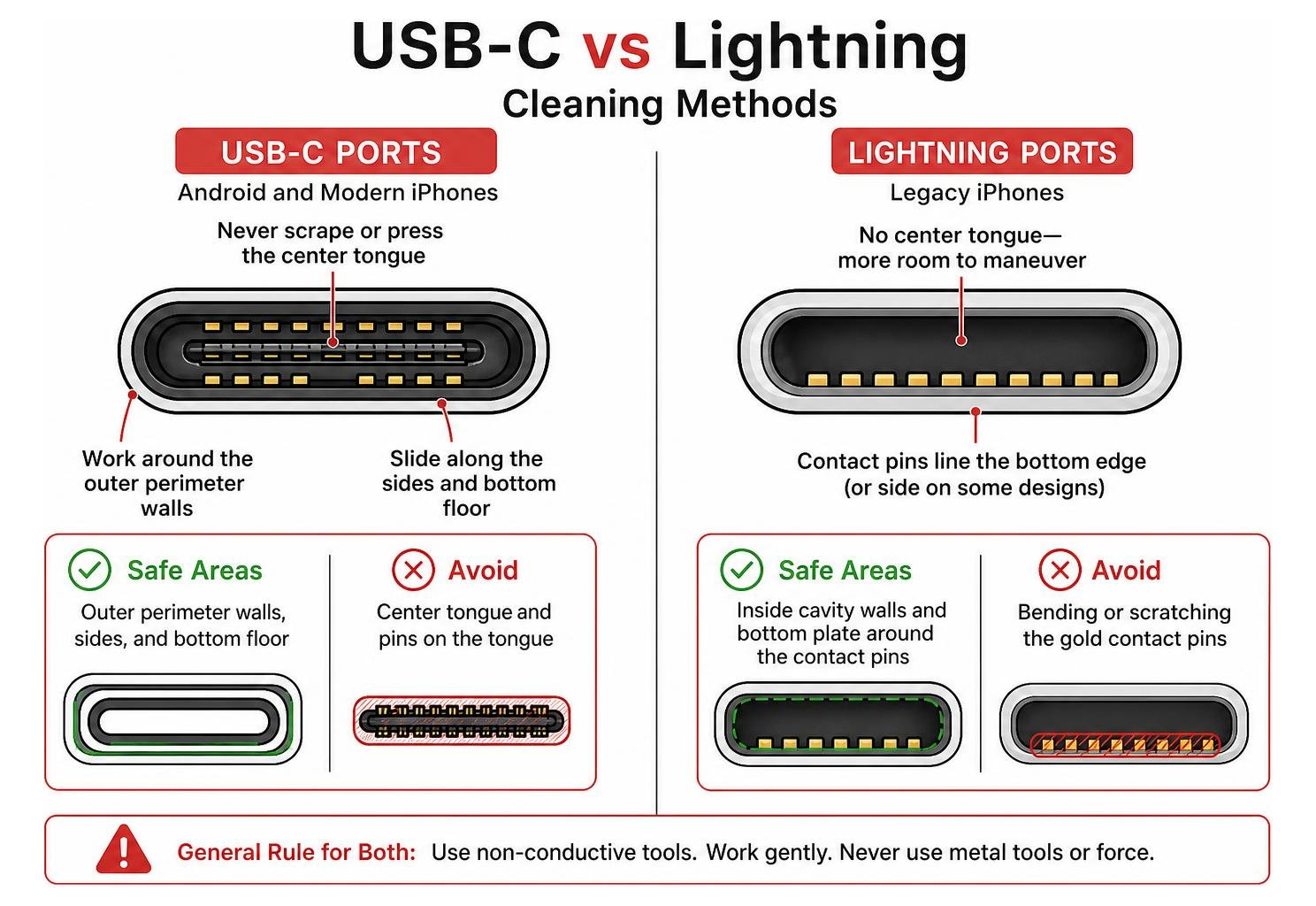
- USB-C Ports (Android and Modern iPhones): USB-C features a thin, delicate connection board (the “tongue”) standing in the dead center of the port surrounded by miniature pins. Never scrape or press against this center tongue. Always work your non-conductive tool around the outer perimeter walls, sliding along the sides and bottom floor without levering against the center wafer.
- Lightning Ports (Legacy iPhones): Lightning ports are hollow cavities with spring-loaded contact pins along the bottom or side edge. Because there is no center tongue, you have slightly more room to maneuver, but you must still be cautious not to bend or scratch the gold pins lining the bottom plate.
For detailed steps on Apple hardware, How to Clean Your iPhone Charging Port the Right Way explains the specific tolerances required when handling Lightning and USB-C iPhone models.
Handling Moisture and Wet Ports Safely
If your device has been dropped in water or exposed to rain, the cleaning process requires a completely different approach. Trying to pick at or blow high-pressure air into a wet port will push liquid deep past rubber gaskets and into the motherboard.
- Disconnect Cables Immediately: Never attempt to charge a wet phone.
- Tap Out Excess Liquid: Hold the phone vertically with the charging port facing downward. Gently tap the phone against the palm of your hand to shake loose large droplets.
- Allow Natural Air Drying: Place the phone in a dry, well-ventilated area with good airflow. Setting the device in front of a small household fan blowing cool air directly across the port opening will accelerate evaporation.
- Use Silica Packets (Never Uncooked Rice): If moisture persists, place the device in a sealed container with active silica gel desiccants. Avoid rice, as rice kernels release fine starch dust that mixes with water inside the port to create a sticky paste.
When dealing with liquid exposure on major smartphone brands, The charging port of my HUAWEI phone/tablet is liquid-damaged or has foreign objects, or the USB port is wet, causing charging failure, intermittent charging, or fast charging failure | HUAWEI Support Canada provides official safety protocols regarding moisture sensors and automated port protection shutdown. You can also review international guidance on The charging port of my HUAWEI phone/tablet is liquid-damaged or has foreign objects, or the USB port is wet, causing charging failure, intermittent charging, or fast charging failure | HUAWEI Support Global for handling wet USB connectors across various environments.
When Cleaning Fails: Identifying Permanent Port Damage
If you have safely extracted all visible debris, cleaned away surface grime, and verified that your charging cable and wall adapter work on other devices, yet your phone still refuses to charge, the port itself is likely damaged.
Physical hardware failure often manifests in distinct ways:
- Bent or Missing Contact Pins: If a metal pin has folded over inside the port or broken off completely, power will not bridge to the battery.
- Snapped USB-C Center Tongue: The center plastic blade inside a USB-C port can crack or snap off if a cable is yanked at a sharp angle.
- Thermal Scorch Marks or Pitting: Electrical arcing from liquid damage or faulty charging cables can leave black burn spots on contact pins, destroying electrical conductivity.
- Motherboard Solder Separation: On many modern devices, the charging port is soldered directly to the main logic board or connected via delicate flex cables. Dropping the phone while plugged in can crack these micro-solder joints.
If you suspect internal hardware wear, check out our complete guide to iPhone charging port repairs to understand how technicians test pin continuity and replace daughterboards. If you run an Android device, our guide on diagnosing Samsung charger port repairs explains how sub-boards and charging assemblies are swapped out.
For other everyday electronics experiencing power interface failures, we also provide specialized support—whether you require a tablet charging port repair or need a Nintendo Switch charging port replacement to fix docked power failures.
Frequently Asked Questions About Cleaning Phone Charging Ports
Can compressed air damage a phone charging port?
Yes, if used incorrectly. Standard canned air is filled with chemical refrigerants under high pressure. If you shake the can, hold it sideways, or turn it upside down, freezing liquid propellant will spray directly into the port, causing thermal shock that can crack micro-soldered electrical joints or ruin internal waterproof seals. High-pressure streams can also force loose dust past internal rubber gaskets. Always hold the can completely upright, maintain a distance of at least 3 inches, and use brief 1-to-2-second bursts.
Can I use rubbing alcohol to clean my charging port?
You should never use standard 70% drugstore rubbing alcohol because the remaining 30% water content can trigger rust and short circuits. However, 99% pure electronic-grade isopropyl alcohol is safe when applied in tiny amounts. Never pour or spray alcohol directly into the socket. Instead, lightly dampen the very tip of a plastic pick or anti-static brush, clean the metal contact surfaces gently, and let the port dry completely for 10 to 15 minutes before plugging in your cable.
How can I prevent lint from clogging my charging port?
Preventive maintenance is easy and saves you from future repair headaches:
- Use Protective Dust Plugs: Inexpensive silicone dust caps plug into the socket when not in use, keeping pocket lint out completely.
- Choose Cases With Port Covers: Rugged cases with built-in silicone flaps keep environmental dirt, sawdust, and purse grit away from the connectors.
- Clean Out Your Pockets: Periodically turn your pants pockets inside out and run a lint roller over them to remove loose denim fuzz.
- Switch to Wireless Charging: Utilizing Qi or MagSafe wireless charging pads for everyday top-ups reduces mechanical wear and tear on your physical port.
Conclusion
Routine device maintenance keeps your smartphone running smoothly and prevents unexpected charging headaches. By approaching DIY cleaning carefully with non-conductive picks and controlled air, you can safely remove stubborn pocket lint and restore a snug, reliable power connection.
However, if your charging port is loose, physically damaged, or unresponsive after cleaning, forcing tools into the slot will only risk permanent motherboard failure. When DIY methods fall short, letting a trained technician evaluate your hardware is the safest way forward.
If you are located in the Laurel, MS area—or nearby communities like Ellisville, Bay Springs, and Soso—our experienced team at Salvation Repair is ready to help. We are located at 1503 Lakeview Rd, Laurel, MS 39440, and we repair any device with a power button, backed by our lifetime warranty and price match guarantee.
We offer a professional phone deep cleaning and blowout service for $29.95, which thoroughly clears ports and speaker grilles using specialized ESD-safe tools. If your device requires component replacement, our technicians work quickly: iPhone screen repairs take just 10–15 minutes and are performed right in front of you, battery repairs take 30 minutes, and complete charging port repairs take only one hour.
We also make sure you leave fully protected: every screen repair includes a free screen protector. For customers seeking screen replacements, we clearly outline all options between LCD (including AQ7 LCD), aftermarket OLED, and OEM screens (both refurbished and new OEM). Standard repairs are quoted at $129.95 for LCD, $129.95 for aftermarket OLED, and $149.95 for OEM. For the iPhone 16 Pro, we offer LCD repairs at $149.95 and OLED at $199.95. For the iPhone 16 Pro Max, options include AQ7 LCD at $129.95, aftermarket OLED at $219.95, OEM refurbished at $399.95, and new OEM at $469.95. For Samsung Galaxy S22 Ultra screen repairs, we quote aftermarket OLED at $219.95, refurbished OEM at $309.95, and new OEM at $339.95 (all labor included). Plus, we give you the flexibility to upgrade from an LCD or OLED screen to an OLED or OEM display at any point within 60 days of your repair.
Need local help restoring your phone’s power connection? Explore our dedicated iPhone charging port repair in Laurel, MS or schedule your professional charging port repair with us today.
