
Is Your iPhone Screen Black or Unresponsive in Laurel
What to Do When Your iPhone Screen Goes Black in Laurel, MS
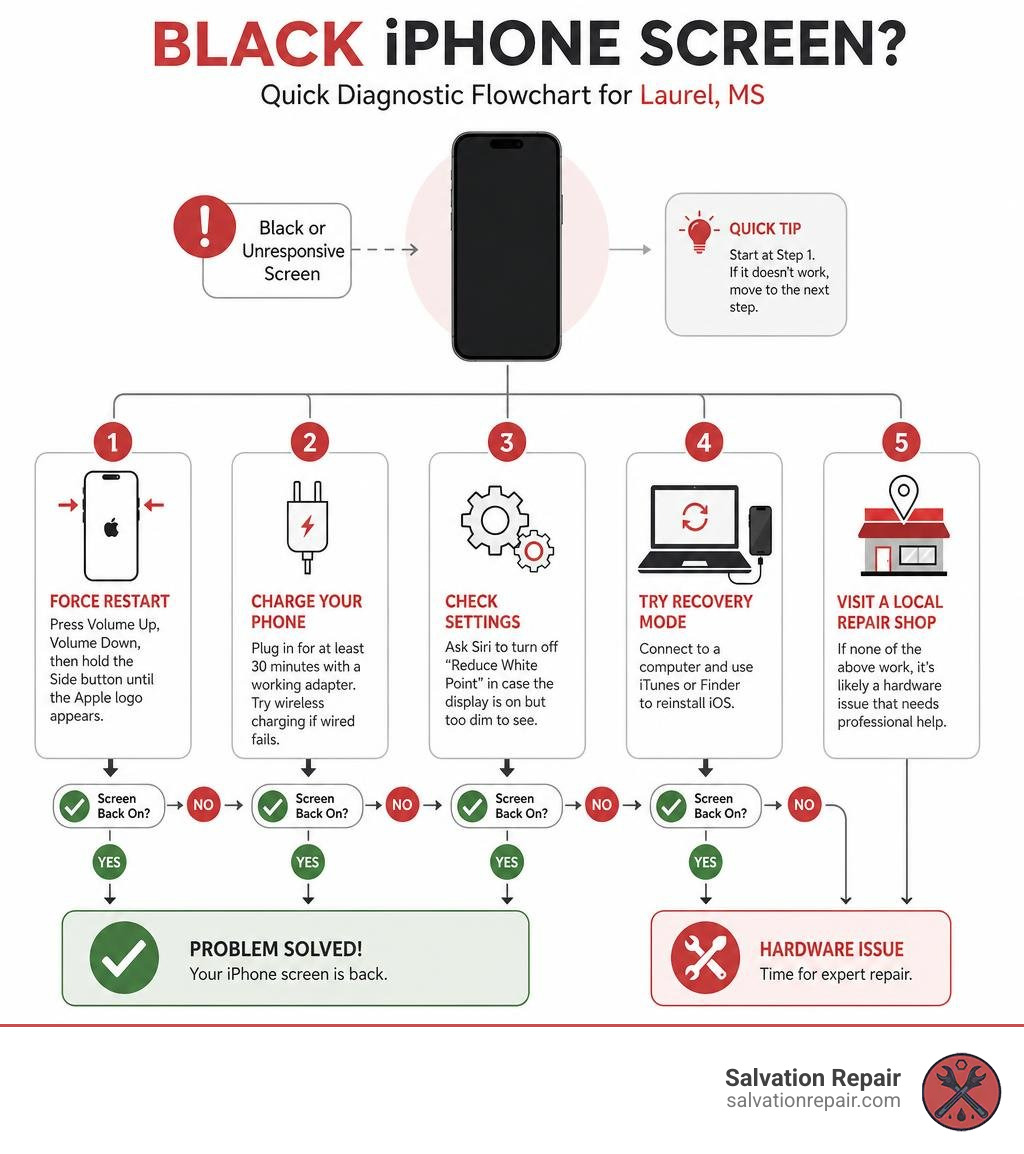
If you need an iPhone black screen fix in Laurel, here are the fastest solutions to try right now:
- Force restart — Press Volume Up, then Volume Down, then hold the Side button until the Apple logo appears.
- Charge your phone — Plug in for at least 30 minutes using a working wall adapter. Try wireless charging if wired fails.
- Check accessibility settings — Ask Siri to turn off “Reduce White Point” in case the display is on but too dim to see.
- Try Recovery Mode — Connect to a computer and use iTunes or Finder to reinstall iOS.
- Visit a local repair shop — If none of the above work, the issue is likely hardware and needs a professional.
Your iPhone buzzes when you get a call. Siri responds when you talk to it. But the screen? Completely black.
It’s one of the most frustrating things that can happen to a device you depend on every day. And you’re not alone — iPhone black screen problems rank among the top 5 most reported iPhone issues in 2025–2026, and screen-related repairs account for nearly 45% of all repair requests in the Laurel area.
The good news: most black screen issues are not a death sentence for your phone. A surprising number of them are resolved with a simple force restart — no tools, no cost, no repair shop needed. Others need a quick charge or a settings tweak. Only a smaller portion require actual hardware repair.
This guide walks you through every fix, from the simplest 10-second solution to knowing when it’s time to bring your iPhone into a shop in Laurel, MS.
I’m Ralph Harris — a WISE Level 2 certified technician, Apple-certified repair specialist, and author of hundreds of repair guides, with over 20 years of hands-on experience helping people solve exactly this kind of problem, including every variation of the iPhone black screen fix in Laurel you’re likely to encounter. Whether your issue is a software glitch or a failed backlight, the sections below will help you diagnose and fix it fast.
Common Causes of an iPhone Black Screen in Laurel MS
Before we jump into the physical fixes, it helps to understand why your phone has suddenly decided to go dark. In our years of performing phone repairs in Jones County, we have seen black screens caused by a variety of culprits. Generally, they fall into two main camps: software glitches and physical hardware failures.
1. Software Crashes and System Freezes
Sometimes, your phone is completely fine physically, but its “brain” has locked up. A massive memory overflow, a crashed display driver, or a failed background iOS update can cause the operating system to stop sending signals to the screen. In these cases, the phone is technically turned on, but the display remains completely dark.
Additionally, we have documented a specific battery controller glitch in recent years where draining the battery to exactly 0% causes the system to freeze in a black-screen state, refusing to show the standard “low battery” charging icon when plugged in.
2. Physical Screen and Hardware Damage
If your iPhone took a hard tumble onto the concrete at the Sawmill Square Mall or slipped out of your pocket onto a hardwood floor, the impact can easily destroy the delicate layers of your display.
- Cracked OLED/LCD Matrix: The outer glass might look perfectly fine, but the internal organic light-emitting diode (OLED) or liquid crystal display (LCD) layer underneath may have shattered, cutting off all picture.
- Loose Display Connector: Inside your iPhone, thin, Lego-like ribbon cables connect the display to the logic board. A sudden drop can dislodge this connector just enough to break the circuit, leaving you with a phone that vibrates but displays nothing.
- Backlight Failure: On older LCD-based iPhones, the light source (backlight) that illuminates the screen can fail. The screen is technically displaying your apps, but without the backlight, it looks pitch black unless you shine a direct, bright flashlight at it.
3. Water and Liquid Exposure
Whether your phone slipped into a sink, got caught in a sudden Mississippi downpour, or took a swim in a swimming pool, liquid is a major enemy of display electronics. Water can short out the delicate pins on the display connector or corrode the backlight circuit almost instantly.
A quick warning from the pros: If your phone got wet, ignore the old internet myth about putting it in a bowl of dry rice. Rice does not draw moisture out fast enough, and the dust and starch from the rice will actually speed up the corrosion process inside your device.
If your phone is vibrating, ringing, or making sounds, but the screen remains completely dark, check out our detailed guide on iPhone Screen Black But Still Vibrating Here Is the Fix to pinpoint the exact hardware component that may have failed.
Step-by-Step DIY iPhone Black Screen Fix Laurel
Before you drive out to see us, there are several highly effective DIY troubleshooting steps you can perform right at home in Laurel, Ellisville, or Soso. Let’s go through them in order from the simplest to the most advanced.
For a comprehensive checklist of these steps, you can also review our quick reference guide on How to Fix Black iPhone Screen in 5 Easy Steps or learn how to execute these steps safely in our tutorial on How to Fix iPhone Black Screen Without Data Loss. For Apple’s official troubleshooting guidance, you can also reference Apple Support’s guide for an iPhone that will not turn on or is frozen.
Force Restarting Your iPhone Black Screen Fix Laurel
A standard restart requires you to slide a button on the screen, which is impossible when your display is dead. A force restart, however, cuts power directly at the hardware level and forces the operating system to reboot. This is the single most effective iPhone black screen fix in Laurel for software-related freezes.
The method depends on which iPhone model you own:
For iPhone 8, iPhone X, XR, XS, 11, 12, 13, 14, 15, and 16 Series:
- Press and quickly release the Volume Up button.
- Press and quickly release the Volume Down button.
- Press and hold the Side button (power button).
- Keep holding the Side button for at least 15 to 20 seconds. Do not let go when the screen remains dark; keep holding until the bright white Apple logo finally pops up on the screen. Once you see the logo, release the button.
For iPhone 7 and 7 Plus:
- Press and hold the Volume Down button and the Sleep/Wake (Power) button at the same time.
- Keep holding both buttons for about 10-15 seconds until the Apple logo appears, then release.
For iPhone 6s, SE (1st Gen), and Older:
- Press and hold the Home button and the Top (or Side) Power button simultaneously.
- Hold them until the Apple logo displays on the screen.
Advanced Software Recovery and DFU Mode
If a force restart does not bring your screen back to life, the operating system might be corrupted, or the phone might be stuck in a boot loop. We can attempt to fix this by connecting the device to a computer.
Step 1: Use Recovery Mode
- Connect your iPhone to a computer (Mac or Windows PC with iTunes/Finder open) using a lightning or USB-C cable.
- Perform the force restart sequence described above for your specific model, but do not let go of the buttons when you see the Apple logo. Keep holding them until you see the “Connect to Computer” support screen on your iPhone.
- On your computer, a prompt will pop up saying there is a problem with the iPhone.
- Choose Update. This will attempt to reinstall the iOS operating system without erasing any of your personal photos, messages, or data.
Step 2: Try a DFU Restore (Device Firmware Update)
If Recovery Mode fails, DFU mode is the deepest level of restore possible. It bypasses the active bootloader and interacts directly with the chip.
- Note: A DFU restore will erase all data on your device, so only attempt this if you have a recent iCloud backup.
- To enter DFU mode, connect your phone to a computer, hold the Side button and Volume Down button for 10 seconds, release the Side button while continuing to hold Volume Down for another 5 seconds. If the screen remains black but iTunes detects an iPhone in recovery mode, you have successfully entered DFU mode and can proceed to restore the device.
Step 3: Try Wireless Charging (The MagSafe Bypass)
If your phone is completely unresponsive to a standard wall charger, you might be dealing with a damaged charging port or a battery controller system crash. On newer iPhones (iPhone 12 and newer), placing the device on a MagSafe or Qi-certified wireless charger can bypass the wired charging logic board path entirely, delivering power directly to the battery and waking up a black screen.
Step 4: Apply Gentle Pressure
If you suspect a minor drop caused the display cable to wiggle slightly loose from its socket, you can sometimes temporarily reseat it. Using your thumbs, apply very gentle, even pressure across the front of the screen and the back glass, specifically around the top-right quadrant of the phone (where the display connectors plug into the logic board). If the screen flickers or turns back on, you have a loose connector that will eventually need to be opened and secured properly.
When to Seek Professional iPhone Repair in Laurel MS
DIY troubleshooting is fantastic, but sometimes the damage is simply too severe for a software reset to fix.
You should stop troubleshooting and bring your phone to a professional if:
- The screen is physically cracked or chipped.
- The phone vibrates, plays ringtones, or connects to Bluetooth, but the screen remains completely dark.
- Your iPhone has been dropped in water or exposed to heavy moisture.
- The device feels extremely hot to the touch while plugged in.
- You attempted a force restart and DFU restore, but the screen remains completely unresponsive.
If you are dealing with a hardware issue, attempting to pry open the phone yourself without specialized ESD-safe tools and calibration software can easily ruin the Face ID sensors, tear delicate ribbon cables, or puncture the lithium-ion battery.
When you need an expert touch, check out our Professional iPhone Repair services. If your phone is completely dead and won’t draw any power at all, we can also perform advanced motherboard diagnostics through our specialized iPhone No Power Repair service.
Understanding Screen Replacement Options: LCD vs. OLED vs. OEM
If your screen needs to be replaced, you will generally be offered a few different parts options depending on your budget and performance expectations. Here is a breakdown of how they compare:
| Screen Type | Display Technology | Color & Brightness Quality | Battery Efficiency | Relative Cost | Best For |
|---|---|---|---|---|---|
| Standard / AQ7 LCD | Liquid Crystal Display (Backlit) | Good (Slightly lower contrast) | Standard | lowest | Budget-conscious repairs, older models |
| Aftermarket OLED | Organic LED (Self-lit pixels) | Excellent (Deep blacks, vibrant colors) | High | Moderate | Newer iPhones, great balance of cost & quality |
| OEM Refurbished | Original Apple Panel (Re-glassed) | Perfect (Original factory specs) | Very High | Premium | Users who want original display performance |
| New OEM | Brand New Original Apple Part | Perfect (Factory original calibration) | Maximum | Highest | Maximum longevity, keeping device fully original |
Choosing the right screen depends on how you use your phone. Standard LCDs are highly affordable but may draw slightly more battery power because they use a continuous backlight. Aftermarket OLEDs offer the beautiful, high-contrast look of a modern iPhone screen at a fraction of the cost of an original Apple part.
To help you plan your budget, you can read our breakdown of iPhone Screen Repair Cost or consult our iPhone Screen Repair Complete Guide to learn more about how different display technologies affect your phone’s everyday performance.
Local Repair Options, Turnaround Times, and Pricing in Laurel MS
When your phone goes dark, you don’t want to wait days for a mail-in depot or drive hours out of town to get it fixed.
At Salvation Repair, we specialize in ultra-fast, local service. We know your phone is your lifeline, which is why we offer incredibly quick turnaround times for our local customers in Laurel, MS:
- iPhone Screen Repairs: Take 10-15 minutes in front of the customer.
- Battery Repairs: Take 30 minutes.
- Charging Port Repairs: Take 1 hour.
Transparent Pricing for Modern iPhone Models
We believe in upfront, honest pricing with absolutely no hidden fees. Generally, our standard LCD repairs are quoted at $129.95, aftermarket OLED at $129.95, and OEM at $149.95. For the latest models, here is exactly what a display replacement costs with us:
- iPhone 16 Pro:
- Standard LCD: $149.95
- Aftermarket OLED: $199.95
- iPhone 16 Pro Max:
- AQ7 LCD: $129.95
- Aftermarket OLED: $219.95
- OEM Refurbished: $399.95
- New OEM: $469.95
While there are national chain repair options inside major retail locations in the area, Salvation Repair offers unique local advantages.
We stand behind our work with a lifetime warranty on parts and labor for standard repairs, we gladly price-match local competitors, and we have a philosophy of repairing “any device with a power button.”
For more details on what to look for in a quality local repair shop, check out our guide on Same Day iPhone Screen Repair Where to Go and What to Expect or read about the 5 Clever Ways to Get Fast iPhone Repair in Laurel.
What to Do Before Bringing Your Phone in for an iPhone Black Screen Fix Laurel
To ensure your repair goes as smoothly and quickly as possible, we recommend taking a few simple steps before handing your device over to a technician:
- Back Up Your Data: If your screen works intermittently, connect your phone to Wi-Fi immediately and run a manual iCloud backup (Settings > [Your Name] > iCloud > iCloud Backup > Back Up Now).
- Remove Accessories: Take off your favorite protective case, any external pop-sockets, or magnetic cardholders.
- Keep Your SIM Card Safe: While we do not need to remove your SIM card for most screen repairs, you are always welcome to pop it out and keep it with you if you need to use a temporary backup phone.
Frequently Asked Questions about iPhone Black Screens
Why does my iPhone vibrate but the screen remains black?
If your phone is vibrating, playing notification sounds, or ringing, your logic board (the phone’s main computer chip) is fully functional and running. The issue is isolated entirely to the display hardware. This is usually caused by a loose display connector ribbon cable, a blown backlight fuse on the logic board, or a cracked internal OLED display matrix that can no longer display an image.
How long should I charge my iPhone before assuming it is broken?
We recommend charging your iPhone for at least 30 to 60 minutes using a high-wattage wall adapter (20W or higher) and a known-working cable. If the battery was completely flat for weeks, it can take up to an hour for the battery controller to wake up and display a charging icon. If wired charging fails to show results, try a MagSafe wireless charger to bypass a potential wired charging port glitch.
What should I do if my screen went black after a battery replacement?
If you recently had your battery replaced and the screen suddenly went black, the display plate may not have been secured tightly enough, or the display ribbon cable was slightly disturbed during the reassembly process. Bring the device back for a quick, professional inspection so a technician can open the phone, verify the connections, and ensure the display cables are fully seated and shielded.
Conclusion
A black iPhone screen can bring your day to a grinding halt, but it doesn’t have to mean buying an expensive new phone. By walking through the force restart and charging steps outlined above, you can resolve the majority of software-related black screen issues on your own.
If your screen is physically damaged, or if the DIY steps didn’t do the trick, the team at Salvation Repair is here to help. We proudly serve customers throughout Laurel MS, Jackson MS, Ellisville, Soso, Meridian, and all of Jones County, Mississippi.
With our industry-leading lifetime warranty, local price matching, and lightning-fast 10-15 minute screen repairs performed right in front of you, we will have your device looking and working like brand new in no time.
Ready to get your phone fixed today? Visit our Laurel Phone Repair page to schedule your appointment, or stop by our shop to speak with a technician in person!
